

POS Terminal: the selling screen
Where: Operations > POS Terminal
Who can use it: Permission pos.access (or access pos). Taking money needs pos.cash_payment, pos.card_payment or pos.settle_order. Each side button has its own permission, listed below. A work period must be open before you can sell.
Open this page in SureTill
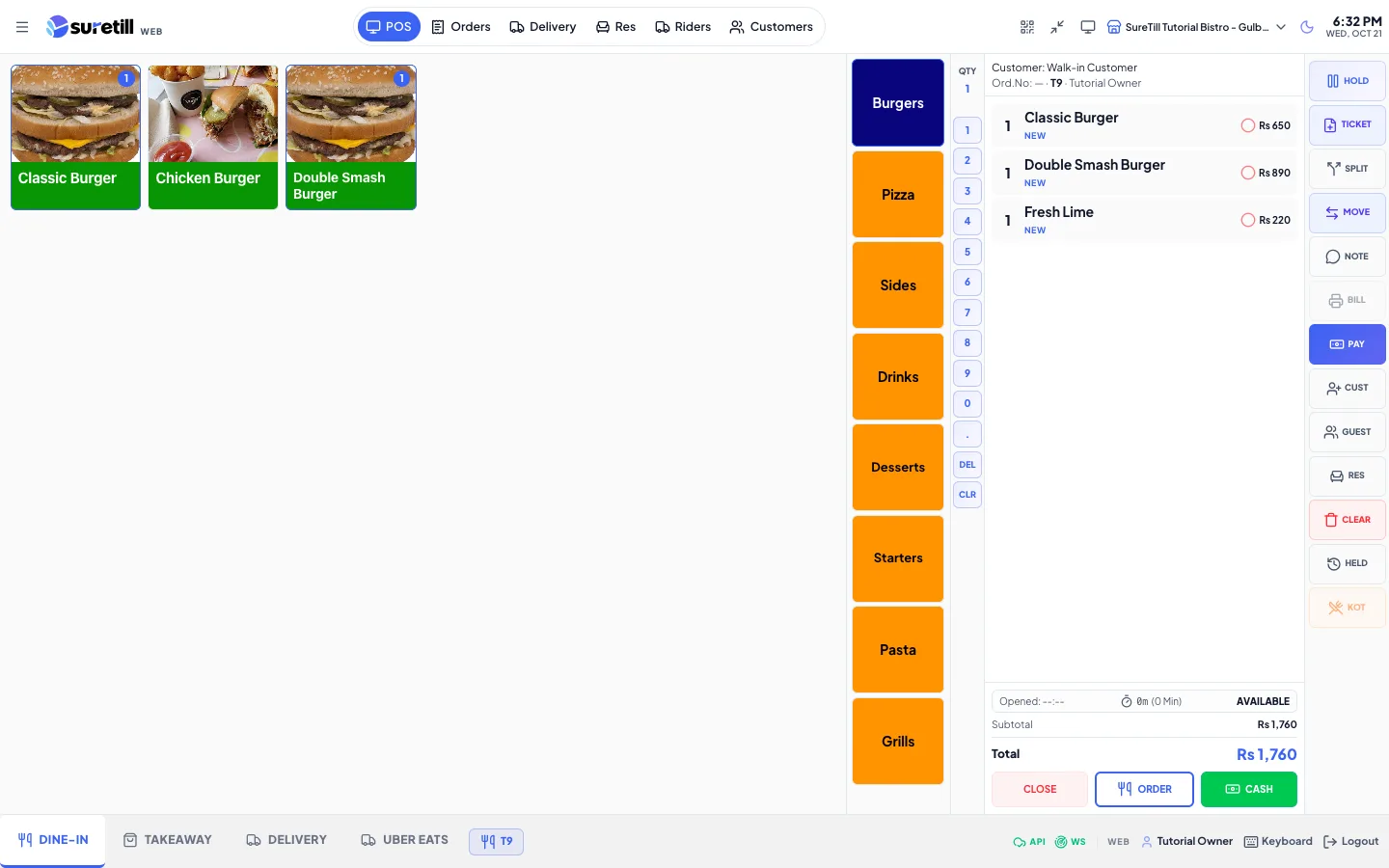
The POS terminal is the screen your cashiers and waiters use all day. It shows your menu as tiles, a cart for the current order, a column of action buttons, and a bottom bar with your departments. It runs in a browser, on tablets and phones, and in the SureTill desktop app.
This article is the map of the screen. The other POS articles go deeper: taking orders, payments and split bills, voids and refunds, offline mode, and the on-screen keyboard.
Step by step
Section titled “Step by step”Open a work period before you sell
Section titled “Open a work period before you sell”- Open Operations > POS Terminal.
- If you see the card “Work period required”, tap Open Work Period.
- In the “Open work period” window type the opening cash that is in the drawer and tap Open. The default is 0.
- You see a message with the opening cash. Tables, products, orders and payments are now unlocked.
Switch between Dine-In, Takeaway, Delivery and your own departments
Section titled “Switch between Dine-In, Takeaway, Delivery and your own departments”- Tap a department name in the bottom bar. On a phone the departments sit in a row under the top bar.
- If the department uses tables, the table grid appears. Tap a table to start or reopen its order.
- If the department has no tables, you see its open orders and a New Order tile.
Switch branch
Section titled “Switch branch”- Tap the branch name in the top bar (on a phone: the three-dot menu, then the branch).
- Choose the branch. The cart is emptied, the open order is closed on screen, and you land on the table grid of the new branch.
Show a second screen to the customer
Section titled “Show a second screen to the customer”The customer display shows the live cart, the total and the payment status to your customer while you serve them. It needs no extra licence. There are three ways to run it, and you can use more than one.
| Way | Use it when | What you do |
|---|---|---|
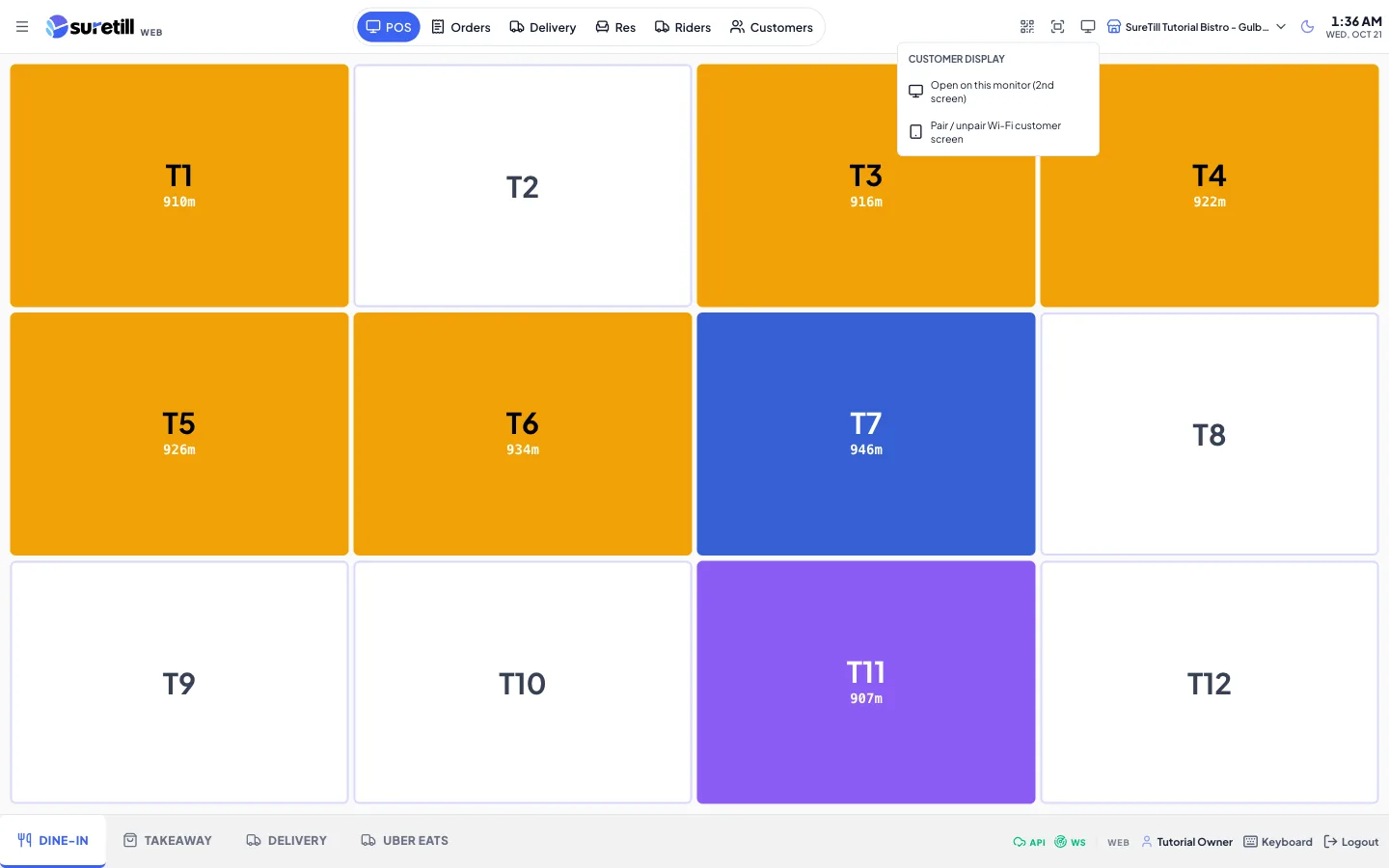
| Second monitor on the same computer (Windows app) | The counter PC has a second screen facing the customer. | Tap the customer display icon, then “Open on this monitor (2nd screen)”. The Windows app opens the display as its own window on the second monitor. |
| Second browser window on the same computer | You use SureTill in a browser and have a second monitor. | Same menu item. A new tab opens at /customer-display. Drag that tab onto the second monitor and press F11 for full screen. It must stay open in the same browser as the POS. |
| A separate tablet, phone or TV (Wi-Fi or internet) | The display is a different device from the POS: a tablet on a stand, or a phone, or a TV with a browser. This is also the way when the POS runs on the Android app, because the Android app cannot drive a second screen of its own. | On the other device open your SureTill address followed by /customer-display and tap “Connect over Wi-Fi”. It shows a pairing code. On the POS choose “Pair / unpair Wi-Fi customer screen”, type the code and tap Pair. |
Open it on a second monitor (same computer)
Section titled “Open it on a second monitor (same computer)”- Tap the customer display icon in the top bar (the monitor with a plus).
- Choose “Open on this monitor (2nd screen)”. The Windows app opens the display on the second monitor. A browser opens it in a new tab at /customer-display.
- In a browser, drag the new tab to the second monitor and press F11. Keep it open in the same browser as the POS.
Show it on a separate tablet, phone or TV
Section titled “Show it on a separate tablet, phone or TV”- On the customer-facing device open your SureTill address followed by /customer-display, for example https://app.suretill.com/customer-display.
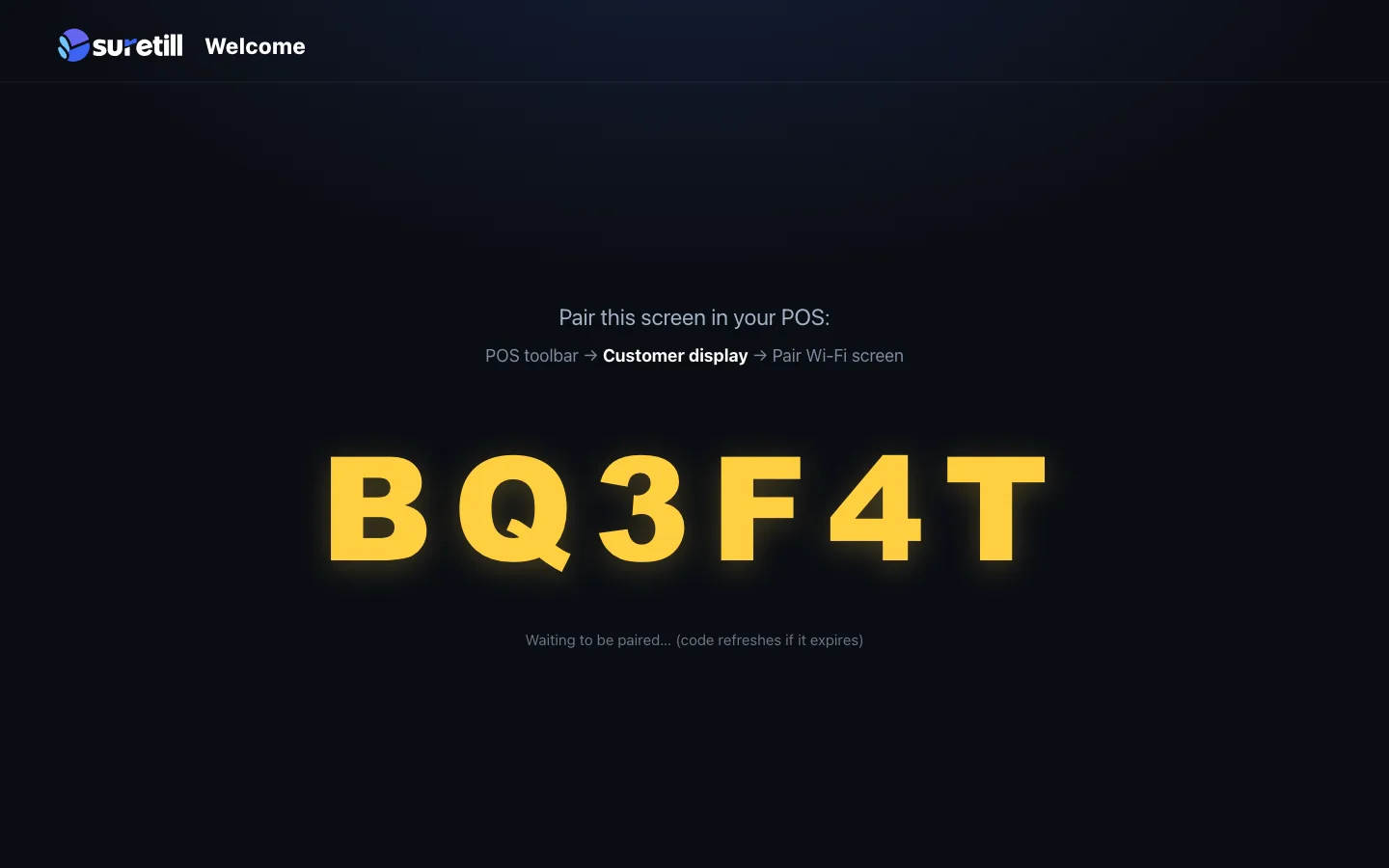
- Tap “Connect over Wi-Fi”. The screen shows a large pairing code and the text “Pair this screen in your POS”.
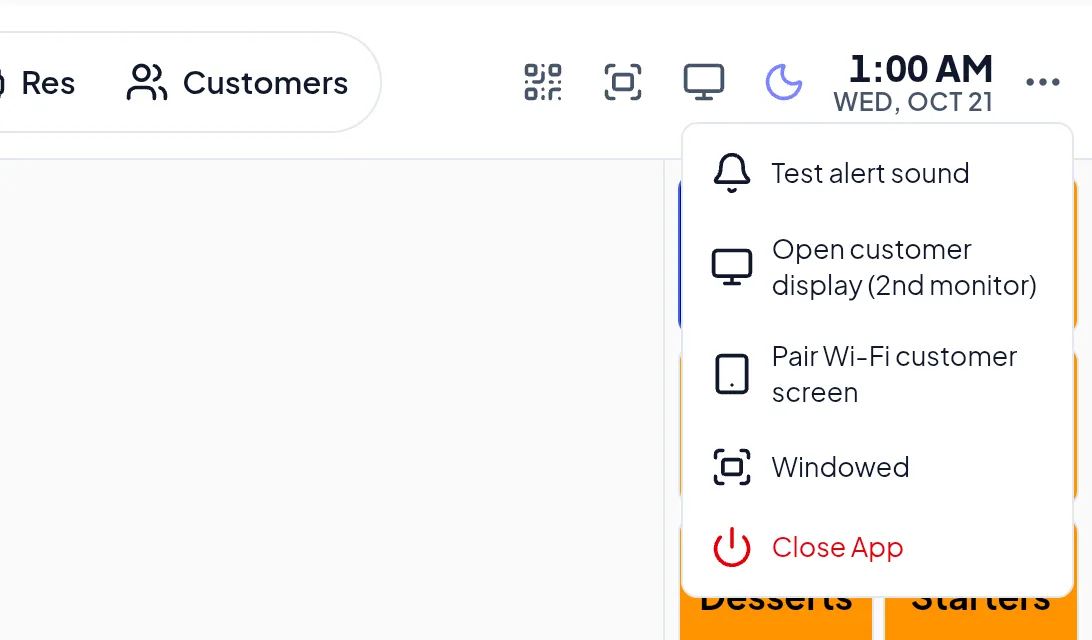
- On the POS tap the customer display icon and choose “Pair / unpair Wi-Fi customer screen”.
- Type the code into the “Pair Wi-Fi customer screen” window and tap Pair. The display starts following the cart.
- To disconnect later, choose the same menu item again and confirm.
Go full screen
Section titled “Go full screen”- Tap the fullscreen icon in the top bar, or press F on the keyboard (not while typing in a box). Do the same to leave full screen.
The screen at a glance
Section titled “The screen at a glance”| Area | What you see |
|---|---|
| Top bar | Menu button, logo and version, the module tabs, and the tools on the right (scanner, fullscreen, customer display, branch, dark mode, clock, more menu). |
| Department tabs | In the bottom bar on a computer or tablet, in a row under the top bar on a phone. One tab per department. |
| Category bar | Your menu categories, along the top of the products or in a column on the left. The position is set in Settings > Theme > Category Position. |
| Product tiles | One tile per product with picture, name and price. A tile shows how many are in the cart and has minus and plus buttons once you added it. |
| Qty pad | A narrow number column at the right of the products, on large screens only. It sets the quantity of the next product you tap. |
| Cart | The current order: customer, order number, table, who took it, the lines, totals, and the Close, Order and Cash buttons. |
| Action buttons | The column of small buttons to the right of the cart: Plus, Minus, Void, Del, Hold, Ticket, Split, Move, Note, Bill, Rider, Pay, Cust, Guest, Res, Clear, Held, KOT. |
| Bottom bar | Departments, table-type chips, the selected table, the connection status, the version, the logged-in user, the Keyboard button and Logout. |
Every setting explained
Section titled “Every setting explained”Top bar
Section titled “Top bar”| Setting | What it does |
|---|---|
| Menu button | On a computer it takes you back to the Launch Pad. On a phone it opens the side menu. |
| Logo and version | Shows your brand logo and the app version number. |
| POS tab | The selling screen: tables, products and cart. Not shown in the icon-only tab row on a phone. |
| Orders tab | A list of orders of the current work period with filters. See “Orders tab” in the taking orders article. A number badge shows how many orders there are. |
| Delivery tab | The open and completed delivery orders, with the rider on each. |
| Res tab | Table reservations. Not shown in the icon-only tab row on a phone. |
| Riders tab | Rider settlement. It only appears if your role has one of the settlement or rider permissions (settlements.view, settlements.process, delivery.view_settlement, delivery.process_settlement, delivery.assign_rider, pos.assign_rider and similar). |
| Customers tab | Search customers, see their account balance and history, collect money from them. |
| Camera scanner (QR icon) | Opens the camera so you can scan a barcode with a phone or tablet. |
| Fullscreen | Switches the whole page to full screen and back. |
| Customer display | A menu with “Open on this monitor (2nd screen)” and “Pair / unpair Wi-Fi customer screen”. |
| Barcode scanner icon | Only shown when the barcode scanner is switched on for the POS. Tap it to show or hide the “Type or scan barcode” bar. Blue and pulsing means looking up, green means found, red means not found. |
| Branch picker | Lists the branches you may use. Needs branches.change, branches.view or branches.update. |
| Dark / light mode | Switches the POS between a dark and a light look for this device. |
| Clock | Current time and date. |
| More menu (three dots) | Always on phones. On a computer it only shows in the desktop app. It holds: branch list and dark mode (phones), “Test alert sound”, “Open customer display (2nd monitor)”, “Pair Wi-Fi customer screen”, and in the desktop app “Full screen / Windowed” and “Close App”. |
Bottom bar
Section titled “Bottom bar”| Setting | What it does |
|---|---|
| Department tabs | Switch the order type. Each tab shows an icon and the department name. |
| Table-type chips | Appear for a custom department that shares more than one table pool (Dine-In, Takeaway, Delivery). Tap a chip to choose which pool of tables to show. |
| Selected table | A chip with the name of the table you are working on. Tap it to open the Move Table / Change Department window. |
| API and WS status | API shows if the server answers (green cloud, red if offline). WS shows the live connection used for the kitchen, print jobs and table colors. Hover for the exact state. |
| Version | The app version. |
| Update button | Only appears when a new desktop-app version is ready. Tap to download and install. It shows the download percentage, and “Retry” if it failed. |
| User name | The person logged in on this terminal. |
| Keyboard | Opens or closes the on-screen keyboard. See the keyboard article. |
| Logout | Signs this user out. |
Branch settings that change how the POS behaves
Section titled “Branch settings that change how the POS behaves”These are set per branch in Settings > Branches (edit a branch). The POS reads them when it loads.
| Setting | What it does |
|---|---|
| POS Mode: Table Service, Counter, Retail, Hybrid | Table Service and Hybrid make you pick a table for dine-in style orders. Counter and Retail never show tables. |
| POS Opens On: Tables grid or Menu and cart | The first screen after you sign in. |
| Business type (Restaurant, Cafe, Bakery, Supermarket, General Store, Hybrid) | Bakery, Supermarket and General Store hide the KOT button and the kitchen dot on cart lines. The Order button is named “Print” for a bakery and “Bill” for a supermarket or general store. |
| Features: KDS, Printers | KDS off stops orders going to the kitchen screen. Printers off stops automatic kitchen tickets and receipts. |
| KDS On Order | When on, placing an order sends it to the kitchen display. |
| KOT On Order | When on, placing an order prints the kitchen ticket. |
| Receipt On Pay | When on, a receipt prints after a payment. |
| Receipt On Quick Cash | When on, a receipt prints after the Cash button. |
| Open Drawer On Cash | When on, a cash payment opens the cash drawer through the print agent. A failure never blocks the payment. |
| Keep Order In Cart After Sending | When on, the order stays open on screen after you press Order, so you can press Cash straight away. Single-ticket orders only. |
| Auto-Settle After Payment | When on, the table or order is settled by itself about 1.5 seconds after it is fully paid. |
| Quick Cash | Shows or hides the green Cash button in the cart. |
| Bill Printed Color (Dine-In, Takeaway, Delivery) | When on for an order type, printing the bill turns that table “Bill Printed” (blue). |
| Takeaway/Delivery as Token | When on, placing a takeaway or delivery order prints the bill with a big token number instead of a kitchen ticket. |
| Require Manager PIN for Void After Bill Print | Voids after the bill was printed need a 6-digit manager PIN. See the voids article. |
| Offline Selling | Lets terminals keep selling while the server is unreachable. See the offline article. |
| Service charge percent and Delivery fee | Added to the cart automatically. They show as separate lines in the totals. |