

Action Buttons
Where: Settings > Action Buttons
Who can use it: Sidebar permission: settings.update or manage settings.
Open this page in SureTill
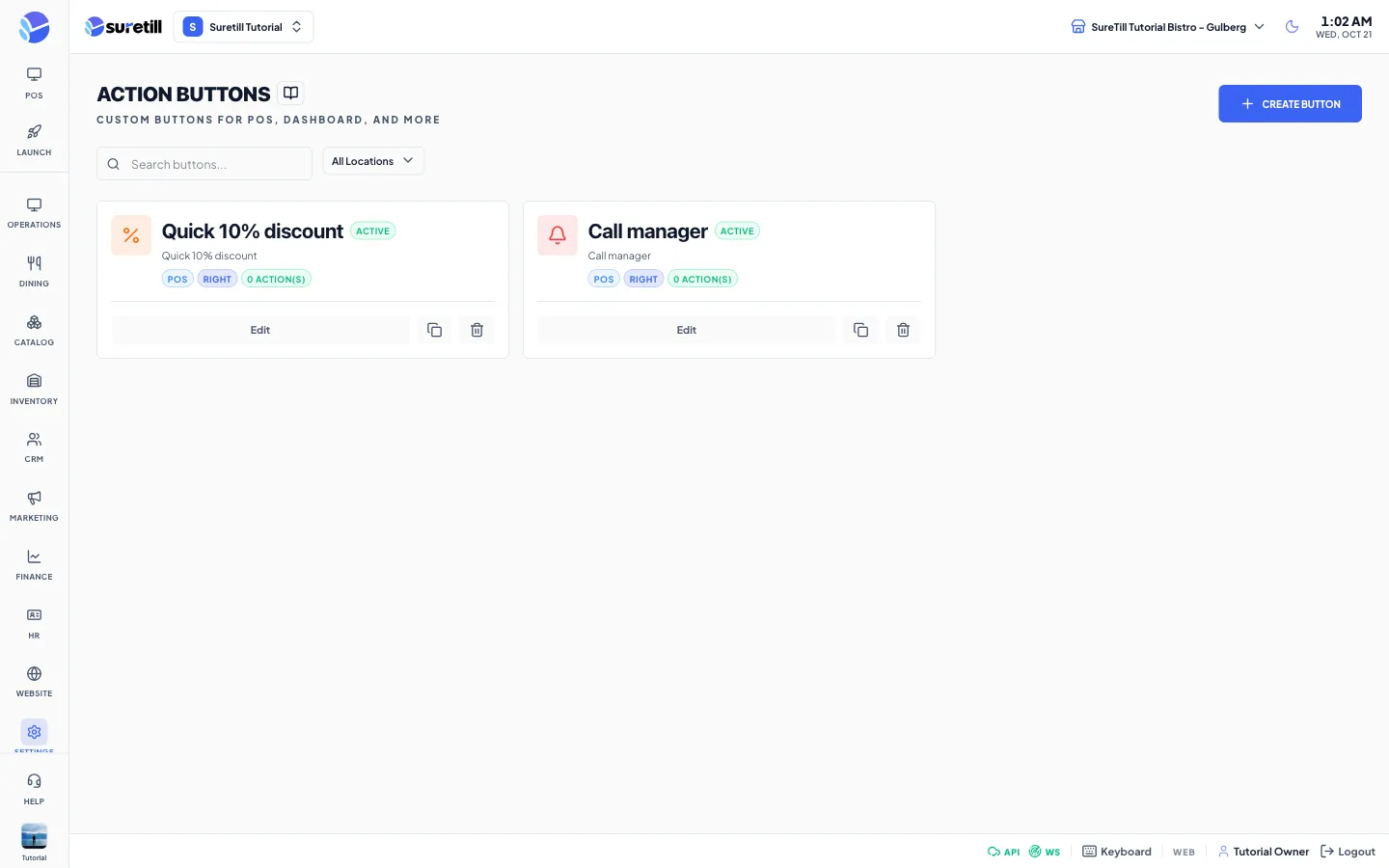
An action button is a button that you design here. It has a name, an icon and a color, a place where it should appear (location and position), optional conditions, and a list of actions that run when somebody presses it. The actions are the same ones that Automation rules use.
Step by step: create a button
Section titled “Step by step: create a button”- Open Settings > Action Buttons and click Create Button.
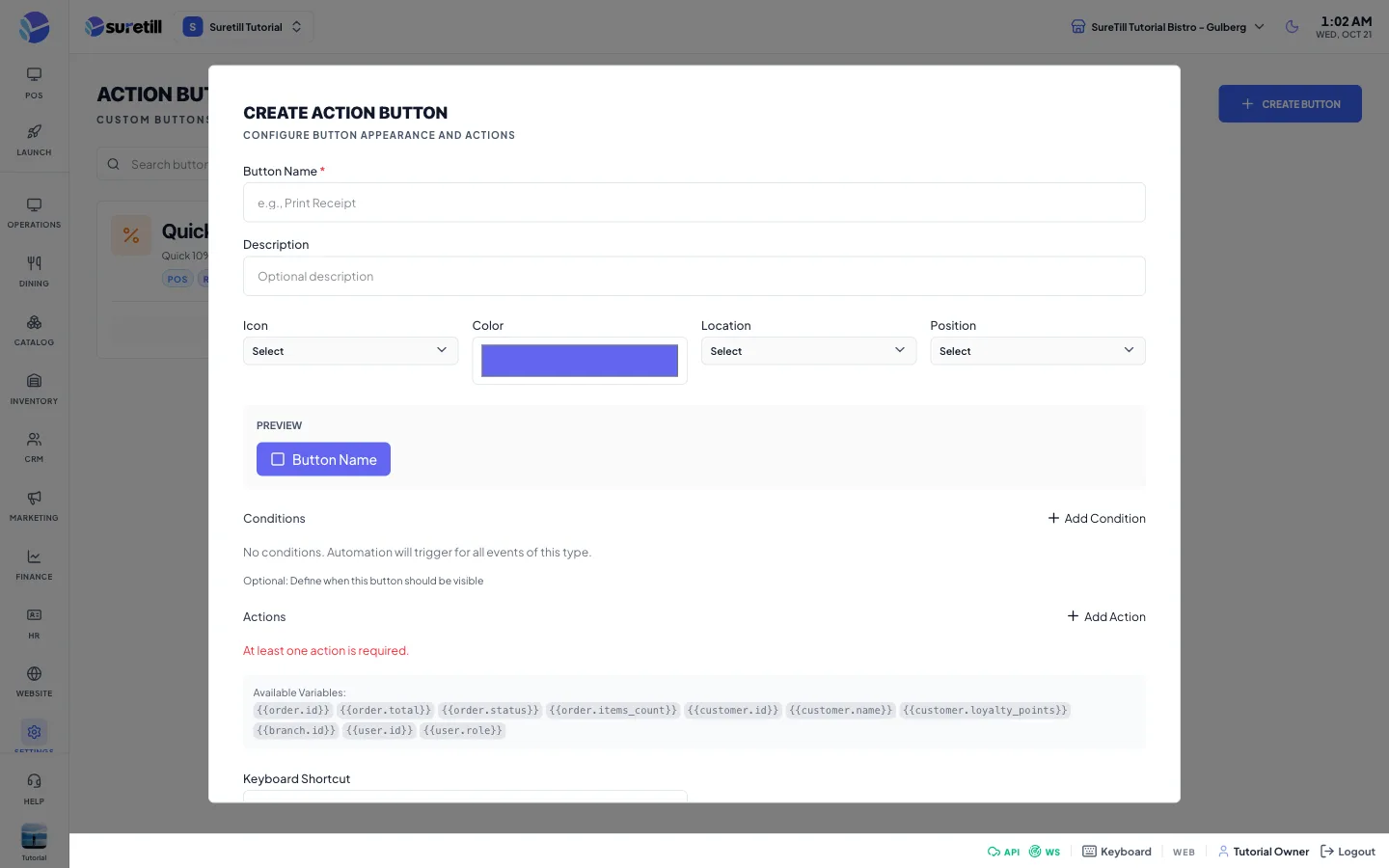
- Type the Button Name, for example Print Receipt. The Description is optional.
- Choose the Icon, the Color, the Location and the Position. The Preview shows how the button looks.
- Optionally add Conditions that decide when the button is visible.
- Add at least one action and fill in its fields.
- Optionally type a Keyboard Shortcut, for example Ctrl+P.
- Turn Require Confirmation on if the button should ask before it runs, and type the confirmation message.
- Keep Active on and click Create Button. The button stays disabled until a name and one action are set.
Step by step: copy, change or delete a button
Section titled “Step by step: copy, change or delete a button”- Edit: click Edit on the card, change the fields and click Update Button.
- Copy: click the copy icon on the card.
- Delete: click the bin icon and confirm.
Every setting explained
Section titled “Every setting explained”| Setting | What it does |
|---|---|
| Search box | Filters the cards by name. |
| Location filter | Shows only the buttons for one location. |
| Button Name | Required. Up to 255 characters. |
| Description | Optional. |
| Icon | A list of icon names. Default: smart_button. |
| Color | A color picker. Default: #6366f1. |
| Location | POS Screen, POS Toolbar, POS Sidebar, Order Detail, Customer Detail, Product Detail, Dashboard, Inventory, Reports or Global (All Pages). Default: POS Screen. |
| Position | Toolbar, Sidebar, Floating Button, Context Menu, Page Header or Page Footer. Default: Toolbar. |
| Preview | A sample of the button with the icon, color and name. |
| Conditions | Optional. Decide when the button is visible. The fields you can use are order.id, order.total, order.status, order.items_count, customer.id, customer.name, customer.loyalty_points, branch.id, user.id and user.role. Operators are the same as in Automation. |
| Actions | At least one is required. Notification, email, SMS, loyalty points, discount, draft purchase order, entity update, webhook and activity log are available. See Automation for their fields. |
| Keyboard Shortcut | Free text up to 20 characters. Shown on the card as Shortcut. |
| Active | Switch. Default: on. |
| Require Confirmation | Switch. Default: off. When on, a text box for the confirmation message appears (up to 500 characters). |
| Card badges | Active or Inactive, the location, the position and the number of actions. |