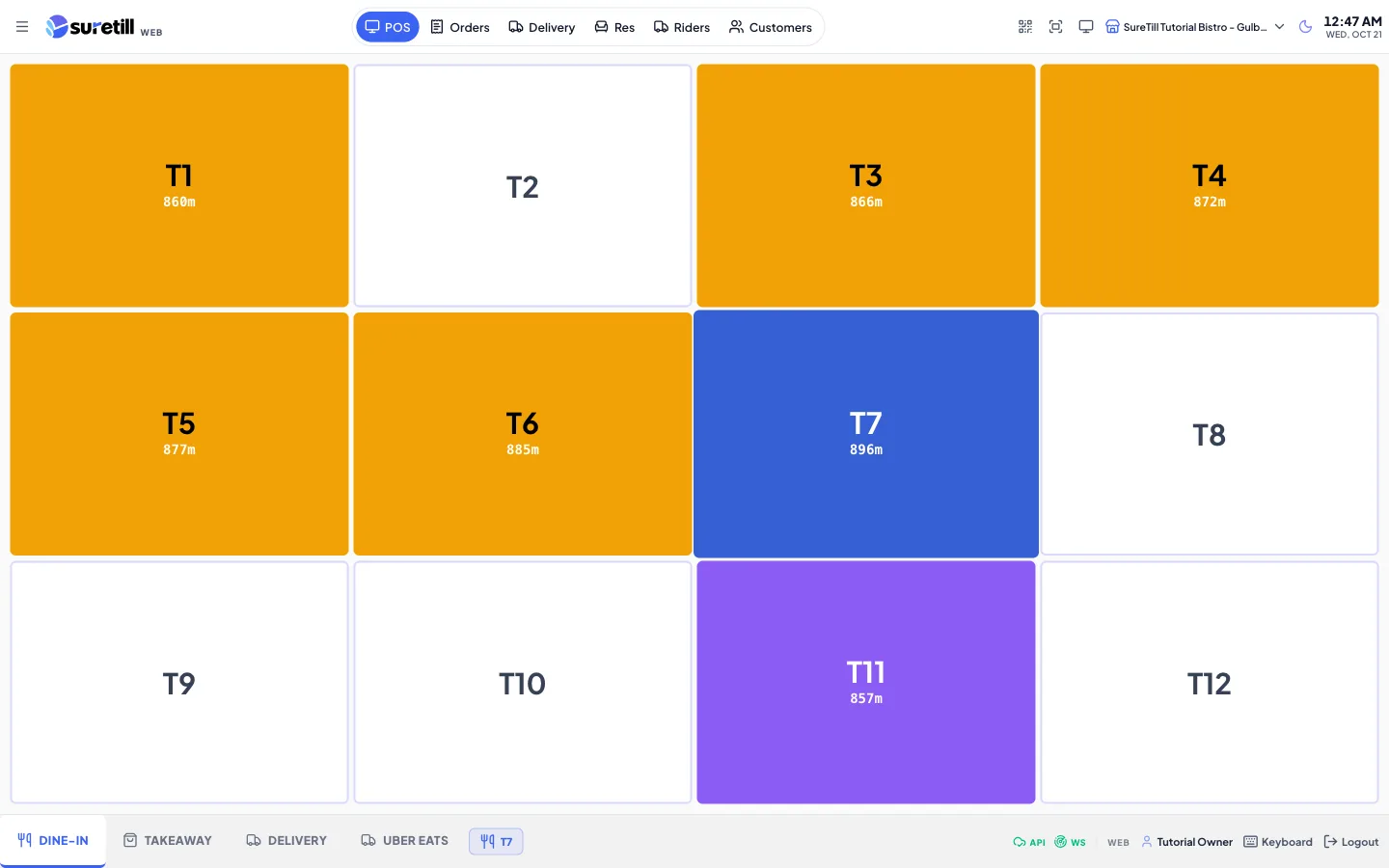
Where: Operations > POS Terminal Who can use it: Pay needs pos.cash_payment, pos.card_payment or pos.settle_order. The green Cash button needs pos.cash_payment and the Quick Cash branch setting. Discounts need pos.apply_discount. Open drawer needs pos.open_drawer or pos.no_sale. Split needs pos.split_order or pos.split_bill. An open work period is required. Open this page in SureTill
Watch it: open the table, press PAY, check the amount and Complete (20 seconds).
A payment always belongs to an order. The POS sends the order to the server first if it is not saved yet, then records the payment. How much is paid and how much is still owed is always worked out from the completed payments on the server, not from a number on the screen, so a payment can never be counted twice.
With the order in the cart, tap Cash in the cart footer.
Read the “Confirm Cash Payment” window (“This will immediately process a cash payment for the full order amount”) and tap “Yes, Cash”. Cancel closes it.
The order is saved if needed and the full remaining balance is paid in cash. A receipt prints if “Receipt On Quick Cash” is on, and the drawer opens if “Open Drawer On Cash” is on.
Tap Pay in the button column. The Payment screen opens.
Check the order items and totals in the left column.
Type the amount the customer gave on the number pad, or tap a quick amount: the exact balance (top button), 1, 5, 10, 20, 50 or 100, or All, Balance or Round.
The “Charged” box shows the amount and underneath either “Change”, “Short” or “Exact”.
Tap the payment method (for example Cash). A “Confirm Payment” window shows the amount, the method and the “Remaining after”.
Tap Confirm. If you typed more than the balance, only the balance is recorded and the extra is your change.
On the Payment screen tap Split Pay. The Split Payment window opens with two rows.
On each row choose a Payment Method and type an Amount. The button “= amount” on a row fills what is left.
Tap + Add Method for more rows. The bin removes a row (you always keep at least two). “÷ Split Equally” shares the total evenly.
The “Split Total” turns green when it matches the amount shown above it. On an order that is already part paid the window says “Remaining Balance” and you split only what is still owed. Tap Process Split Payment.
A pricing error on the last item blocks every payment until you fix the item.
A bill-printed (locked) ticket must be paid in full. Part payments are refused with “Ticket is locked”.
An order that is already paid shows “Order already paid. Click Settle to close.”
The Complete button refuses an amount lower than the balance and tells you to enter the full amount or use Split Pay.
If the connection drops while a payment is sent, the POS checks the order before it tells you what happened: either “Payment confirmed (recovered after network hiccup)” or “Network error - payment NOT confirmed. Check the order before retrying.”
Puts that amount into Charged. The top button is the exact balance.
Disc % shortcuts
In discount mode: 5, 10, 15, 20, 25 and 50 percent. Tapping the selected one clears it.
Fixed shortcuts
In fixed discount mode: 10, 20, 50, 100, 200 and 500.
Charged
The amount you are about to take. In discount mode it shows the discount instead.
Number pad
Digits, a decimal point, DEL and Clear.
Disc % / Disc Fixed
Switch the pad to discount entry. Needs pos.apply_discount. See the discounts article.
Round
Puts the total rounded up to the next ten into Charged.
Print Bill
Prints the bill from the Payment screen. A failed print shows an error that stays on screen until you close it.
All / Balance
Put the full remaining balance into Charged.
N (people) and ÷ N = Split
Shares the balance equally and puts one share into Charged.
Pay With list
One button per active payment method of the branch. Tapping one opens “Confirm Payment” for the typed amount.
On Account
Charges the customer account. Needs an Account customer.
Split Pay
Opens the Split Payment window.
Complete
Pays the whole balance of every unpaid ticket on the table with the highlighted method. Cash is highlighted at first. When you tap another method in the Pay With list, that method stays highlighted and Complete uses it.
Open drawer
Pulses the cash drawer. Needs pos.open_drawer or pos.no_sale.