

General Settings overview
Where: Settings > General Settings
Who can use it: Sidebar permission: settings.view or manage settings. No plan or add-on is needed.
Open this page in SureTill
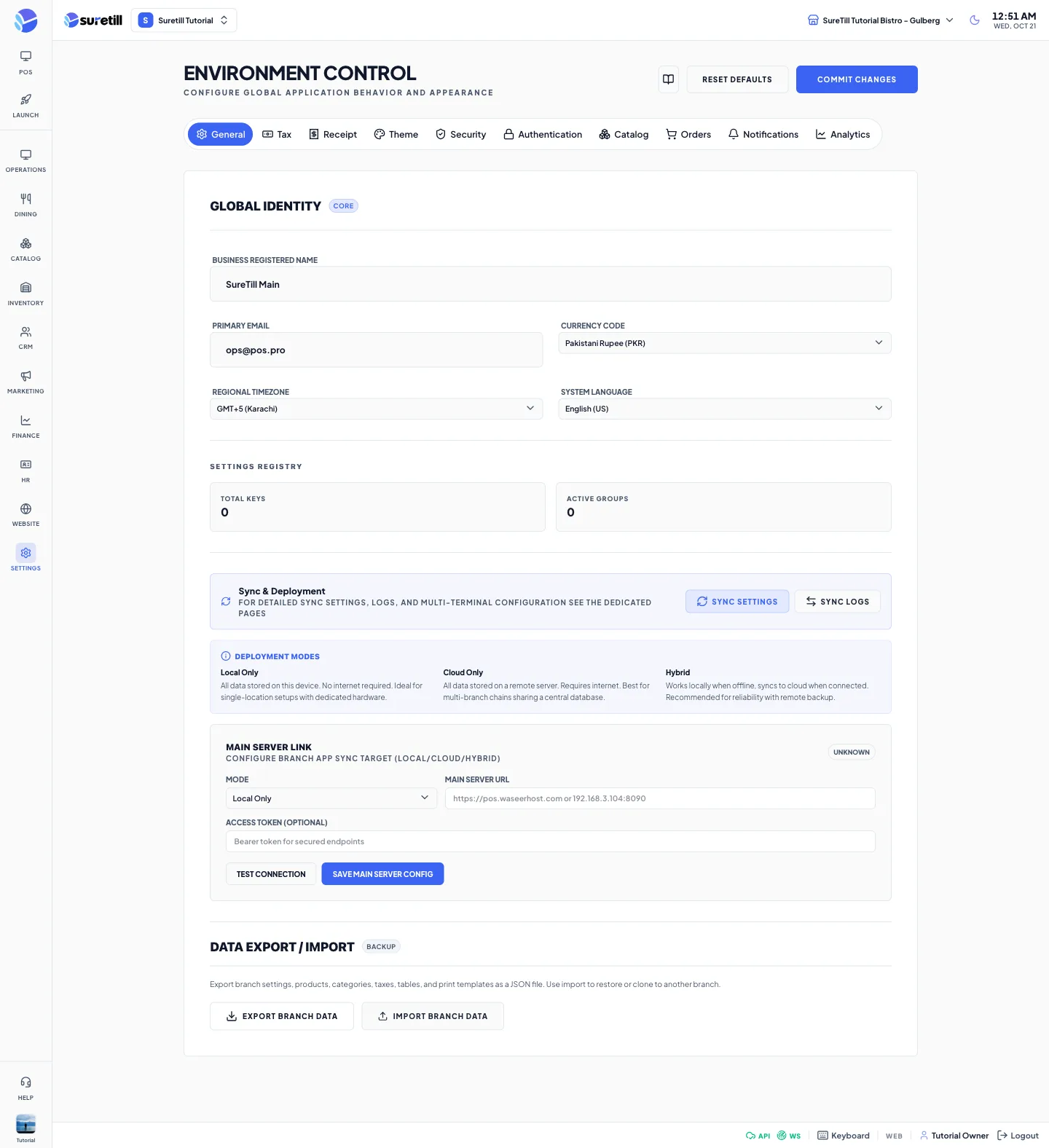
General Settings is titled Environment Control on the screen. Everything that applies to the whole business is set here, one tab at a time. This article explains how the page works. Each tab has its own article.
How the page works
Section titled “How the page works”- The ten tabs are General, Tax, Receipt, Theme, Security, Authentication, Catalog, Orders, Notifications and Analytics.
- The two buttons at the top right are Reset Defaults and Commit Changes.
- Commit Changes saves the General, Tax, Receipt, Authentication, Orders, Notifications and Analytics tabs, the currency list and the Theme in one go. You can edit several tabs and press Commit Changes once.
- A few actions save at once and do not wait for Commit Changes: turning two-factor authentication on or off, adding or deleting Catalog items, saving the Main Server link, and exporting or importing branch data.
- Colors, fonts and sizes on the Theme tab change on screen as soon as you pick them. They are stored when you press Commit Changes.
Settings belong to a branch
Section titled “Settings belong to a branch”The values you save are stored for the branch that is selected in the top bar when you press Commit Changes. Switch the branch in the top bar to see or change another branch’s values. A POS terminal reads the branch’s own value first and falls back to the shared value if the branch has none.
Step by step: change a setting
Section titled “Step by step: change a setting”- Open Settings > General Settings.
- Pick the branch you want in the top bar.
- Click the tab you need, for example Orders.
- Change the fields.
- Click Commit Changes at the top right. A message Settings Saved confirms it.
Currency and time zone
Section titled “Currency and time zone”| Item | How it works |
|---|---|
| Business currency | Set on the General tab, field Currency Code. The list comes from the currencies of your system. When you commit, the chosen currency is marked as the default currency and the exchange rates of all currencies are saved. Every screen then shows amounts in this currency. |
| Branch currency | Set per branch on the Branches page. The server uses the branch currency symbol in messages and on printed lines. If a branch has no currency, the default currency is used. |
| Branch time zone | Set per branch on the Branches page, from a list of all time zones the browser knows. The server uses it to decide whether a branch is open right now, using the branch operating hours. |
| Regional Timezone (General tab) | A simple list with three choices that is saved with the general settings. It does not replace the branch time zone. On SureTill cloud the business clock shown on screens follows the time zone of the restaurant account. |
Every tab at a glance
Section titled “Every tab at a glance”| Tab | What is on it |
|---|---|
| General | Business name, email, currency, regional time zone, language, the Main Server link and branch data export or import. See General settings. |
| Tax | GST or NTN number, tax inclusive pricing, default tax rate and service charge. See Tax settings. |
| Receipt | Header note, footer note, logo and large order number. See Receipt settings. |
| Theme | Colors, fonts, radius, density, product cards, table cards and industry presets. See Theme settings. |
| Security | Two-factor authentication for your own account. See Security settings. |
| Authentication | Social login, one-time password login and customer verification before an order. See Authentication settings. |
| Catalog | Allergens, product tags and custom fields lists. See Catalog settings. |
| Orders | Preparation time, scheduling, delivery fee, minimum order, auto-accept, delivery and pickup. See Orders settings. |
| Notifications | Email sender, SMTP fields and which events notify you. See Notifications settings. |
| Analytics | Google Analytics ID, Facebook Pixel ID and SEO meta tags. See Analytics settings. |
Every setting explained
Section titled “Every setting explained”| Setting | What it does |
|---|---|
| Discard Changes | Asks you to confirm, then reloads the page so every tab shows the values that are saved on the server again. It throws away edits you have not saved and never changes a stored value. To go back to an older value, type it again and press Commit Changes. |
| Commit Changes | Saves all tabs listed above together and shows the message Settings Saved. A full-screen message Synchronizing Global Config appears while it saves. |
| Tabs | Switching tabs does not save or lose your edits. Your unsaved edits stay in memory until you reload the page. |
| Page guide button | Opens the built-in help for the page. |