Skip to content

Report Templates

Where: Finance > Report Templates
Who can use it: Permission: reports.view or view reports. Writing or running a custom SQL query is only for the owner or a super admin, and only on an on-premise server.
Open this page in SureTill

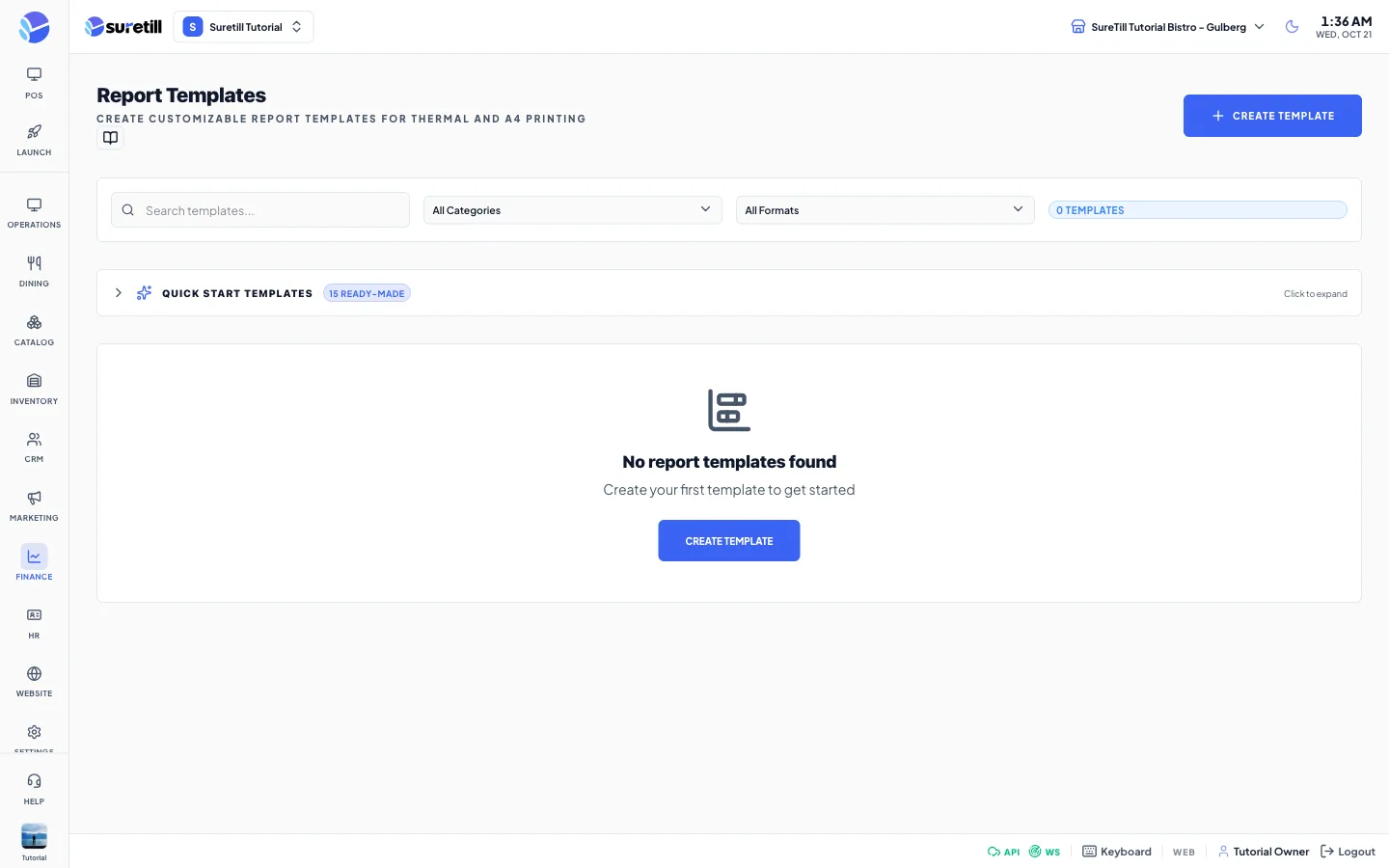
The Report Templates page with filters, the Quick Start Templates bar and template cards grouped by category

A template is a saved report. It holds a query that reads your data, the parameters the person running it can fill (for example a date), the columns to show, the totals row, the header and footer, and the output format. Saved templates also appear in the Reports page with a tpl tag.

The query runs straight on the database of the restaurant. Only SELECT queries are allowed. Words such as INSERT, UPDATE, DELETE, DROP, ALTER, CREATE, SLEEP and the INFORMATION_SCHEMA tables are blocked, and a second query after a semicolon is blocked.

  1. Open Finance > Report Templates.
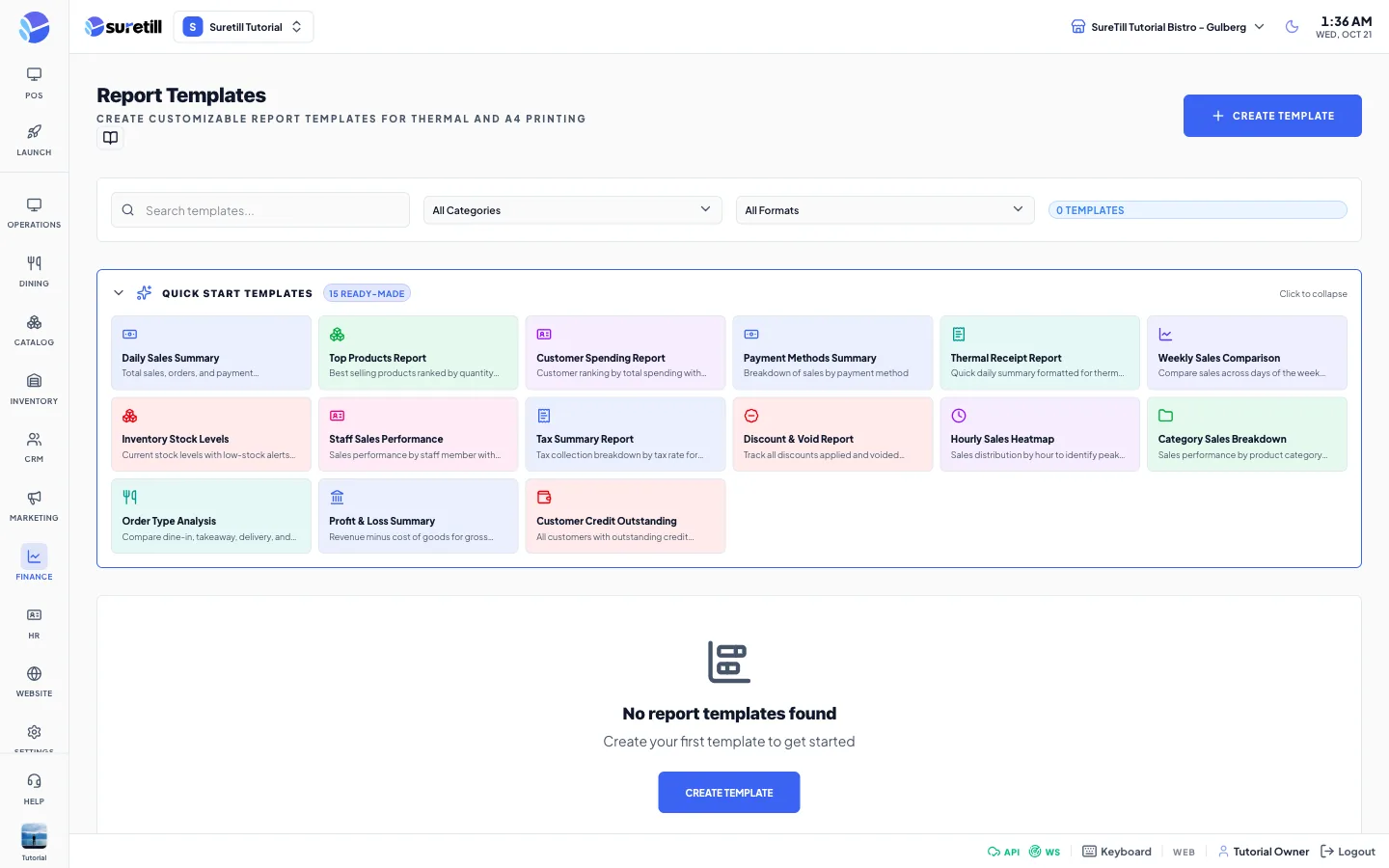
  2. Click the Quick Start Templates bar to open it.
  3. Click a card, for example Daily Sales Summary. The editor opens with everything filled in.
  4. Change what you need on the five tabs and click Save Template.
The quick start templates window on the Report Templates page
Quick Start Templates: the window that opens.
  1. Click Create Template.
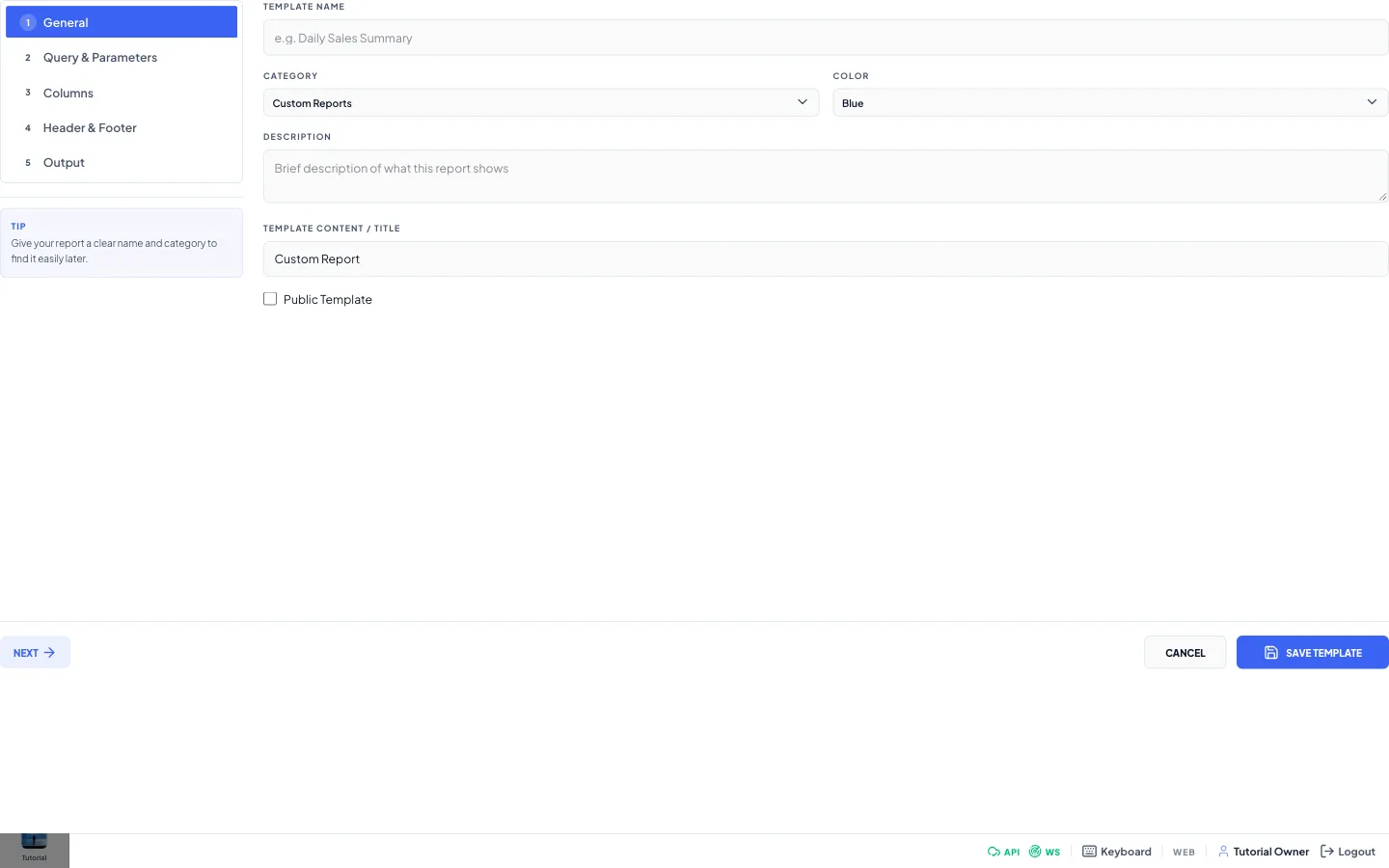
  2. General tab: type a Template Name, pick a Category and a Color, write a Description. Click Next.
  3. Query & Parameters tab: write the SQL query. Use :name for a value the user will type. Click Add Parameter for each one and fill name, label, type and default.
  4. Columns tab: click Add Column for each column. The field must match a column name returned by the query.
  5. Header & Footer tab: set the title and what is printed.
  6. Output tab: choose the format and the paper size.
  7. Click Save Template. At least one column is needed for the Table View and Thermal Receipt formats.

The create template window on the Report Templates page
Create Template: the window that opens.
  1. Click Run on the template card. A window opens with the parameters.
  2. Fill the parameters (date fields have a date picker) and click Generate Report.
  3. Read the results table. Use PDF or CSV to export it.

The Generate Report button is always shown in the Run window, also for a template without parameters.

  1. Duplicate (copy icon) makes a copy named with (Copy) at the end. The copy is private.
  2. The download icon exports a CSV with the parameters last used in the Run window.
  3. The trash icon asks for confirmation and then deletes the template.
Setting What it does
Search templates Filters by name or description.
All Categories Filters by category.
All Formats Filters by output format.
Template counter The number of templates after filters.
Quick Start Templates A closed bar. Click to open 15 ready-made templates: Daily Sales Summary, Top Products Report, Customer Spending Report, Payment Methods Summary, Thermal Receipt Report, Weekly Sales Comparison, Inventory Stock Levels, Staff Sales Performance, Tax Summary Report, Discount & Void Report, Hourly Sales Heatmap, Category Sales Breakdown, Order Type Analysis, Profit & Loss Summary, Customer Credit Outstanding.
Category groups Templates are grouped by category. Click the group name to fold it.
Card Shows the output format and, for thermal paper, the width. Also the name, the description and the parameter labels.
Run / Edit Open the Run window or the editor.
Setting What it does
Template Name Required. The name shown in lists.
Category Sales Reports, Financial Reports, Inventory Reports, Staff Reports, Customer Reports, Shift Reports or Custom Reports.
Color Blue, Green, Purple, Orange, Teal, Indigo, Red or Pink. Colors the card icon.
Description A short text for the card.
Template Content / Title Required text. New templates start with Custom Report.
Public Template Marks the template as public. Default off.
Setting What it does
SQL Query The SELECT query in MySQL syntax. Use :parameter_name for values.
Field reference panel Lists fields of Orders, Order Items, Products, Customers, Payments and Categories. Click a field to put it into the query at the cursor.
Parameter name The name used in the query after the colon, for example date.
Parameter label The text shown to the person running the report.
Parameter type Text, Date, Number or Select.
Parameter default No Default, Today, Month Start or Week Start. Used to fill dates.
Setting What it does
Field The column name returned by the query.
Header The heading shown in the report.
Align Left, Center or Right.
Format Text, Number, Currency, Percentage or Date.
Width Optional width. Empty means auto.
Show Totals Row Adds a total row.
Fields to Total Click the Number and Currency columns you want to add up.
Setting What it does
Report Title The title printed at the top.
Show Logo Prints the logo.
Show Branch Name Prints the branch name.
Show Date Range Prints the dates.
Show Generated Date Prints when the report was made.
Show Generated By Prints the user name.
Custom Footer Text Free text at the bottom.
Setting What it does
Output Format Table View, Thermal Receipt, PDF Document or Chart/Graph.
Paper Size Thermal (58/80mm), A4, A5, Letter or Legal.
Orientation Portrait or Landscape.
Thermal Paper Width 58mm or 80mm. Shown only for thermal output.