

Tax settings
Where: Settings > General Settings > Tax
Who can use it: Sidebar permission: settings.view or manage settings. No plan or add-on is needed.
Open this page in SureTill
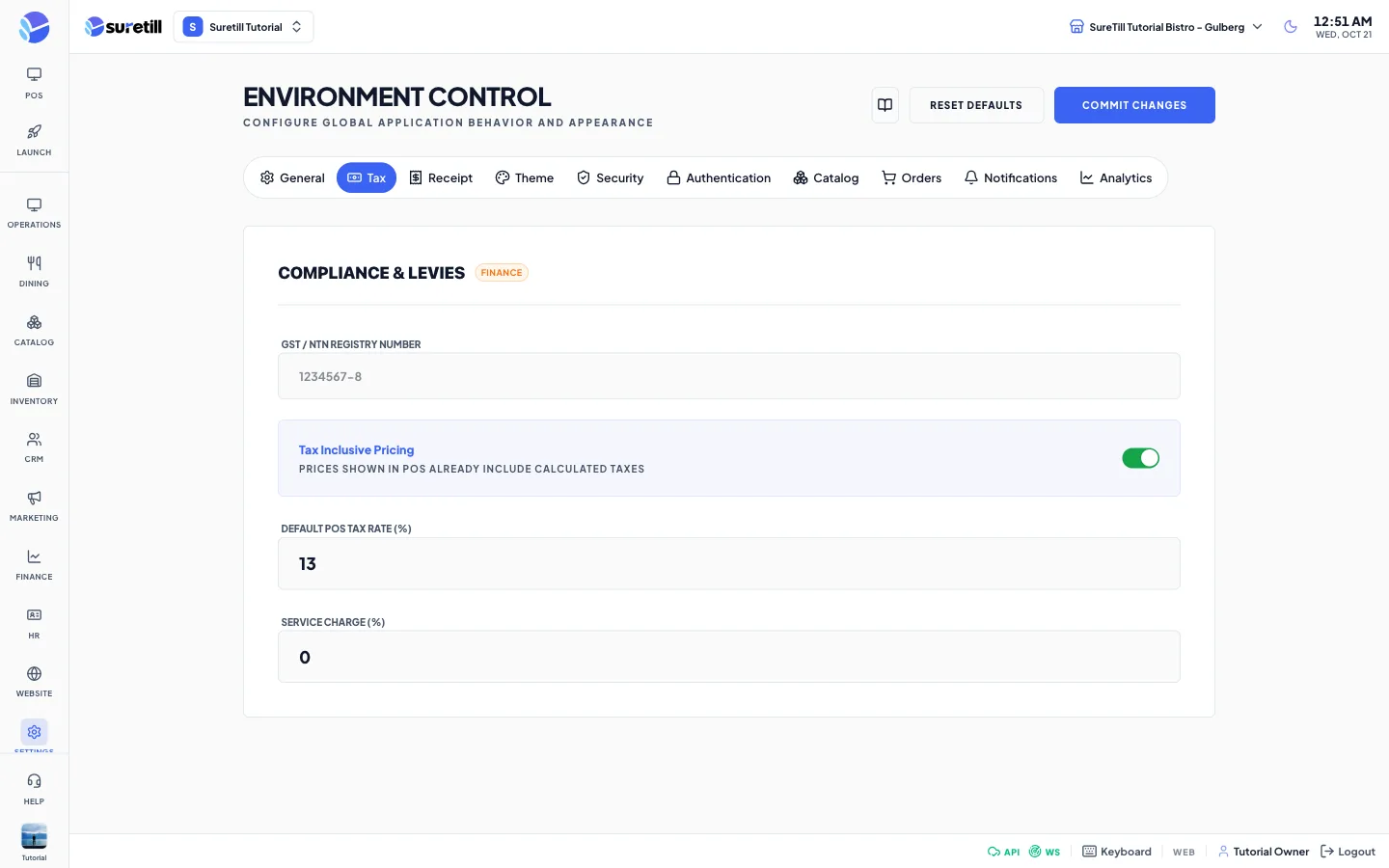
The Tax tab is titled Compliance and Levies. It saves four values in the tax group of the settings. They are stored with your settings, but the POS does not read them: the POS takes its tax from the Taxes page and the branch override, as explained below.
Step by step: save the tax values
Section titled “Step by step: save the tax values”- Open Settings > General Settings and click the Tax tab.
- Type the GST / NTN Registry Number.
- Turn Tax Inclusive Pricing on or off.
- Type the Default POS Tax Rate and the Service Charge as percentages.
- Click Commit Changes.
Every setting explained
Section titled “Every setting explained”| Setting | What it does |
|---|---|
| GST / NTN Registry Number | Your tax registration number. Free text. The field shows the example 1234567-8. |
| Tax Inclusive Pricing | Switch. The description says that prices shown in the POS already include the calculated taxes. Default: on. |
| Default POS Tax Rate (%) | A number. Default: 13. |
| Service Charge (%) | A number. Default: 0. |
Where the POS gets its tax and service charge
Section titled “Where the POS gets its tax and service charge”A POS terminal calculates tax from the tax rates that are marked for the POS on the Taxes page. A branch can override the tax rate, tax inclusive and service charge with the Local Settings Override on its Branch Configuration page. Dine-in orders add the branch service charge percent.