

Users (sign-in accounts)
Where: HR > Users
Who can use it: Menu: users.view or manage users. The server uses users.create, users.update and users.delete for changes. Owners, admins and super-admins can do everything. This page is also available on SureScreen (menu board only) plans. On cloud plans the number of accounts is limited, see ‘Staff limits by plan’.
Open this page in SureTill
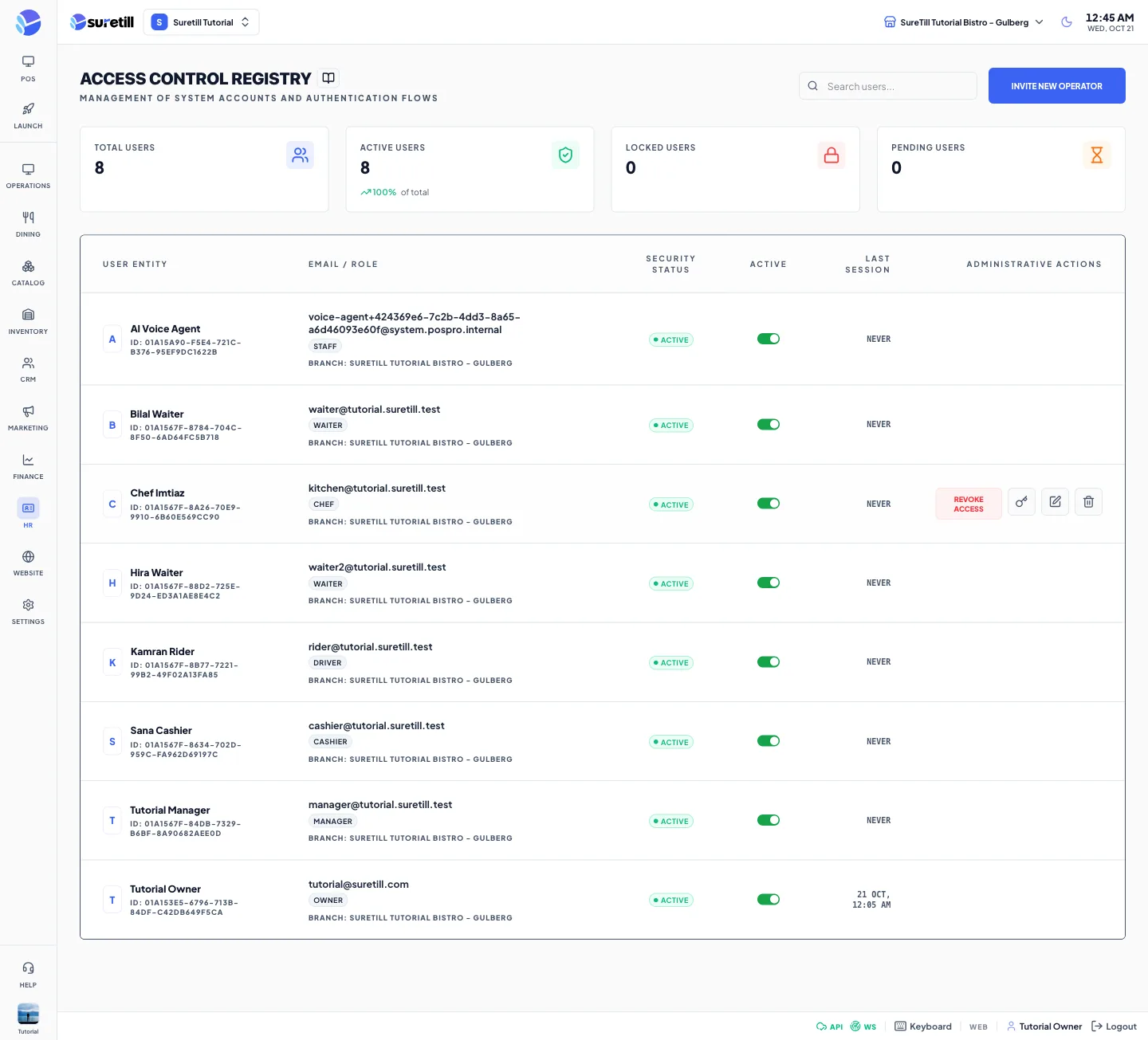
The page is called Access Control Registry. Every person who signs in has one account here: an email and password for the admin, and an optional 6-digit PIN for the POS terminal. Each account has a role, a main branch, and a list of other branches it may use.
The list shows the accounts of the branch selected at the top of the admin (the accounts whose main branch is that branch), up to 100 of them. Without a selected branch it shows everyone, but you cannot save anything until you pick a branch.
Step by step
Section titled “Step by step”Invite a new operator
Section titled “Invite a new operator”- Select the branch at the top of the admin. The new account gets this branch as its main branch.
- Click Invite New Operator.
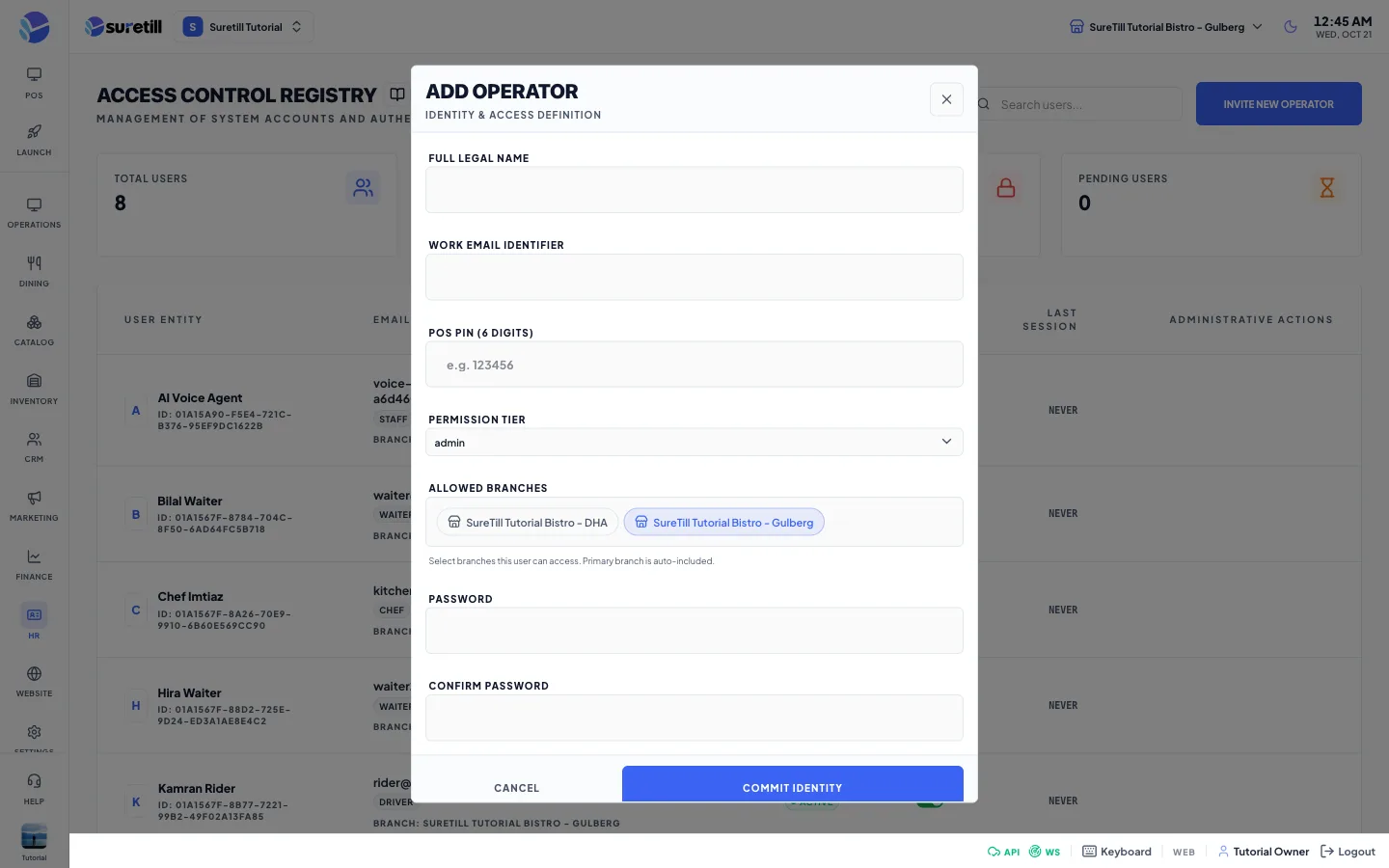
- Type the Full Legal Name and the Work Email Identifier. The email must be new.
- Optionally type a POS PIN of exactly 6 digits.
- Choose the Permission Tier, which is the role.
- Tick the Allowed Branches. The main branch is always included.
- Type the Password twice. It needs at least 8 characters with upper and lower case letters, a number and a symbol, and it must not be in known data leaks.
- Click Commit Identity. The account is created Active.
Edit an account
Section titled “Edit an account”- Hover over the row and click the pencil icon.
- Change the name, email, PIN, role or allowed branches. Leave the PIN empty to keep the current one; the current PIN is never shown.
- Click Commit Identity.
Reset a password
Section titled “Reset a password”- Hover over the row and click the key icon.
- Type the New Password twice and click Reset Password. The same password rules apply.
Turn access off and on
Section titled “Turn access off and on”- Click Revoke Access on the row, or use the Active switch. The status becomes Locked (suspended).
- Click Restore, or use the switch again, to make the account Active.
Delete an account
Section titled “Delete an account”- Hover over the row and click the bin icon.
- Confirm the question. The account disappears from the lists and stops counting toward your plan limit.
How people sign in
Section titled “How people sign in”- Email and password: five wrong passwords for the same email lock sign-in for 30 minutes.
- POS PIN: the person must be active and must belong to the branch of the terminal (main branch or an allowed branch). Five wrong PINs lock that terminal for 15 minutes.
- An account that is not Active gets the message that the account is not active.
- The Last session column is updated at every successful sign-in, by password or by PIN.
Every setting explained
Section titled “Every setting explained”| Setting | What it does |
|---|---|
| Search users | Filters the loaded list by name, email, role or ID. |
| Total Users, Active Users, Locked Users, Pending Users | Counters for the loaded list. Active is status active, Locked is suspended and Pending is any other status such as inactive. Active Users also shows the percentage of the total. |
| User Entity | First letter, name and the account ID. |
| Email / Role | Email, the first role as a badge and the main branch name (Unassigned if none). |
| Security Status | Active, Locked or Pending. |
| Active switch | On for Active. Switching sets the status to suspended or active. |
| Last session | Date and time of the last sign-in, or Never. |
| Revoke Access and Restore | Same as the switch, as a button. |
| Key, pencil and bin icons | Reset password, edit and delete. They appear when you hover over the row. |
| Full Legal Name and Work Email Identifier | Name and login email. |
| POS PIN (6 Digits) | Digits only, exactly 6. Stored in a protected form. |
| Permission Tier | The list of all roles. Custom roles you made on the Roles page are in this list. |
| Allowed Branches | Check boxes for every branch. They decide which branches the person can open. The main branch is added automatically. |
| Password and Confirm Password | Only when inviting. |