

Reports
Where: Finance > Reports
Who can use it: Permission: reports.view or view reports. Not shown on SureScreen-only plans.
Open this page in SureTill
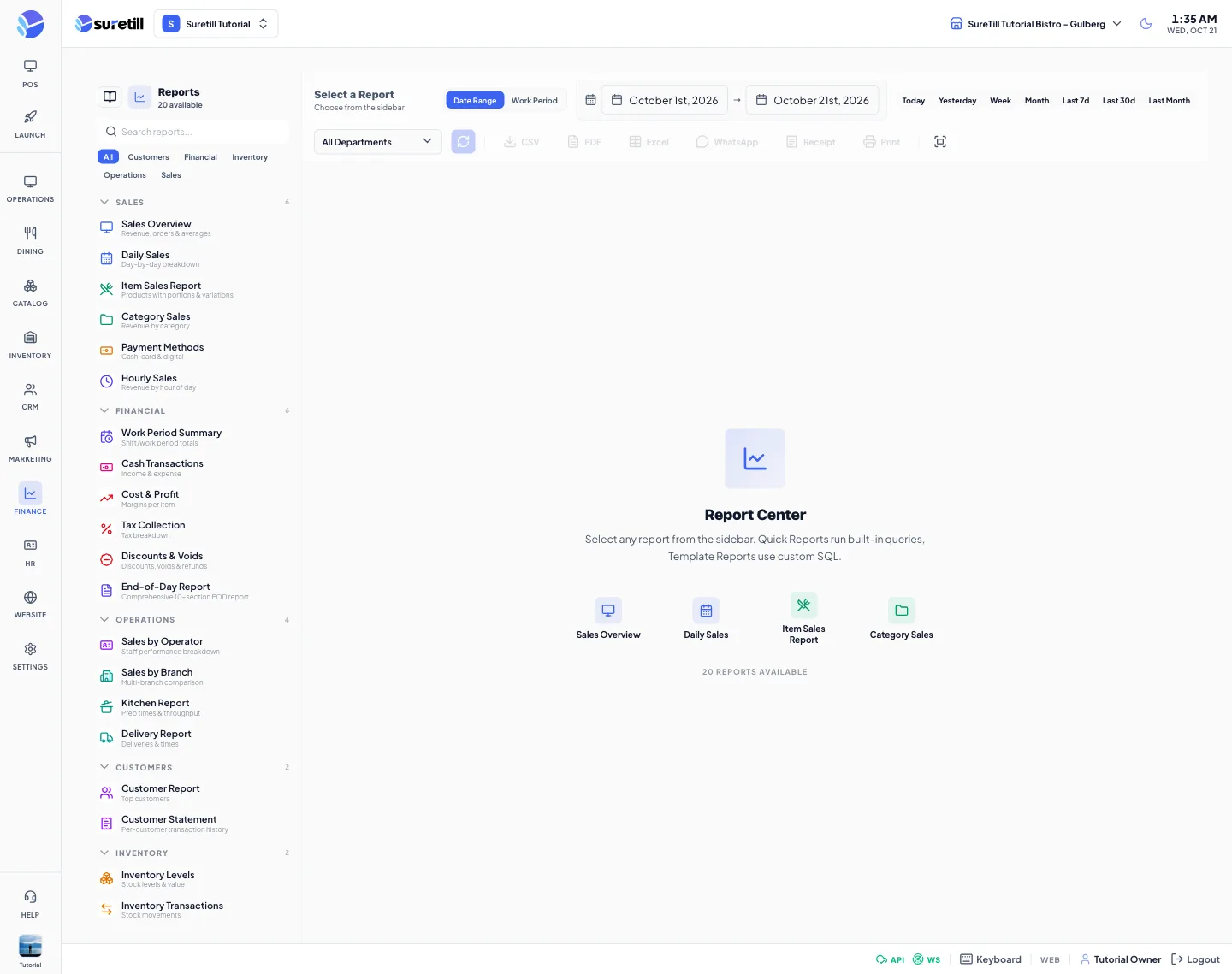
The screen has two parts. The list on the left holds every report, grouped by category (Customers, Financial, Inventory, Operations, Sales, plus the categories of your own templates). The area on the right shows the report you picked, with a toolbar for dates and exports. On a phone the list opens with the menu button.
Where the money comes from
Section titled “Where the money comes from”- Sales reports count sold tickets: orders with status Completed or Delivered that are not deleted. Voided and cancelled tickets are not sales.
- Payment figures (Payment Methods, Cash Transactions, and the payments part of Work Period Summary) come from the completed payments ledger of orders that are not cancelled or voided. They never use the stored paid amount of an order.
- Refunds come from completed refund records. A refunded ticket stays Completed, so the refund is subtracted once in Net Sales.
- The date range filters on the day the order or payment was created, both days included. A selected work period uses the tickets of that work period, and its payments are the ones taken between the opening and closing time.
Step by step
Section titled “Step by step”Run a report
Section titled “Run a report”- Open Finance > Reports.
- Optionally type in Search reports or click a category chip to narrow the list.
- Click the report name. It runs at once for the dates in the toolbar.
- To change the dates, use the quick buttons (Today, Yesterday, Week, Month, Last 7d, Last 30d, Last Month) or type the From and To dates. The report reruns by itself after a moment.
The default dates are the 1st of this month to today.
Report for one work period (shift)
Section titled “Report for one work period (shift)”- Click Work Period in the toolbar instead of Date Range.
- Open the list. Each entry shows the number, the opening date, who opened it, Open or Closed, and its sales.
- Pick a work period. The report reruns for that period only.
Report for one department
Section titled “Report for one department”- If your branch has departments, a department list appears. Pick one department.
- Pick All Departments to remove the filter.
Export to CSV
Section titled “Export to CSV”- Run the report.
- Click CSV. A file named after the report and the date is saved.
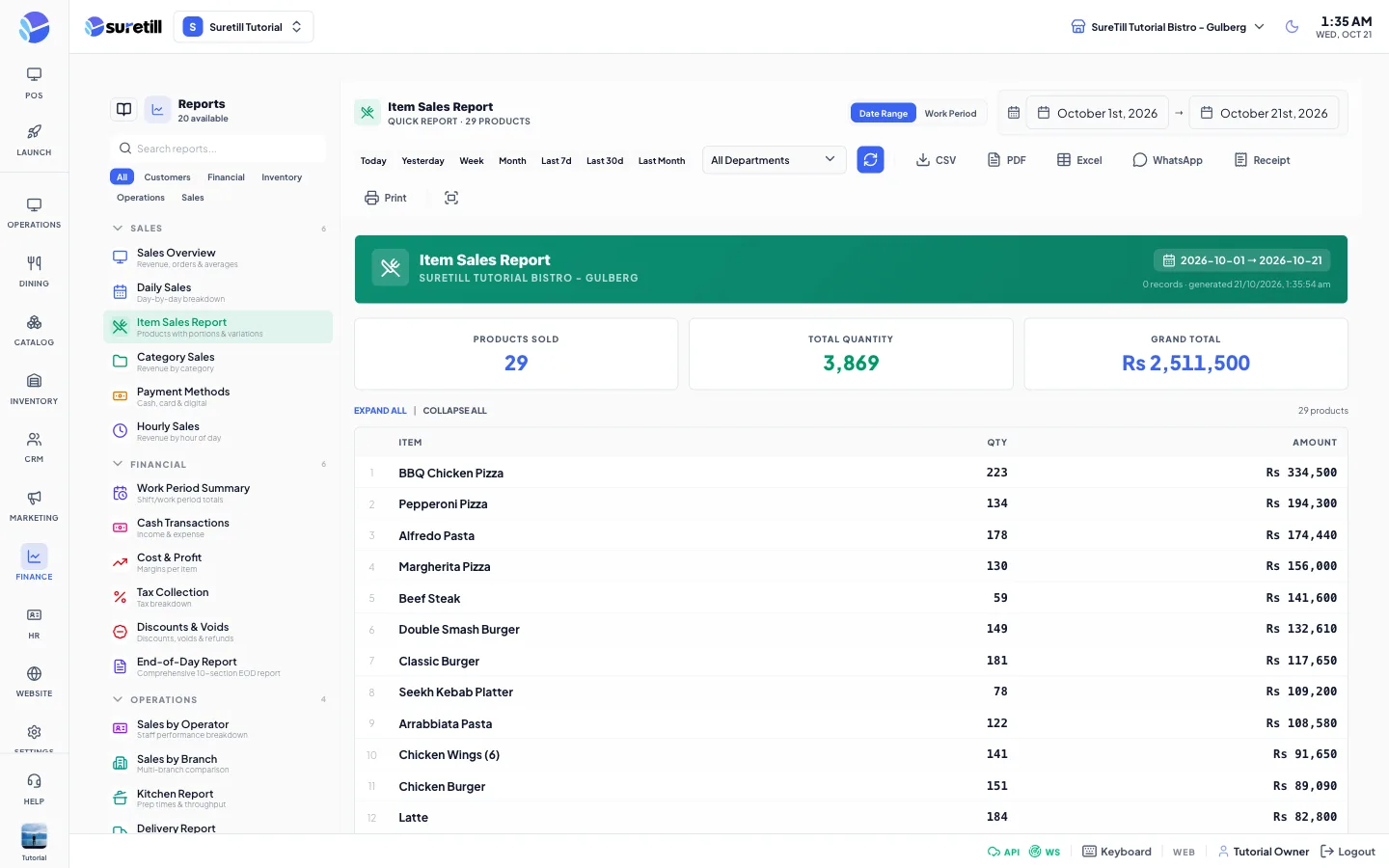
- Item Sales Report writes one row for each portion or variation.
Save as PDF
Section titled “Save as PDF”- Run the report and click PDF.
- For built-in reports a new browser tab opens with a branded page and the print dialog. Choose Save as PDF as the printer.
- If the browser blocks the new tab, an HTML file is saved instead. Open it and print it.
- For template reports the server builds a real PDF file and it is downloaded.
Export to Excel
Section titled “Export to Excel”- Run the report and click Excel.
- The server builds an .xlsx file with the same branch, dates, work period and department as the screen.
- If the report has no rows you see Excel export failed.
Send the report on WhatsApp as a PDF
Section titled “Send the report on WhatsApp as a PDF”- Run the report and click WhatsApp.
- Type the number with the country code and no plus sign, for example 923001234567. Leave it blank to use the saved default report recipient, or the phone number of the branch.
- Click OK. The server makes a branded A4 PDF and sends it as a document with the report name, the dates and the branch name as the caption.
- The browser remembers the last number you typed.
Print on a receipt printer
Section titled “Print on a receipt printer”- Run the report and click Receipt to preview the thermal layout (80 mm wide, or 58 mm for a template set to 58 mm).
- Click Print, then choose a printer from the list. The list shows the printers configured for the restaurant. A Default badge marks the default printer.
- Wait for the message Sent to and the printer name.
The built-in reports
Section titled “The built-in reports”| Report | What it shows |
|---|---|
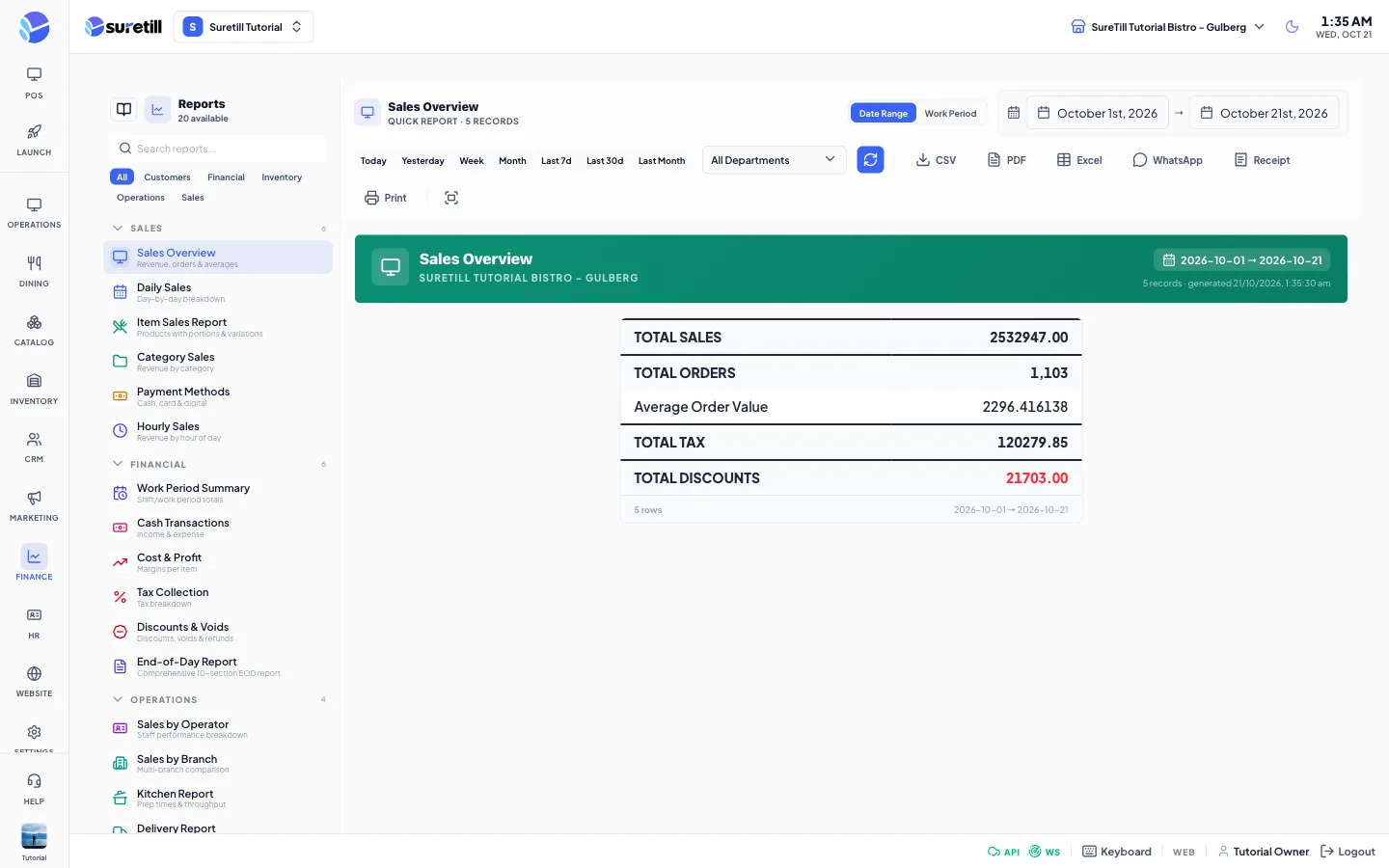
| Sales Overview (Sales) | Total sales, total orders, average order value, total tax and total discounts for sold tickets. |
| Daily Sales (Sales) | One row for each day: total sales and number of orders. |
| Item Sales Report (Sales) | Products with their portions and variations. Summary tiles show Products Sold, Total Quantity and Grand Total. Click a product to open its portions. Expand All and Collapse All open or close every product. Click the Qty or Amount heading to sort. |
| Category Sales (Sales) | Quantity sold and revenue for each category. |
| Payment Methods (Sales) | Number of payments and the total amount for each payment method, from completed payments. |
| Hourly Sales (Sales) | Orders, revenue and average ticket for each hour. It counts Completed tickets. |
| Work Period Summary (Financial) | Total sales, orders, average order, tax, discounts, refunds, net sales and voids, then payments by method, sales by staff, order types and hours. |
| Cash Transactions (Financial) | Income by payment method and expenses by category, then total income, total expenses and net cash. Expenses are all expenses created in the period, whatever their approval status. |
| Cost & Profit (Financial) | For each product (best 100 by gross profit): quantity, unit cost, average price, total cost, revenue, gross profit and margin percent. The unit cost is the cost price saved on the product. |
| Tax Collection (Financial) | Total tax and the number of taxable tickets. |
| Discounts & Voids (Financial) | Total discounts and the number of discounted tickets. Voids and refunds are in Work Period Summary and End-of-Day Report. |
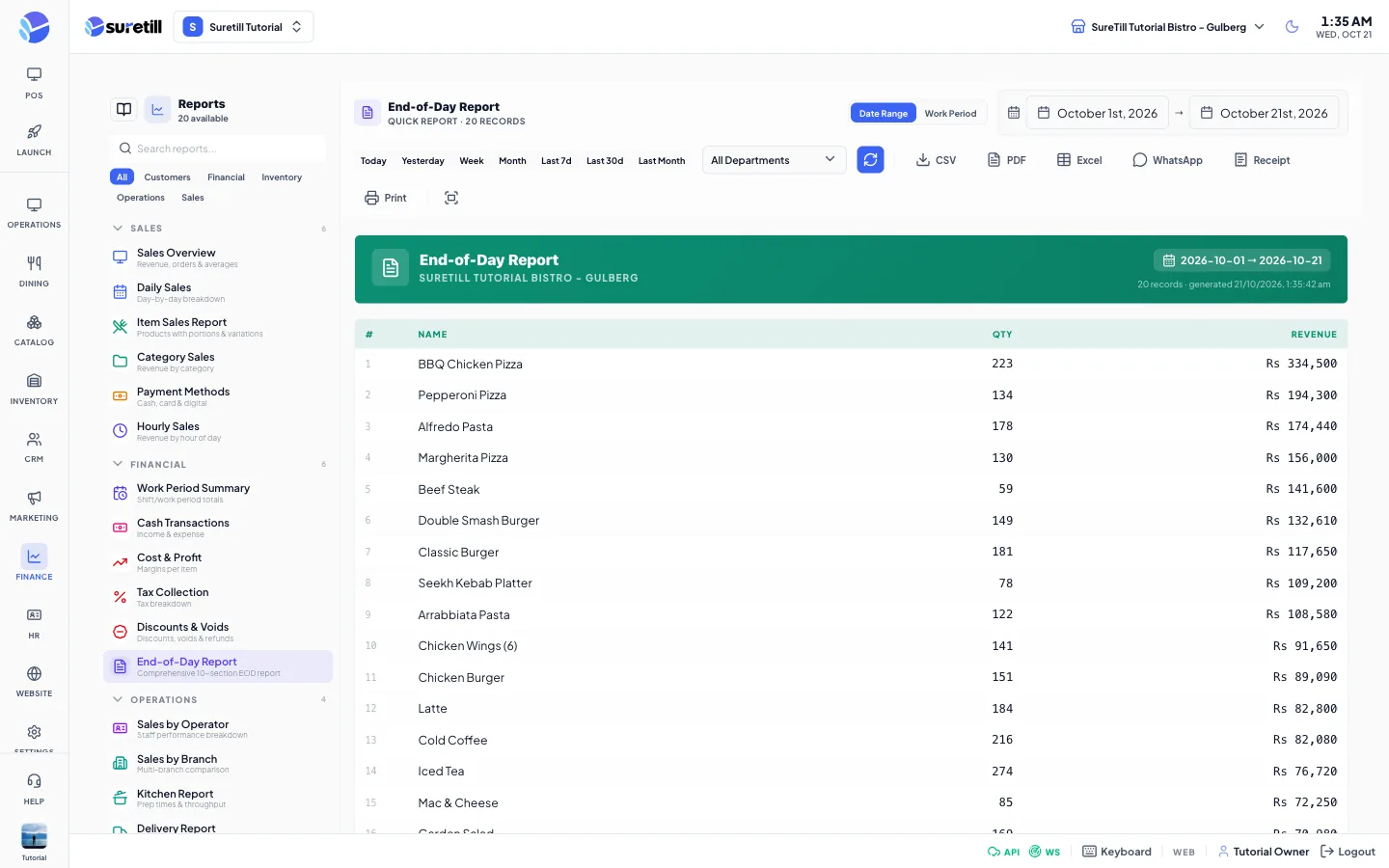
| End-of-Day Report (Financial) | Ten sections: sales summary, payment methods, staff sales, top 20 products, categories, order types, hours, discount details, void and cancellation details, cash drawer summary (cash sales, expenses, net cash). |
| Sales by Operator (Operations) | For each user: sold orders, sales, average order, tax, discounts, tips, dine-in, takeaway and delivery counts, cancelled and refunded counts. |
| Sales by Branch (Operations) | For each branch: orders, sales, average order, tax, discounts, active operators, unique customers and sales by dine-in, takeaway and delivery. Meant for comparing branches: the page does not pass the selected branch for this report. |
| Kitchen Report (Operations) | Average preparation time in minutes, total and completed kitchen orders, and the same for each kitchen station. |
| Delivery Report (Operations) | Delivered count, average delivery time, total delivery fees, and a list of the latest 100 deliveries with driver, status, fee and times. |
| Customer Report (Customers) | Total customers, new customers in the period and the top 10 customers by money spent. |
| Customer Statement (Customers) | The orders of one customer in the period, with the amount spent and refunded. A Choose customer box appears in the toolbar when you open this report. Pick the customer and press the refresh button. Without a customer the report shows the message Choose a customer above. |
| Inventory Levels (Inventory) | Items, low stock items and total stock value, then every active stock item with its status: Low (at or under the minimum), Warning (up to 1.5 times the minimum) or OK. This report ignores the dates. |
| Inventory Transactions (Inventory) | Stock movements grouped by item and type, with quantity, cost and reason. |
Every setting explained
Section titled “Every setting explained”| Setting | What it does |
|---|---|
| Search reports | Filters the list by name or description. |
| Category chips | Show only one category. Click it again to show all. |
| Group headers | Click to collapse or open a category. The number is the count of reports in it. |
| tpl tag | Marks a report that comes from Report Templates, not a built-in one. |
| Date Range / Work Period | Switch between filtering by dates and filtering by one work period. |
| From and To dates | The first and last day. Default is month start to today. |
| Quick date buttons | Today, Yesterday, Week, Month, Last 7d, Last 30d, Last Month. |
| Work period list | Placeholder All Work Periods. Pick one to limit the report to that shift. |
| Department list | Appears only when the branch has departments. Default All Departments. |
| Refresh | Runs the report again. |
| CSV, PDF, Excel | Exports. They are disabled until a report has data. |
| Sends the report as a PDF over WhatsApp. | |
| Receipt | Switches the view to a thermal receipt preview. Click View Table to go back. |
| Opens the printer list and sends the report to the chosen printer. | |
| Fullscreen | Shows the report over the whole screen. |
| Params bar | For template reports with parameters: type the values and click Apply. |
| Column headings | Click to sort the table. Click again to reverse. |
| Total row | The last row adds up every column whose values are numbers. Percentage columns are not added. |
| Report header | A green band with the report name, the branch name (All Branches if unknown), the dates, the record count and the time of generation. |
| No Data Found | Shown when the filters give no rows. Reset Dates sets the month start to today again. Retry runs the report again. |