

Work Periods: open and close the day
Where: Operations > Work Periods
Who can use it: Permission pos.manage_work_periods opens the page. Opening needs work_periods.open (or work_periods.manage). Closing needs work_periods.close (or work_periods.manage). Owners and admins can do both.
Open this page in SureTill
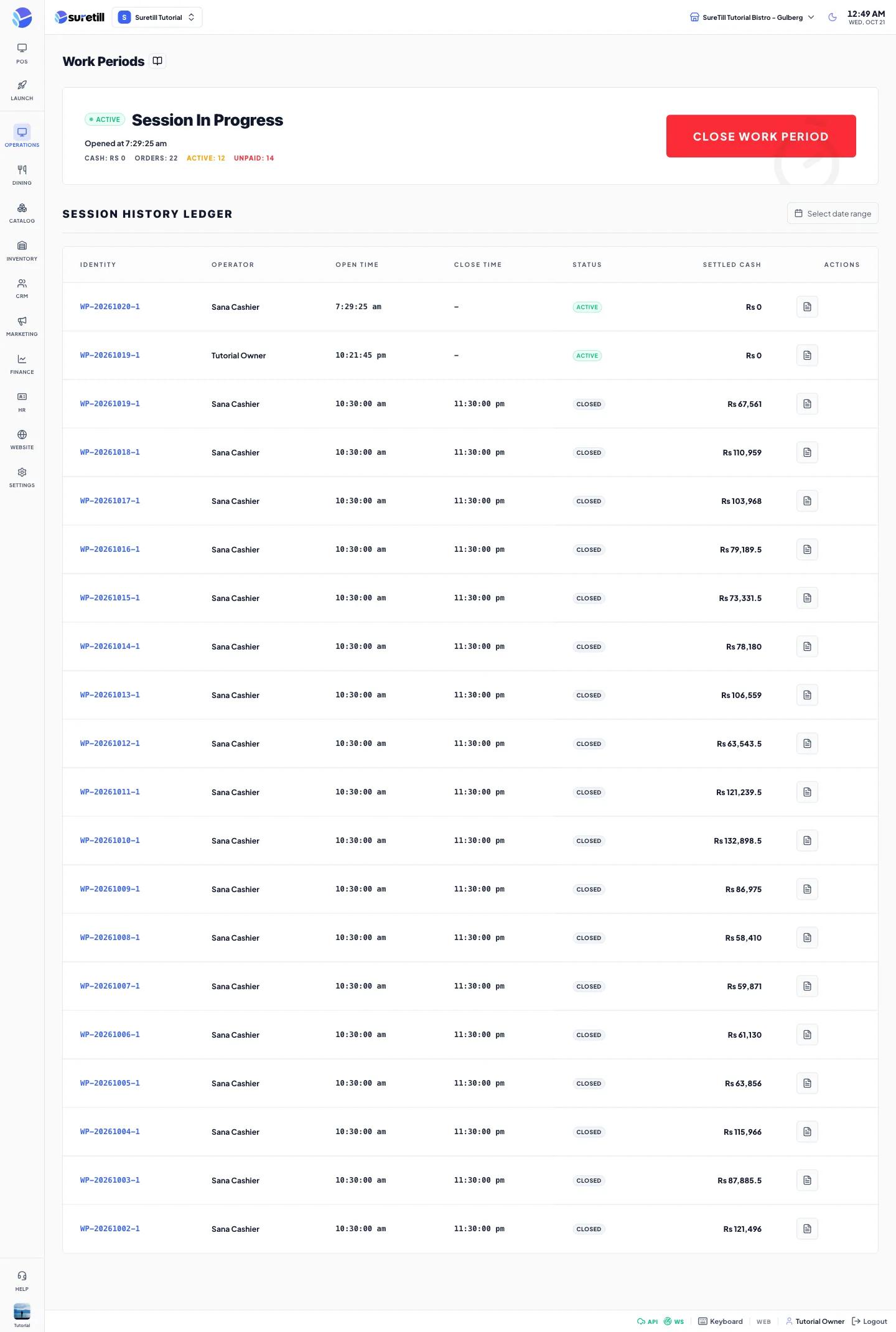
All sales belong to a work period. While none is open, the POS is locked for new sales. Closing the period freezes the numbers and gives you a report you can print or send on WhatsApp.
There is only one open work period per branch. Two terminals pressing Open at the same time cannot create two.
Step by step
Section titled “Step by step”Open the work period
Section titled “Open the work period”- Open Operations > Work Periods. The card shows “Operations Suspended” and “No active work period. System is currently locked for new sales.”
- Tap Open System Session.
- In “Open Work Period” type the opening cash that is in the drawer.
- Tap Start Session. The card turns to “Session In Progress” with the opening time.
Close the work period
Section titled “Close the work period”- Make sure every table is settled (see the warning below).
- Tap Close Work Period.
- In “Close Work Period” the box is pre-filled with the expected cash. Count the drawer and type the real amount.
- Tap End Session. The period closes and a report becomes available. Closing needs the counted amount.
- A progress bar shows the automatic backup that starts after closing.
Read the report of a past session
Section titled “Read the report of a past session”- In the Session History Ledger tap the document icon on a row.
- The report opens full screen. Use the left side (top on a phone) to see the opening time, closing time and status, opening cash, expected cash, actual cash, variance and refunds.
- Scroll for the sections described below.
- Tap Refresh to reload, the print icon to print or save as PDF, or WhatsApp to send it.
Send the report on WhatsApp
Section titled “Send the report on WhatsApp”- In the report tap WhatsApp.
- Type the receiving number with its country code (for example +923001234567), or leave the box empty to use the default recipient from Settings. A number that starts with 0 is refused, because the country code is not added for you.
- Tap Save this number if you want to reuse it on this device.
- Tap Send Text for a message or Send PDF for a file. You see “Report sent as TEXT” or “PDF”.
Filter the history by date
Section titled “Filter the history by date”- Use the date range at the top of the Session History Ledger. Rows outside the range are hidden.
What the report contains
Section titled “What the report contains”| Section | What it shows |
|---|---|
| Sales | Ticket subtotal, discount, sub total, delivery service, service charge, each tax, Collected Total, then (if any) Customer Account (Credit), Grand Total including credit, Credit Collections Received and Total Refunds. |
| Payments | Each payment method with its total and its percent of all payments, then the grand total. |
| Customer Account Sales | Per customer: orders and the credit given. Total Credit Given. |
| Collections Received | Money collected from customers on account, by customer and method. Total Collected. |
| Ticket Details | Ticket counts and amounts by order type and by department, and the number of tickets per state. |
| Voids After Bill Print | Every void made after a bill was printed: order, item, quantity, amount, reason, cashier and time. Or the line “No voids after bill print this period.” |
| User Sales | Orders and sales per user, and what each user settled by payment method (Total Income). |
| Group Sales by Amount and by Quantity | Sales per menu category. |
| Sales (per product) | Each product with quantity, value and its sizes. |
How the cash numbers are worked out
Section titled “How the cash numbers are worked out”- Expected cash = opening cash + all cash payments received while the period was open - cash refunds paid out. Card, bank and other methods never count in the drawer.
- Cash payments count when they were received during the period, including part payments on tickets that are still open, and payments on tickets opened in an earlier period.
- Variance = counted cash - expected cash. A negative variance (red) means the drawer is short.
- Cash collected from account customers is a separate ledger and is not part of expected cash yet.
Every setting explained
Section titled “Every setting explained”| Setting | What it does |
|---|---|
| Session card: Active / Closed | Badge showing whether a period is open. |
| Opened at, Cash, Orders, Active, Unpaid | On an open session: opening time, expected cash so far, the order count, and counts of active and unpaid orders. |
| Open System Session / Close Work Period | Starts or ends the period. Disabled without the permission; the tooltip says so. |
| Opening Cash (Rs) | Cash in the drawer at the start. Zero or more. |
| Closing Cash (Rs) | The counted cash. Pre-filled with the expected cash. Required. |
| Session History Ledger | Table of past periods with the columns below. |
| Identity | Period code in the form WP-YYYYMMDD-number. |
| Operator | Who opened the period. |
| Open Time, Close Time | Times of opening and closing. |
| Status | Active or Closed. |
| Settled Cash | The counted closing cash, or the expected cash for an open period. |
| Actions (document icon) | Opens the report. |
| Date range | Filters the ledger by the date the period was opened. |
| Refresh, Print, WhatsApp, Close (in report) | Reload, print, send the report, or leave the report. |
| Recipient WhatsApp Number | Receiver of the report. Blank uses the default from Settings. |
| Send Text / Send PDF | Chooses the message form. |