

Orders settings: preparation time, delivery and pickup
Where: Settings > General Settings > Orders
Who can use it: Sidebar permission: settings.view or manage settings. No plan or add-on is needed.
Open this page in SureTill
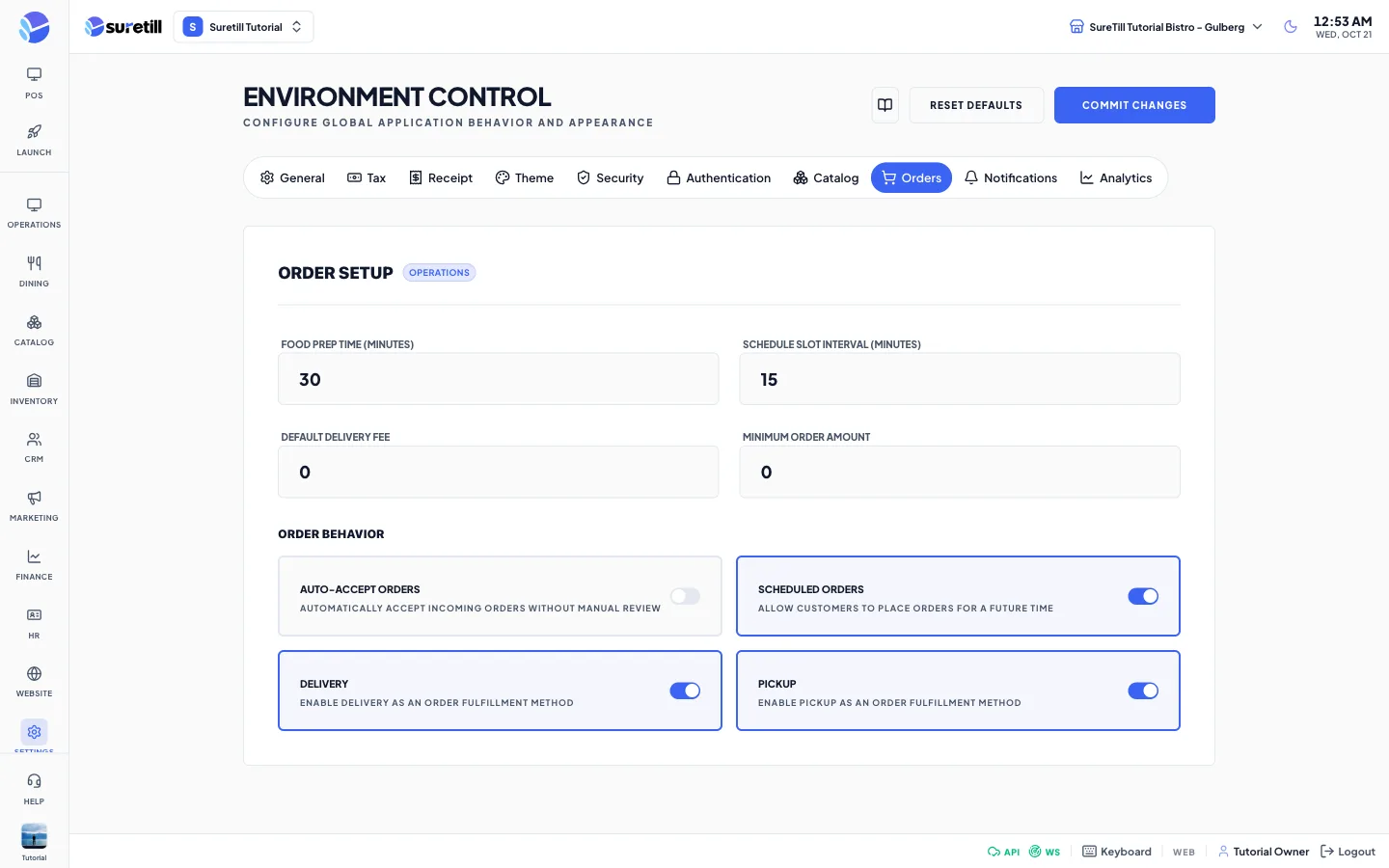
The Orders tab is titled Order Setup. It saves the orders group of the settings for the selected branch.
Step by step: set the order rules
Section titled “Step by step: set the order rules”- Open Settings > General Settings and click the Orders tab.
- Fill in Food Prep Time, Schedule Slot Interval, Default Delivery Fee and Minimum Order Amount.
- Turn on or off Auto-Accept Orders, Scheduled Orders, Delivery and Pickup.
- Click Commit Changes.
Every setting explained
Section titled “Every setting explained”| Setting | What it does |
|---|---|
| Food Prep Time (minutes) | Whole number, minimum 0. Default: 30. |
| Schedule Slot Interval (minutes) | Whole number, minimum 5, step 5. The size of the time slots offered for a scheduled order. Default: 15. |
| Default Delivery Fee | Amount with two decimals, minimum 0. Default: 0. |
| Minimum Order Amount | Amount with two decimals, minimum 0. Default: 0. The public ordering pages read this value. |
| Auto-Accept Orders | Switch. Automatically accepts incoming orders without manual review. Default: off. |
| Scheduled Orders | Switch. Lets customers place an order for a future time. Default: on. |
| Delivery | Switch. Enables delivery as a way to receive an order. Default: on. The public ordering pages read this value. |
| Pickup | Switch. Enables pickup as a way to receive an order. Default: on. |