Skip to content

Offline mode: selling when the server is down

Where: Operations > POS Terminal
Who can use it: Offline selling is a branch setting in Settings > Branches (Offline Selling). Each terminal must be online once after it is switched on.
Open this page in SureTill

The offline status pill at the bottom left of the POS showing offline orders waiting to sync

When the connection drops, a restaurant should keep taking orders. With Offline Selling on, each terminal stores dine-in and takeaway orders, cash payments and kitchen tickets on the device and sends them to the server when it is reachable again.

  1. Open Settings > Branches and edit the branch.
  2. Find the card “Offline Selling” and switch on “Keep selling when the server is unreachable”.
  3. Save the branch.
  4. Open the POS on every terminal while it is online, so the terminal registers itself with the branch. A terminal that was never online after you switched this on cannot create offline orders.
Action Offline behavior
New dine-in or takeaway order Saved on the device with a number that carries the terminal code, for example OFL-A2-260715-0007.
Add items, send to kitchen Recorded on the device. A kitchen ticket marked “OFFLINE COPY” prints from the terminal if it can print locally (desktop app). Otherwise the ticket is owed and prints once the server is back.
Cash payment Recorded on the device. This is the only payment type allowed offline.
Card and account payments Not possible offline. The POS says “Only cash can be taken while the server is unreachable.”
Table status Accepted on the device. The server works out table status from orders when it is back.
Delivery orders Not offline-capable. Only dine-in, takeaway and drive-thru orders are stored.
Orders that were open before the connection dropped You can add to them and take cash. If the server never saw the order, the POS says “This order is not available offline. Reconnect to take payment.”

A small pill at the bottom left of the screen appears when something needs your attention. It only shows if the branch has Offline Selling on.

Setting What it does
Offline - selling continues (red) The server cannot be reached. You can keep selling.
Syncing The server is back and the device is sending what it saved. The pill shows “N pending”.
Sync needs attention (amber) Some action was rejected or a manager has something to review.
N pending How many saved actions have not yet been accepted by the server.
N need attention How many actions were refused. Nothing is ever deleted.
N to review Sync problems for a manager to look at (see below).
  1. Tap the status pill. The panel “Offline orders on this device” opens.
  2. Each order shows its number, a badge (“Not synced”, “Synced” or “Needs attention”), the item count, the total and what is due. “KOT owed” means the kitchen ticket still has to print.
  3. To take the cash for an order, tap “Take cash” with the amount. It records the cash payment on the device.
  4. When the server is back, tap “Sync now” if the pill does not clear by itself.
  1. Open the pill panel. Under “For a manager to review” each item has a plain name and an amount.
  2. Read the reason and fix it with the customer or in the order if needed.
  3. Tap Resolve to mark it reviewed. The note saved is “Reviewed at the POS”.
Review item What it means
Cash taken beyond the bill More cash was recorded than the bill. The server never books more than is due and flags the extra.
Table seated twice Two terminals seated the same table while apart.
Sale after work period closed An offline sale reached the server after the work period was closed.
Price changed while offline The menu price changed while the terminal was offline.
Item added to a paid bill An item was added after the bill was already paid.
Offline action rejected The server refused one saved action.
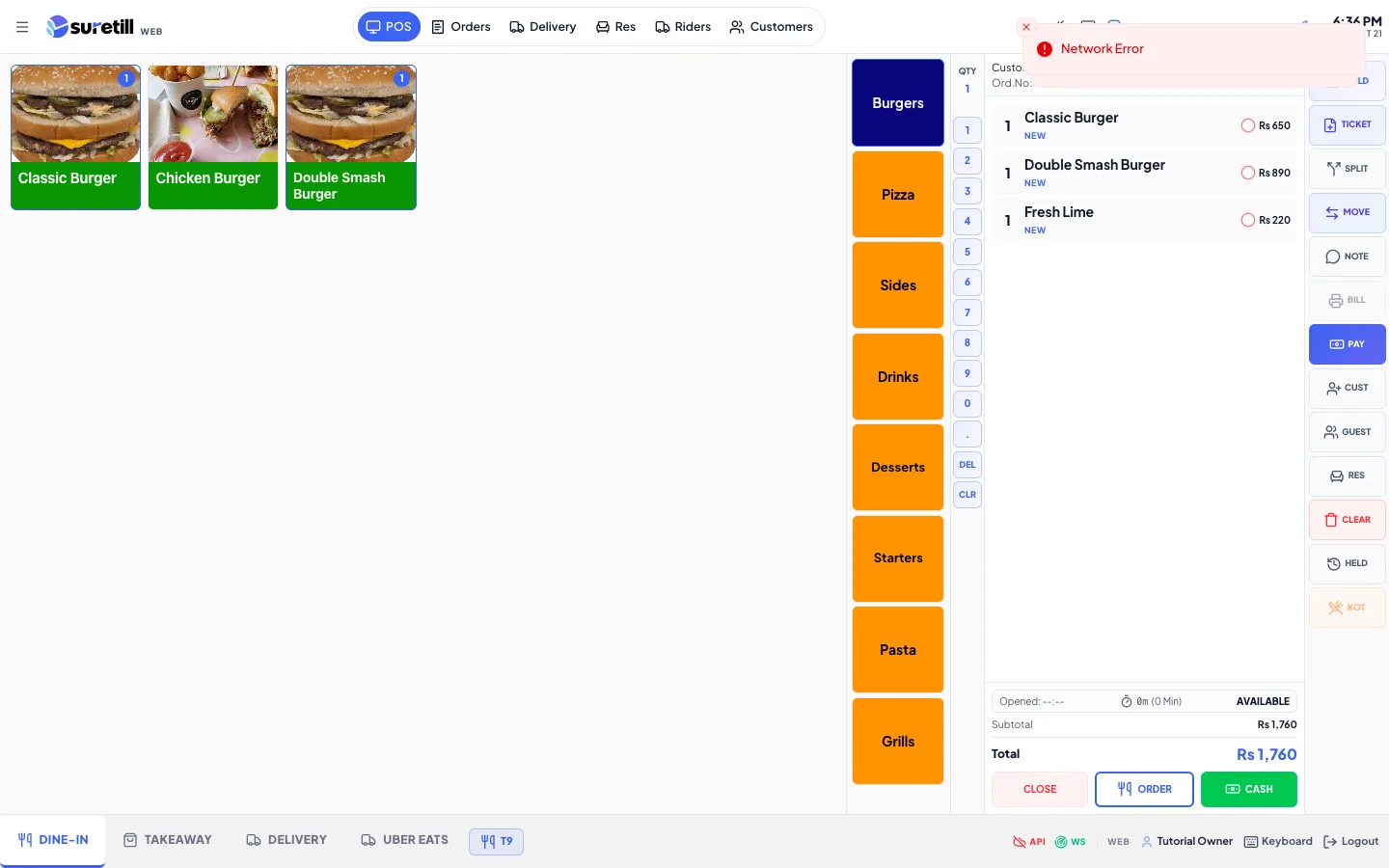
  • The connection icons in the POS bottom bar show API (can the POS reach the server) and WS (the live connection). Red API means you are offline.
  • The desktop app also has an older local queue for orders when the branch has not switched on Offline Selling. The POS Status page shows its pending count under Sync Queue.
  • Print jobs for LAN printers go through the print agent. If the server is down they wait.

Setting What it does
Offline Selling (branch setting) The master switch. The setting is cached per branch on each terminal so it still applies after a restart while offline.
Status pill Shows offline, syncing or attention state with counts.
Offline orders on this device The list of orders this terminal created or paid while apart, until the server has them. Synced orders stay in the list for a day.
Take cash Records the due amount in cash on the device. Needs a cash payment method cached on the device.
Sync now Starts the upload at once. Only shown when the server is reachable.
Needs attention list Actions the server refused, with the reason. A manager reviews them after they reach the server.
For a manager to review / Resolve Sync problems and the button that marks them reviewed.
Offline order number Numbers start with OFL, then the terminal code, the date and a counter.