

Contact Messages
Where: Marketing > Contact Messages
Who can use it: Permission: website.view, settings.view or manage settings. Not available on SureScreen (menu board only) plans.
Open this page in SureTill
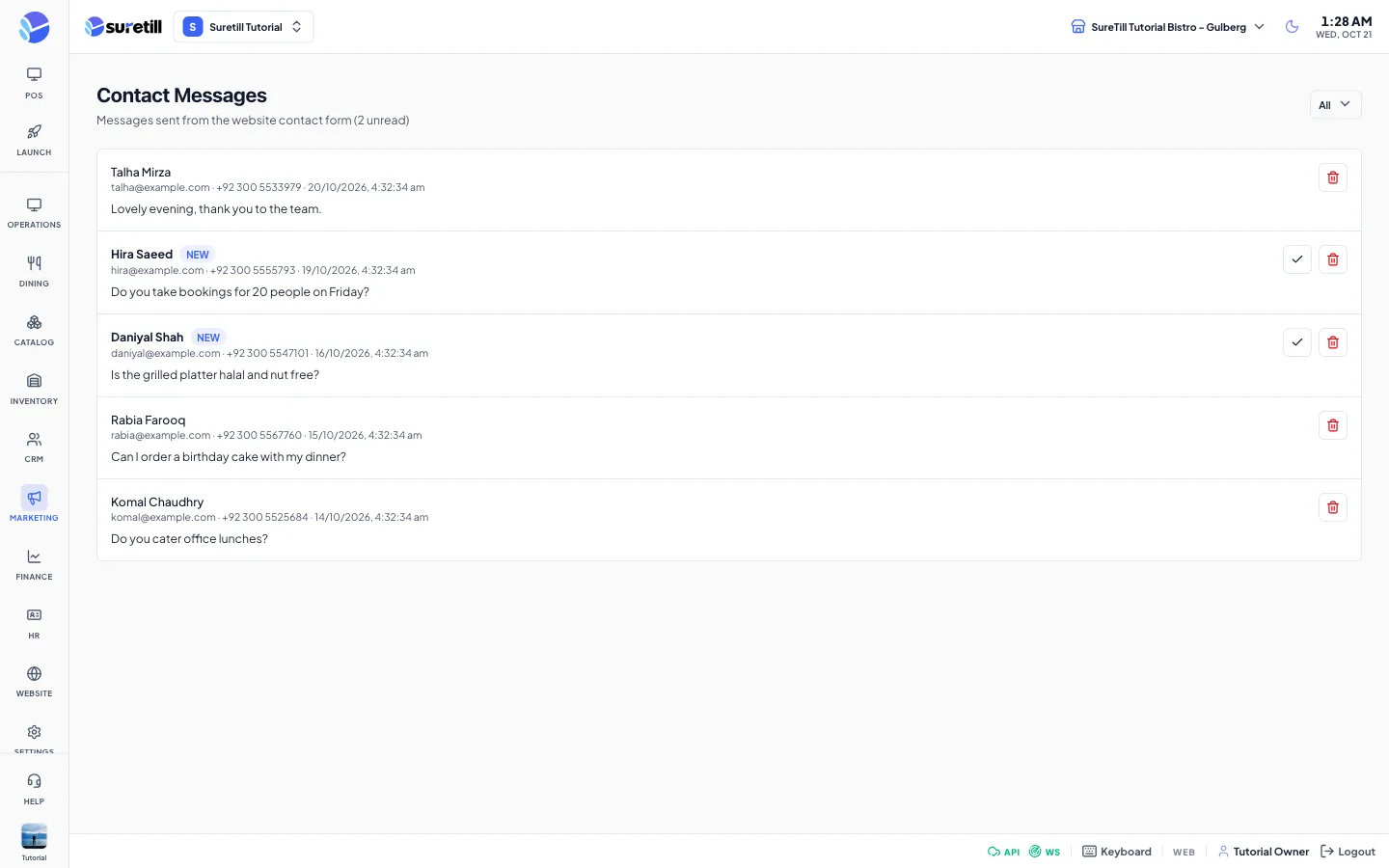
When a visitor fills in the contact form of your website, the message is saved here. The app also sends a notification to your Super Admin, Owner, Admin and Manager users (the ones of the branch the form was sent for), with the sender name and the first part of the message.
The form needs a name (at least 2 characters), a valid email and a message of at least 5 and at most 3000 characters. A phone number is optional. The form is protected against spam, and one visitor can only send a few messages in a short time.
Step by step
Section titled “Step by step”Read the messages
Section titled “Read the messages”- Open Marketing > Contact Messages. The newest message is first. The title line shows how many are unread.
- New messages have a bold name and a New badge.
- Use the filter to show only Unread or only Read messages.
- Use the arrows at the bottom to move between pages of 20.
Mark a message as read
Section titled “Mark a message as read”- Click the tick button on the right of the message.
- The New badge disappears and the unread count goes down.
Delete a message
Section titled “Delete a message”- Click the red bin button on the message.
- Confirm Delete Message.
Every setting explained
Section titled “Every setting explained”| Setting | What it does |
|---|---|
| Unread count | Shown in the title text, for example (3 unread). |
| Filter | Unread (status new) or Read. |
| Name | The sender. Bold while the message is new. |
| New badge | The message has not been marked as read. |
| Email, phone, date | The contact details the visitor typed, and when the message arrived. |
| Message | The full text of the message. |
| Tick button | Marks the message as read. Only shown on new messages. |
| Bin button | Deletes the message. |
| Page arrows | Move between pages of 20 messages. |