

Scheduled Reports
Where: Finance > Scheduled Reports
Who can use it: Permission: reports.view or view reports.
Open this page in SureTill
Each schedule is a card with a name, a state badge (Active or Paused, plus Failed when the last run failed), the frequency, the next run time, the number of recipients, the output format, the number of runs and the last error if there was one.
Step by step
Section titled “Step by step”Create a schedule
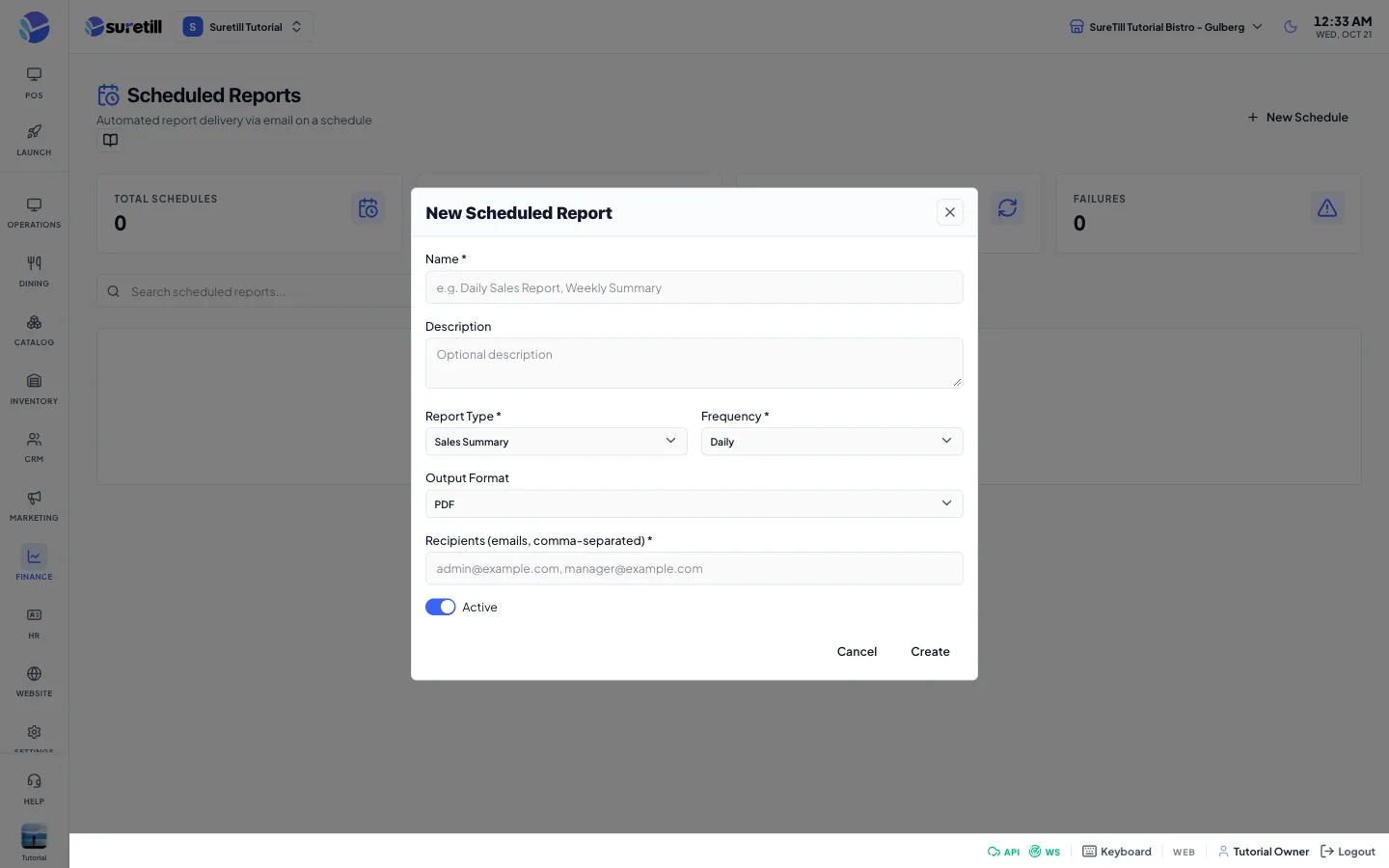
Section titled “Create a schedule”- Open Finance > Scheduled Reports and click New Schedule.
- Type a Name, for example Daily Sales Report.
- Pick the Report Template to send. Create templates first on the Report Templates page.
- Pick the Frequency and the time. For Weekly pick the day of the week, for Monthly the day of the month (1 to 28).
- Pick the Output Format.
- Type the recipients as emails separated by commas.
- Leave Active on and click Create.
Pause, edit or delete
Section titled “Pause, edit or delete”- Click Pause on a card to stop it. The button becomes Resume.
- Click Edit to change the fields. The button in the window is called Update.
- Click Delete and confirm to remove the schedule. Delete cannot be undone.
Send a report to WhatsApp right now
Section titled “Send a report to WhatsApp right now”- Open Finance > Reports and run the report.
- Click WhatsApp, type the number with the country code, and confirm.
- See the Reports article for what the WhatsApp gateway needs.
Every setting explained
Section titled “Every setting explained”| Setting | What it does |
|---|---|
| Total Schedules | Number of schedules. |
| Active | Number of schedules that are on. |
| Total Runs | Sum of the run counters of all schedules. |
| Failures | Number of schedules whose last run failed. |
| Search scheduled reports | Filters the cards. |
| Name (required) | The name of the schedule. |
| Report Template (required) | One of your report templates. It cannot be changed after the schedule is created. |
| Frequency (required) | Daily, Weekly or Monthly. |
| Send at (required) | The time of day, in the restaurant time zone. |
| Day of week / Day of month | Weekly: Monday to Sunday. Monthly: a day from 1 to 28. |
| Output Format | PDF (default), Excel or CSV. |
| Recipients (required) | Email addresses separated by commas. |
| Active | A switch. Default on. Off means Paused. |
| Pause / Resume | Turns a schedule off or on without deleting it. |
| Edit / Delete | Change or remove a schedule. |