

Modifiers
Where: Catalog > Modifiers
Who can use it: Permission products.view or manage products.
Open this page in SureTill
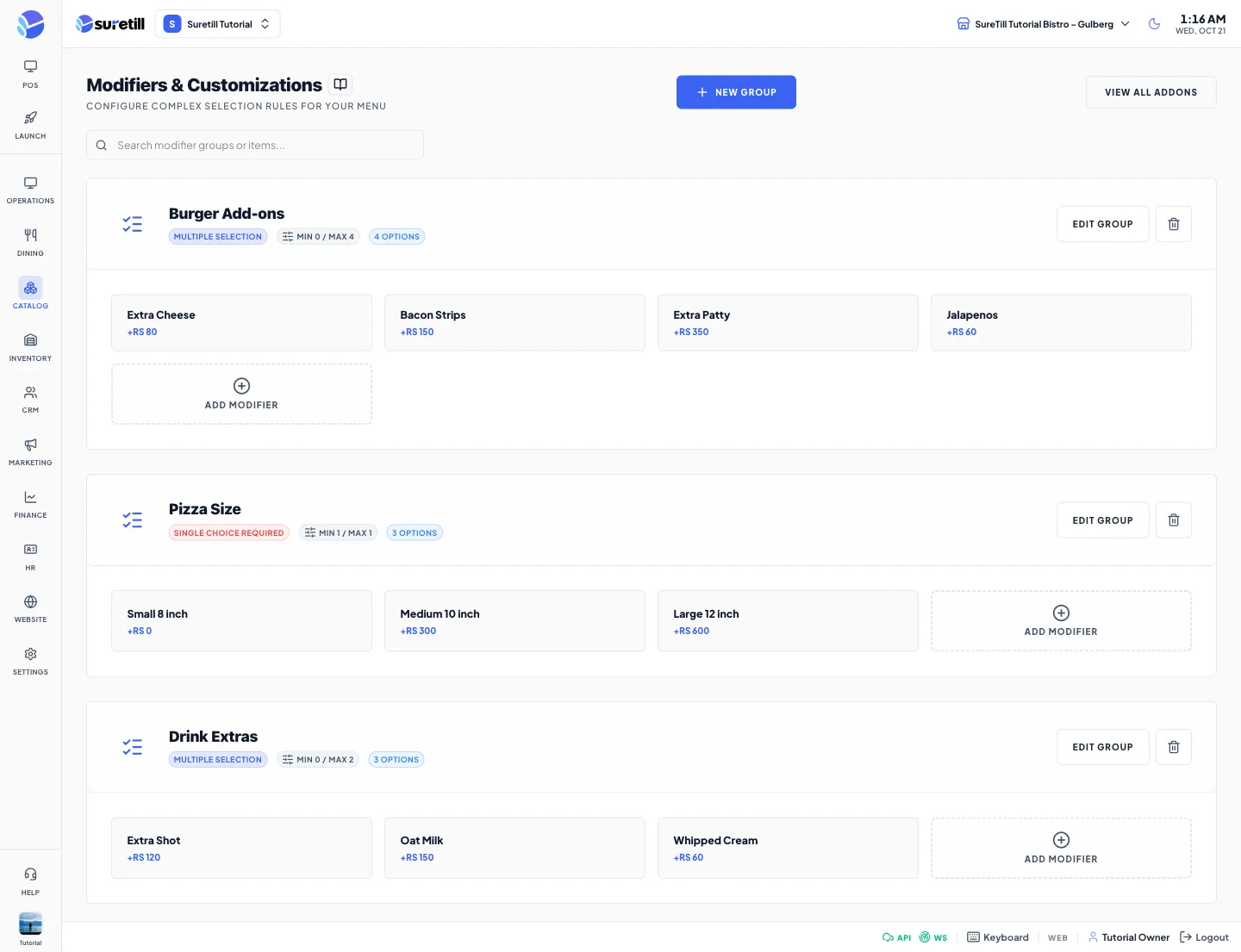
A modifier group is a list of options with rules: how many the customer must pick at least, how many at most, and whether a choice is required. Each option (a modifier) has a name and a price that is added to the item. You attach groups to products in the product editor.
Step by step: create a group and its options
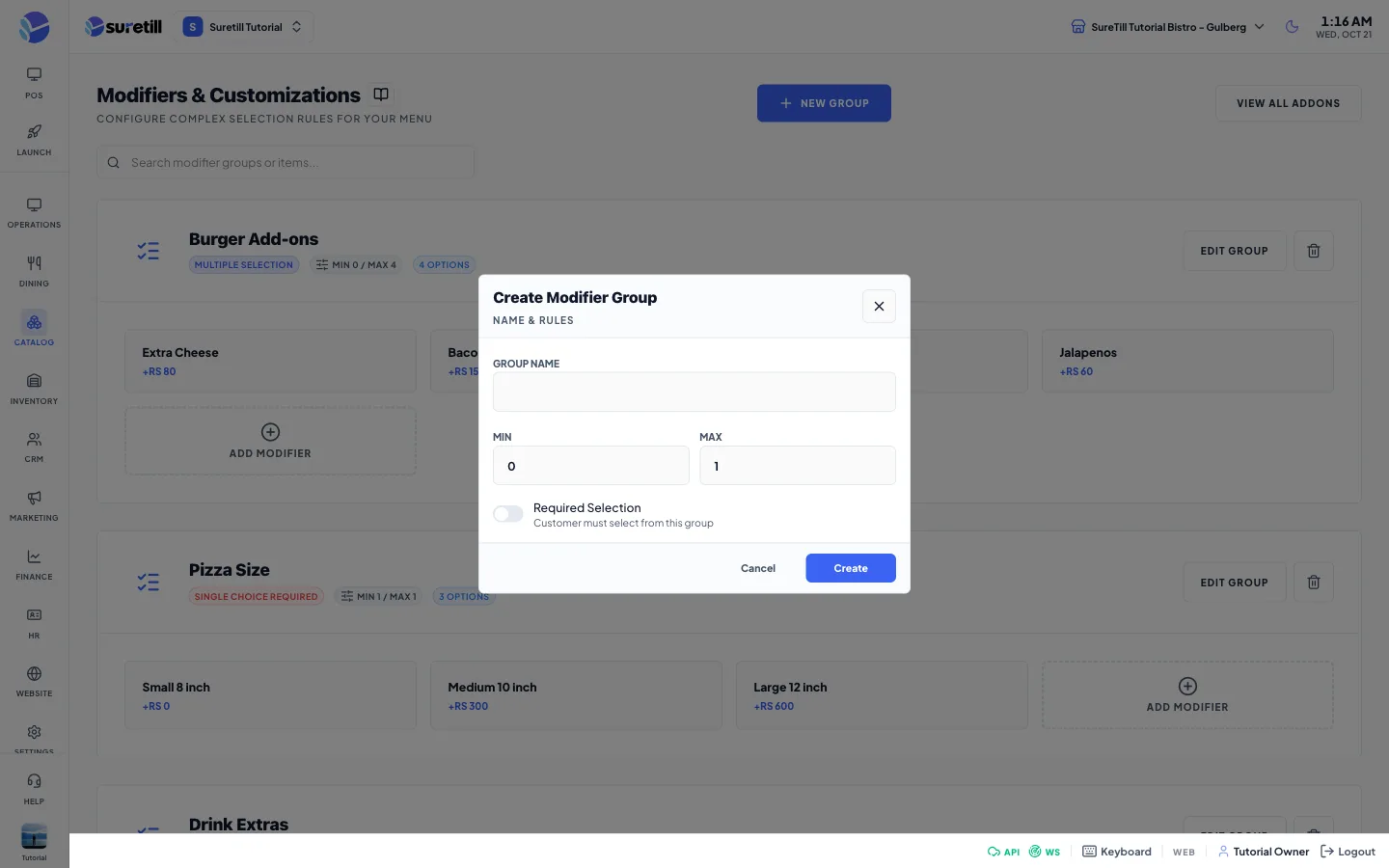
Section titled “Step by step: create a group and its options”- Open Catalog > Modifiers and click New Group.
- Type the Group Name, for example Sauces.
- Set Min and Max. The defaults are Min 0 and Max 1. Max must be at least 1.
- Switch on Required Selection if the customer must choose from this group.
- Click Create.
- On the new group card, click Add Modifier. Type the Name and the Price and click Create. Repeat for each option.
Step by step: link a group to a product
Section titled “Step by step: link a group to a product”- Open Catalog > Products and click the product.
- In the Modifiers box on the right, tick the group.
- Click Commit Changes.
Step by step: make a modifier use stock
Section titled “Step by step: make a modifier use stock”A modifier can take a real ingredient out of your stock each time it is sold. For example, Extra Cheese uses 30 g of Cheese.
- Create the ingredient first on Inventory > Stock Levels.
- Open the modifier (hover over it and click the pencil).
- Under Inventory (optional), pick the stock item in Consumes stock item.
- Type the Qty per addon and the Unit, for example 30 and g.
- Click Update. The stock item, quantity and unit are saved with the modifier.
When the item is sent to the kitchen, the quantity is multiplied by the number of modifiers on the line and by the number of items, converted to the stock item unit, and taken from stock. A modifier is not reduced for half portions: Extra Cheese is the same scoop on a half or a full dish.
Step by step: edit and delete
Section titled “Step by step: edit and delete”- Click Edit Group to change a group name or its rules.
- Hover over a modifier and click the pencil to edit it, or the x to delete it.
- Click the bin on the group header to delete the whole group. There is no confirmation question.
Every setting explained
Section titled “Every setting explained”| Setting | What it does |
|---|---|
| Group Name | The name shown when the cashier opens the group. |
| Min | The least number of options the customer must choose. 0 or more. |
| Max | The most options the customer can choose. 1 or more. |
| Required Selection | The customer must choose from this group. The card then shows Single Choice Required; without it the card shows Multiple Selection. |
| Min / Max badge | Shows the rules on the card, plus the number of options. |
| Modifier Name | The option name, for example Extra Cheese. |
| Price | Added to the item price when the option is chosen. |
| Consumes stock item | Optional. The stock item taken from stock when this modifier is sold. None means price only. |
| Qty per addon | How much of the stock item one modifier uses. Up to three decimals. |
| Unit | The unit of that quantity. Converted to the stock item unit automatically (for example g to kg). |
| View All Addons | A read-only list of every modifier. |