

Create your account
Where: Sign-in page > Start your free trial
Who can use it: Anyone. No card is needed. Sign-up exists only on the cloud version.
Open this page in SureTill
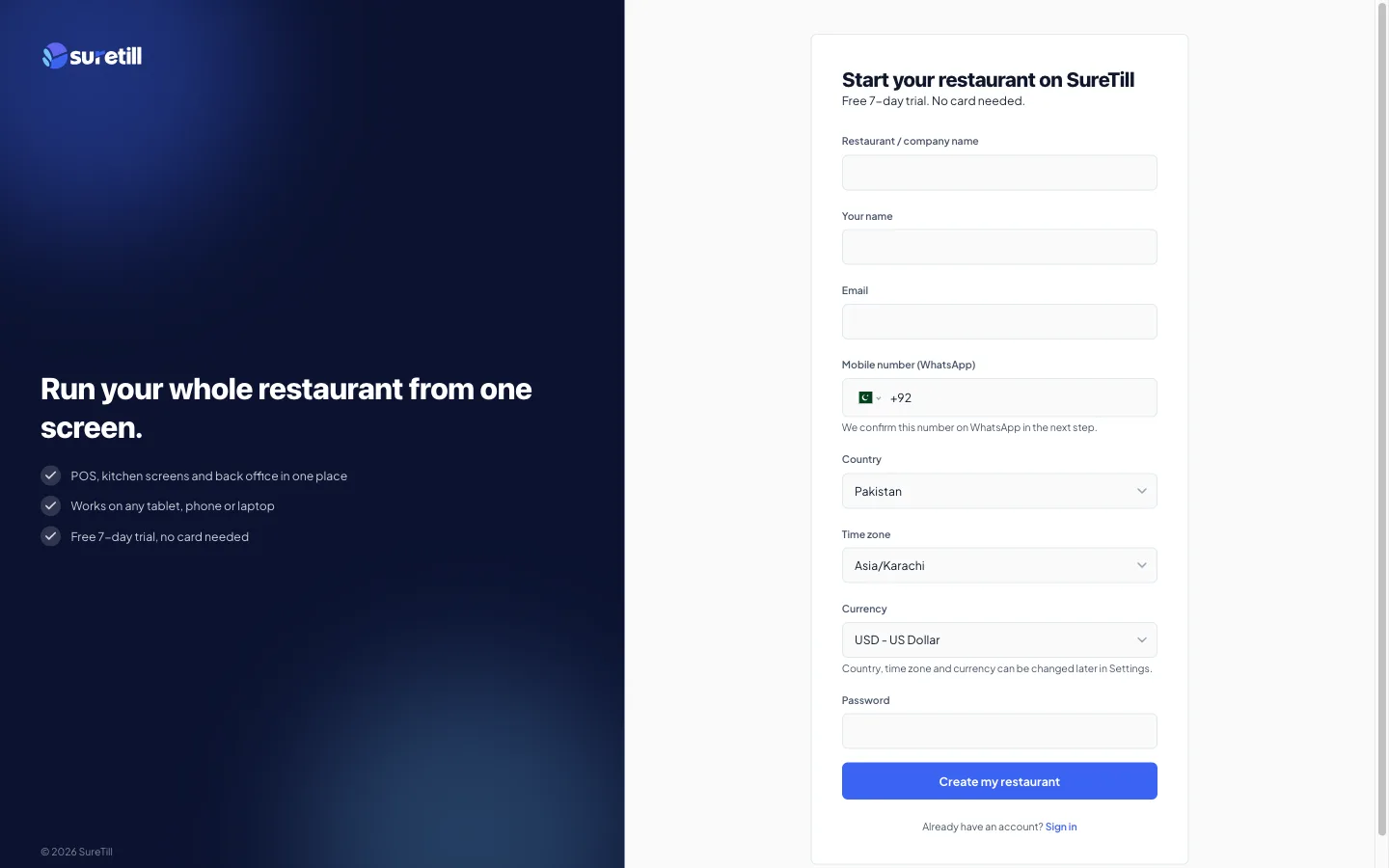
Sign-up creates a private database for your restaurant, your owner login and your main branch. It takes three screens: the details form, the confirmation screen (WhatsApp message and email code), and a short progress screen while your restaurant is built.
Step by step
Section titled “Step by step”- Open the SureTill sign-in page and click Start your free trial. You land on Start your restaurant on SureTill. The page says Free 7-day trial. No card needed.
- Fill in every field of the form (see the table below) and click Create my restaurant.
- On the next screen, find the box Confirm your mobile number. It shows a message such as Verify 123456 and the SureTill WhatsApp number.
- From the same mobile number you typed in the form, send that exact message to the SureTill number on WhatsApp. The Open WhatsApp button opens the chat for you.
- Wait a few seconds. The page checks by itself every 3 seconds. When the box says Mobile number confirmed, a message says Now enter the code we emailed you.
- Open your email and read the 6-digit code. Type it into Email code.
- Click Verify and continue. The button stays disabled until your mobile number is confirmed.
- Keep the page open while Setting up your restaurant runs. It takes under a minute.
- When you see You are all set, click Sign in to SureTill. The sign-in form opens with your email filled in. Enter your password.
- The setup wizard opens on your first visit. Continue with Setup wizard.
Every setting explained
Section titled “Every setting explained”| Setting | What it does |
|---|---|
| Restaurant / company name | Required, up to 120 characters. It becomes the name of your restaurant and your first branch. SureTill also builds a short internal name from it with 4 random letters added, so two restaurants called Pizza Palace never clash. You never type this internal name. |
| Your name | Required, up to 120 characters. The name of the owner account. |
| Required. Your sign-in name and the address that receives the 6-digit code and the welcome email. It must be a valid address. | |
| Mobile number (WhatsApp) | Required. Pick the country flag, then type the number. It must be a valid international number. It is saved with the country code in the form +61412345678, 8 to 15 digits. Choosing a flag also sets Country and Time zone below. |
| Country | Required. Starts as the country of your browser time zone, or United States if it cannot be found. Changing it resets Time zone. |
| Time zone | Required. The list shows This country first, then Also used here, then All time zones. It is preselected only when your browser time zone belongs to the chosen country, or when the country has only one. Otherwise you must choose it. The form refuses to continue with an empty time zone. |
| Currency | Required. Starts as USD for everyone. The list shows the code and the name, for example PKR - Pakistani Rupee. Pick your own. |
| Password | Required, at least 8 characters (the server accepts up to 200). |
| Create my restaurant | Sends the form. Pressing it twice does not create two restaurants: the form carries a one-time request key. |
| Email code | The 6-digit code from your email. Only digits are accepted. |
| Resend email code | Disabled for 45 seconds after each send. A signup allows 3 resends at most. |
| Open WhatsApp | Opens a WhatsApp chat with the SureTill number, ready to send. You can also send the message yourself. |
| Verify and continue | Checks the email code. Disabled while the WhatsApp check is waiting. |
| Sign in to SureTill | Shown when your restaurant is ready. Takes you to the sign-in form with your email filled in. |
How the checks work
Section titled “How the checks work”- Mobile number: you prove you own it by sending a WhatsApp message from it. SureTill never messages you first. If the WhatsApp check is not switched on for the server, the box is not shown and only the email code is needed.
- Email code: valid for 15 minutes. After 5 wrong codes the signup locks and you must start again. After the time runs out you must start again too.
- Phone limit: more than 3 signups from the same phone number within one hour are refused with Too many attempts with this phone number. Try again in an hour.
The setup progress screen
Section titled “The setup progress screen”These seven lines tick off one by one while your restaurant is built:
| Line | Meaning |
|---|---|
| Creating your secure database | A private database just for your restaurant. |
| Building your workspace | Orders, tables, kitchen and reports. |
| Adding defaults | Roles, payment methods and tax settings. |
| Setting up your account | Your owner login and main branch. |
| Registering your web address | So you can sign in from anywhere. |
| Starting your free trial | 7 days, no card needed. |
| Opening your restaurant | Almost there. |
If a step fails, the page says Setup hit a problem and that the team has been notified. Wait a little and try again.
If something looks wrong
Section titled “If something looks wrong”- No email code arrives: check spam first. If your email address or phone number already belongs to a restaurant, SureTill shows the same code screen but sends you an email saying you already have an account, and no code. Use Already have an account? Sign in.
- The WhatsApp box never turns green: send the message from the exact number you typed in the form, with the exact text shown, including the word Verify.
- You lose the page: start the signup again. A half-finished signup does not create a usable restaurant.