

Print Queue (Print Log)
Where: Settings > Print Queue
Who can use it: Permission: settings.view or manage settings. Not available on SureScreen (menu board only) plans.
Open this page in SureTill
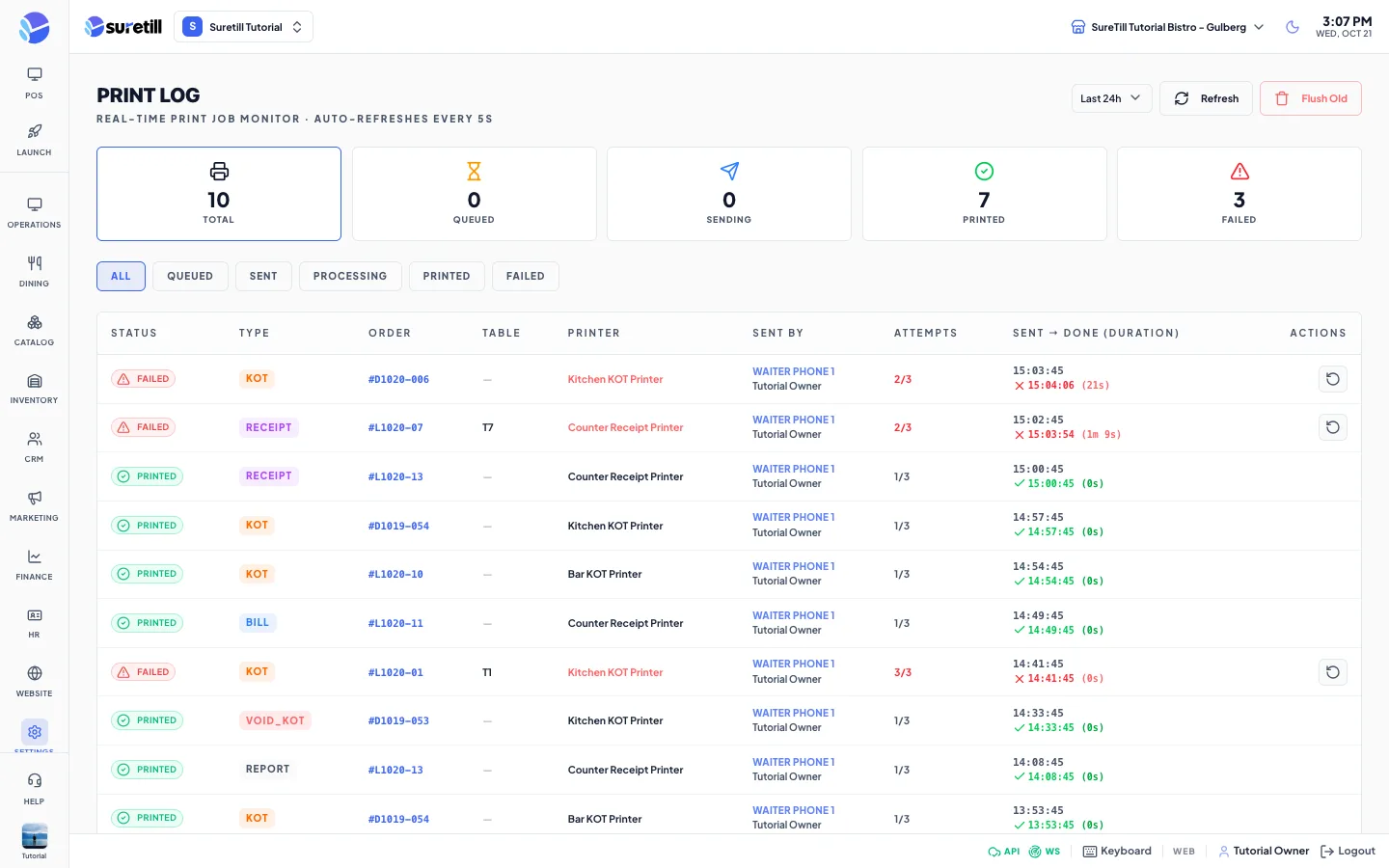
The page title is Print Log. Every bill, receipt, kitchen ticket, void slip and test page that the POS sends to a printer is stored as a print job. This page shows those jobs for the active branch and refreshes by itself every 5 seconds. Use it when a kitchen says a ticket never arrived.
Job statuses
Section titled “Job statuses”| Status | Meaning |
|---|---|
| Queued | The job is stored and waiting for a print agent. |
| Sent | The job was broadcast to the branch. No agent has claimed it yet. |
| Processing | An agent claimed it and is printing. |
| Printed | The agent confirmed that the printer took the ticket. |
| Failed | The agent reported an error, no agent picked the job up in about 8 seconds, or the agent never confirmed. The reason is in the expanded row. |
| Cancelled | The job was cancelled. It is not in the filter tabs but it is counted in the table when you filter by All. |
Step by step
Section titled “Step by step”Find out why a ticket did not print
Section titled “Find out why a ticket did not print”- Open Settings > Print Queue. Choose a time range at the top right: Last 24h, 48h, 7 days or 30 days.
- Click the Failed counter or the Failed tab to see only the failed jobs.
- Find the order number and printer. Click the row to expand it.
- Read the Failure Reason. Common reasons: the printer is switched off, the printer is stuck on another connection, or the IP address is wrong.
- Fix the printer, then press the retry button at the end of the row.
Send a job again
Section titled “Send a job again”Retry (the circular arrow) shows on rows that are Failed, Queued or Sent. It gives the job a new reference and broadcasts it again. A job that already printed cannot be retried here. To print a ticket a second time on purpose, reprint it from the POS.
Clean up old jobs
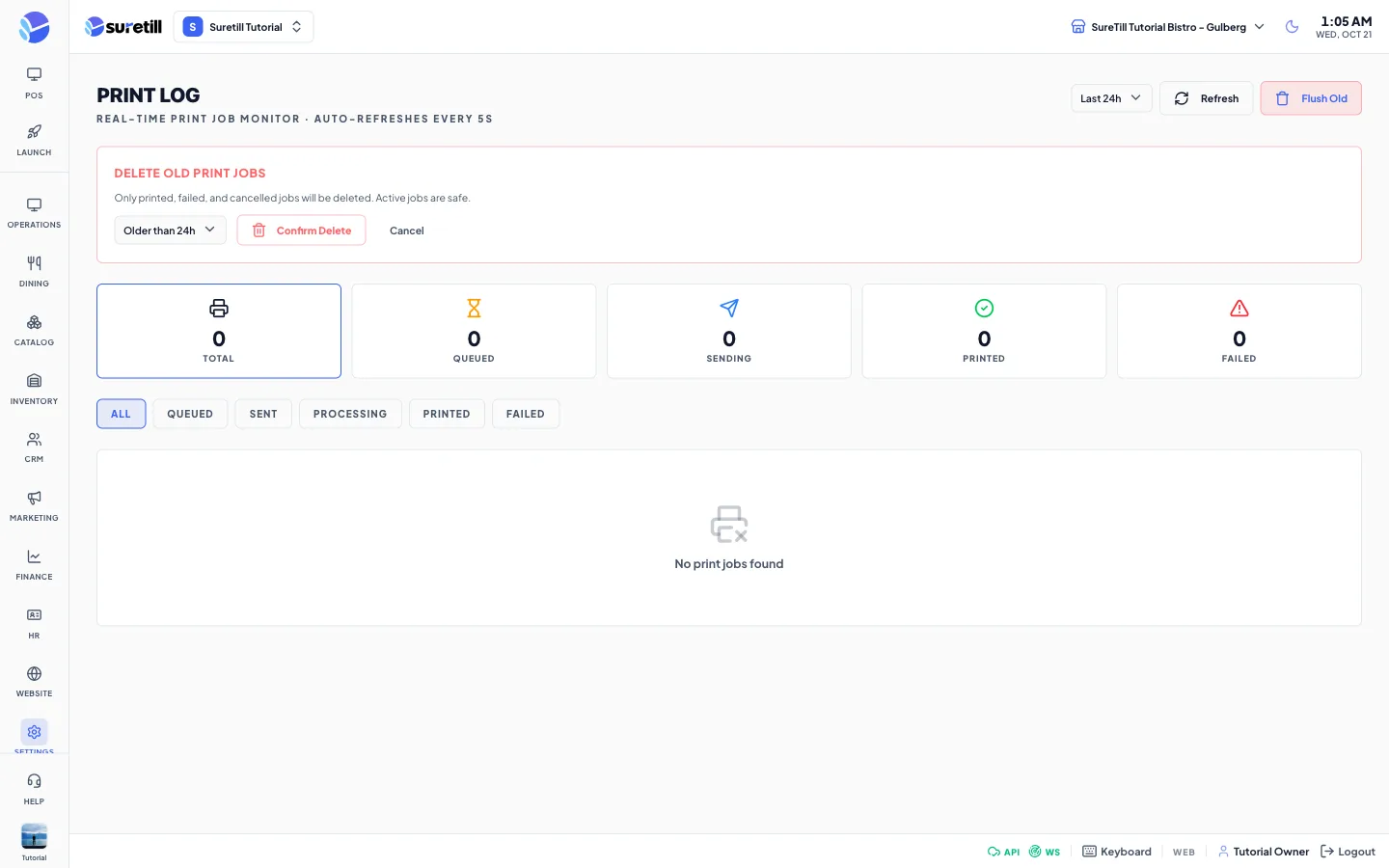
Section titled “Clean up old jobs”- Click Flush Old. A red panel appears.
- Choose Older than 24h, 48h, 7 days or 30 days.
- Click Confirm Delete. Only printed, failed and cancelled jobs older than that are deleted. Jobs that are queued, sent or processing are never touched.
Every setting explained
Section titled “Every setting explained”| Setting | What it does |
|---|---|
| Time range | How far back to look: 24 hours, 48 hours, 7 days or 30 days. |
| Refresh | Reloads the list now. The page also reloads every 5 seconds and shows live next to the title while it does. |
| Timing ON / OFF | Shown only in the desktop app. Switches the print timing log of the app on or off for troubleshooting. It is stored on that device. |
| Flush Old | Opens the clean-up panel described above. |
| Counters | Total (all jobs in the range), Queued, Sending (sent and processing), Printed, Failed. Click one to filter (Sending shows both sent and processing jobs). Except for Total they count the jobs on the current page of 50, and the page says so. |
| Filter tabs | all, queued, sent, processing, printed, failed. |
| Status column | The status badge. |
| Type column | kot, void_kot, bill, receipt and so on. A green direct tag means the job went through a print agent. |
| Order column | The order number, empty for test pages. |
| Table column | The table of the order. |
| Printer column | The printer name. Shown in red for failed jobs. |
| Sent By column | The device and the user that sent the job. |
| Attempts column | Attempts used out of the maximum, for example 1/1. The default maximum is 1, so a failed job is not retried by itself. |
| Sent to Done column | The time the job was sent, then the time it printed or failed and how long it took in seconds. Times over 10 seconds are shown in amber. |
| Expanded row | The failure reason and the items on the ticket. |
| Pagination | 50 jobs per page, with first, previous, page numbers, next and last. |