

Notifications settings: sender, SMTP and channels
Where: Settings > General Settings > Notifications
Who can use it: Sidebar permission: settings.view or manage settings. No plan or add-on is needed.
Open this page in SureTill
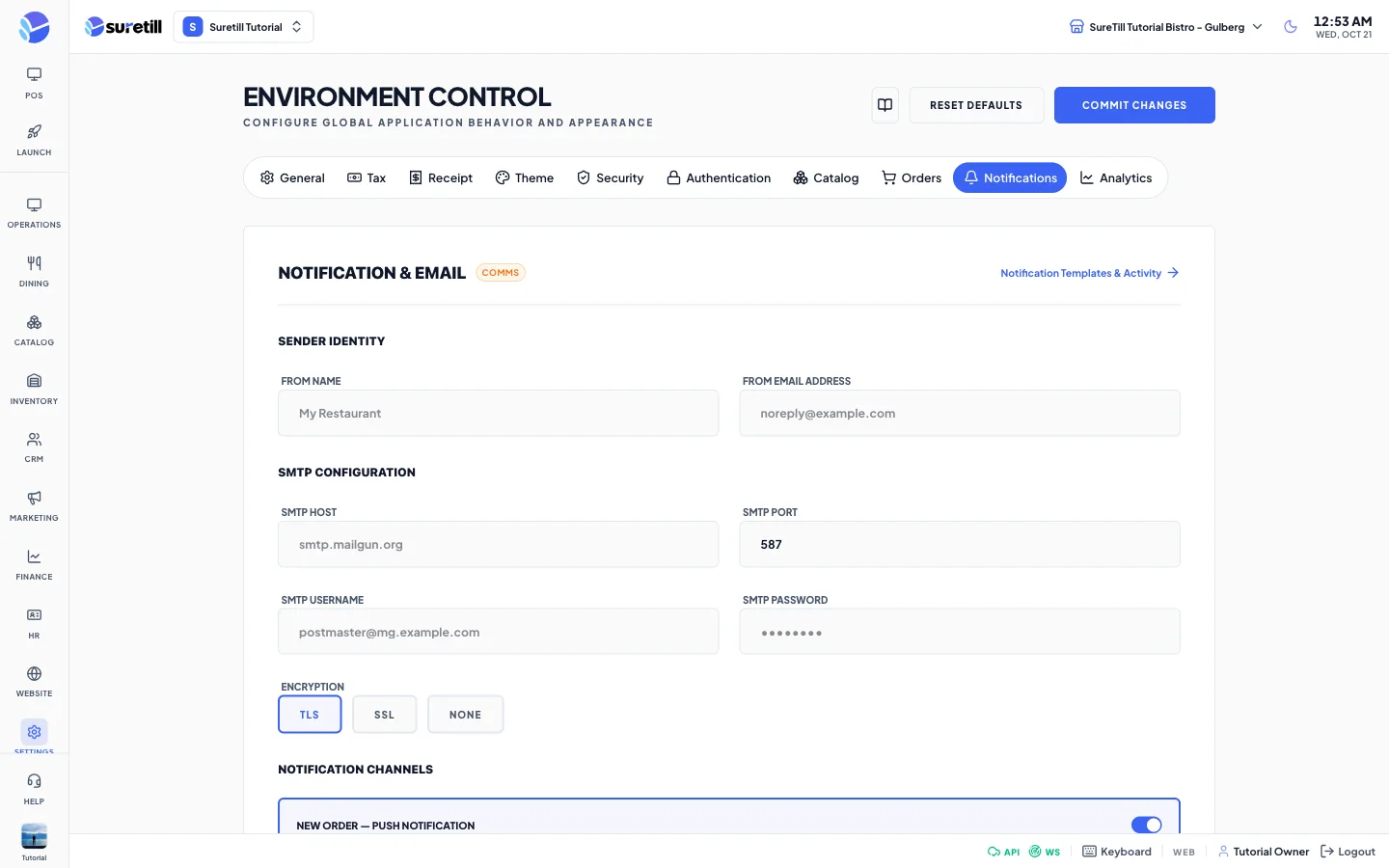
The Notifications tab is titled Notification & Email. At the top a link opens Notification Templates & Activity, which is the Notifications page. The values on this tab are stored in the notifications group when you press Commit Changes.
Step by step: set the sender and channels
Section titled “Step by step: set the sender and channels”- Open Settings > General Settings and click the Notifications tab.
- Type the From Name and the From Email Address.
- Fill in the SMTP fields and pick the Encryption.
- Turn the channel switches on or off.
- Click Commit Changes.
Every setting explained
Section titled “Every setting explained”| Setting | What it does |
|---|---|
| From Name | The name customers see on email. Example: My Restaurant. |
| From Email Address | The sending address. Example: noreply@example.com. |
| SMTP Host | The mail server. Example: smtp.mailgun.org. |
| SMTP Port | Default: 587. |
| SMTP Username | The login of the mail server. |
| SMTP Password | Password field. |
| Encryption | Three buttons: TLS, SSL or NONE. Default: TLS. |
| New Order: Push Notification | Switch. Default: on. |
| New Order: Email | Switch. Default: on. |
| New Order: SMS | Switch. Default: off. |
| Order Status Update: Push | Switch. Default: on. |
| Order Status Update: Email | Switch. Default: off. |
| Low Stock Alert: Email | Switch. Default: on. |
| Daily Report: Email | Switch. Default: off. |