

Payroll
Where: HR > Payroll (the same page is also listed under Finance)
Who can use it: Menu: payroll.view or manage users. On the server, looking needs payroll.view and every change needs payroll.process. Managers cannot see payroll unless they are given those permissions. Owners, admins and super-admins can do everything. Not available on SureScreen plans.
Open this page in SureTill
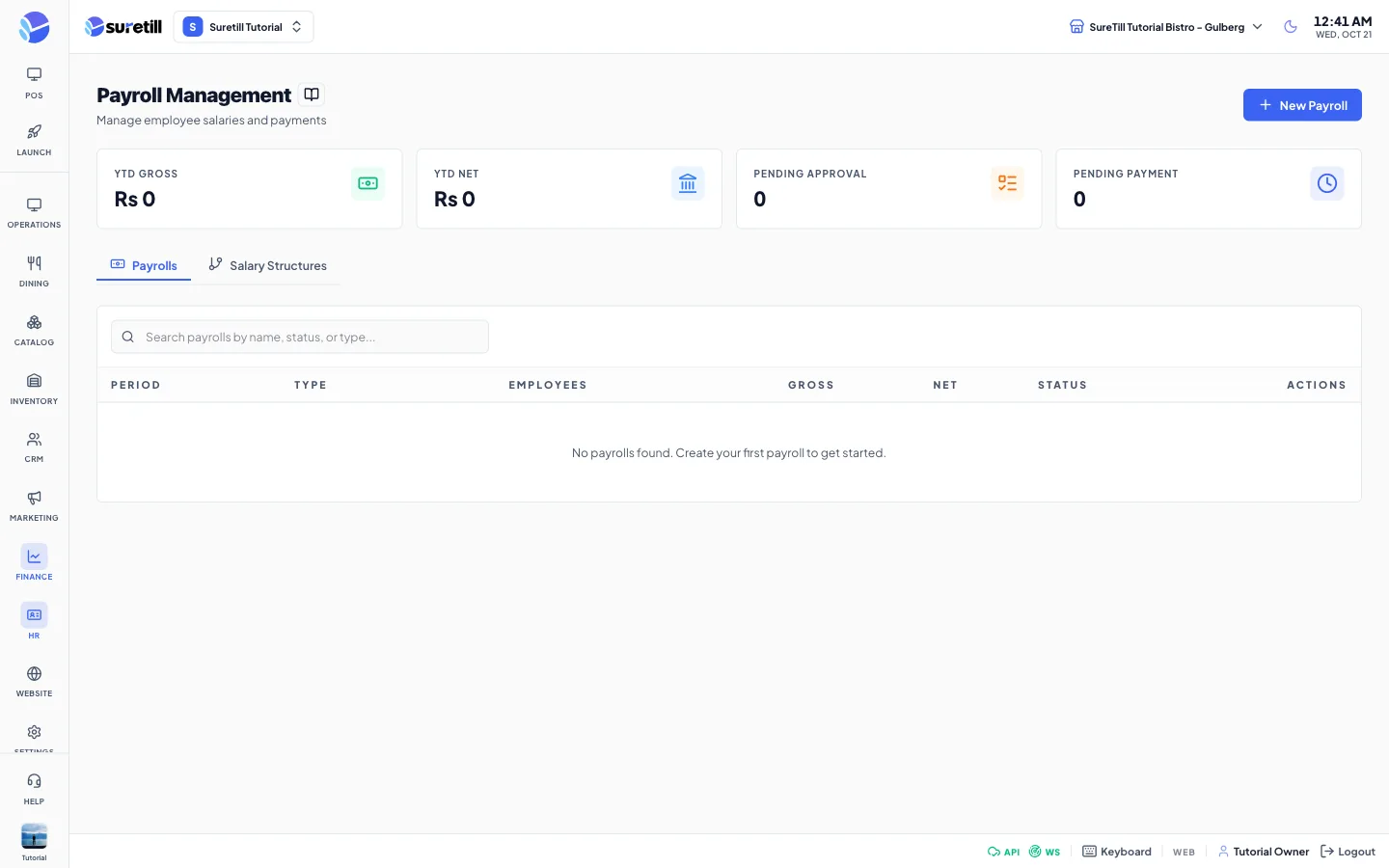
A payroll is one pay run for a period such as a month. You create it, press Generate and the system builds one line for each employee from the attendance records of that period and from the employee’s salary structure. You review the totals, approve the payroll and, when you have paid your people, mark it as paid.
What is built and what is not
Section titled “What is built and what is not”The Payroll page uses salary structures. The server also has a second, attendance-based calculation that uses the salary terms from the Employees form (monthly or per day, shift hours, overtime rate, paid leave days). That calculation can work out a payslip with an advance installment and an employee food bill, can mark them as settled and can send the payslip to the employee on WhatsApp. It is not connected to any screen yet, so you cannot run it from the admin.
Rules that the attendance-based calculation follows, in case you read its results: a month counts as 30 days; absent days of a monthly employee are deducted at salary divided by 30; leave days beyond the paid leave allowance are unpaid; the weekend and holiday premium is off; overtime is paid for hours beyond the shift length at hourly rate times the overtime rate, where the hourly rate is the day rate divided by the shift hours; an advance is recovered in installments of amount divided by its number of months.
Step by step
Section titled “Step by step”Create and generate a payroll
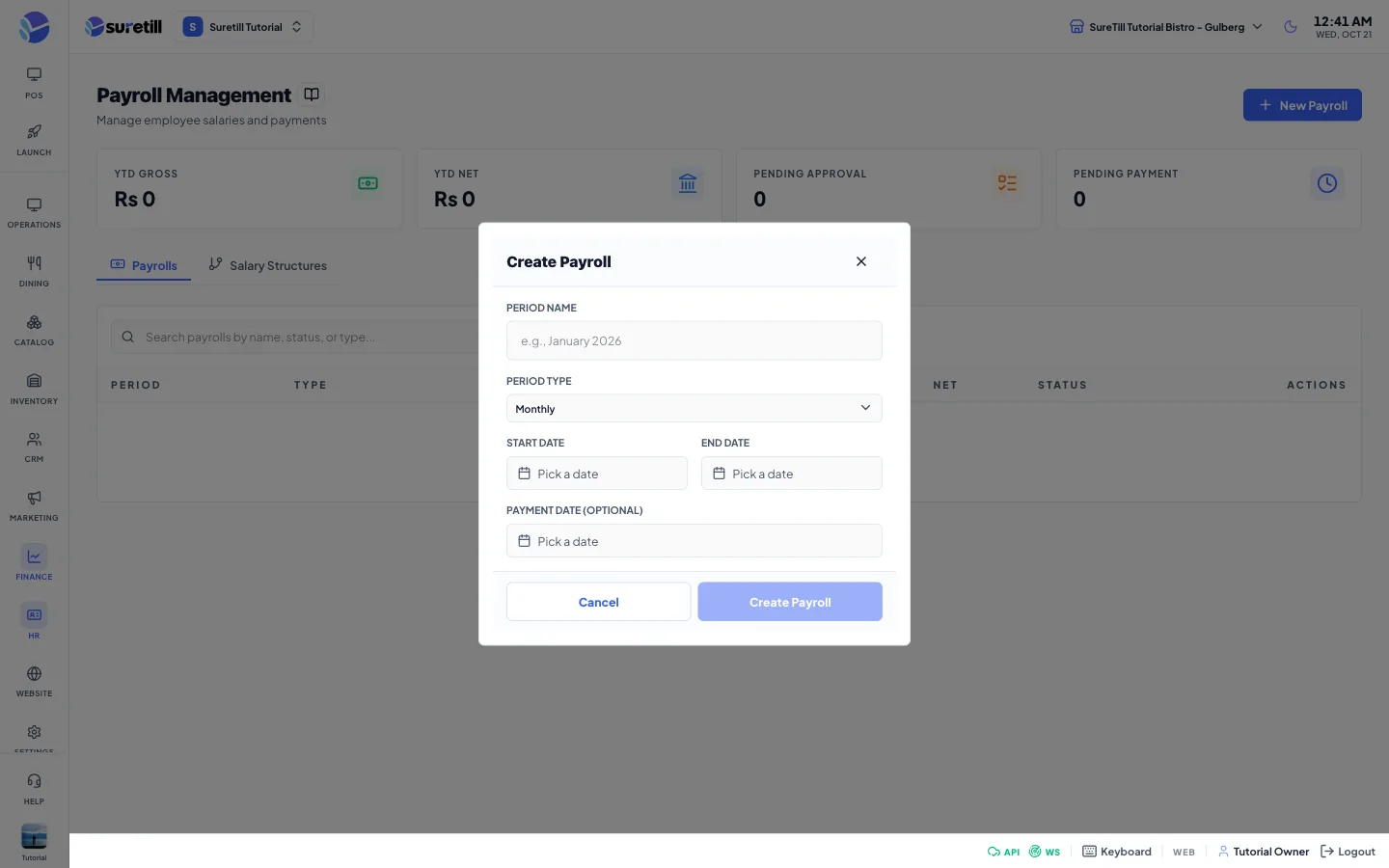
Section titled “Create and generate a payroll”- Open HR > Payroll and click New Payroll.
- Type the Period Name, for example January 2026.
- Choose the Period Type: Weekly, Bi-Weekly or Monthly. This is a label.
- Pick the Start Date and the End Date. The end date cannot be before the start date.
- Optionally pick a Payment Date and click Create Payroll. The new payroll has the status Draft.
- Click the calculator icon on its row (or open it with the eye icon and click Generate Payroll).
- Read the totals and the lines in the window that opens.
Approve, pay and print
Section titled “Approve, pay and print”- Open a Draft payroll with the eye icon. When it has at least one employee the green Approve Payroll button is shown.
- Click Approve Payroll. The payroll and all its lines become Approved.
- Pay your staff outside the system, then open the payroll again and click Mark as Paid. Only an Approved payroll can be marked as paid.
- To print a salary slip click the receipt icon on an employee line and then Print.
Add or edit a salary structure
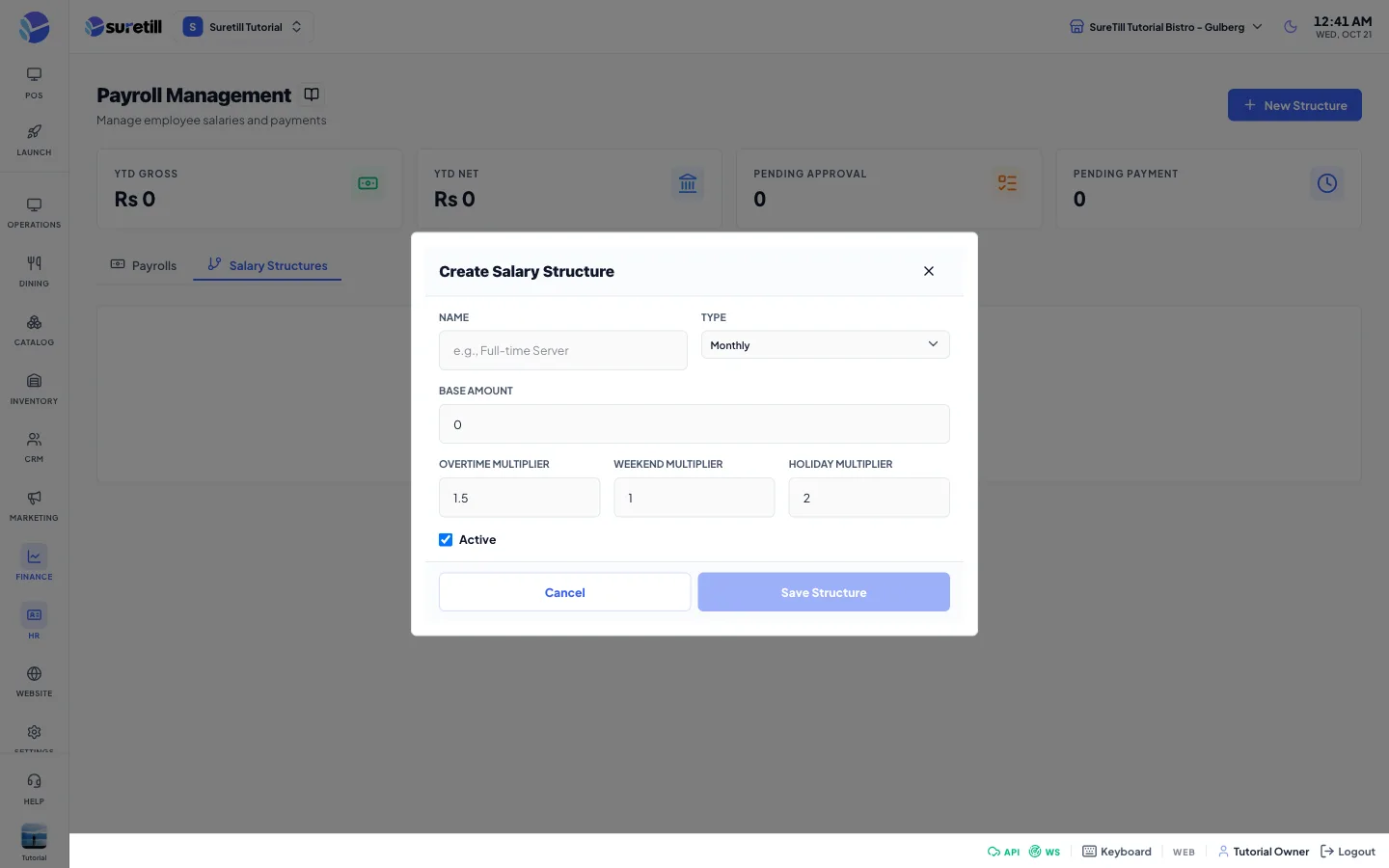
Section titled “Add or edit a salary structure”- Open the Salary Structures tab and click New Structure (or Edit on an existing card).
- Type a Name, for example Full-time Server, and choose the Type.
- Enter the Base Amount and the multipliers.
- Keep Active ticked and click Save Structure.
How pay is calculated
Section titled “How pay is calculated”Hours come from the attendance records dated inside the payroll period. The saved length of each record is read in minutes. A record on a Saturday or Sunday counts as weekend hours. A record with the status holiday on a weekday counts as holiday hours. Every other record counts as regular hours (its length minus its overtime) plus overtime hours. Days worked count the records with the status present, late or half day. Absent and late records are counted too.
| Structure type | How the base pay and overtime are worked out |
|---|---|
| Hourly | Regular hours times the base amount. Overtime hours times base amount times the overtime multiplier. Weekend hours times base amount times the weekend multiplier. Holiday hours times base amount times the holiday multiplier. |
| Daily | Regular hours divided by 8 and rounded up gives the days, and days times the base amount is the base pay. Overtime hours times base amount divided by 8 times the overtime multiplier. Weekend and holiday hours are not paid. |
| Monthly | The base amount is paid in full. Overtime hours times base amount divided by 176 times the overtime multiplier. Weekend and holiday hours are not paid. |
Gross pay is the base pay plus overtime, weekend and holiday pay, tips, commission, bonus and the allowances of the structure (a percent allowance is a percent of the base pay). Total deductions are tax by bracket, social security, health insurance, loan and advance deductions and the deductions of the structure. Net pay is gross pay minus total deductions. Tips, commission, bonus, social security, health insurance and the loan and advance deductions start at 0, and this page has no screen to edit them.
Every setting explained
Section titled “Every setting explained”| Setting | What it does |
|---|---|
| YTD Gross and YTD Net | Total gross and net pay of the payrolls with the status Paid in the current year. |
| Pending Approval | Number of payrolls that are still Draft. |
| Pending Payment | Number of payrolls that are Approved but not yet Paid. |
| Payrolls tab | Search by name, status or type. Table columns: Period (name and dates), Type, Employees, Gross, Net, Status and Actions (eye to view, calculator to generate for drafts). |
| Status | Draft, Processing, Approved, Paid or Cancelled. |
| Period Name, Period Type, Start Date, End Date | Required to create a payroll. |
| Payment Date | Optional date on which you plan to pay. |
| Payroll window | Four totals (Employees, Gross Pay, Deductions, Net Pay) and a table with Employee, Hours (with +h OT), Gross, Deductions and Net. |
| Salary slip | Employee name, email and position; Earnings (base salary, overtime, bonus, gross); Deductions (tax, social security, health insurance, total); Net Pay; a Print button. |
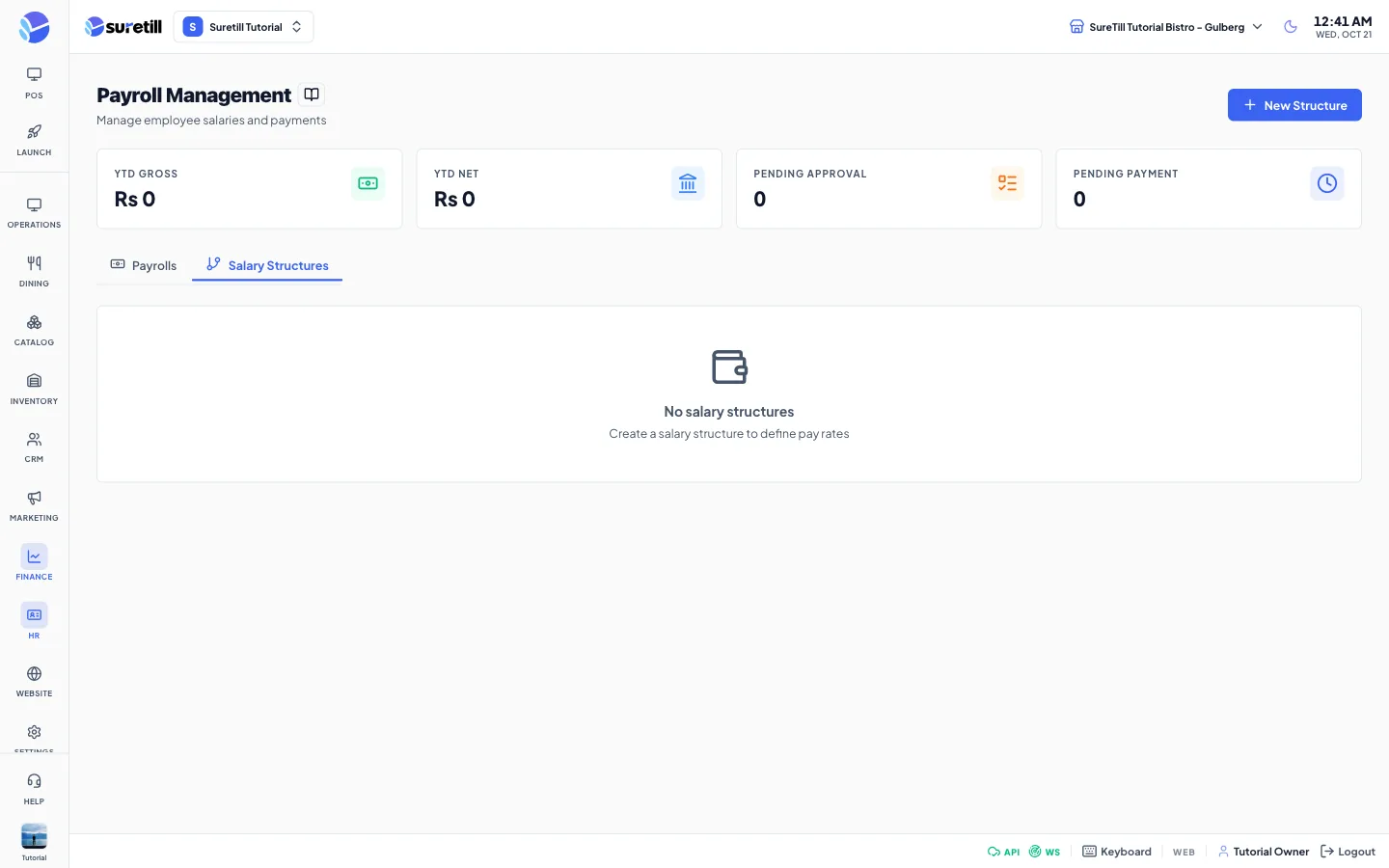
| Salary Structures tab | A card per structure with its type, Active or Inactive badge, base amount, overtime rate and the number of allowances and deductions. |
| Name, Type, Base Amount | Type is Hourly, Daily or Monthly. The base amount is per hour, per day or per month. |
| Overtime Multiplier | Default 1.5. The server requires 1 or more. |
| Weekend Multiplier | Default 1.0. Only used by Hourly structures. |
| Holiday Multiplier | Default 2.0. Only used by Hourly structures. |
| Active | Tick box, on by default. |