

Backup and Export
Where: Settings > Backup
Who can use it: Permission: settings.manage_backups, settings.update or manage settings. Not available on SureScreen plans. The page is different on SureTill cloud and on an on-premise server.
Open this page in SureTill
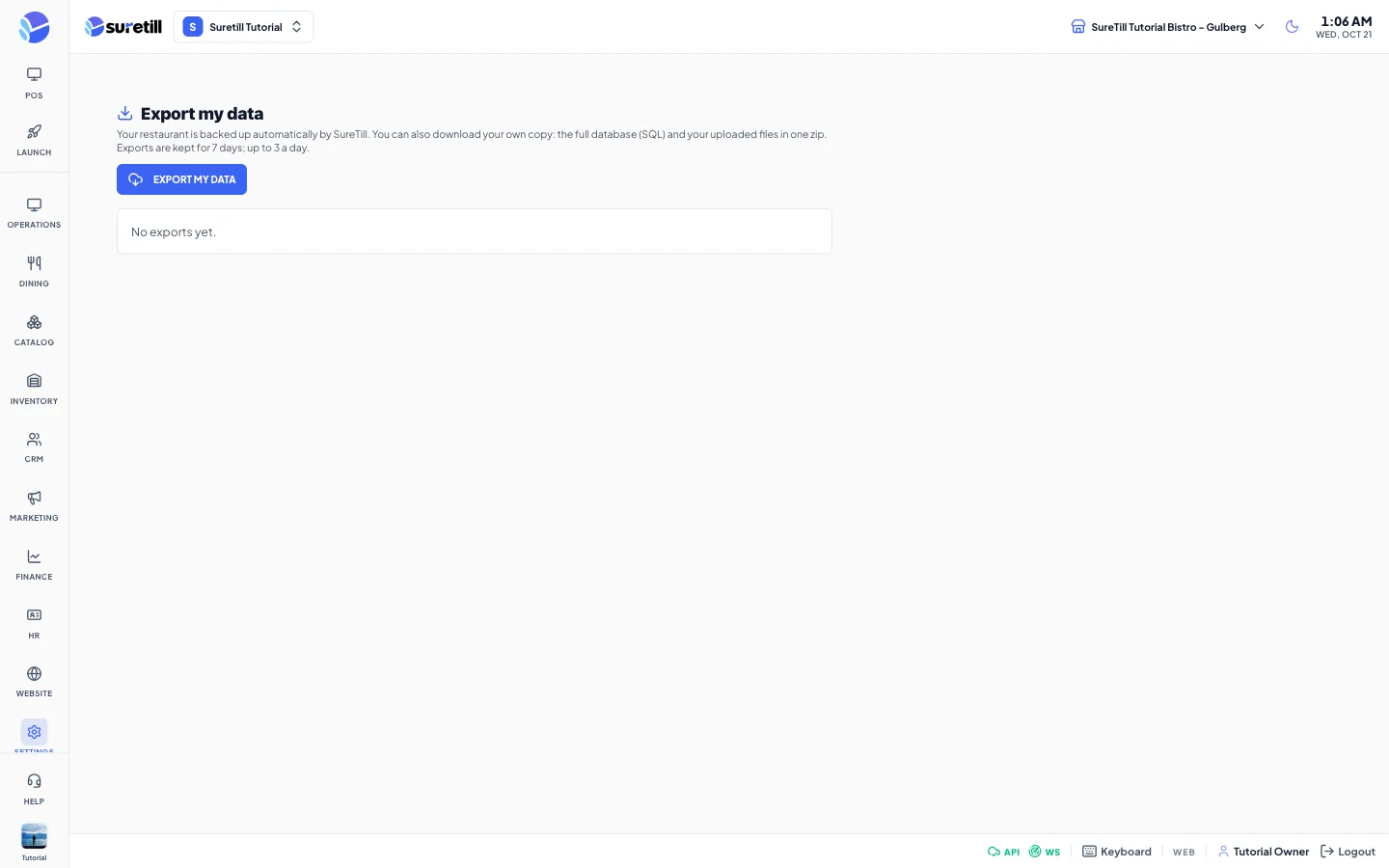
This page has two faces. On SureTill cloud SureTill backs up every restaurant automatically, so the page is called Export my data and gives you a copy to keep. On an on-premise server (a server in your own restaurant) the page is the Disaster Recovery Console and you manage the backups yourself.
SureTill cloud: Export my data
Section titled “SureTill cloud: Export my data”Your data is backed up by SureTill and you cannot restore a backup yourself. If you want your own copy, press Export my data. SureTill prepares one zip file with the full database (as SQL) and your uploaded files, such as product pictures and logos.
- Open Settings > Backup and click Export my data.
- A line appears with the status Queued, then Running. The page checks every 5 seconds. A big restaurant can take a few minutes.
- When the status is Ready, click Download and save the zip.
- Keep the file somewhere safe. SureTill deletes the export after 7 days (the line then shows Expired).
| Item | What it does |
|---|---|
| Export my data | Starts an export. Only one export can run at a time (the button shows Preparing). You can make up to 3 exports a day. Only the owner and super administrators can start one. |
| Status | Queued, Running, Ready, Failed (try again) or Expired. |
| Size and date | When the export was made and how big the zip is. |
| Kept until | The date the file is deleted, 7 days after it was made. |
| Download | Saves the zip to your computer. |
On-premise server: Disaster Recovery Console
Section titled “On-premise server: Disaster Recovery Console”A backup is a zip file with a database dump and, for full backups, the uploaded files. It is stored on the server in storage/app/backups and can also be copied to cloud storage destinations. A backup on the same machine does not protect you if that machine dies, so always add an off-site destination.
Make a backup now
Section titled “Make a backup now”- Open Settings > Backup.
- In the Destinations card tick the destinations that should receive this backup. All enabled destinations are ticked at first.
- Click Trigger Manual Snapshot (or Backup Database at the bottom of the table). Wait for the Creating backup message. A full backup is made.
- The new row appears in the Snapshot Registry with the status Verified when it finished well.
Check, download or delete a backup
Section titled “Check, download or delete a backup”Hover a row to see its buttons. Download saves the file. Verify Integrity checks that the file is complete. Delete removes the backup after a confirmation. It cannot be undone.
Restore a backup
Section titled “Restore a backup”- Hover the row of the backup you want and click Restore, or click Restore Database at the bottom to restore the newest backup in the list.
- Read the warning and confirm.
- The server first makes a safety backup of the current database, then replaces the data with the backup. For a full backup the uploaded files are restored too. The backup file must still exist on the server disk.
Schedule automatic backups
Section titled “Schedule automatic backups”- In the Automation card choose a Cycle Frequency: Hourly, Daily, Weekly, Monthly or Manual Only.
- Set the Execution Window (the time of day) and a Job Name such as nightly-full. Each name is its own job; using a name again changes that job.
- Make sure Auto-Backup on Work Period Close is switched on, then click Save / Add Schedule Job. The button stays disabled while that switch is off.
- The job appears under Active Jobs with its next run time. Click the bin to delete it.
Add an off-site destination
Section titled “Add an off-site destination”- In the Destinations card click Add.
- Choose a Provider. The form then asks for the keys of that provider: for example Access Key ID, Secret Access Key, Region and Bucket Name for Amazon S3.
- Set Retention Days, Priority and Enabled, then click Save Destination.
- The card then shows the number of backups found at that destination and how many days it keeps them. A dash instead of a number means the destination could not be reached.
Providers: Amazon S3, DigitalOcean Spaces, Hetzner Object Storage, Google Cloud Storage, Google Drive, Microsoft OneDrive, Dropbox, Box, Backblaze B2, Wasabi, iDrive E2 and Local Storage.
Every setting explained (on-premise)
Section titled “Every setting explained (on-premise)”| Setting | What it does |
|---|---|
| Trigger Manual Snapshot | Makes a full backup to the ticked destinations. |
| Point-in-Time Recovery banner | A link to Backup and DR, which shows the live protection of the database. |
| Counters | Total Backups, Successful Backups with the success rate, Failed Backups and Storage Used on this server. |
| Snapshot Registry | The list of backups: id and date, type and size and file name, the destinations, and the status Verified, Partial, Failed or Processing. How long copies are kept is set per destination (Retention Days). |
| Download, Restore, Verify Integrity, Delete | The row buttons described above. |
| Backup Database, Restore Database | Make a backup now; restore the newest backup. |
| Auto-Backup on Work Period Close | Makes a database backup each time a work period is closed. On unless you switch it off. |
| Cycle Frequency, Execution Window, Job Name | The schedule described above. |
| Backup Status | System Health (Healthy or Error), Local Storage with the space used, and the number of recovery points. |
| Destinations | The list of storage targets. The tick box includes a destination in manual backups. The badge shows Enabled or Disabled. |
| Add Backup Destination | Provider, Name, the provider keys, Retention Days (1 to 365, starts at 14), Priority and Enabled. |
| Remove Demo Data (Danger Zone) | Deletes the sample data that comes with a new installation: demo suppliers, stock items, recipes, HR records, loyalty tiers, gift cards, expense categories and sample expenses. Real orders and users are kept. It cannot be undone. |