

Taking orders on the POS
Where: Operations > POS Terminal
Who can use it: pos.access to open the POS. Changing an order needs pos.update_order, Hold needs pos.hold_order, Note needs pos.add_note, Split needs pos.split_order or pos.split_bill, rider assignment needs pos.assign_rider or delivery.assign_rider.
Open this page in SureTill
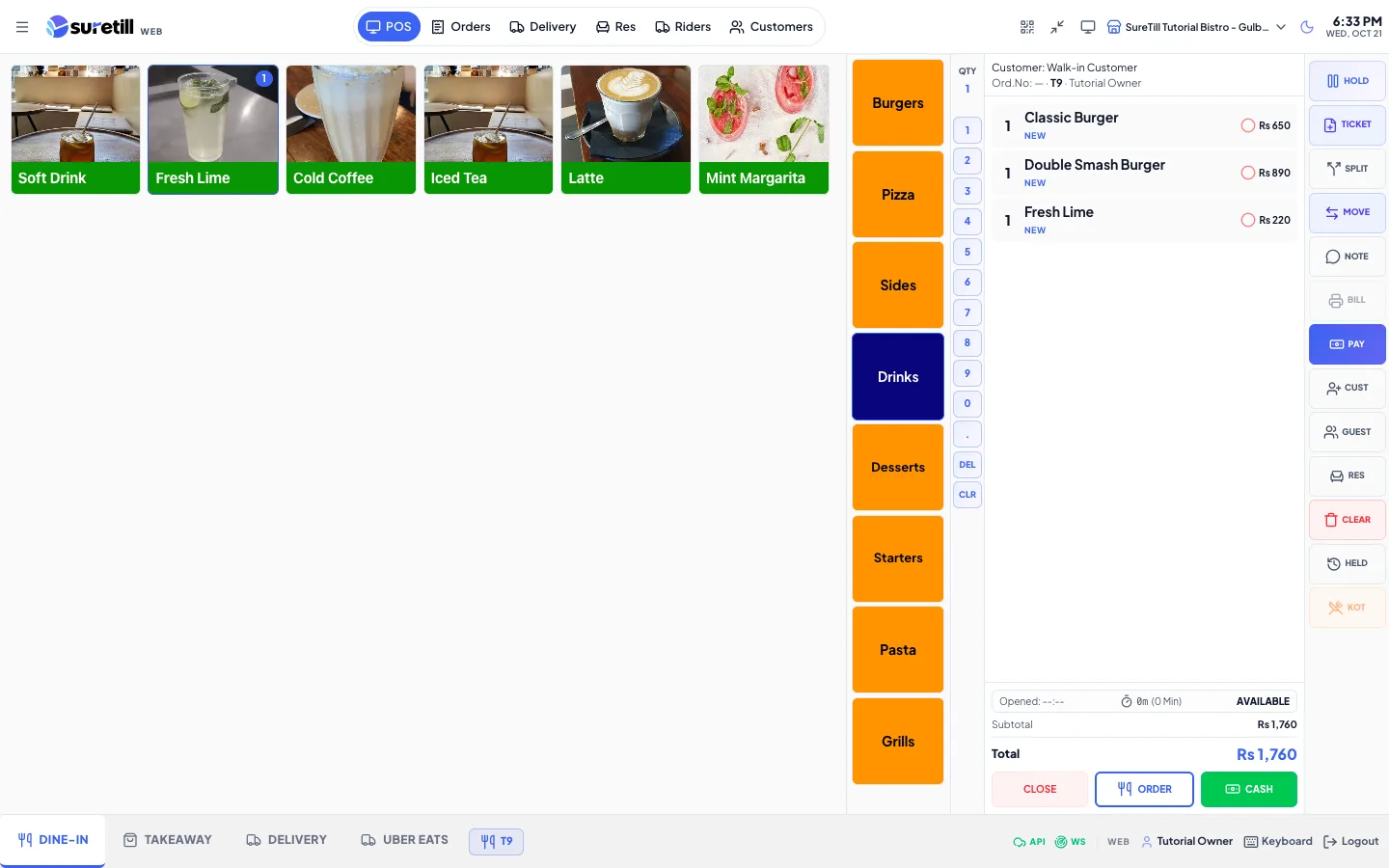
An order starts when you pick a table (or tap New Order) and add products to the cart. It becomes a real order when you press Order. Until then nothing is sent to the kitchen and nothing is saved on the server.
Step by step
Section titled “Step by step”Start a dine-in order at a table
Section titled “Start a dine-in order at a table”- Tap the Dine-In tab in the bottom bar. The table grid opens.
- Tap a free table. The product screen opens with an empty cart and the table name in the cart header.
- Tap Guest if you want to record how many guests are seated (see below).
- Add products (next section), then press Order.
Table colors show the state: Available (white), Occupied, Bill Printed, Billed, Reserved, Account and Ready. A strip above the grid counts the tables in each state. A timer on a busy table shows how long it has been open.
Add products to the cart
Section titled “Add products to the cart”- Pick a category in the category bar. “All Items” shows every product unless your owner hid it in Settings > Theme.
- Tap a product tile. It goes into the cart. Tap again to add one more, or use the minus and plus on the tile.
- To add several at once, tap numbers on the Qty pad first (for example 3), then tap the product. The pad is cleared after each add. You can type a decimal such as 0.5 for half a portion.
- A tile marked “Sold Out” cannot be added.
- A veg or non-veg mark in the corner of the picture shows the diet flag set on the product.
- If you scan a barcode, the product is found and added by itself when auto-add on scan is on.
Choose a size, add-ons and a note for one line
Section titled “Choose a size, add-ons and a note for one line”- Tap a product that has sizes. The POS adds the smallest-priced size first. You can change it in the next step.
- Tap the line in the cart. After a moment the item editor opens. (Double-click also opens it.)
- Under Size / Variation pick the size. If the product has no add-ons, tapping a size saves right away.
- Under Addons & Extras tap each extra you want. Tap again to remove it. The price at the bottom updates.
- Type a request under Notes, for example allergies or “no onions”.
- Tap Update Item.
Products sold by weight or by amount
Section titled “Products sold by weight or by amount”- Tap the product. The weight window opens with the rate per unit (for example per kg).
- Choose Enter Weight or Enter Amount.
- Type the value or tap a quick value (0.25, 0.5, 1, 2 for weight; 50, 100, 200, 500 for amount). A live line shows the result.
- Tap Add to Cart. Each weighed entry is its own cart line. Tap the line later to change it.
Select several lines, change quantity, change a price
Section titled “Select several lines, change quantity, change a price”- Tap one line to select it. Tap a second line quickly to select several. Tap a selected line again to unselect it.
- Use Plus and Minus in the button column to change the quantity of a single selected line. The quantity never goes below 1.
- To change the price of one line, tap its price, type the new price and press Enter or tap the check mark.
- Use Void or Del for lines you do not want (see the voids article).
Add a note to the whole order
Section titled “Add a note to the whole order”- Tap Note. Type the note (“Type order note for bill/KOT”) and close the window. The note shows above the totals and prints on the bill and kitchen ticket.
Attach a customer
Section titled “Attach a customer”- Tap Cust. The customer window opens.
- Search by name, phone or address and tap the customer, then Select. Tap Edit to change their details, or Account to open their account.
- To add a new person, fill Name and Phone (both needed for an account), and optionally Address. Then tap Save Customer, or Create Account to create and attach an account customer.
- For delivery you can tap Address Only. This writes the name and address on the order without creating a customer account or an order history.
- A green “Account” badge marks customers who can buy on credit. An amber “Secondary” badge marks a secondary account whose charges go to its primary account.
- A delivery order needs a customer, or an address-only entry. Without one the POS asks you to select a customer.
Record the number of guests
Section titled “Record the number of guests”- Tap Guest. Use minus and plus, type a number, or tap 1 to 10. Tap Confirm. Clear sets it back to zero. The button shows the number once set.
Send the order
Section titled “Send the order”- Check the cart. The header shows the customer, order number, table and who took the order.
- Press Order. The order is created, the table turns occupied, the kitchen display gets it, and the kitchen printers print the ticket (when those branch settings are on).
- The cart empties and you return to the tables (or the department view). If “Keep Order In Cart After Sending” is on, the order stays open instead.
- For a table-based department the POS requires a table before it sends the order. If you forgot, a table picker opens. A department with no tables skips this.
- If the table is already taken by someone else, the “Table Occupied” window lets you pick an available table.
- While the order is being sent the button shows “Sending” and ignores extra taps, so one tap never creates two orders.
Add more items to an order that is already open
Section titled “Add more items to an order that is already open”- Tap the table to open the order. Existing lines are marked SUBMITTED.
- Add products. New lines are marked NEW. If you lower a quantity on a submitted line it is marked QTY PENDING.
- The Order button changes to Update. Press Update to save the changes and print only the new items on the kitchen ticket.
Put the order on another ticket (T4, T4A, T4B)
Section titled “Put the order on another ticket (T4, T4A, T4B)”- On a table with an order, tap Ticket. The table label gets the next letter (T4A).
- Add products for the new ticket and press Order. Each ticket is a separate order with its own bill.
- Pay the tickets together or one by one. The cart shows lines grouped under each ticket name.
Move an order to another table or department
Section titled “Move an order to another table or department”- Tap Move (or the selected table chip in the bottom bar). The window “Change Department / Table” opens.
- Pick the department tab and then the table. Tap Move Table, choose the target and tap Move Here.
- To combine two tables into one, tap Merge, pick From Table and To Table, then Merge.
Hold an order and bring it back
Section titled “Hold an order and bring it back”- With items in the cart, tap Hold. The order is saved on the server with a name made from the table or customer and the time.
- The cart is cleared. For a table-based department you must have picked a table first.
- Later tap Held. The list shows the name and time of each held order.
- Tap an entry to recall it into the cart. Tap the red bin to delete a held order.
Start a takeaway or delivery order without a table
Section titled “Start a takeaway or delivery order without a table”- Tap the Takeaway or Delivery tab. If it has no tables, you see the open orders of that type.
- Tap New Order. The product screen opens with an empty cart.
- For delivery, attach the customer or an address. Tap Rider to choose a rider now, or after the order is placed.
- Press Order.
Print the kitchen ticket again, or the bill
Section titled “Print the kitchen ticket again, or the bill”- KOT button: tap KOT, read “Reprint to Kitchen?” and tap “Yes, Reprint”. Every item of the order is printed again. Each station ticket carries the text “REPRINT - DO NOT RE-MAKE” so the kitchen does not cook it twice.
- One line only: tap the red dot on a cart line that is not yet sent to the kitchen. It sends just that item. A green check means the item was already sent.
- Bill button: prints the bill for the customer. The ticket is locked after that (see the voids article).
The Orders tab inside the POS
Section titled “The Orders tab inside the POS”Tap Orders in the top bar to see the orders of the current work period. Filter by order type, by payment method (“Paid via”), by text (order number or customer) and by date range. Tap an order to see its items, voids and payments. Load to POS opens it in the cart.
Every setting explained
Section titled “Every setting explained”Cart header, lines and totals
Section titled “Cart header, lines and totals”| Setting | What it does |
|---|---|
| Customer | The attached customer, or “Walk-in Customer”. |
| Delivery Boy | Only on delivery orders. The assigned rider, or the rider you preselected. |
| Ord.No, table, operator | The order number, the table name (with ticket letter) and the person who took the order. |
| Quantity and name | Each line shows the quantity (a scale icon for weighed items), the product name and the size. |
| pcs | Shown when a product or size has a pieces-per-unit count (for example Half = 3 pcs). It multiplies by the quantity. |
| NEW / QTY PENDING / SUBMITTED | NEW: not yet sent. QTY PENDING: quantity lowered, waiting for Update. SUBMITTED: already sent. Submitted lines also show the time and “by name” of who added them. |
| merged from | A line brought in from another ticket by a merge. |
| Kitchen dot | Green check: sent to the kitchen. Red circle: not sent, tap to send that item. |
| VOIDED | A voided line is struck through. It stays on screen for the record. |
| Order note | The order note, shown above the totals. |
| Opened / timer / status | When the order was opened, a running timer, and a status such as “Preparing - Unpaid” (kitchen state and billing state). |
| Subtotal, taxes, Service, Discount, Total | Subtotal, each active tax (inclusive taxes are shown in brackets), service charge, discount, and the total to pay. |
| Payments and Remaining Due | Each payment already taken, and what is still owed. |
| Close | Clears the cart and returns to the tables. If there are unsaved items and no order yet, it asks “Do you want to cancel this order and go back to tables?”. |
| Order / Update / Bill / Print | Sends the order. It becomes Update when an open order has changes, Bill in a supermarket or general store, and Print in a bakery. |
| Cash / Settle / Settled | Cash takes full cash payment (after a confirmation). After the order is paid it becomes Settle. After settling it shows Settled and is disabled. |
Action buttons
Section titled “Action buttons”The column of buttons is fixed. Their permissions are below. The separate Action Buttons page is described in its own article.
| Button | What it does |
|---|---|
| Plus / Minus | Change the quantity of the one selected line. Needs pos.update_order. |
| Void | Voids the selected lines. Hidden once the order is paid. Needs pos.void_item. |
| Del | Removes the selected line. A line that is already on the server is removed there too. Removing the last line cancels the order and clears the table. Needs pos.update_order. |
| Hold | Saves the cart as a held order. Needs pos.hold_order. |
| Ticket | Starts the next ticket letter on the same table. Needs pos.update_order and a selected table, not in Retail mode. |
| Split | Moves selected items to a new order. Needs pos.split_order or pos.split_bill. See the payments article. |
| Move | Move table or change department, and merge tables. Only with a table selected. |
| Note | Order note. Needs pos.add_note. |
| Bill | Prints the bill and locks the ticket. A red number shows recent failed prints. Needs pos.reprint_receipt. |
| Rider | Assign a rider on a delivery order, or preselect one before the order exists. Needs pos.assign_rider or delivery.assign_rider. |
| Pay | Opens the Payment screen. Needs pos.cash_payment, pos.card_payment or pos.settle_order. |
| Cust | Attach or change the customer. |
| Guest | Set the number of guests. |
| Res | Opens the Res tab and the new reservation form. |
| Clear | Empties the cart on screen. On an order that is already saved this does not cancel it. |
| Held | Shows held orders to recall or delete. |
| KOT | Reprints the whole order to the kitchen. Not shown in bakery, supermarket or general store. Needs pos.update_order or manage orders. |
| Unlock | Only visible when the bill is printed and the ticket is locked. Needs orders.unlock. |
Item editor, weight window and customer window
Section titled “Item editor, weight window and customer window”| Setting | What it does |
|---|---|
| Size / Variation | Chooses the size. The line price becomes the size price. |
| Addons & Extras | Optional extras with a price. Each selected extra is added to the line price. |
| Notes | Special instructions for this line. They print on the kitchen ticket and show on the kitchen display. |
| Update Item | Saves the changes to the line. On a saved order the old line is replaced by the new one. |
| Enter Weight / Enter Amount | Weight mode multiplies the weight by the rate. Amount mode divides the money by the rate to get the weight. |
| Search by name, phone, or address | Finds customers in the customer window. |
| Name, Phone, Address | New customer fields. Name is required. Phone is required for an account. |
| Select, Edit, Account | Attach the highlighted customer, edit them, or open their account. |
| Address Only | Attaches only a name and address to this order. No account is created. |
| Save Customer, Create Account | Save the person as a customer, or create an account customer and attach it. |