

Your first sale
Where: Operations > POS Terminal
Who can use it: Permissions pos.access or access pos. Taking cash needs pos.cash_payment; card needs pos.card_payment; Settle needs pos.settle_order. An owner has all of them.
Open this page in SureTill
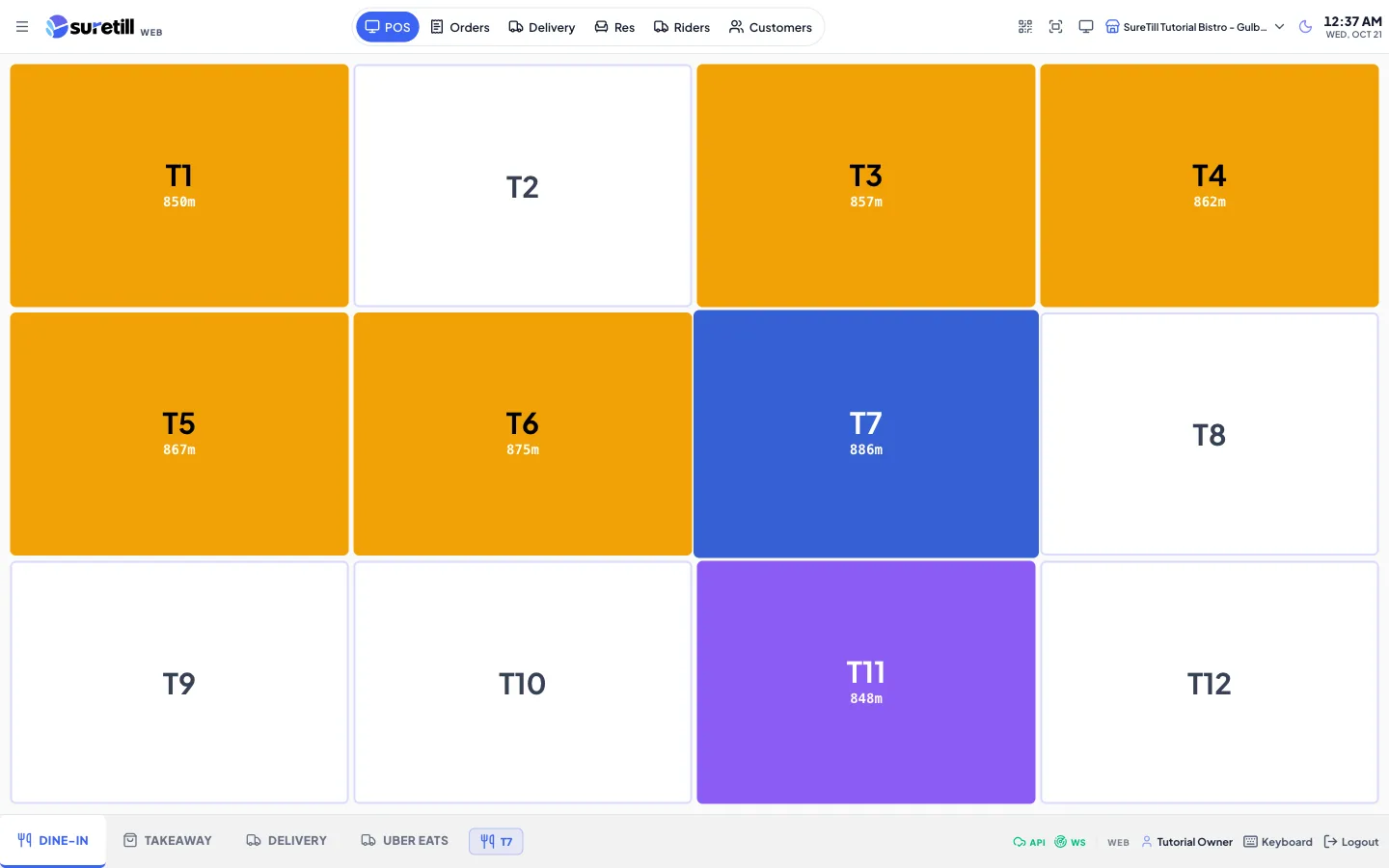
This walk-through uses a dine-in order. Takeaway and delivery follow the same steps without choosing a table. Do it once as a test before you open for real customers.
Before you start
Section titled “Before you start”- You have at least one product. Import a menu or add a sample menu in the setup wizard.
- For dine-in, you have at least one table. Add tables in the wizard or in Tables.
- Your restaurant has the Dine-In, Takeaway and Delivery departments. The wizard adds them when you choose Open the POS and take a test order. If they are missing, the POS says No departments configured and points you to Departments, where you click Seed Standard Departments.
Step by step
Section titled “Step by step”- Open the POS Terminal from the Launch Pad. If you used the wizard button Open the POS and take a test order, a work period is already open and you can skip step 2.
- If you see Work period required, click Open Work Period. Type the cash in the drawer when asked to Enter opening cash amount, for example 0, and confirm. Until a work period is open, orders, tables and payments are locked.
- Click the department at the top: Dine-In, Takeaway or Delivery.
- For Dine-In, tap a free table on the floor. The menu opens. The Guest button on the right lets you record the number of guests.
- Pick a category and tap items to add them to the order panel. Items with choices open a window for variations and modifiers. Tap an item in the panel to select it, then use Plus, Minus, Void or Del. Note adds a note to the whole order.
- Click Order. The button briefly says Sending. The order is saved and sent to the Kitchen Display. If printers are set up, a kitchen ticket (KOT) prints as well. The Order button becomes Update when you change a saved order, so click Update to send changes.
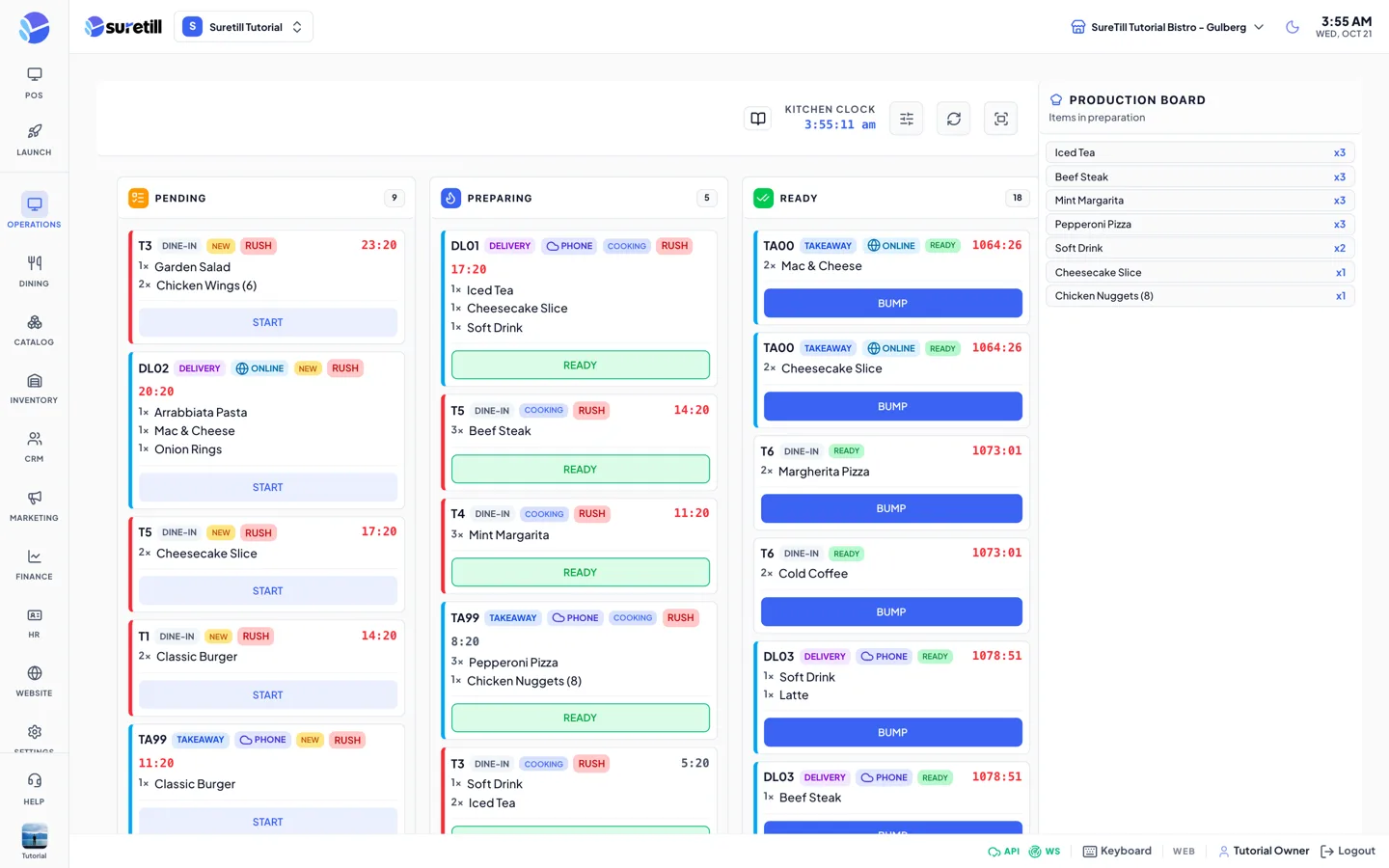
- Open the Kitchen Display (Operations > Kitchen Display) on another screen and watch the order arrive. Move it through its stages there.
- When the guests ask for the bill, click Bill to print it. After a bill is printed the ticket is locked and only payment is allowed. Unlocking needs the orders.unlock permission.
- Click Pay. The Payment screen opens with the Total, Subtotal, tax and Remaining.
- Under Pay With, tap the method, for example Cash. Type the amount received on the number pad, or tap the big quick button that fills the exact amount, or one of the quick amounts.
- Click Complete. The payment is recorded against the order. If the amount is less than the balance you get an error. Use Split Pay to take part payments with two or more methods.
- Back on the order panel, the green button now says Settle. Click Settle to finish the order. For a table this frees the table; for takeaway and delivery it completes the ticket.
Faster ways
Section titled “Faster ways”- Cash button: the green Cash button on the order panel takes the full amount in cash after a confirmation. It is shown when quick cash is enabled for the branch and you have cash permission.
- Hold: puts the current order aside without sending it. Held lists the held orders so you can pick one up again.
- Customer: Cust attaches a customer. Pay can then also charge On Account to that customer.
- Discount: on the Payment screen the discount buttons apply a percentage or a fixed amount to a saved order. Needs the pos.apply_discount permission.
What each money screen does
Section titled “What each money screen does”| Control | What it does |
|---|---|
| Order / Update | Saves the order, or the changes to a saved order, and sends it to the kitchen. |
| KOT | Prints the kitchen ticket again for the saved order. Not shown for bakery, supermarket or general store types. |
| Bill | Prints the customer bill and locks the ticket. |
| Pay | Opens the Payment screen. |
| Pay With | The payment methods you have active, plus On Account and a customer button. |
| Split Pay | Divides the balance over several payments. |
| Complete | Records the payment for the full balance. |
| Open drawer | Opens the cash drawer without a sale. Needs pos.open_drawer or pos.no_sale. |
| Settle | Appears once the order is paid. Closes the ticket and, for a table, frees it. |
| Settled | Grey and disabled. The order is already completed. |
After the first sale
Section titled “After the first sale”- Return to the Launch Pad. Sales today and Orders today now show the sale. The Setup chip counts Take your first order as done.
- Add your staff with PINs in Users, and connect tablets in Devices. See Apps and downloads.
- At the end of the day, close the work period in Work Periods.