

Devices and Terminals
Where: Settings > Devices
Who can use it: Permission: settings.view or manage settings. On SureTill cloud the number of POS terminals and waiter tablets is limited by the plan (see Plan limits). This page is also available on SureScreen plans.
Open this page in SureTill
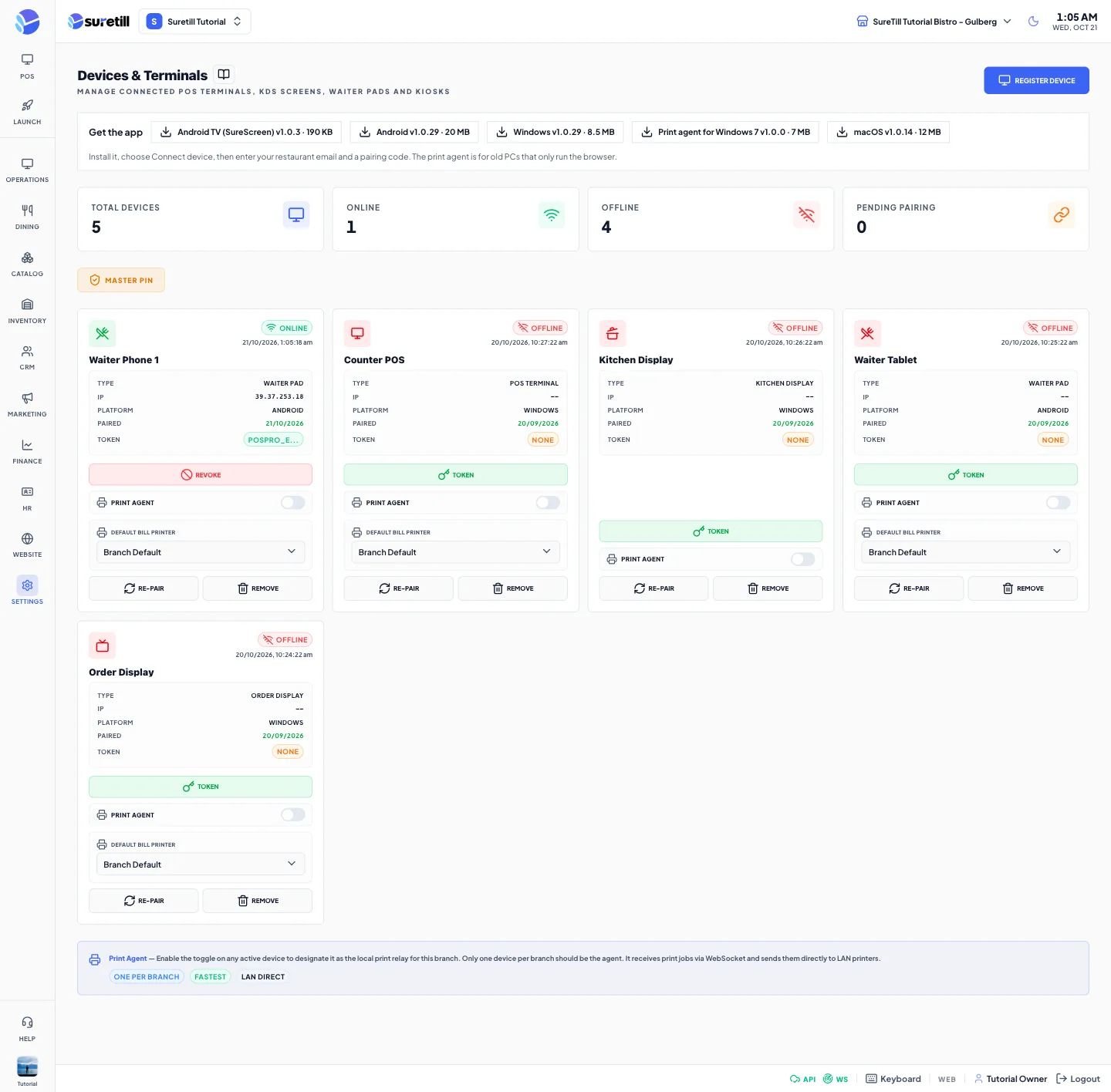
A device is any screen or computer that works with your restaurant: a cashier terminal, a waiter tablet, a kitchen display, a kiosk. Every device must be registered here and paired once. Pairing gives the device its own access token, so you can see it, limit it and switch it off without touching the others.
Device types
Section titled “Device types”| Type | Use |
|---|---|
| POS Terminal | The cashier till. Counts as a terminal for the plan. |
| Kitchen Display | The KDS screen in the kitchen. Not counted for the plan. |
| Self-Service Kiosk | The customer ordering kiosk. Counts as a terminal. |
| Waiter Pad | A tablet carried by the waiter. Counts as a tablet. |
| Self-Service | A self-service station. Counts as a terminal. |
| Order Display | A screen that shows order status to customers. Not counted. |
Step by step
Section titled “Step by step”Pair a new device
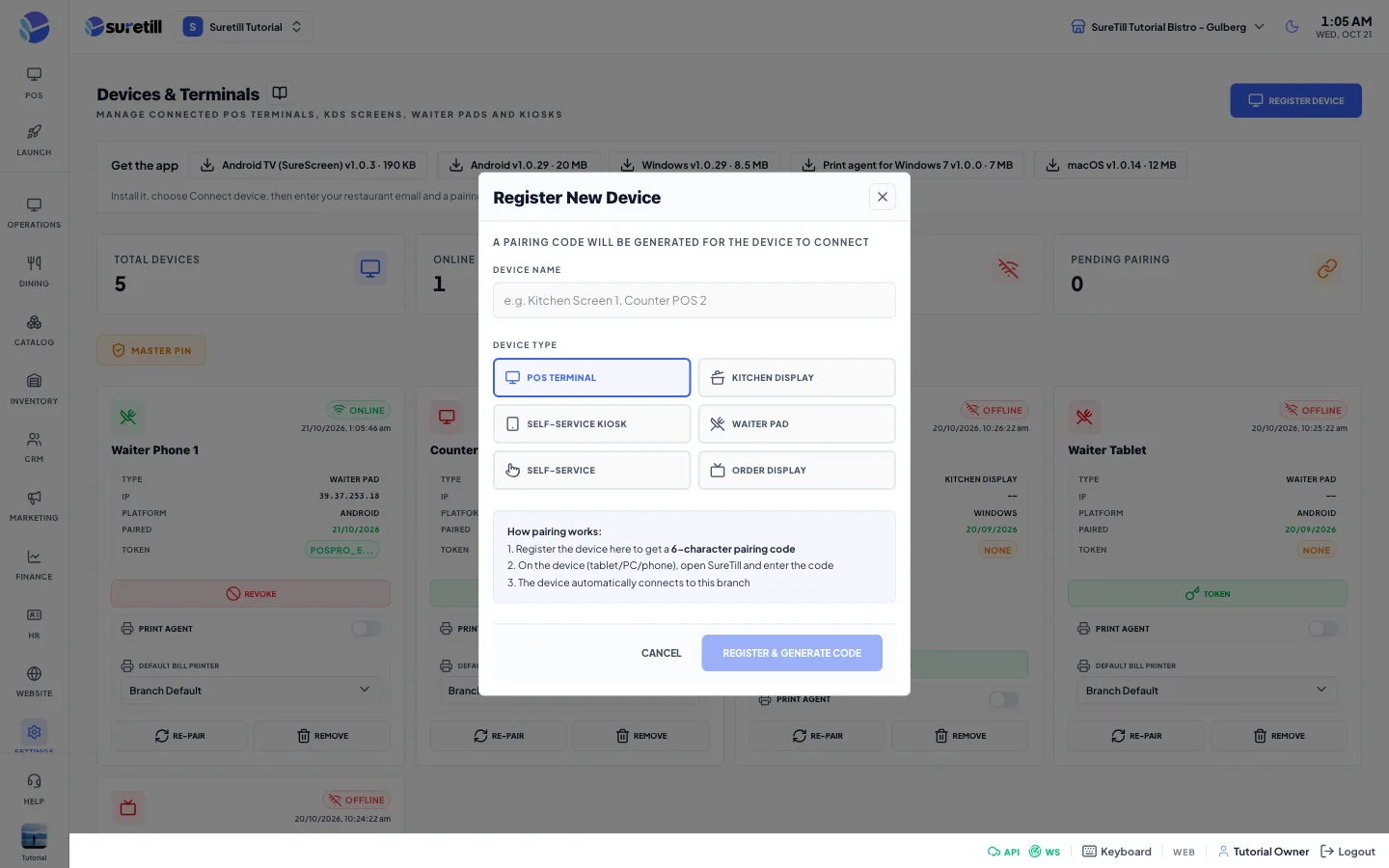
Section titled “Pair a new device”- Open Settings > Devices and click Register Device.
- Type a Device Name such as Counter POS 2 or Kitchen Screen 1 and pick the Device Type.
- Click Register & Generate Code. A window shows the pairing code in large letters. On SureTill cloud the code has 8 characters, works once and expires after 10 minutes. On an on-premise server it has 6 characters.
- On the device install the app (see the Get the app bar at the top of this page), open the login screen, choose Connect device from the three-dots menu, type the restaurant email and the code, and click Connect.
- The card changes from Pending to Online. The code disappears because it was used.
If you closed the window too early, a Pending card has a Code button that shows the code again, and New to make a fresh one.
Choose the default bill printer of a device
Section titled “Choose the default bill printer of a device”- On the card of an active device find Default Bill Printer.
- Pick a printer. Only active printers of the branch are listed. Branch Default means the branch decides.
- The change is saved at once. KDS devices have no such choice.
Make a PC the print relay of the branch
Section titled “Make a PC the print relay of the branch”Switch on Print Agent on the card of an active device. That device then receives the print jobs of the branch and sends them to the LAN printers. Only one device per branch can be the print agent: switching it on for one device switches it off for the others.
Cut off a device
Section titled “Cut off a device”- Find the card of the device. If it is active, click Revoke and confirm.
- The access token is deleted, the device is blocked, and all sessions it opened are ended. At its next heartbeat the device is told to log out and to pair again.
- To delete the record, click Remove and confirm. This also ends the sessions of the device.
- To let the same device in again, use Re-Pair, which resets it to Pending with a new code.
Set the Master PIN
Section titled “Set the Master PIN”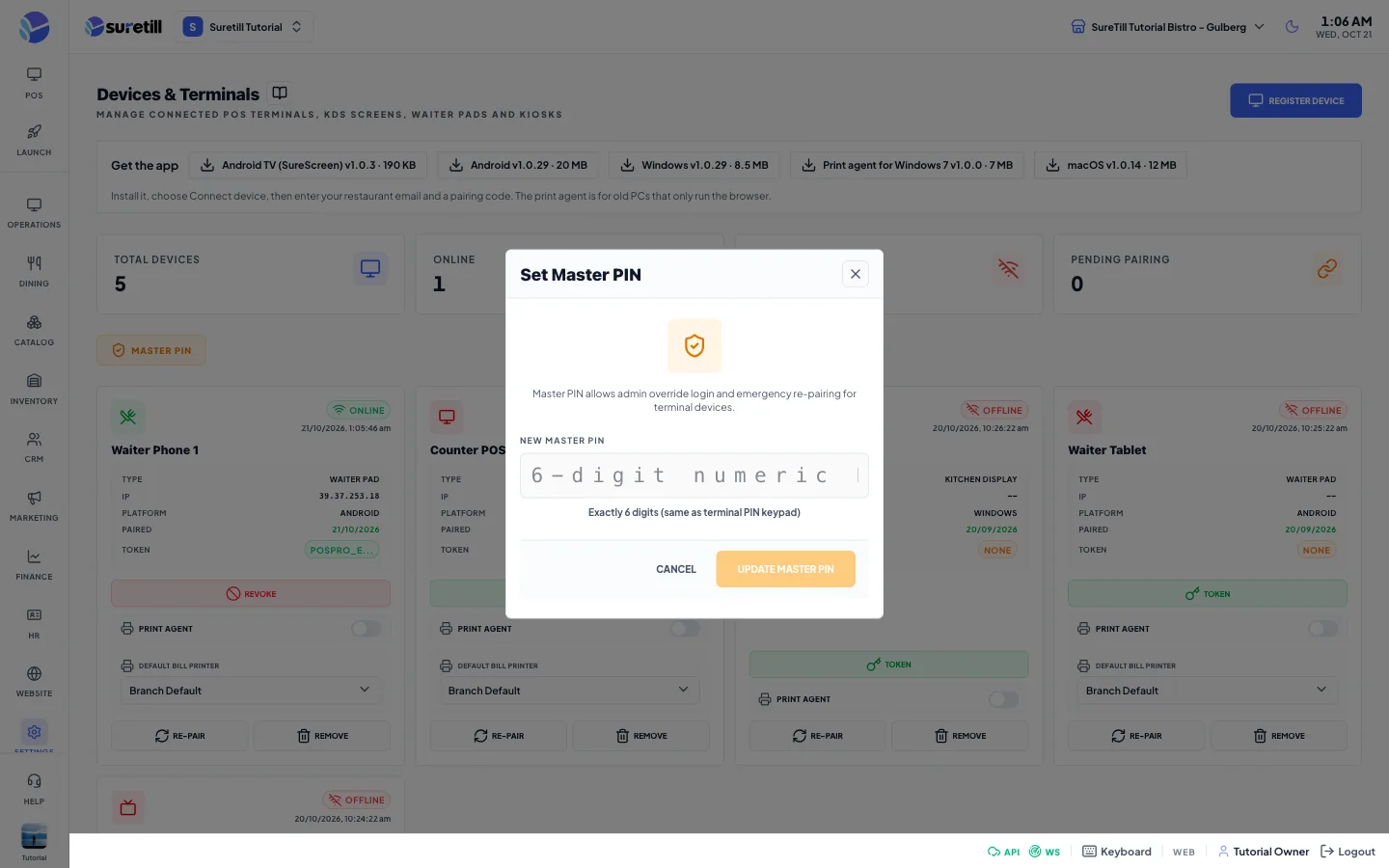
Click Master PIN, type exactly 6 digits and click Update Master PIN. The PIN lets an administrator log in on a terminal and pair a device in an emergency. Choose one that only the owner knows.
Plan limits (SureTill cloud)
Section titled “Plan limits (SureTill cloud)”Your plan has a maximum number of terminals (POS Terminal, Self-Service Kiosk, Self-Service) and of tablets (Waiter Pad). Extra units bought as add-ons are added to the plan. A device that is waiting for pairing already takes a slot, so remove unused Pending cards. Kitchen displays and order displays are not limited. When the limit is reached, Register Device and pairing are refused with a plan limit message. Remove a device you do not use or upgrade the plan. On-premise servers have no limit.
Every setting explained
Section titled “Every setting explained”| Setting | What it does |
|---|---|
| Get the app bar | Download links for the Windows, Android, macOS, iOS, Android TV (SureScreen) apps and the print agent for Windows 7. Shown on SureTill cloud when a download has been published. |
| Total Devices | The number of devices listed for this branch. |
| Online / Offline | Active devices of the branch that were seen in the last 5 minutes, and those that were not. |
| Pending Pairing | Devices that have a code but have not paired yet. |
| Master PIN | Opens the window to set the 6-digit admin override PIN. |
| Status badge | Pending, Blocked, Inactive, Online or Offline. Online means the device is connected to the live channel or sent a heartbeat in the last 5 minutes. The line under it shows the last time it was seen. |
| Type, IP, Platform, Paired | The device type, its last IP address, its system (Android, Windows, macOS, iOS, Linux) and the date it was paired. |
| Token | The first characters of the access token, or None when the device has no token. |
| Token button | Active devices without a token. Creates a token and shows it once in a window. Copy it at once; it is never shown again. Use it for software that cannot pair with a code. |
| Revoke | Active devices with a token. Described in Cut off a device. |
| Print Agent switch | Makes this device the print relay of the branch. |
| Default Bill Printer | The printer this device uses for bills. |
| Code / New | Pending devices only. Show the pairing code, or make a new one. |
| Re-Pair | Active devices. Resets the device to Pending, removes its paired date and creates a new code. |
| Remove | Deletes the device and ends its sessions. System devices created by SureTill cannot be removed. |
| Device Name | Required, up to 255 characters. |