

Windows and Android apps
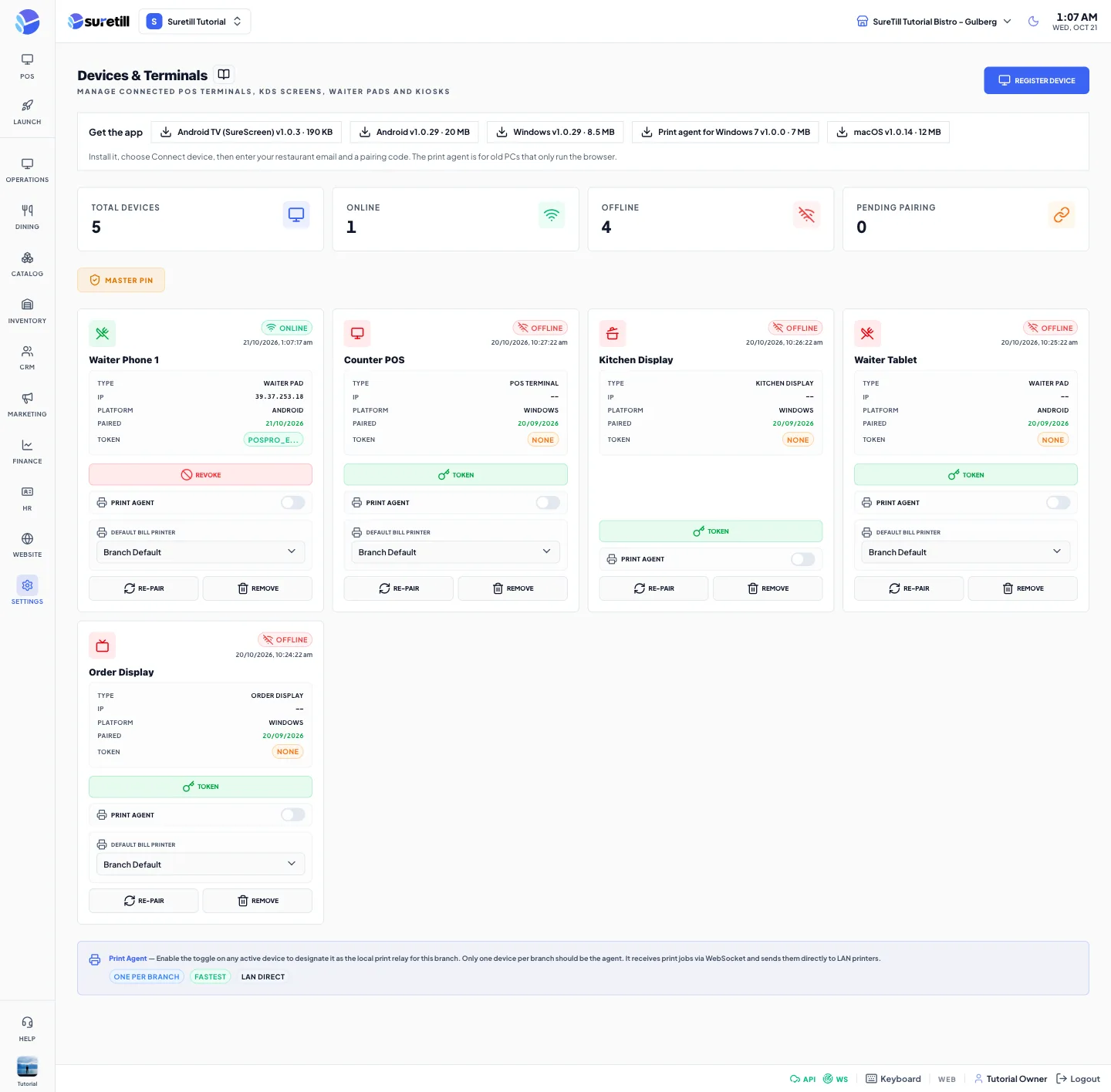
Where: Settings > Devices (Get the app bar)
Who can use it: Anyone can install the app. Pairing needs a code from Settings > Devices (permission settings.view or manage settings).
Open this page in SureTill
You can run SureTill in any modern web browser. The Windows and Android apps are the same POS in a full-screen window, with extra abilities a browser does not have. A shop with a touch terminal and a thermal printer should use the app.
What the app adds
Section titled “What the app adds”| Ability | Browser | Windows / Android app |
|---|---|---|
| Print to a LAN printer | Needs a print agent in the branch | Direct from the app to port 9100 |
| Print to a Windows or USB printer | No | Yes, on Windows (raw ESC/POS) |
| Bluetooth and iMin printers | No | Yes, on Android |
| Find printers on the network | No | Yes, automatically on the Printers page |
| Offline kitchen tickets | The ticket waits for the server | Printed on the device |
| Main Server mode for a branch | No | Yes (desktop app) |
| Automatic updates | Always the newest on reload | Checked at start, installed with one tap |
| Full-screen kiosk-style window | Browser window | Yes |
Step by step
Section titled “Step by step”Install and pair a device
Section titled “Install and pair a device”- In the admin open Settings > Devices. In the Get the app bar click the download for the device: Windows, Android, macOS or iOS. The bar lists the files that SureTill has published.
- Install the app. On Windows the installer asks if it is for you or for all users, and downloads the Microsoft WebView2 component if the PC does not have it.
- In the admin click Register Device, choose the type and name, and keep the pairing code on screen.
- Open the app. On the login screen tap the three-dots menu and choose Connect device.
- Type the restaurant email and the code (8 characters, single use, valid for 10 minutes) and click Connect. The message Device connected appears.
- The terminal now belongs to that restaurant only. A PIN login works from then on, and the pairing survives a restart.
On SureTill cloud there is no license key to type. The subscription is the licence, and a device is allowed by pairing. Installations that use license keys (on-premise builds) show an activation screen where you enter the key, and re-check it with the license server every few hours. They keep working for 7 days if the license server cannot be reached.
The three-dots menu also has About and License Info. License Info shows the Device ID, the system, the model and the PC name, which helps when you match a terminal to a device card.
Update the app
Section titled “Update the app”- About 5 seconds after the app starts, it asks the update server if a newer signed build exists.
- If there is one, a pill with the version number (Update v1.0.xx) appears in the footer and a card Update Available appears at the bottom right.
- Press Update Now to download and install. A progress bar shows the megabytes. When the download ends, the app restarts by itself.
- Press Off-peak to let it install automatically at 04:00 the next time that hour comes round, when the shop is closed. Press Install now on the scheduled card to go ahead at once.
- Press Later to hide the card. The footer pill stays until you update.
- If an update fails, the card shows the error and a Retry button.
Only a build signed by SureTill is installed. Update during a quiet time: the app restarts, and a sale in progress on that terminal should be finished first.
Let a PC print for the whole branch
Section titled “Let a PC print for the whole branch”On the card of an active device in Settings > Devices switch on Print Agent. The app on that PC then receives print jobs of the branch over the live connection, prints them, and reports back. It also checks for missed jobs when it reconnects and about once a minute, and it never prints the same job twice. Only one device per branch holds this role.
Use a PC that cannot run the app
Section titled “Use a PC that cannot run the app”An old PC, such as 32-bit Windows 7, runs the POS in the browser and uses the SureTill Print Agent for printing. See the Print Agent article.
Every setting explained
Section titled “Every setting explained”| Setting | What it does |
|---|---|
| Get the app bar | Download links on the Devices page. A link appears only when SureTill has published that file. |
| Connect device | In the three-dots menu of the login screen. Restaurant email plus pairing code. |
| Restaurant email | The owner email of the restaurant. Remembered on the device. |
| Pairing code | 6 or 8 characters. On SureTill cloud: 8, single use, valid 10 minutes. |
| License Info | Device ID, system, model, PC name, and for key-based installs the licence holder and expiry. |
| Update vX pill (footer) | Appears when a newer build is available. Click to install. |
| Update Available card | Later, Off-peak and Update Now, plus the release notes of the version. |
| Off-peak hour | Starts at 04:00. A device can store another hour in its settings. |
| Print Agent switch | In Devices. Makes this PC the print relay of the branch. |
| Timing ON / OFF | In Print Queue, desktop app only. A print timing log for troubleshooting. |