

Newsletter Subscribers
Where: Marketing > Newsletter
Who can use it: Permission: settings.view or manage settings. Not available on SureScreen (menu board only) plans.
Open this page in SureTill
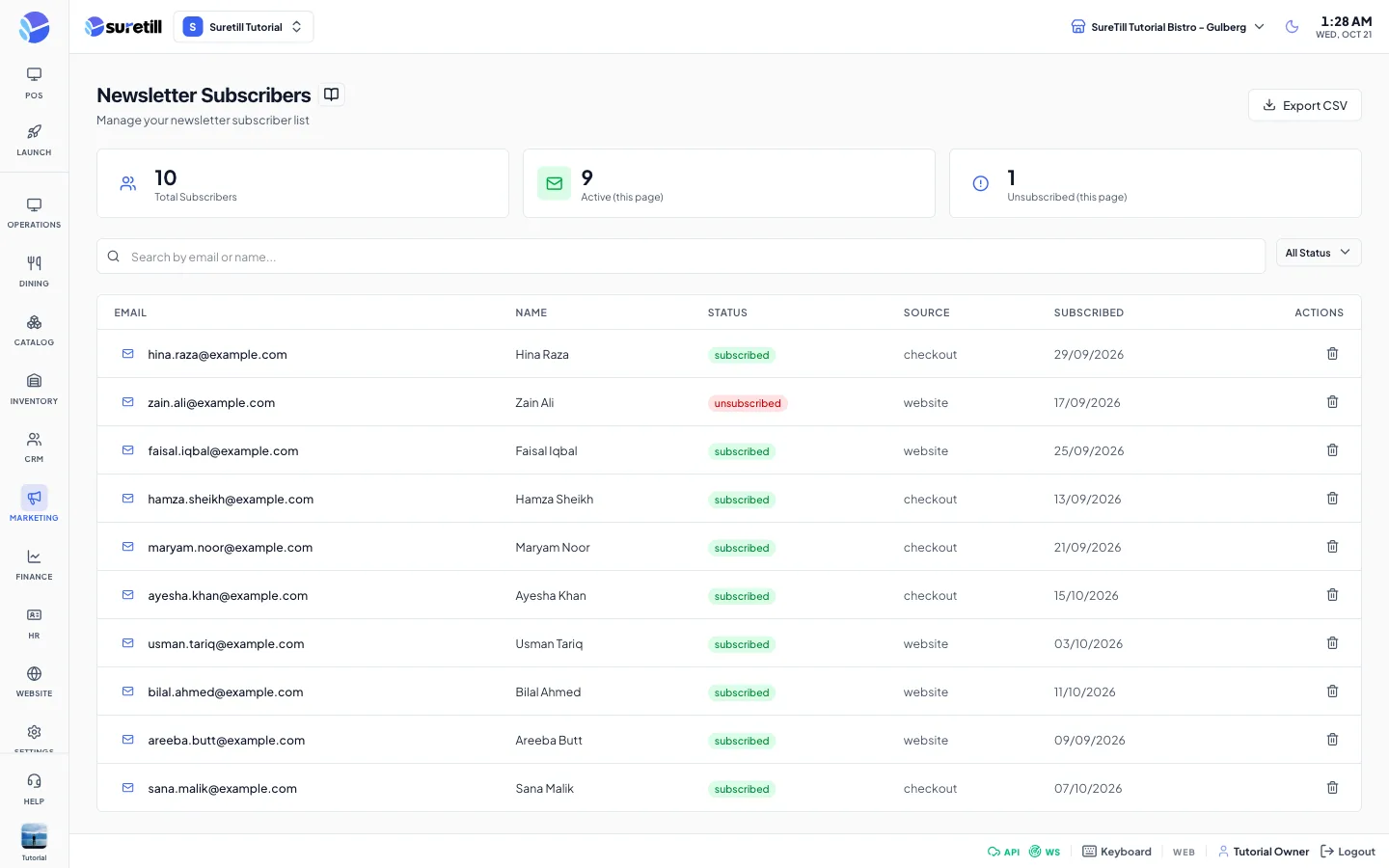
When a visitor types an email address in the newsletter block of your website, the address is saved here with the status subscribed. If the same email signs up again, the existing entry is updated and no duplicate is made. This page is the list of those addresses.
Step by step
Section titled “Step by step”Find a subscriber
Section titled “Find a subscriber”- Open Marketing > Newsletter.
- Type part of an email or a name in the search box.
- Pick a status in the filter if you want to keep one kind. The search and the status filter work together: you only see addresses that match both.
- Use the arrows under the table to move between pages. Each page shows 20 addresses.
Export the list
Section titled “Export the list”- Pick a status in the filter if you only want that status. Leave it empty for everyone.
- Click Export CSV.
- A file named newsletter_subscribers.csv is saved with the columns Email, Name, Status, Source and Subscribed At.
Remove a subscriber
Section titled “Remove a subscriber”- Click the bin button at the end of the row.
- Confirm Remove Subscriber.
Every setting explained
Section titled “Every setting explained”| Setting | What it does |
|---|---|
| Total Subscribers card | All addresses that match the current search and filter, across all pages. |
| Active (this page) card | On the page you are looking at, the addresses with the status active or subscribed. |
| Unsubscribed (this page) card | On the page you are looking at, the addresses with the status unsubscribed. |
| Search box | Searches the email and the name. Going back to page 1 happens by itself. |
| Status filter | Active, Subscribed or Unsubscribed. |
| The address. | |
| Name | The name the visitor typed, or a dash. |
| Status | subscribed or active in green, unsubscribed in red, pending in yellow. |
| Source | Where the address came from. website when it came from your site. |
| Subscribed | The date the address signed up. |
| Export CSV | Saves the list (with the status filter) as a CSV file. |
| Bin button | Removes the address. |