

Tables & Map
Where: Dining > Tables & Map
Who can use it: Permission: tables.view or manage tables. Not available on SureScreen (menu board only) plans.
Open this page in SureTill
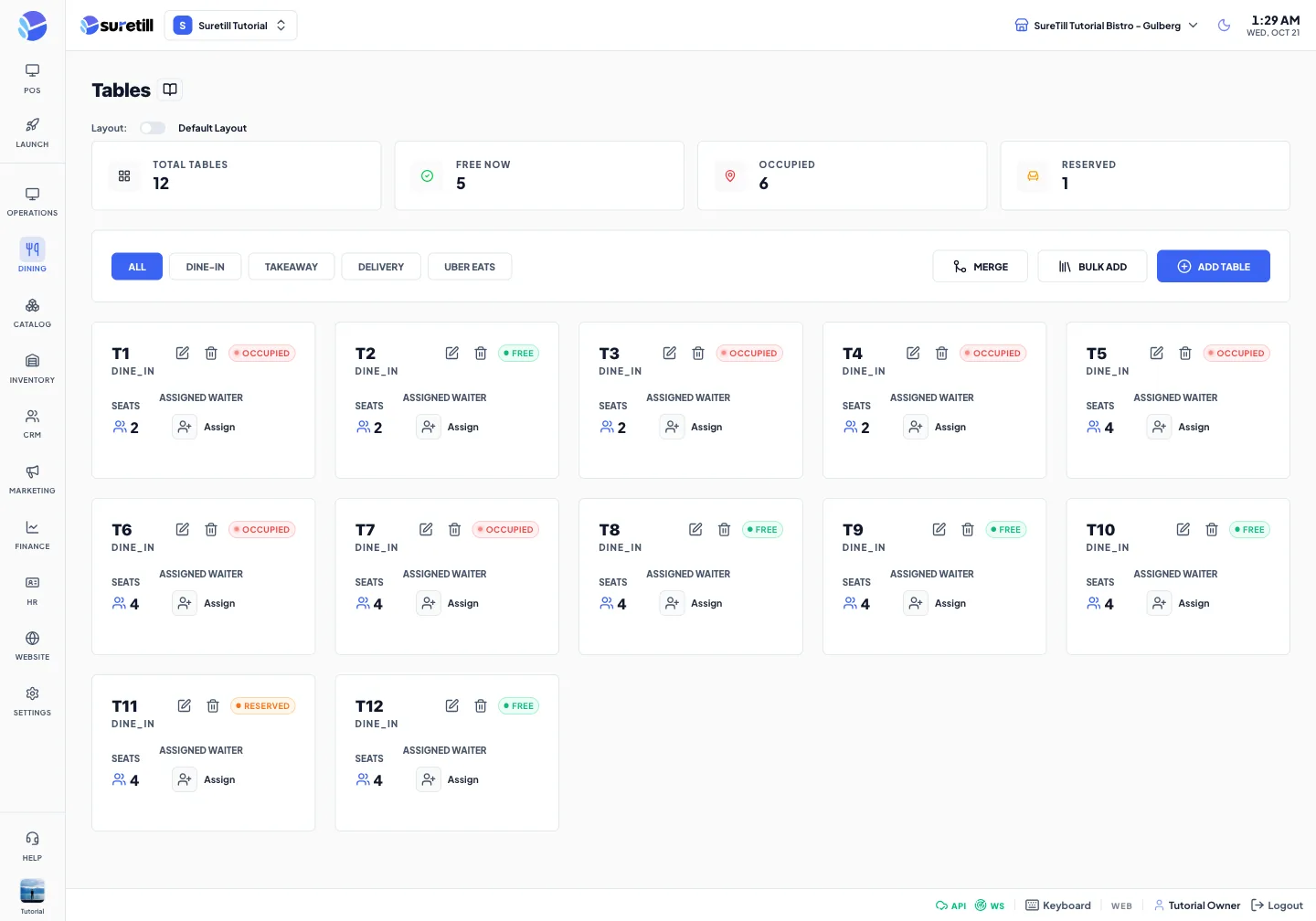
This page is the list of every table in the active branch. Each table has a name, a number of seats and a status. The POS terminal shows the same tables to your staff when they open an order, so a table you add here appears there.
The page always works on the branch selected at the top of the admin. Switch branch first if you want to manage the tables of another branch.
How a table gets its colour
Section titled “How a table gets its colour”A table is Occupied while it has an open ticket. The ticket belongs to the table until someone settles it. A ticket that is already paid but not yet settled still keeps the table busy. Settling is a manual step in the POS: the cashier presses Settle on the table. The system does not free a table by itself, so a table that stays busy usually means a bill nobody has settled.
There is a branch option called Auto-Settle After Payment (Branches, branch settings). It is off by default. Leave it off if you want cashiers to confirm every table by hand.
| Badge | Meaning |
|---|---|
| Free (green) | No open ticket, no reservation. The table can be used. |
| Occupied (red) | There is an open ticket on the table. |
| Reserved (amber) | The table is held for a reservation. |
| Billed (blue) | The bill is printed or payment is pending or settling. |
| Cleaning (grey) | The table is marked unavailable or cleaning. |
Step by step
Section titled “Step by step”Add one table
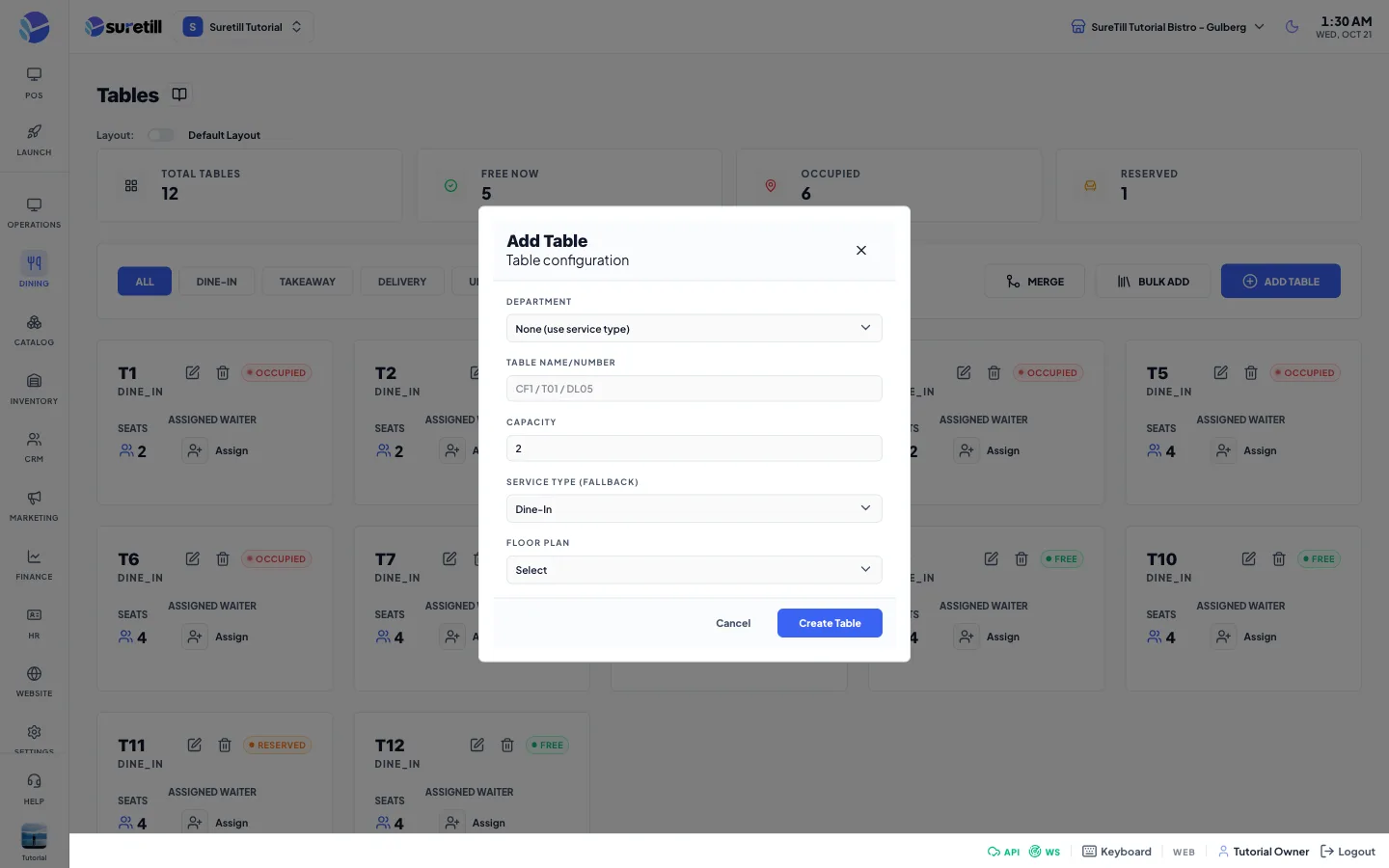
Section titled “Add one table”- Open Dining > Tables & Map.
- Click ADD TABLE. If a department tab is selected, the form starts with that department.
- Pick a Department, or leave None to use the service type instead.
- Type the Table name/number, for example T01, CF1 or DL05.
- Set the Capacity (number of seats).
- For a dine-in table without a department, choose a Floor plan.
- Click Create Table.
Add many tables at once
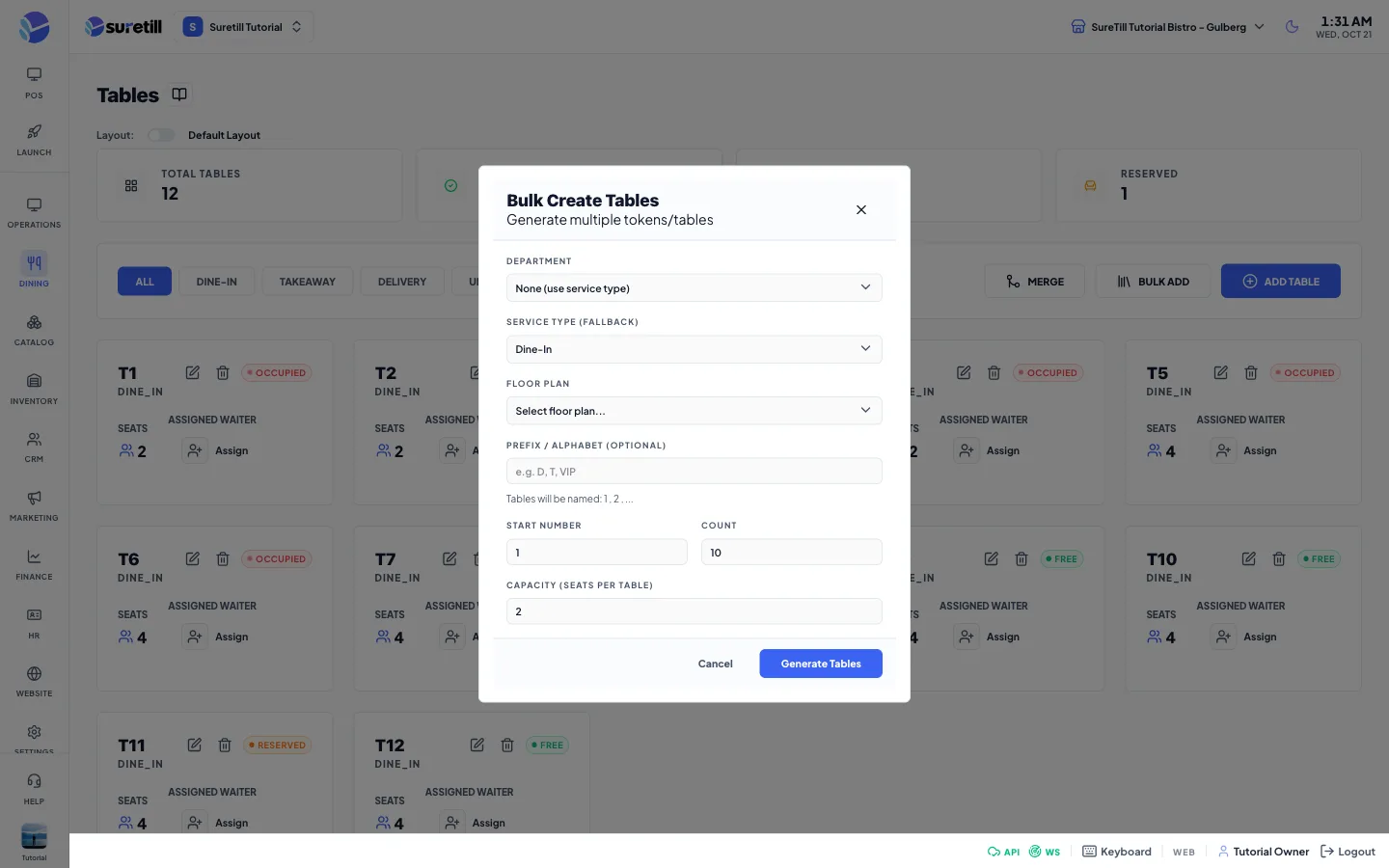
Section titled “Add many tables at once”- Click BULK ADD.
- Choose a Department, or a Service type and Floor plan.
- Type an optional Prefix, for example D or VIP.
- Set the Start number and the Count. The text under the prefix field shows how the names will look.
- Set the Capacity for every new table.
- Click Generate Tables.
Edit or delete a table
Section titled “Edit or delete a table”- Find the card of the table. Use a department tab to narrow the list.
- Click the pencil icon to edit. Change the fields and click Update Table.
- Click the bin icon to delete. Confirm Delete Table in the dialog.
Merge two tables
Section titled “Merge two tables”- Click MERGE. The cards turn into selectable cards.
- Click the first table. This is the table that keeps the ticket.
- Click the second table. Its ticket is moved into the first one.
- Click MERGE (2).
If the first table has no ticket, the ticket of the second table is simply moved there. If both tables have tickets, the items of the second ticket are added to the first ticket and the second ticket is removed. The second table becomes free.
Use a custom floor plan layout
Section titled “Use a custom floor plan layout”- Create a floor plan in Dining > Floor Designer first.
- Come back to Tables & Map and switch Layout on.
- Choose the floor plan in the list that appears.
The switch is remembered in this browser, so the POS on the same device follows it.
Every setting explained
Section titled “Every setting explained”| Setting | What it does |
|---|---|
| Layout switch | Off means Default Layout. On means Custom Floorplan. Saved in this browser only. |
| Floor plan list | Appears when Layout is on. Chooses which floor plan to use. |
| Total Tables | Counter: number of tables shown in the current tab. |
| Free Now | Counter: tables with the status Free. |
| Occupied | Counter: tables with the status Occupied. |
| Reserved | Counter: tables with the status Reserved. |
| All and department tabs | Filter the cards by department. One tab per department of the branch. |
| MERGE | Starts merge mode. Turns into CANCEL and MERGE (count) while you select tables. |
| BULK ADD | Opens the form that creates many tables at once. |
| ADD TABLE | Opens the form for one new table. |
| Table card: name | The table name, with its department or service type under it. |
| Table card: status badge | Free, Occupied, Reserved, Billed or Cleaning. See the colour table above. |
| Table card: Seats | The capacity of the table. |
| Department (form) | Puts the table in a department. None uses the service type below. |
| Table name/number (form) | Required. The label staff see. Up to 20 characters. |
| Capacity (form) | Seats. Must be 1 or more. Default 2. |
| Service type (form) | Dine-In, Takeaway or Delivery. Shown only when no department is chosen. A department sets it for you. |
| Floor plan (form) | Required for a dine-in table that has no department. |
| Prefix (bulk) | Optional text in front of each number. Up to 10 characters. |
| Start number (bulk) | The first number. Default 1. |
| Count (bulk) | How many tables to make. Default 10, maximum 50. |
| Capacity (bulk) | Seats for every new table. Default 2. |
Every new table also gets its own QR code token, which is used by QR Ordering.