

QR Menu
Where: Dining > QR Menu
Who can use it: Permission: settings.view or manage settings. QR Menu is a paid add-on: ask SureTill to switch it on for your restaurant. It also works on SureScreen plans.
Open this page in SureTill
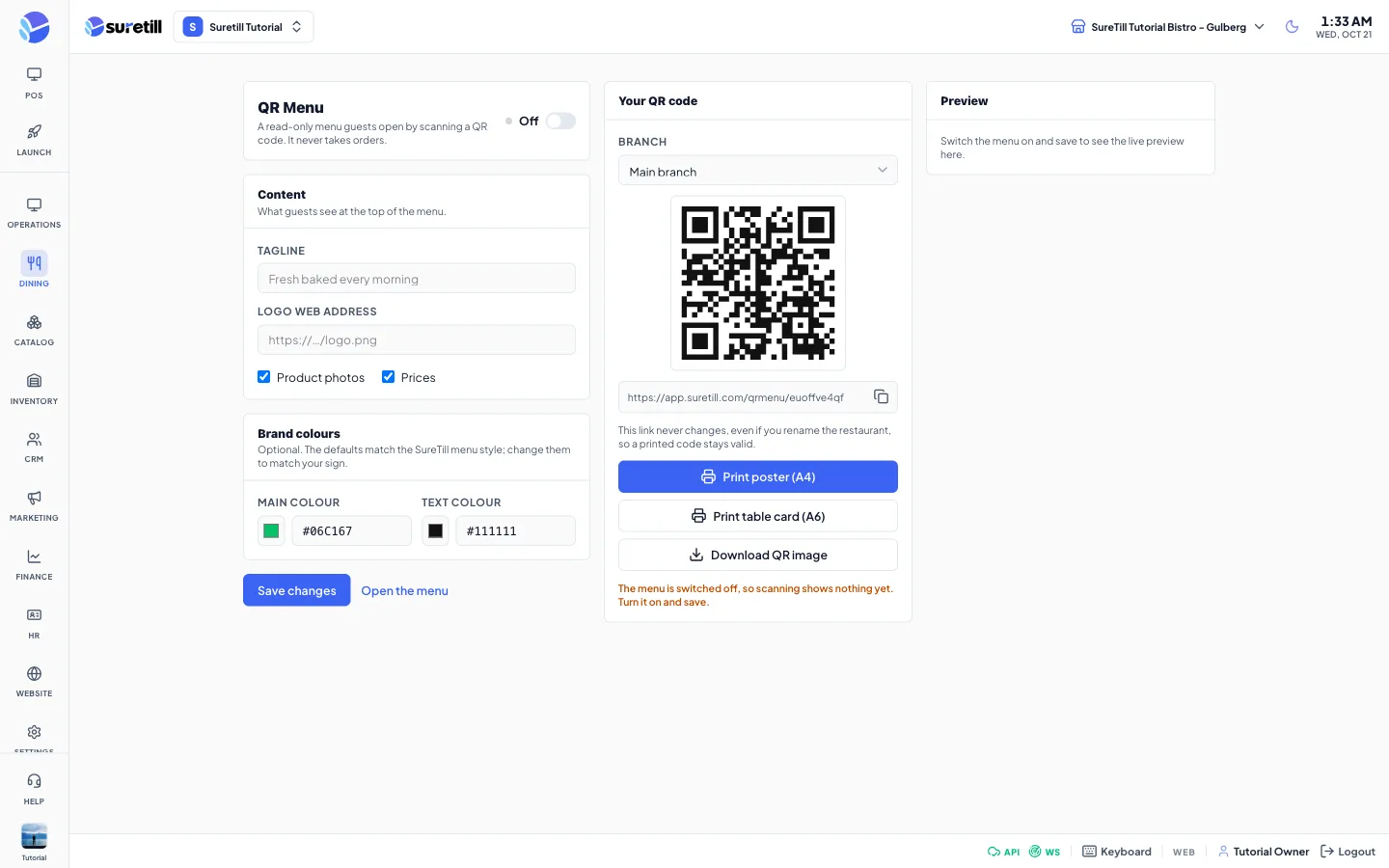
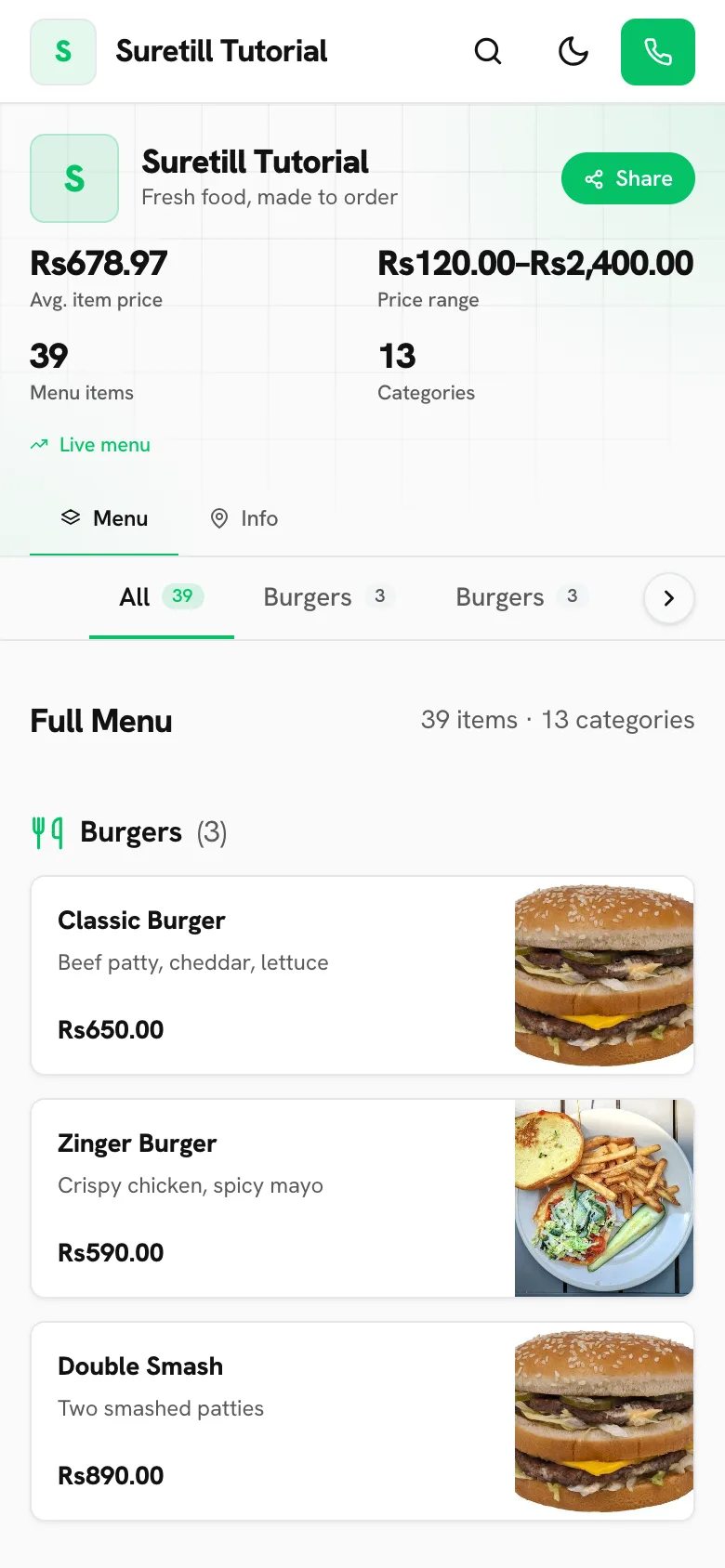
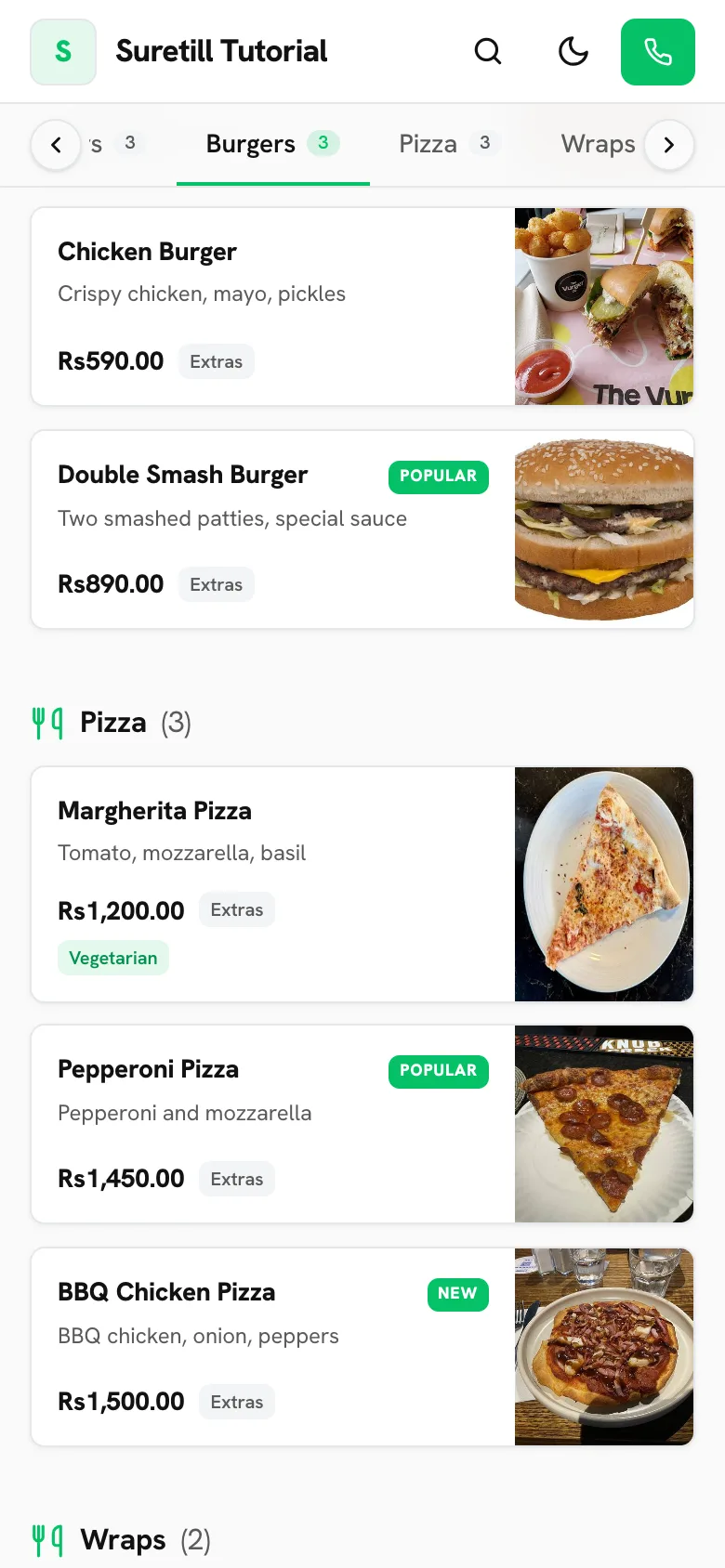
The QR Menu is a web page of your menu that opens on the guest phone. Print the code once and put it on tables, windows or flyers. The guest can browse, search and see what is in each dish. To order, the guest still asks your team.
The menu is built from your live products. When you change a price or hide a product, the public page follows within about a minute.
What guests see
Section titled “What guests see”- A header with your logo, restaurant name, tagline, Directions, Call and Share buttons.
- Counters: average item price and price range (only when prices are shown), number of menu items and number of categories.
- A category list on the left on wide screens, and a scrolling category strip on phones.
- Item cards with name, description, price, tags and an image. Tags are Vegan, Vegetarian, Gluten free, Spicy, New and Popular.
- A search box that looks through item names, descriptions and categories.
- A pop-up for each item with its sizes, add-on groups (Required or Optional, with the maximum allowed) and prices.
- A dark mode button and, when you have more than one branch, a branch picker.
- An Info section with the address and phone of the branch.
Only active products that are available in the chosen branch are listed. A category with no visible product is left out.
Step by step
Section titled “Step by step”Turn the menu on
Section titled “Turn the menu on”- Open Dining > QR Menu. If you see a message that this is an add-on, ask SureTill to enable it.
- Switch the toggle at the top from Off to Live.
- Fill in the content and colours below.
- Click Save changes. The button is active only when something changed.
- Check the Preview panel on the right. It is the real public page in a phone-size frame.
Print or share the code
Section titled “Print or share the code”- If you have several branches, pick one in Branch. Main branch gives the general link.
- Click Print poster (A4) for a large sign, or Print table card (A6) for a small card. Allow pop-ups when the browser asks.
- Or click Download QR image to get a 1024 pixel PNG.
- Use the copy icon next to the link to paste it elsewhere.
The print sheet has your logo or first letter, the restaurant name, your tagline, the QR code and the text Scan to see our menu. The accent bar uses your main colour.
Every setting explained
Section titled “Every setting explained”| Setting | What it does |
|---|---|
| Live / Off toggle | Turns the public menu on or off. Default Off. |
| Tagline | A short line under the restaurant name. Up to 120 characters. |
| Logo web address | Full address (https) of your logo image. Up to 500 characters. If it fails to load, the first letter of the name is shown. |
| Product photos | Shows or hides item pictures. Default on. |
| Prices | Shows or hides prices and the price counters. Default on. |
| Main colour | Accent colour for buttons, highlights and the print sheet. Colour picker or a hex code such as #06C167. Default #06C167. |
| Text colour | Colour of the text in light mode. Hex code. Default #111111. |
| Save changes | Stores the settings and refreshes the preview. |
| Open the menu | Link that opens the public page. Shown when nothing is unsaved. |
| Branch | Shown only with more than one branch. Chooses which branch link and QR code you see. |
| QR code and link | The code and the address it opens, with a copy button. |
| Print poster (A4) | Opens a print page sized A4. |
| Print table card (A6) | Opens a print page sized A6. |
| Download QR image | Saves the code as a PNG. |
| Preview | Live phone view of the public page. Visible only when the menu is on. |
There are no ready-made themes. The look is the SureTill menu style, and you adjust it with the two colours, the logo and the tagline. Guests can switch to dark mode on their own phone.