

Printers
Where: Settings > Printers
Who can use it: Permission: settings.view or manage settings. Not available on SureScreen (menu board only) plans. On SureTill cloud every branch needs a print agent, because the server cannot reach printers on your network.
Open this page in SureTill
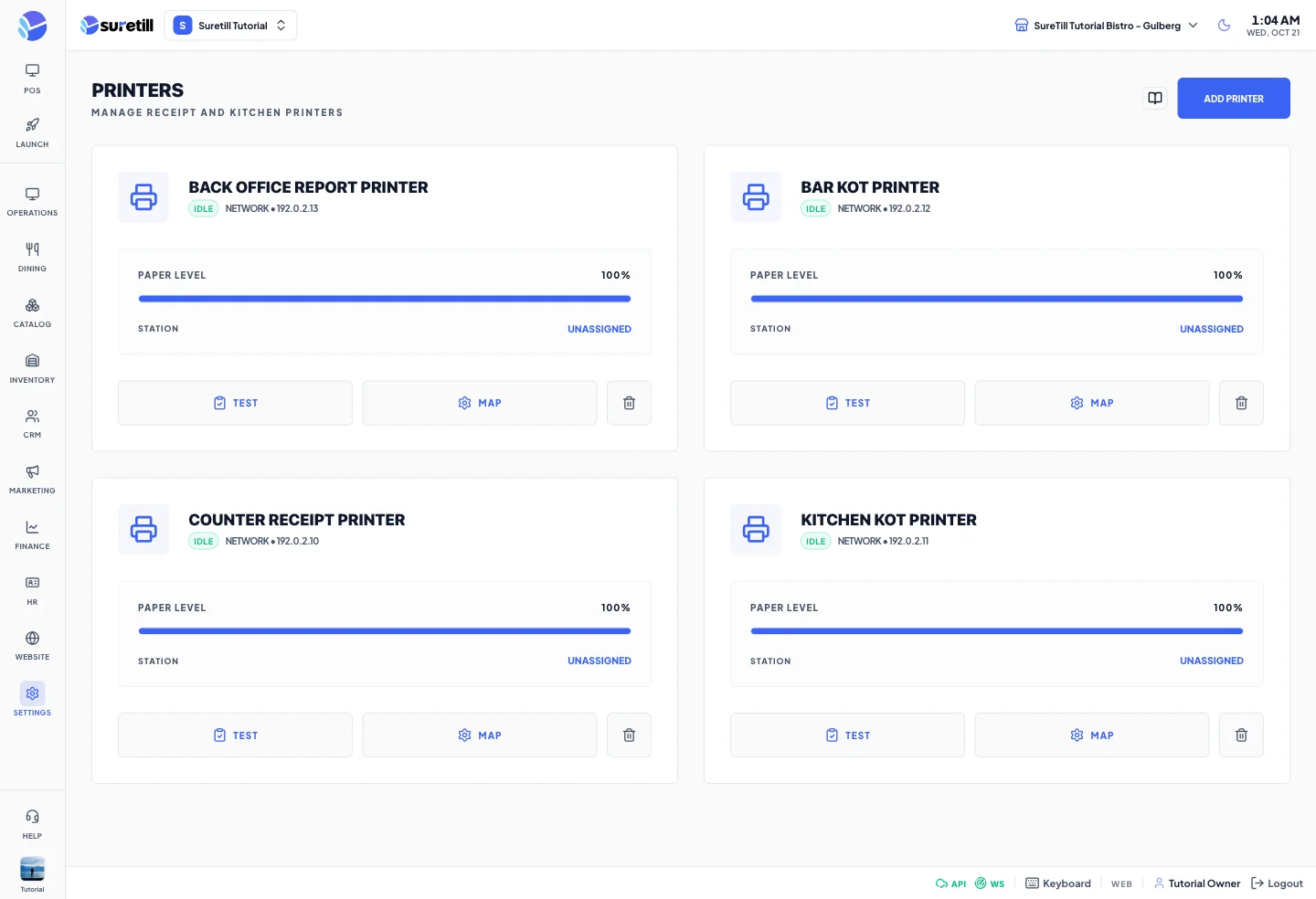
This page is the list of printers of the active branch. Each printer is a record that tells SureTill where a ticket should be sent: an IP address, a Windows printer name, a Bluetooth address or the built-in printer of an iMin terminal. Printers belong to one branch. Switch branch at the top of the admin to manage the printers of another branch.
How printing works
Section titled “How printing works”A browser or a tablet cannot open a raw connection to a printer. So the POS never prints by itself. It follows these steps:
- A cashier sends a bill or a kitchen ticket. The server builds the ticket (ESC/POS bytes) from the print template and stores it as a print job.
- The server broadcasts the job to the branch over the live connection (Reverb, the WebSocket you see as the sensors icon in the footer).
- A native print agent in that branch receives the job and claims it. Only one agent can claim a job, so nothing prints twice. The agent is the SureTill app on a PC or Android device, or the standalone SureTill Print Agent.
- The agent opens a TCP connection to the printer on port 9100 (network printers) or hands the ticket to the Windows print spooler (USB and shared printers).
- The agent tells the server if it printed or failed. The result shows in the POS and in the Print Queue page.
Network printers accept one connection at a time. When a bill and a kitchen ticket go to the same printer together, the server spaces them out by a fraction of a second. If a second connection is still refused, the job fails and shows red in the POS. On the current server settings a failed job is not retried by itself. Open Print Queue and press the retry button, or reprint from the POS.
If no agent picks a job up within about 8 seconds, the job is marked Failed with the message Print timed out. A job that an agent claimed but never confirmed is marked Failed by a sweep that runs every 30 seconds.
Step by step
Section titled “Step by step”Add a network (LAN) printer
Section titled “Add a network (LAN) printer”- Give the printer a fixed IP address on your router, then print its self-test page if you are not sure of the address.
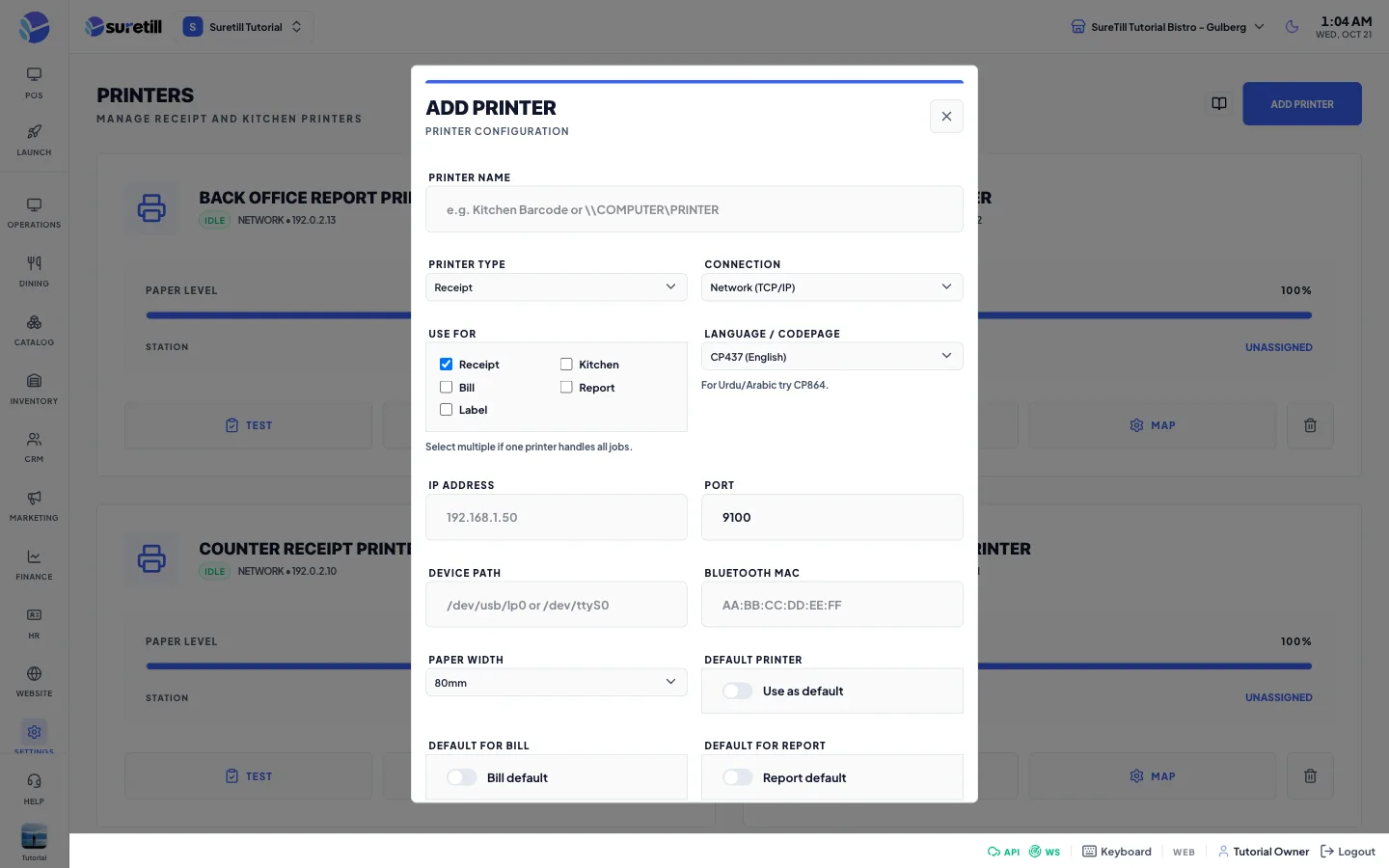
- Open Settings > Printers and click Add Printer.
- Type a Printer Name, for example Kitchen Pass.
- Leave Connection on Network (TCP/IP), type the IP Address, and keep Port at 9100 unless the printer manual says otherwise.
- Under Use For tick what the printer should print: receipt, kitchen, bill, report, label.
- Choose the Paper Width (58mm or 80mm) and the Language / Codepage.
- Click Verify & Save, then press Test on the new card.
Find printers on the network (desktop and Android app)
Section titled “Find printers on the network (desktop and Android app)”When you open this page inside the Windows or Android app, it scans the Wi-Fi or LAN for devices listening on port 9100 and lists them under Detected Network Printers. A line that matches a saved printer shows Already Added. Press Add on any other line to open the form with the IP filled in, or press Rescan to scan again. The scan shows which address ranges it covered. If your printer is not in them, the device is on a different network segment than the printer.
Import a Windows printer (desktop app)
Section titled “Import a Windows printer (desktop app)”In the Windows app the card Detected Windows Printers lists the printers installed on that PC with their driver and port. Press Import to open the form filled in. Printers on a shared path (\\PC\Printer) become Windows Shared. Printers with an IP port become Network. Others become USB. Press Refresh to read the list again.
Add a Bluetooth or iMin printer (Android app)
Section titled “Add a Bluetooth or iMin printer (Android app)”- Pair the printer in the Android settings of the tablet first.
- In the SureTill Android app open Settings > Printers > Add Printer.
- Set Connection to Bluetooth printer and pick the printer under Paired Bluetooth printer. Press the sync button if it is not listed.
- For the built-in printer of an iMin terminal choose iMin built-in printer. The form tells you if the printer service is found on that device.
- Save. The tablet that saved the printer is recorded as its owner. Other terminals skip those jobs instead of failing them.
Test, edit and delete
Section titled “Test, edit and delete”- Test prints a test page with fonts, alignment and a sample receipt. In the app it goes straight to the printer. In a browser it is sent through the print agent of the branch. USB and shared printers can only be tested from the desktop app.
- Map opens the same form as Add Printer, to change any setting.
- The bin icon asks for confirmation and then removes the printer.
Every setting explained
Section titled “Every setting explained”| Setting | What it does |
|---|---|
| Status badge on the card | Idle when the printer is active, Offline when it has been switched off. It does not check the real printer. Use Test for that. |
| Station (card) | The place the printer is assigned to. |
| Dining Zone (card) | Shown only when the printer is tied to one zone. |
| Test | Prints a test page on that printer. |
| Map | Opens the printer form to edit it. |
| Delete (bin) | Removes the printer after a confirmation. |
| Printer Name | Required, up to 255 characters. A name that starts with two backslashes is read as a Windows shared printer; the IP address and port are then ignored. |
| Printer Type | Receipt, Kitchen or Label. It is the main type; Use For can add more. |
| Connection | Network (TCP/IP), Windows Shared (UNC), USB, Serial. The Android app also offers Bluetooth printer and iMin built-in printer. |
| Paired Bluetooth printer | Android app only. The printer you paired in the Android settings. |
| Use For | Tick one or more of receipt, kitchen, bill, report, label. One printer can do everything in a small restaurant. If report is ticked the printer is saved with the report purpose, else bill, else label, else kitchen (KOT), else multi. |
| Language / Codepage | The character table of the printer. Default CP437 (English). Choices: CP850, CP860, CP863, CP865, CP1252, CP866 (Cyrillic), CP852, CP858 (Euro), CP874 (Thai), CP864 (Arabic) or Custom with a number from 0 to 255. For Urdu or Arabic try CP864. |
| IP Address | Must be a valid IP address, not a host name. The scan button next to it appears in the app. On SureTill cloud private LAN addresses are allowed; loopback, link-local and reserved addresses are refused. |
| Port | Default 9100, the standard raw printing port. |
| Device Path | The Windows printer name, a UNC path, or a device such as /dev/usb/lp0 for USB and serial printers. |
| Bluetooth MAC | The Bluetooth address, like AA:BB:CC:DD:EE:FF. |
| Paper Width | 58mm or 80mm. The server accepts 48 to 80. |
| Default Printer | Use as default. Only one printer per branch can be the default; switching it on clears the old one. |
| Default For Bill | Bills print here unless the table or terminal says otherwise. One per branch. |
| Default For Report | Shift and day reports print here. One per branch. |
| Assign Station | Cashier, Grill, Bar, Packing, BBQ Kitchen, Asian Kitchen or Fast Food. A label that says where the printer stands. |
| Dining Zone | All Zones (default) or the name of one of your floor plans. The form says bills from the tables of that zone go to this printer. |
| Abort / Verify & Save | Abort closes the form. Verify & Save stores the printer. A new printer needs a branch to be selected. |