

Sign in, PINs and security
Where: Sign-in page; Settings > Security for two-factor
Who can use it: Everyone signs in. Turning on two-factor needs the Settings screen (settings.view or manage settings). Setting a PIN or resetting a password needs the Users screen (users.view or manage users).
Open this page in SureTill
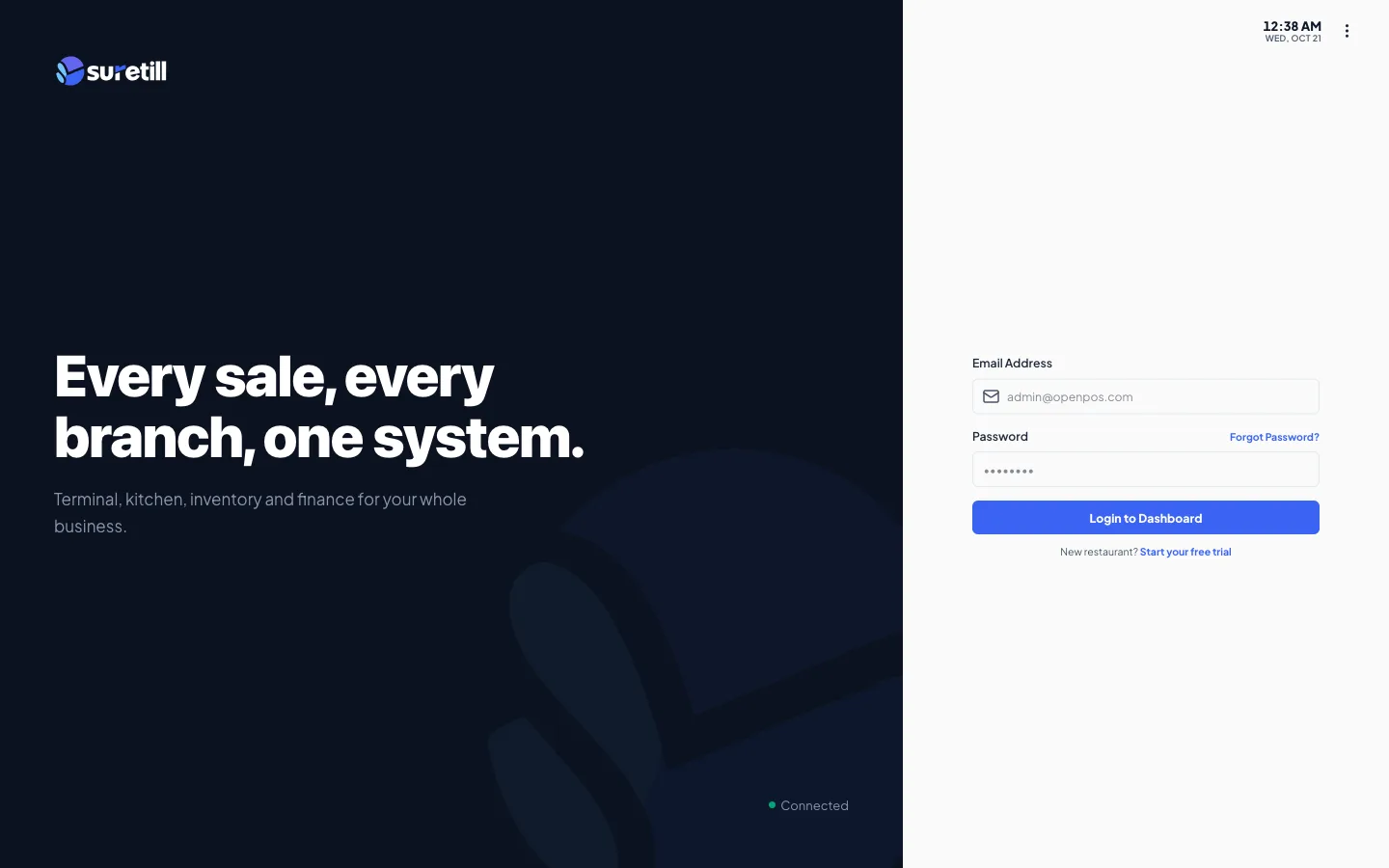
There are two ways in. Owners and managers use email and password. Cashiers, waiters and kitchen staff use a short PIN on a restaurant device. Both end in the same app, with the screens their role allows.
Step by step
Section titled “Step by step”Owner or manager: email and password
Section titled “Owner or manager: email and password”- Open your SureTill address in a browser. In a normal browser tab the form is email and password only.
- Type your Email Address and Password and click Login to Dashboard.
- If your email owns several restaurants, click the one you want.
- If two-factor is on, enter the code on the next screen. See below.
- You land on the Launch Pad. Staff with the chef role go to the Kitchen Display, drivers to Orders, and waiters and cashiers to the POS. On a phone or tablet-sized screen everyone else goes to the POS.
Staff: PIN on a paired device
Section titled “Staff: PIN on a paired device”- The owner creates the staff member in Users and types a POS PIN of exactly 6 digits.
- Install the app on the device (see Apps and downloads) and connect it to the restaurant once with a pairing code.
- On the device sign-in screen, type the PIN on the keypad. At 6 digits it signs in by itself. The keyboard works too: digits, Backspace to delete, Esc to clear.
- The Admin Login button under the keypad switches to email and password.
Every part explained
Section titled “Every part explained”| Setting | What it does |
|---|---|
| Email Address / Password / Login to Dashboard | Standard owner and manager sign-in. |
| Forgot Password? | See the section on lost passwords below. |
| Email/Password and PIN LOGIN switch | Shown in installed apps. In a normal browser tab the cloud version only offers email and password. |
| PIN keypad | Digits 1 to 9 and 0, CLEAR (empty the entry) and DEL (delete one digit). The field shows dots. |
| Three-dot menu, top right | About, License Info and Connect device. Connect device opens the pairing form: restaurant email plus code. |
| Start your free trial | Link under the form that opens sign-up. |
| Enter the live demo | Only on the public demo address. Opens a sample restaurant that resets every night. |
| Clock and connection light | Top right and bottom of the page. The light shows Connected or Not Connected. |
PIN rules and lockout
Section titled “PIN rules and lockout”- A PIN works only on a device that has been paired with the restaurant, and only for staff of that device branch. Otherwise the message is Pair this device with your restaurant before using PIN login.
- After 5 wrong PINs from the same device or network, PIN sign-in locks for 15 minutes with the message Too many failed PIN attempts. Before that, each wrong try says how many attempts remain.
- If many wrong PINs are tried at one branch within a short time, all PIN tries at that branch are slowed for a few seconds. Wait and try again.
- A device the owner has blocked or made inactive in Devices cannot sign in at all.
- Use different PINs for different people. Two people with the same PIN cannot be told apart. Change a PIN in Users.
Two-factor sign-in
Section titled “Two-factor sign-in”Two-factor adds a 6-digit code from an authenticator app such as Google Authenticator or Authy. It protects email and password sign-in. PIN sign-in on a paired device does not ask for it.
- Open Settings and click the Security tab (Account Security).
- Under Two-Factor Authentication, type your current password and click Enable 2FA.
- Step 1: scan the QR code with your app, or type the secret key by hand.
- Step 2: type the 6-digit code from the app and click Confirm and Enable.
- Save your Recovery Codes. Use Copy All Codes, store them somewhere safe, then click I’ve Saved My Codes. Each code works once.
- From now on, after your password you reach the Two-Factor Authentication screen. Type the 6 digits and click Verify. If you lost the phone, click Use recovery code instead and type a code like XXXX-XXXX-XXXX.
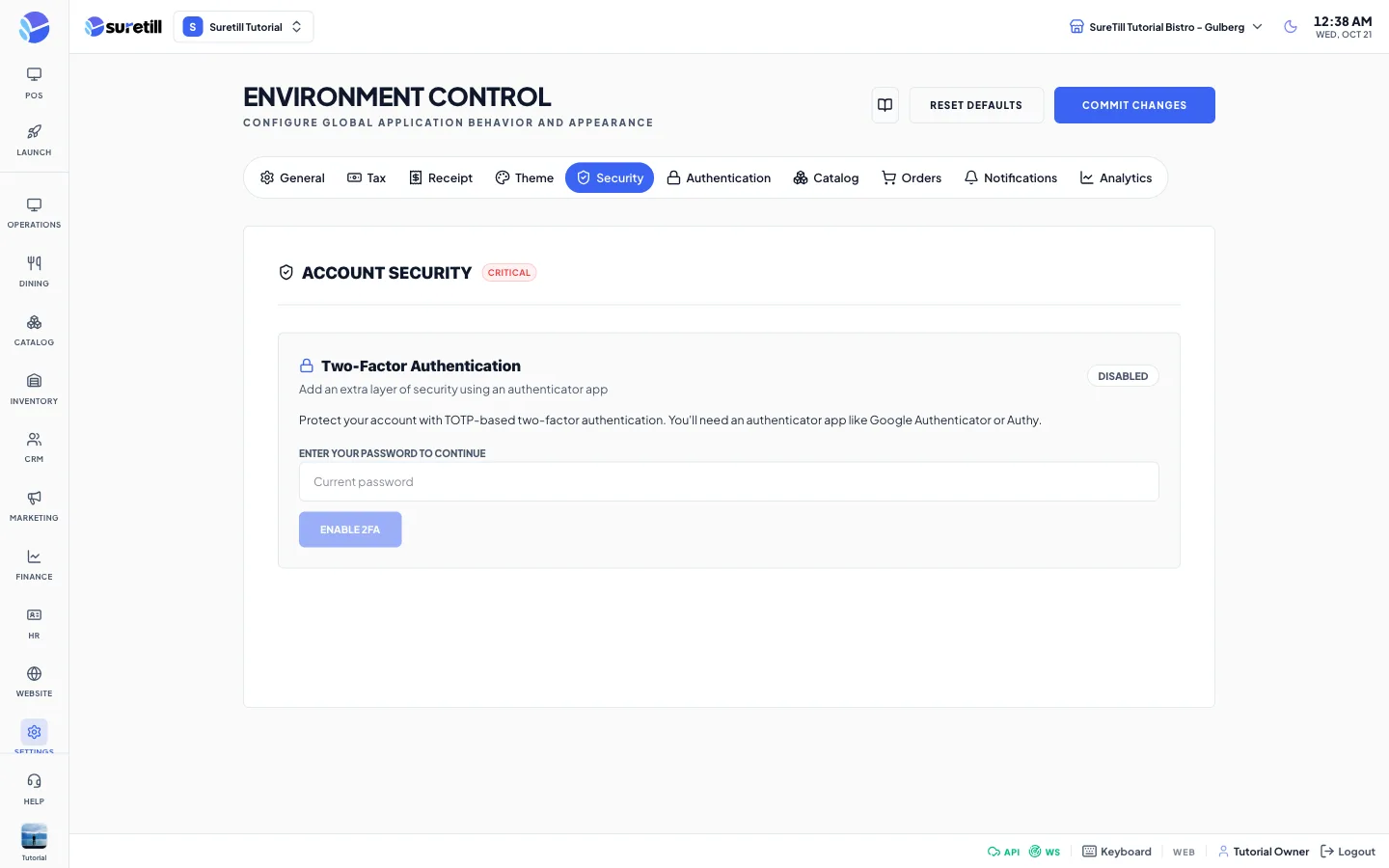
| Control in Settings > Security | What it does |
|---|---|
| Enable 2FA | Starts setup after you type your password. |
| Confirm and Enable | Finishes setup with the first valid code. |
| Generate New Codes | Opens a window that warns you, asks for your password and makes a new set of recovery codes. The old codes stop working at once and cannot be shown again. Save the new codes before you close the window. |
| Disable Two-Factor Auth | Asks for your password and a current 6-digit code, then confirms with Confirm Disable. |
The code screen allows 5 tries every 2 minutes. After a correct code you are taken to the same place as a normal sign-in: chefs to the Kitchen Display, drivers to Orders, waiters and cashiers to the POS, and everyone else to the Launch Pad.
Lost password
Section titled “Lost password”- You forgot your own password: on the sign-in page click Forgot password, type your email and click Send code. The page always answers that a code is on its way, whether or not the address exists. A 6-digit code is emailed to you and is valid for 10 minutes.
- On the Set a new password page type your email, the 6-digit code and the new password twice, then click Update password. Use Send a new code if the code expired. The new password needs at least 8 characters with upper and lower case letters, a number and a symbol.
- To change a password you know, open Settings > Security and use the Change password box: type the current password and the new one twice.
- Staff member forgot a password: the owner opens Users, finds the person, clicks the key icon (Reset Password), types a New Password twice and clicks Reset Password.
- Owner forgot the password: write to support@suretill.com from the owner email address and say which restaurant it is.
SureTill support access
Section titled “SureTill support access”If you ask SureTill for help, a support person can open your restaurant in a read-only support session that lasts 30 minutes. A bar at the top of the app says HQ support session and shows who is looking and until when. They cannot change your data, and the bar has a button to end the session at once.