

AI Phone Calls
Where: Operations > AI Phone Calls
Who can use it: Any one of the permissions orders.view_all, online_orders.view or manage reports. The calls come from SureCall, so the page is useful once SureCall is set up.
Open this page in SureTill
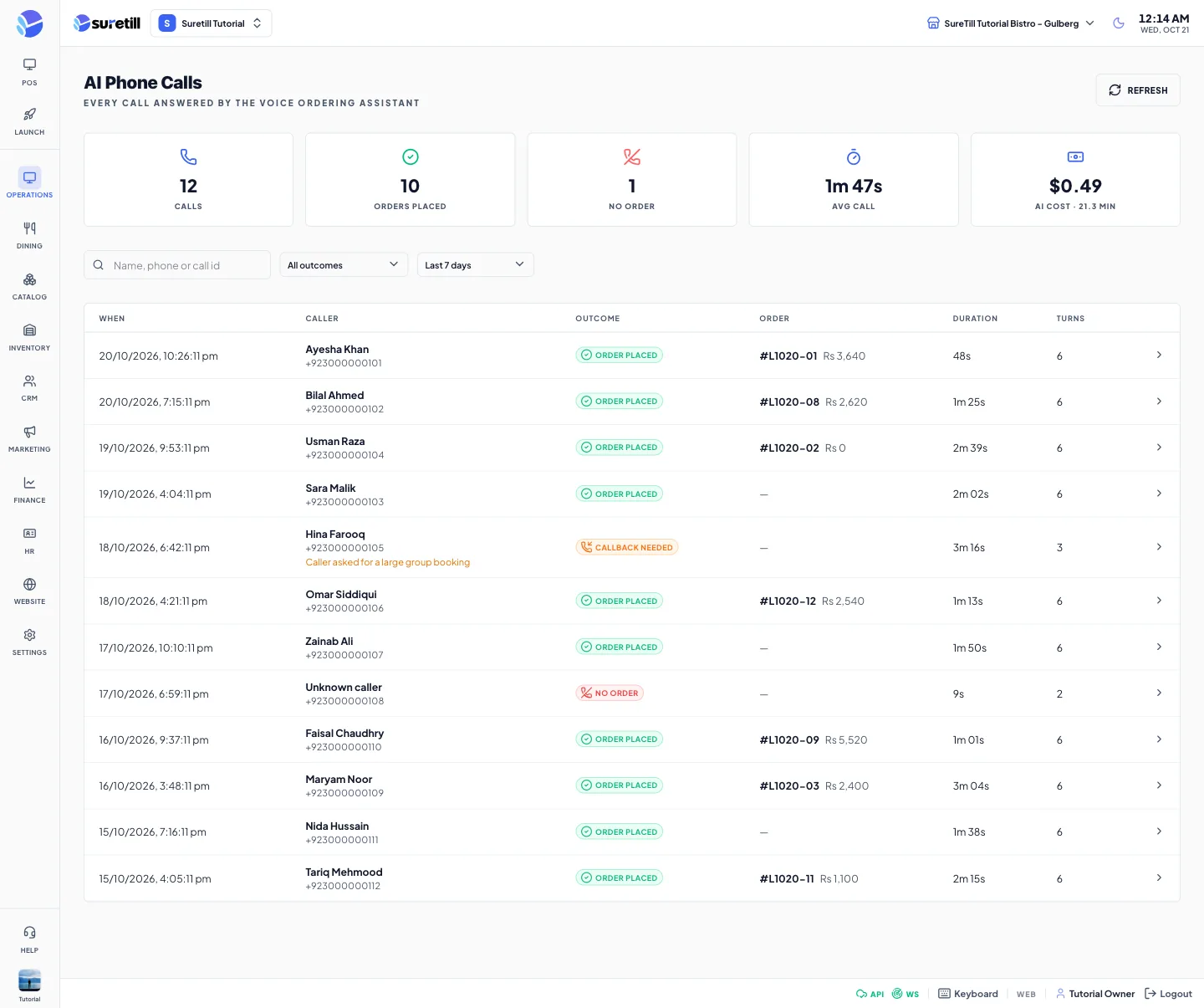
Use this page to see what the assistant did on the phone. You can check how many calls turned into orders, find a caller who needs a call back, and read exactly what was said. The list shows the branch you have selected and refreshes by itself every 30 seconds.
The log stores a text transcript of each call. It does not store an audio recording.
Step by step: find a call and read it
Section titled “Step by step: find a call and read it”- Open AI Phone Calls. By default you see the last 7 days, all outcomes.
- Type a name, a phone number or a call id in the search box to narrow the list.
- Pick an outcome and a time range in the two selectors.
- Click a row. A window opens with the caller, time, duration and phone number, an outcome badge, the order if one was created, and the transcript.
- Read the conversation. Assistant messages are on the left, caller messages on the right.
Step by step: handle a callback
Section titled “Step by step: handle a callback”- Set the outcome filter to Callback needed.
- Open a call. The yellow badge shows ‘Call back’ with the caller’s number and the reason that was recorded. If no number was captured, it says so.
- Call the customer and take the order yourself, or sort out the problem named in the reason.
Outcomes
Section titled “Outcomes”| Outcome | Meaning |
|---|---|
| Order placed | The call ended with an order. The order number and total are shown. |
| Callback needed | The call was marked as needing a staff callback. The reason is shown under the caller’s name. |
| No order | The call ended without an order, for example the caller only asked a question or hung up. |
Every setting explained
Section titled “Every setting explained”| Item | What it does |
|---|---|
| Refresh | Reloads the list now. |
| Calls | Number of calls in the current filter. |
| Orders placed | Calls with the outcome Order placed. |
| No order | Calls with the outcome No order. |
| Avg call | Average call length. |
| AI cost | An estimate: call minutes multiplied by a fixed rate of 0.023 US dollars per minute. The card is labelled USD estimate and shows US$. It is not your invoice, and it does not use your currency. |
| Search | Matches caller name, phone number or call id. |
| All outcomes selector | All outcomes, Order placed, Callback needed, No order. |
| Time selector | Last 24 hours, Last 7 days (default), Last 30 days, All time. |
| Column When | Date and time of the call. |
| Column Caller | Name and phone number, or Unknown caller. A callback reason appears here. |
| Column Outcome | Order placed, Callback needed or No order. |
| Column Order | Order number and total when the call created an order. |
| Column Duration | Length of the call, for example 2m 05s. Shows – when unknown. |
| Column Turns | How many messages were spoken by the caller and the assistant together. |
| Transcript window | The full conversation. A call where the caller never spoke shows ‘Caller hung up before saying anything’. |