

Campaigns, Banners and Offers
Where: Marketing > Campaigns
Who can use it: Permission: marketing.view or manage marketing. Not available on SureScreen (menu board only) plans.
Open this page in SureTill
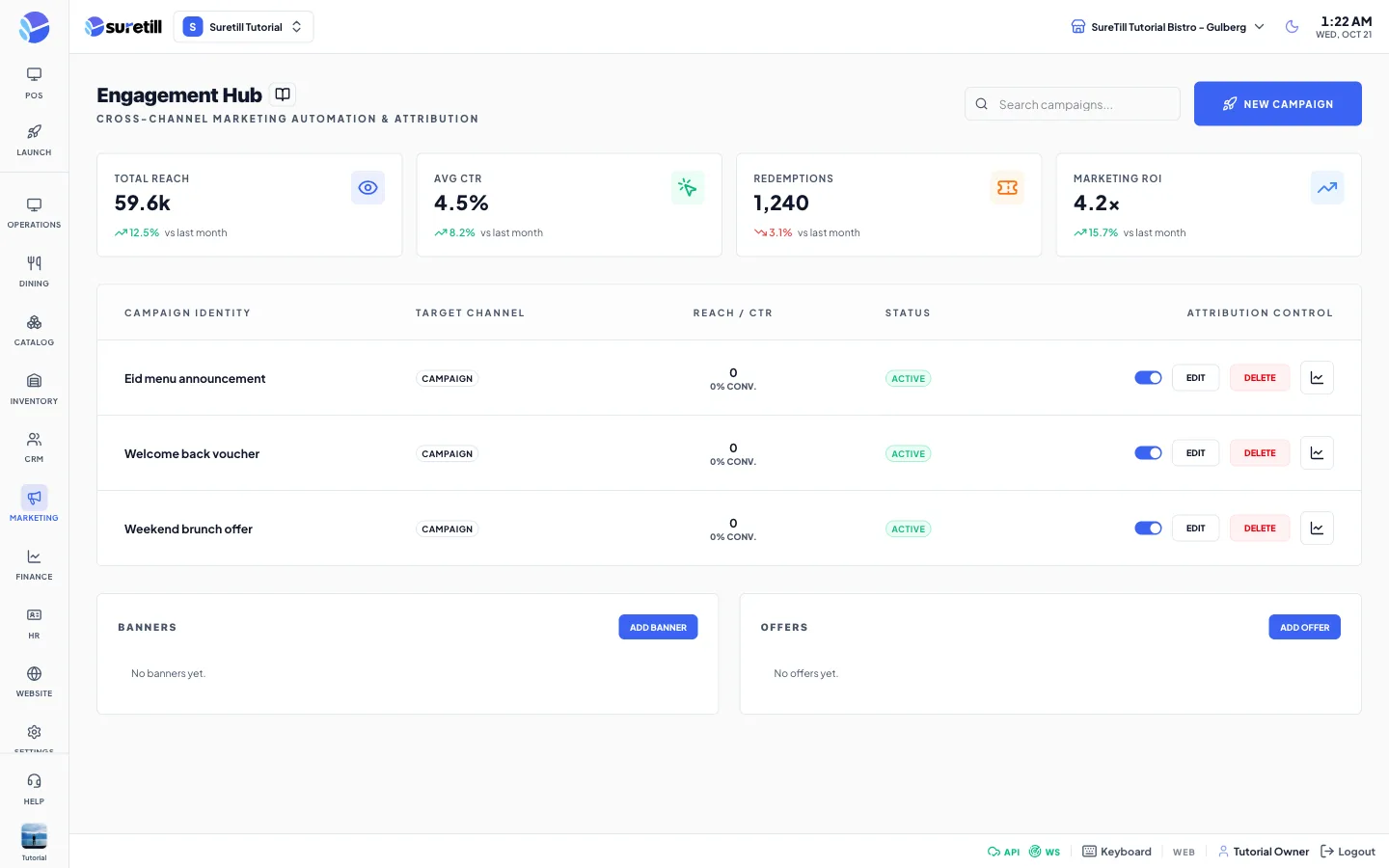
This page has three parts. Campaigns is a list of your marketing campaigns with a channel (Email, SMS or Push), a message and a status. Banners are the pictures that appear on your online storefront. Offers are the deals shown on the storefront, and an offer can show a promo code from the Coupons page.
Step by step
Section titled “Step by step”Add a campaign
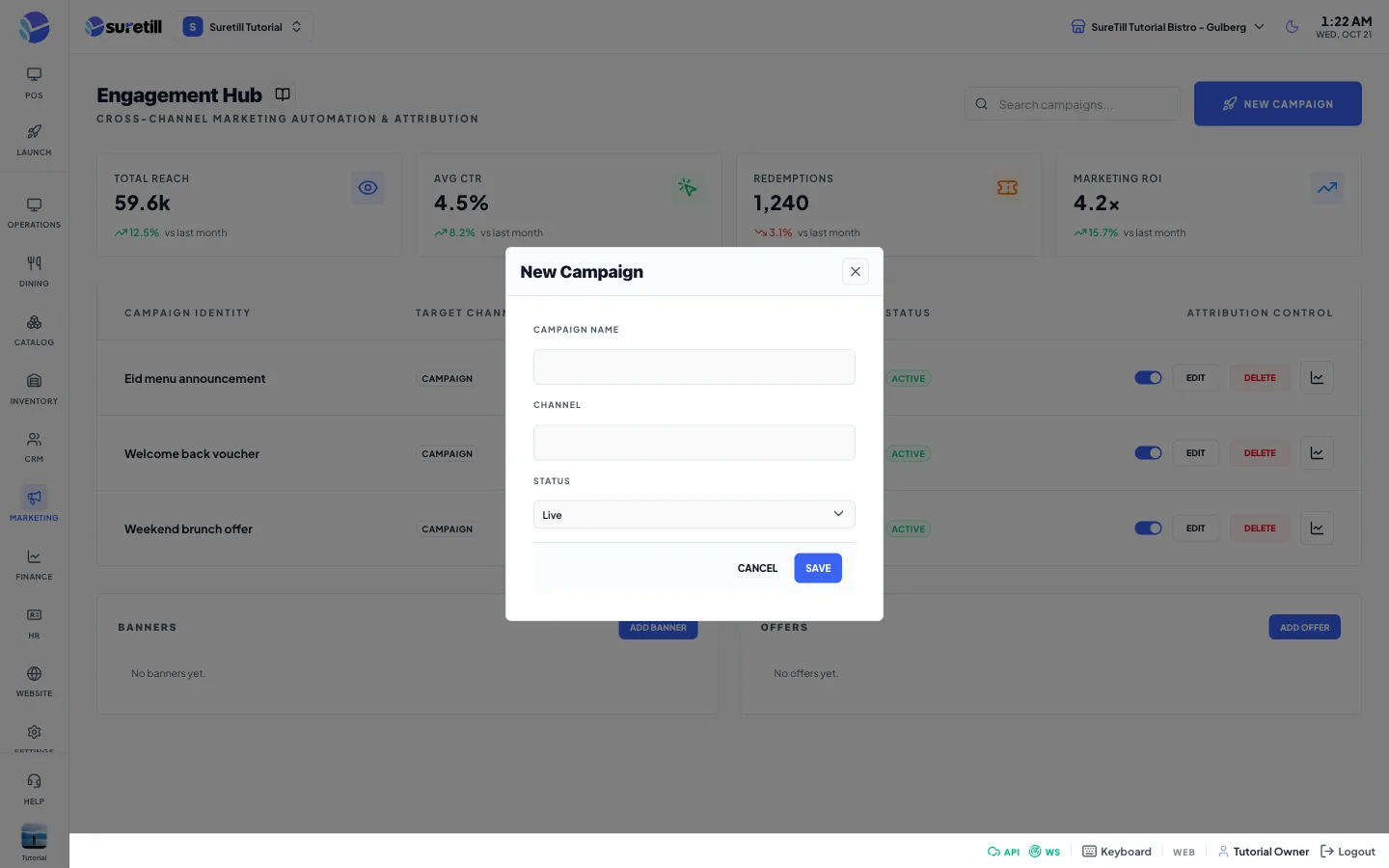
Section titled “Add a campaign”- Open Marketing > Campaigns and click New Campaign.
- Type the Campaign Name.
- Pick the Channel: Email, SMS or Push.
- Type a Subject if you want one (optional) and the Message. The message is required.
- Click Save. A new campaign starts as Draft.
Pause, edit or delete a campaign
Section titled “Pause, edit or delete a campaign”- Use the switch in the Attribution Control column to turn a campaign between Live and Draft.
- Click Edit to change the name, subject, message or status. The channel cannot be changed after the campaign is created.
- Click Delete and confirm to remove the campaign.
Add an offer
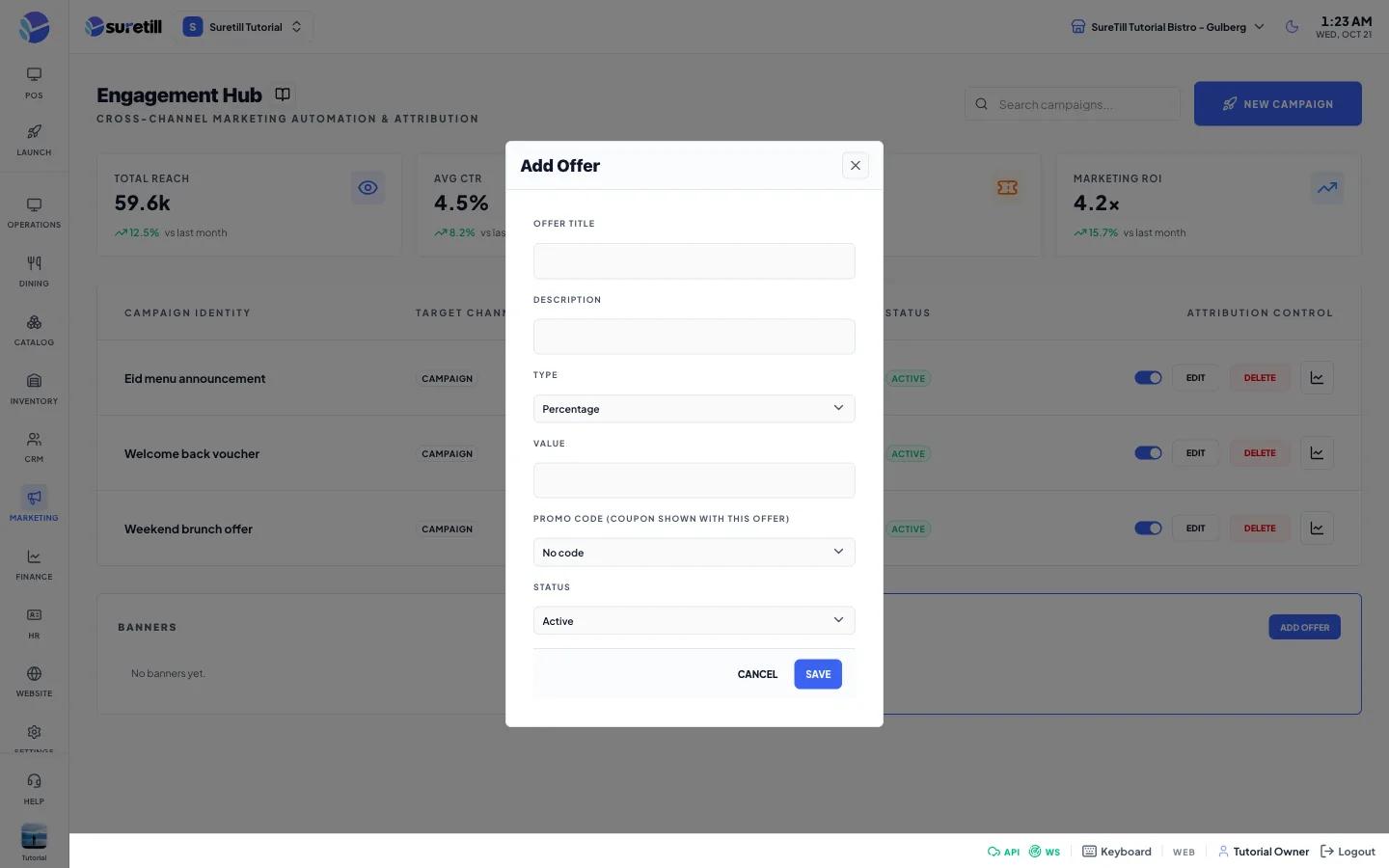
Section titled “Add an offer”- In the Offers card click Add Offer.
- Type the Offer Title and a Description.
- Pick the Type: Percentage, Fixed amount, Buy one get one, Bundle or Free item.
- Type the Value (0 or more).
- Under Promo code pick a coupon if the offer should show a code, or leave No code.
- Pick the Status: Active or Inactive, then click Save.
Add a banner
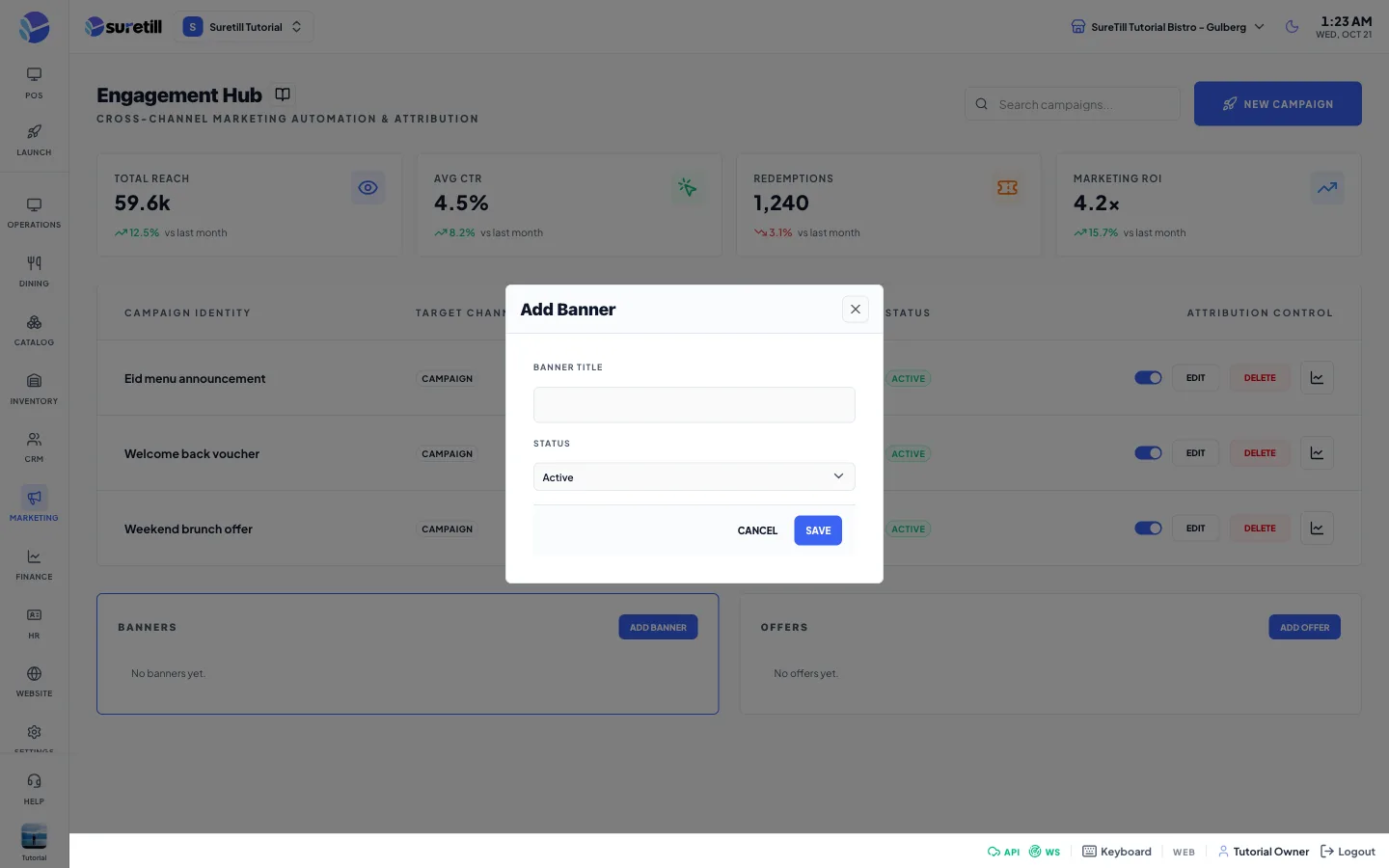
Section titled “Add a banner”- In the Banners card click Add Banner.
- Type the Banner Title, choose the banner Image (JPG, PNG, WebP or GIF, up to 5 MB) and pick the Status: Active or Inactive.
- Click Save. Use Edit or Delete on a banner to change or remove it. When you edit, leave the image empty to keep the current picture.
Active banners and live offers are what your online storefront and customer app read. A banner has a picture, a position on the storefront (home top, home middle, menu page or checkout), an optional link and optional start and end dates. The title, image and status are the fields this page offers.
Every setting explained
Section titled “Every setting explained”| Setting | What it does |
|---|---|
| Search box | Filters the campaign table by name, channel or status. |
| New Campaign | Opens the campaign form. |
| Messages Sent card | The total of the sent counts stored on your campaigns. |
| Avg CTR card | Clicks divided by messages sent, over all campaigns. |
| Coupon Redemptions card | The total number of times your coupons were used. |
| Campaign Identity | The campaign name. |
| Target Channel | The channel text you typed. |
| Reach / CTR | The sent count and the click rate stored on the campaign. They show 0 and 0% when none are stored. The app does not collect them by itself. |
| Status badge | Live (scheduled or sending), Draft, Sent or Cancelled. |
| Switch | Turns the campaign Live (scheduled) or back to Draft. There is no separate Paused state on the server. |
| Edit / Delete | Change or remove the campaign. |
| Campaign Name (form) | Required. Up to 255 characters. |
| Channel (form) | Email, SMS or Push. Chosen when the campaign is created. |
| Subject (form) | Optional. Up to 255 characters. |
| Message (form) | Required. The text of the campaign. |
| Status (campaign form, edit only) | Live or Draft. |
| Banner Title / Image / Status | The banner name, its picture (required for a new banner), and Active or Inactive. |
| Offer Title / Description | The name and the short text of the offer. |
| Type (offer) | percentage, fixed, bogo, bundle or free_item. |
| Value (offer) | The number for the offer, 0 or more. |
| Promo code (offer) | A coupon from the Coupons page that is shown with the offer. |
| Status (offer, banner) | Active or Inactive. Only active items are shown to customers. |