

Uber Eats
Where: Operations > Uber Eats
Who can use it: Permission uber_eats.manage (owners and admins always have access). Uber Eats is an add-on: it must be part of your plan, and it must be switched on for the branch in Branches under Delivery Integrations. If either is missing, the page sends you back to the Launch Pad.
Open this page in SureTill
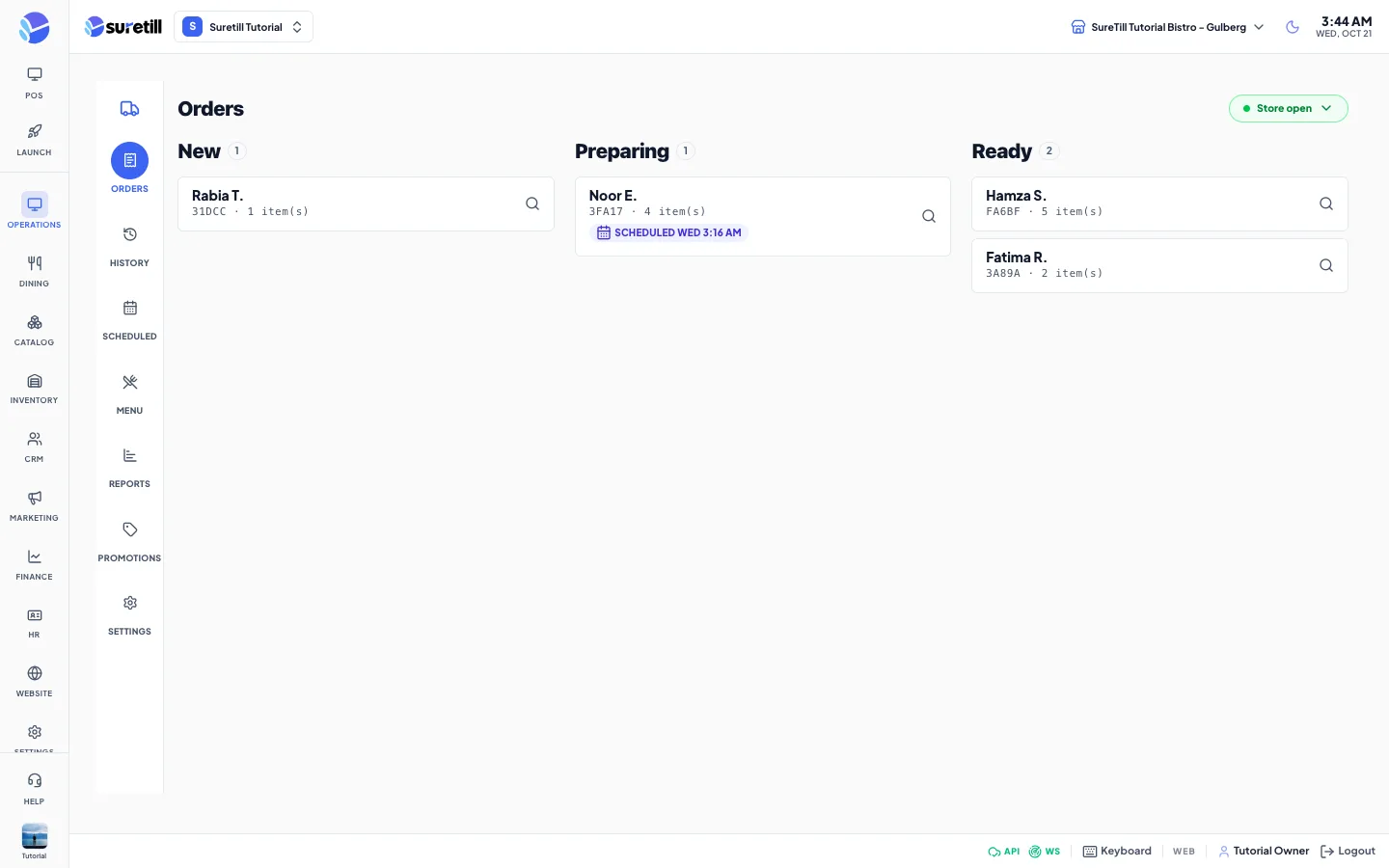
This page is SureTill’s own version of Uber’s Order Manager. Orders that customers place on Uber Eats arrive here by themselves. You accept or deny them, tell Uber when they are ready, see who is bringing them, and print the kitchen ticket. Uber owns the order, so it cannot be opened in the POS cart. You work it on this board.
The icon rail on the left has seven areas: Orders, History, Scheduled, Menu, Reports, Promotions and Settings. A new order also raises a popup on any admin or POS screen, so staff do not need to keep this page open.
Connect your Uber Eats store
Section titled “Connect your Uber Eats store”- In Branches, open the branch and tick Uber Eats under Delivery Integrations. Save. (Your SureTill plan must include the Uber Eats add-on.)
- Open Uber Eats, then Settings, then Store connection. If no store is linked yet, the page shows a Connect Uber Eats card with the same button.
- Press Connect via Uber and sign in with the Uber account that owns the store.
- You come back to the Settings tab with the message ‘Connected to Uber Eats’. If you cancel you see ‘Uber Eats connection was cancelled’. Any other failure shows ‘Could not connect to Uber Eats’.
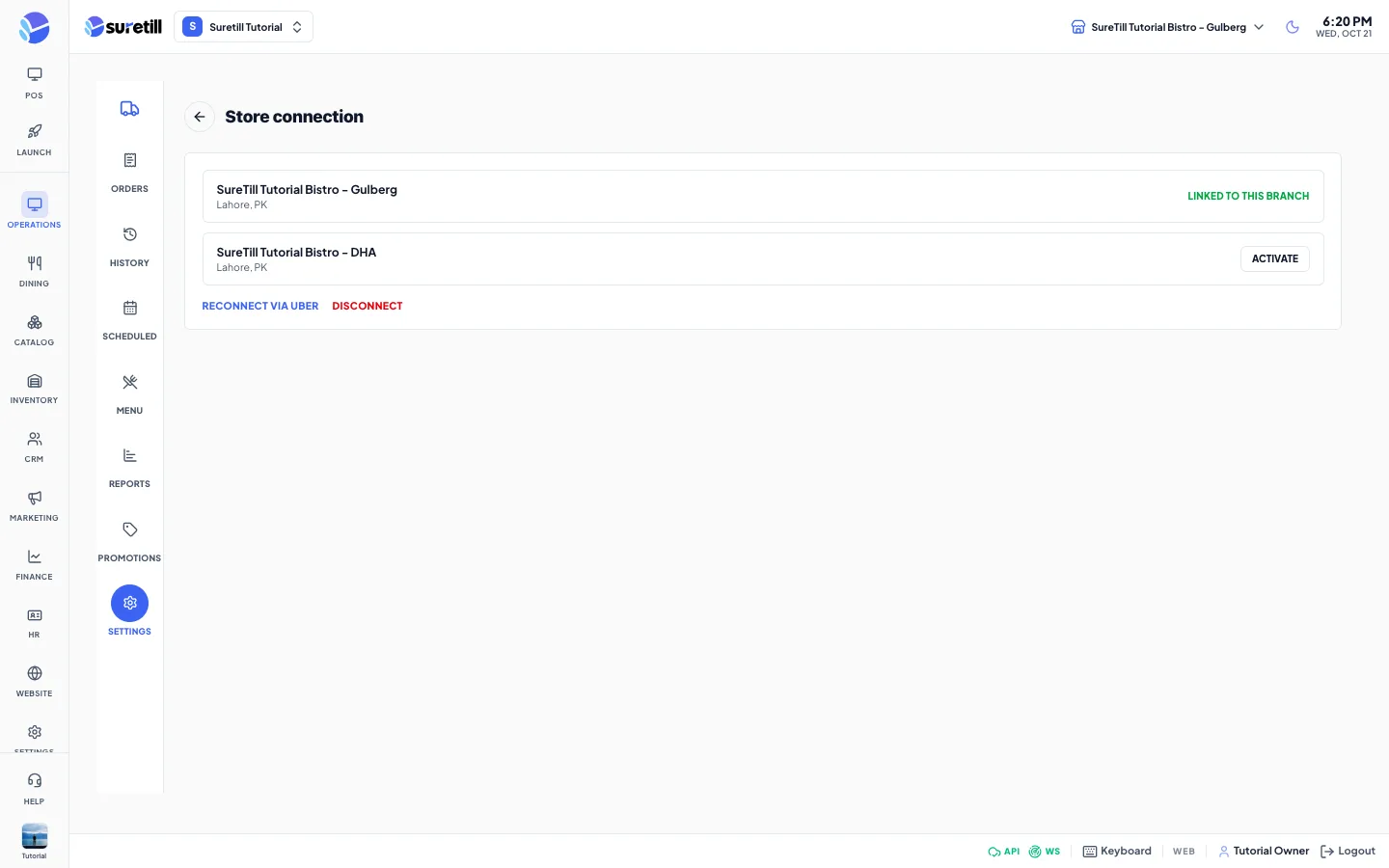
- Your stores are listed with name and city. Press Activate (or Link to this branch if Uber already has the integration on) next to the right store.
- The row now reads Linked to this branch. New orders for that store arrive in this branch.
What happens when an order arrives
Section titled “What happens when an order arrives”- Uber sends a notification. SureTill reads the order from Uber and creates a delivery order with the number UE- followed by Uber’s id. On screen it shows as the last 5 characters of the id, like Uber’s own app.
- The order starts as New (pending). It is marked paid, because the customer paid Uber online. It is placed in the branch’s Uber Eats department.
- Lines are matched to your POS products by name. An item with no match is added as a hidden helper product so the order line has something to point at. It does not appear in your POS menu.
- If Uber cannot give the items, the order is still kept with one line ‘Uber Eats Order (see Uber app)’. Check Uber’s app for the real items and total.
- If the order was already accepted in Uber’s own app, it arrives as Preparing, not New. A background job also checks open orders every minute and every 15 minutes, so an order you handle in Uber’s app moves forward here too.
- An order cancelled on Uber’s side is cancelled here as well.
Step by step: accept an order
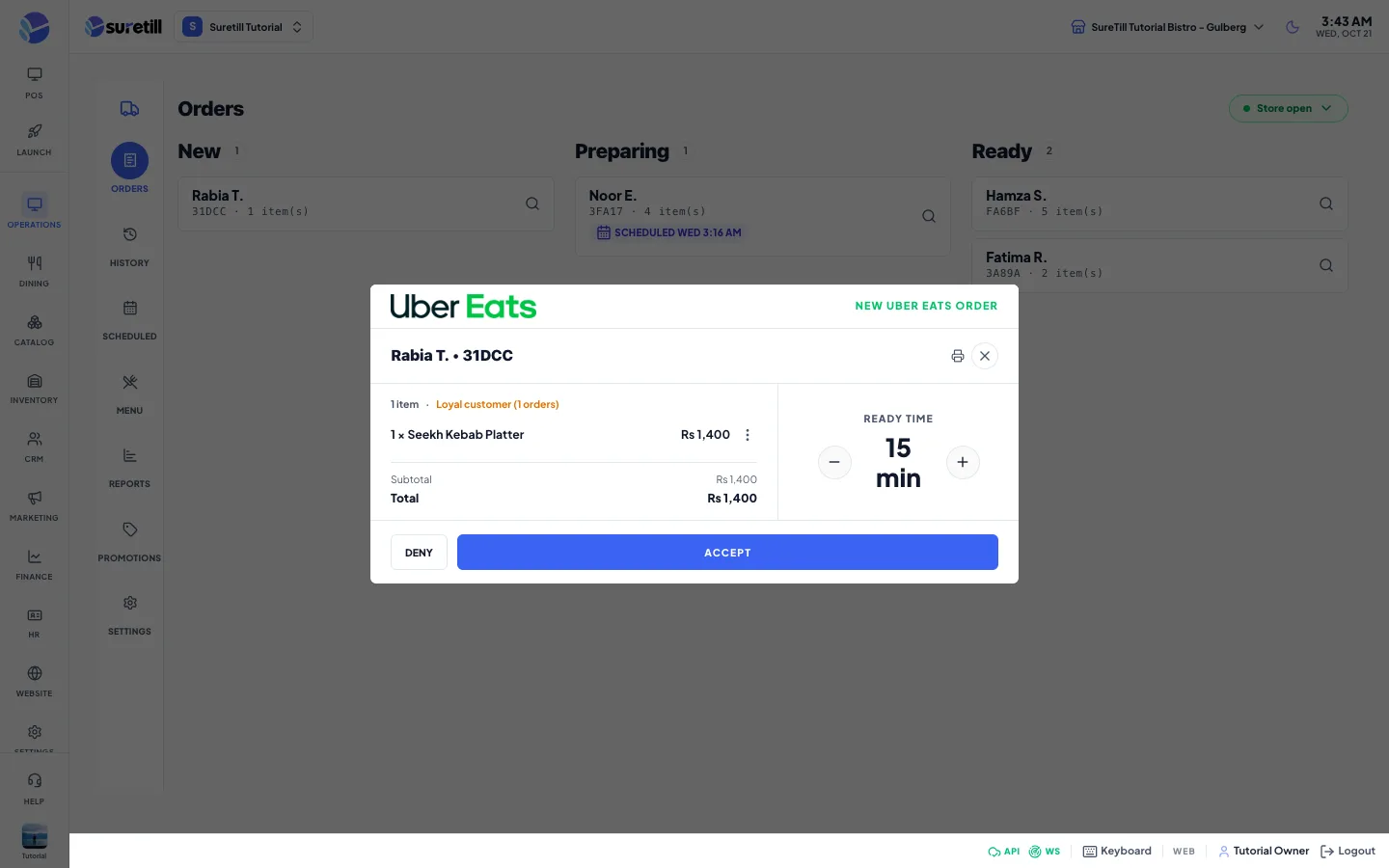
Section titled “Step by step: accept an order”- When the popup or the New column shows the order, open it.
- Under Ready Time use minus and plus to set the minutes (steps of 5, from 5 to 120, starting at 15).
- Press Accept. SureTill tells Uber first. Only if Uber accepts is the order confirmed here.
- On success the order moves to Preparing, stock is deducted, the kitchen screen is updated and a kitchen ticket prints.
- For a scheduled order the ready time follows the customer’s chosen time, not now. Accept it early, and send it to the kitchen closer to the time.
If Uber rejects the call, you see Uber’s own reason, for example that the order already expired on their side.
Step by step: deny an order
Section titled “Step by step: deny an order”- Open a New order and press Deny.
- Pick one reason: Items out of stock, Store is closed, Customer called to cancel, Store is too busy, or Other. Uber shows this reason to the customer.
- Press Confirm Deny.
- The order stays New with an amber countdown ‘Awaiting Uber’. Uber can hold a deny for up to 11.5 minutes, because someone in Uber’s own app may still override it. The order is cancelled here when Uber confirms. Do not deny again.
Step by step: mark ready, cancel, flag an item
Section titled “Step by step: mark ready, cancel, flag an item”- Open an order in Preparing and press Mark Ready. Uber is told, so it can send the courier. The order moves to Ready.
- To cancel an accepted order press Cancel Order, pick a reason, and press Confirm Cancel. This works only while the order is Preparing. Once it is Ready, Uber no longer allows cancelling.
- To report a problem with one item press the warning icon on its line and pick Out of stock, Out of a modifier/option, or Can’t meet allergy request. The last one only appears when the customer left a note. Uber then asks the customer to replace or drop the item. The answer comes back by itself later.
- Use the receipt icon to print the bill and the printer icon to print the kitchen ticket again.
Every area explained
Section titled “Every area explained”Orders and History
Section titled “Orders and History”| Item | What it does |
|---|---|
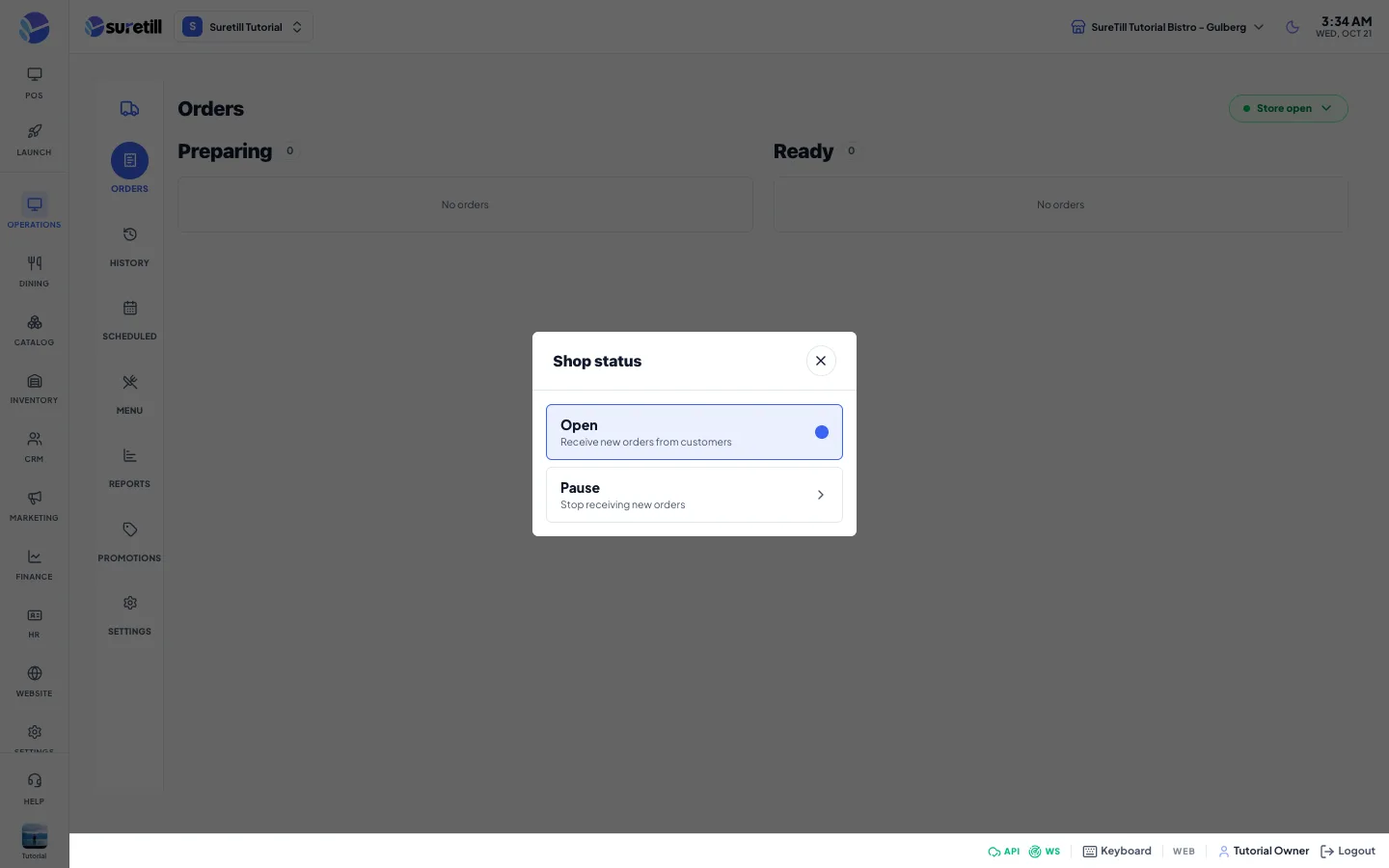
| Store open / Store paused | Button at the top right. Opens the shop status box. Open receives new orders. Pause stops new orders for 15 minutes, 30 minutes, 1 hour, or until you reopen it. It changes the real store status on Uber. |
| New column | Orders waiting for you. The column only shows when there is a new order. |
| Preparing column | Accepted orders still being cooked. |
| Ready column | Orders marked ready, waiting for the courier. |
| Order card | Customer name, five-character order tag, item count, a Scheduled badge for ahead-of-time orders, and the deny countdown. |
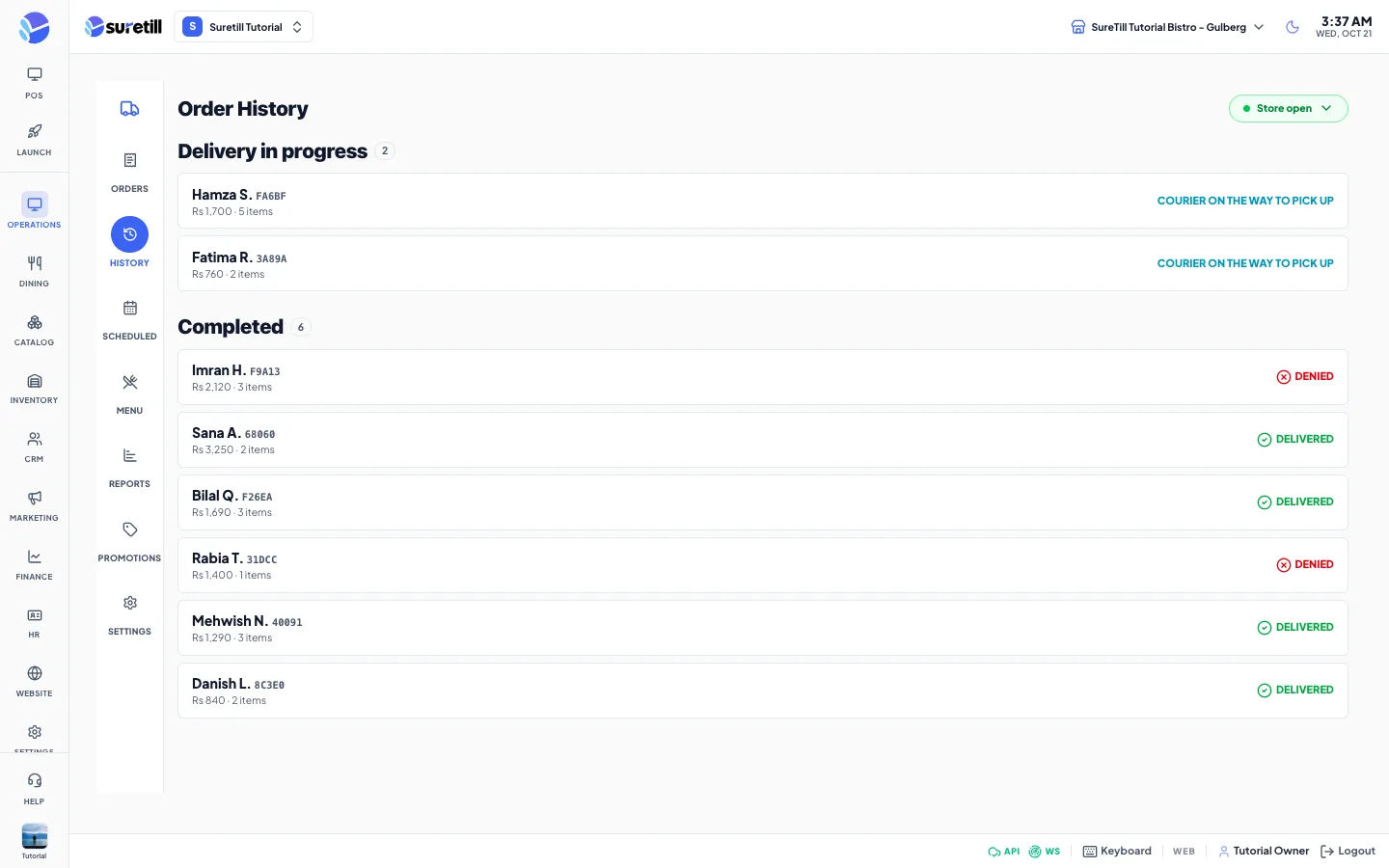
| History: Delivery in progress | Ready orders with the courier state: Courier assigned, Courier on the way to pick up, Courier arrived, Out for delivery. |
| History: Completed | The latest 40 finished orders, marked Delivered or Denied. |
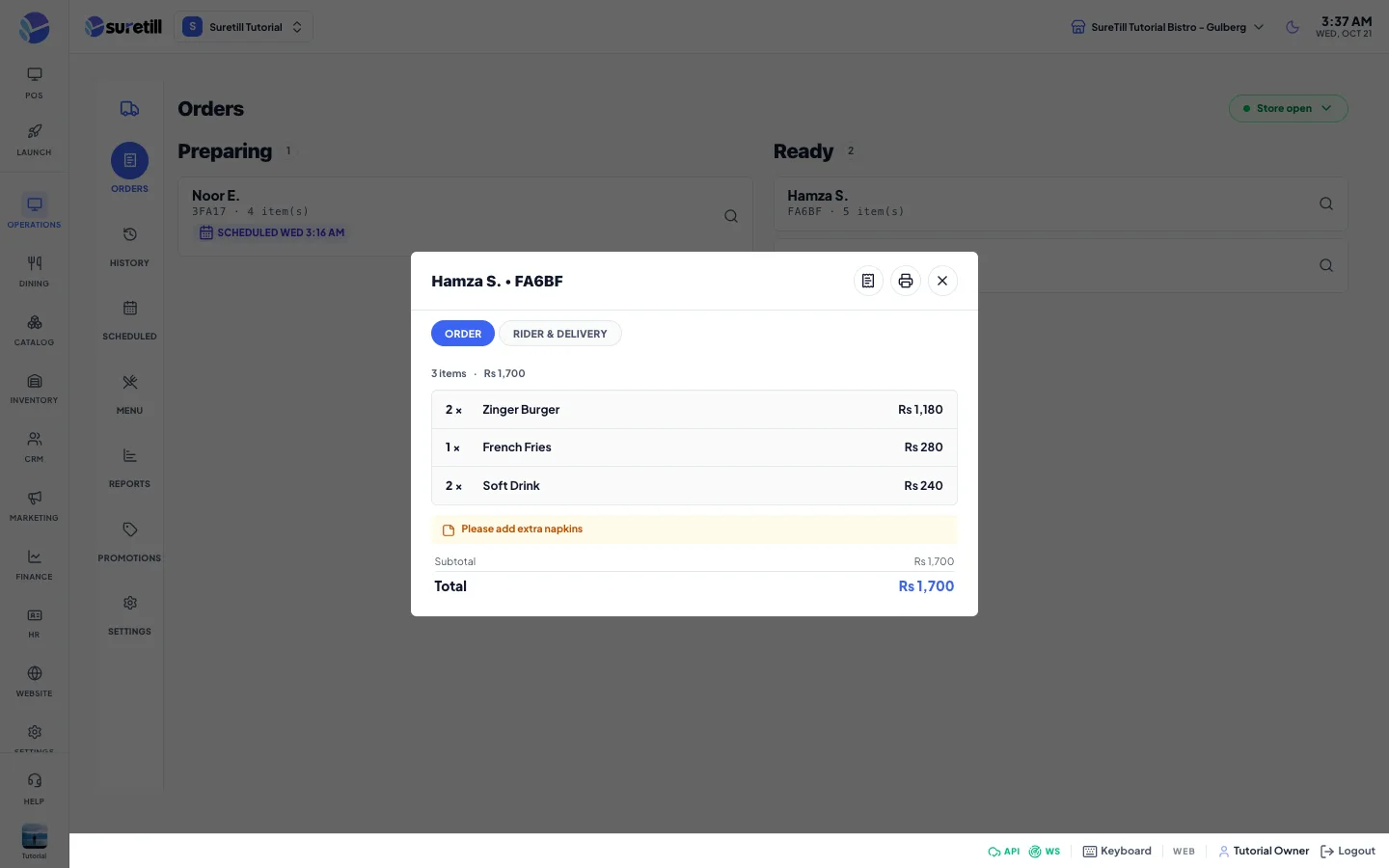
| Order tab | Items with pictures from Uber, item notes, the customer note, subtotal, special offer, total, and the customer and payment boxes. The customer box shows name, number of previous orders (or First order), phone with the PIN the courier needs, and Ready by. The Payment (Uber) box shows Items, Fees, Promotions, Tax, Order total and Uber fee. |
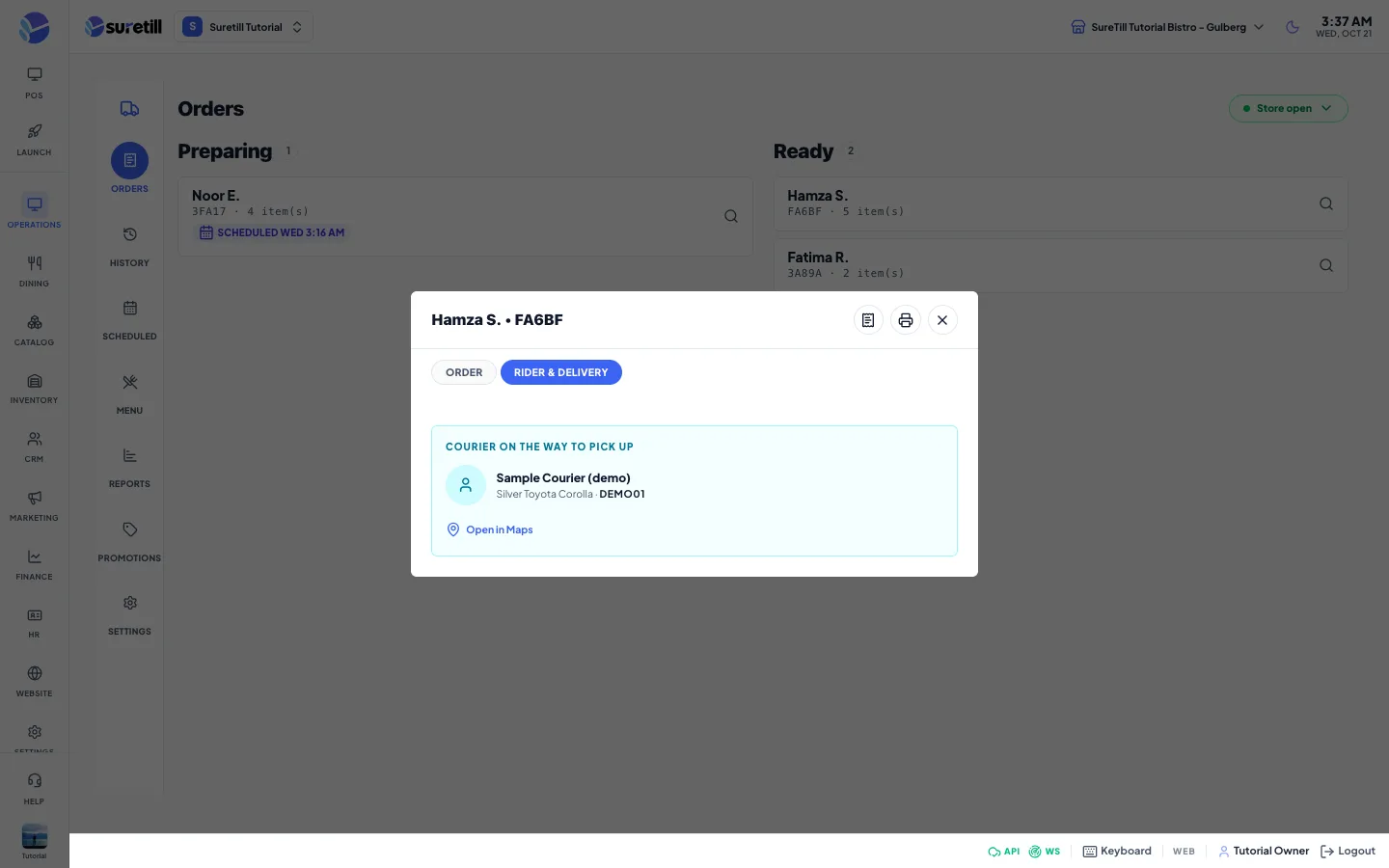
| Rider & delivery tab | Appears once the order is accepted. Courier name and photo, vehicle and plate, a call button, Open in Maps when Uber shares a position, and a Timeline of status changes. |
| Courier sounds | A sound plays when a courier arrives at your store for pickup. |
Scheduled
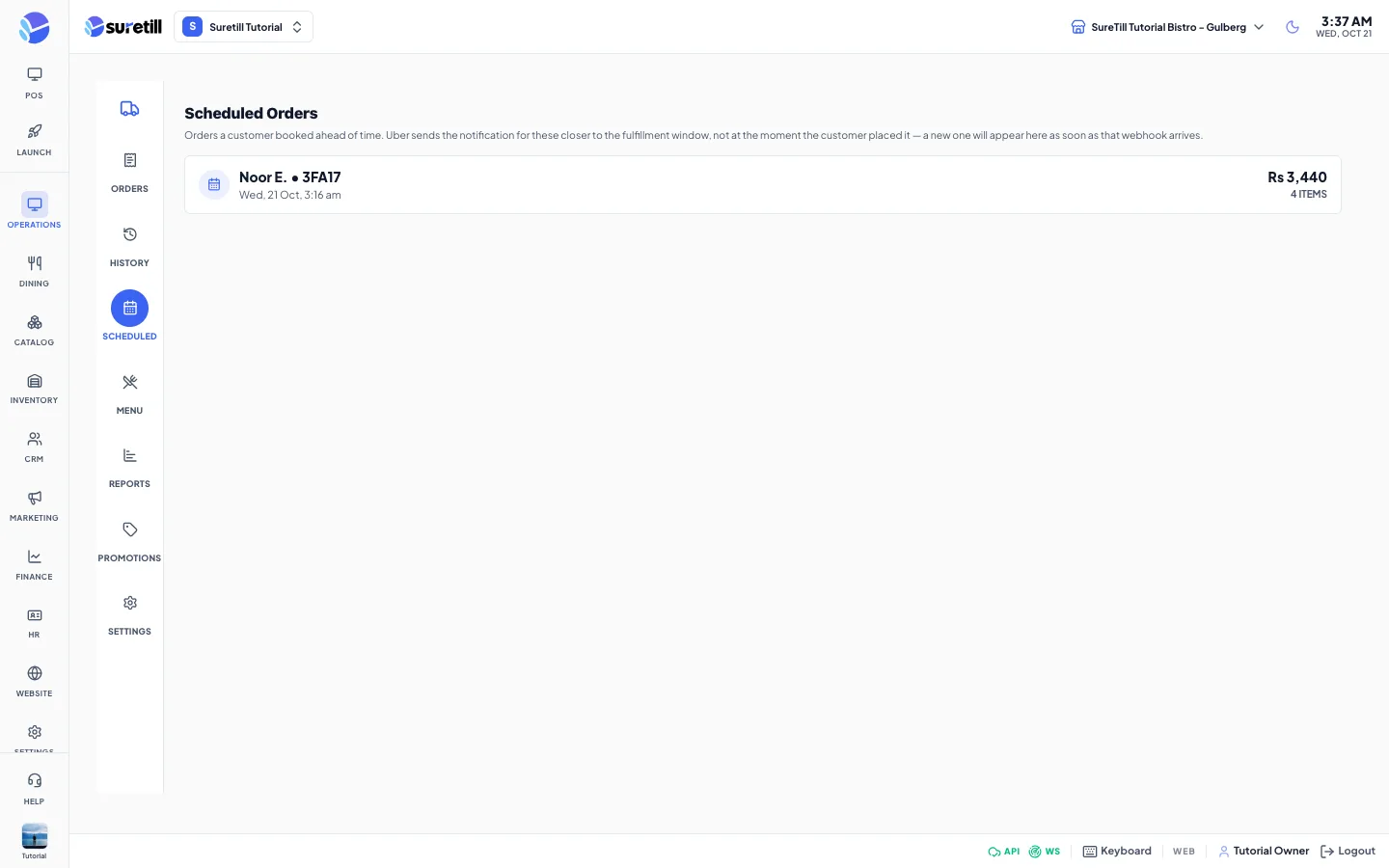
Section titled “Scheduled”Lists orders a customer booked ahead of time: name, tag, date and time, total and item count. Uber sends the notification about 15 to 20 minutes before the window, so a booked order appears here when that notification arrives. The list refreshes every 30 seconds.
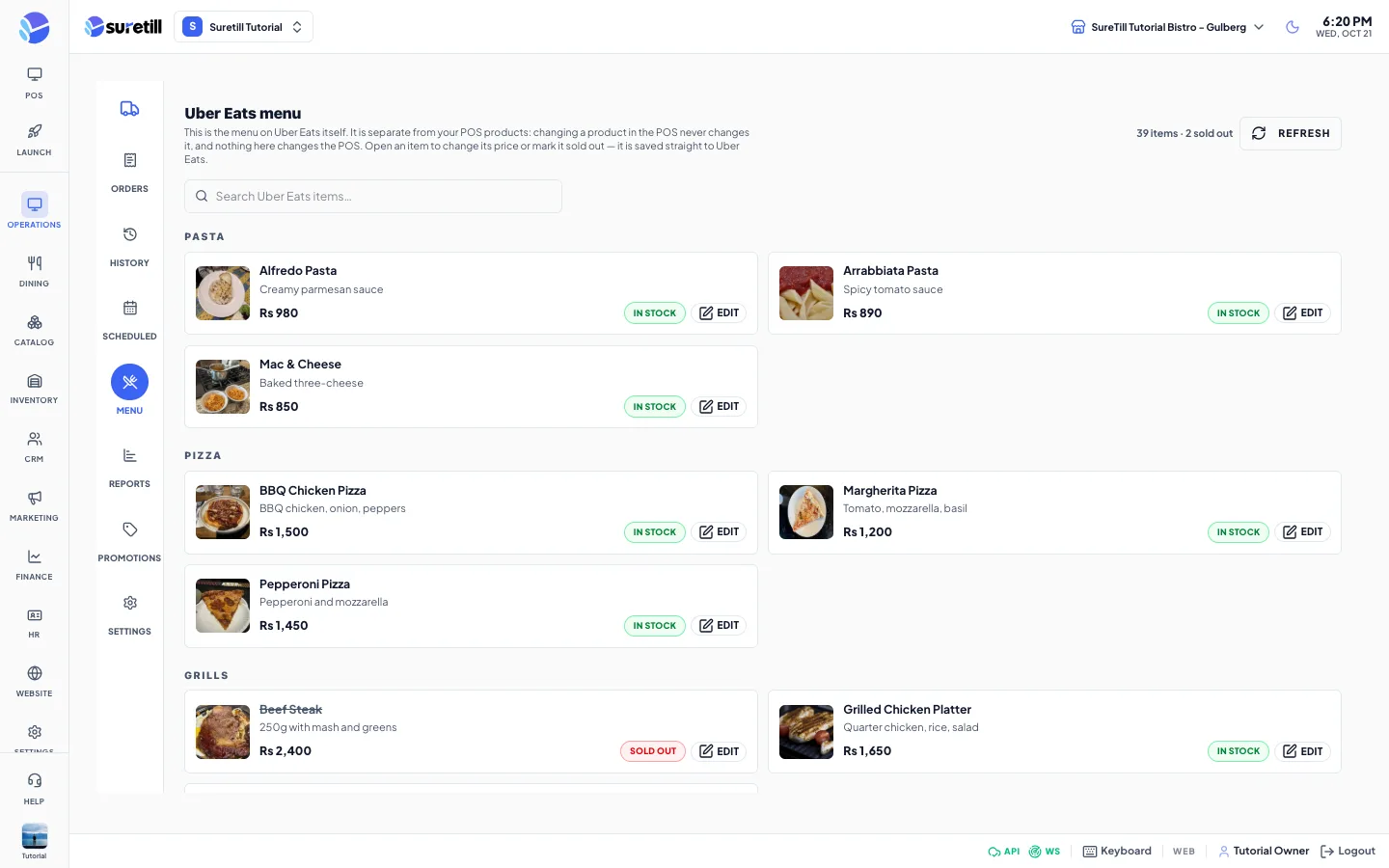
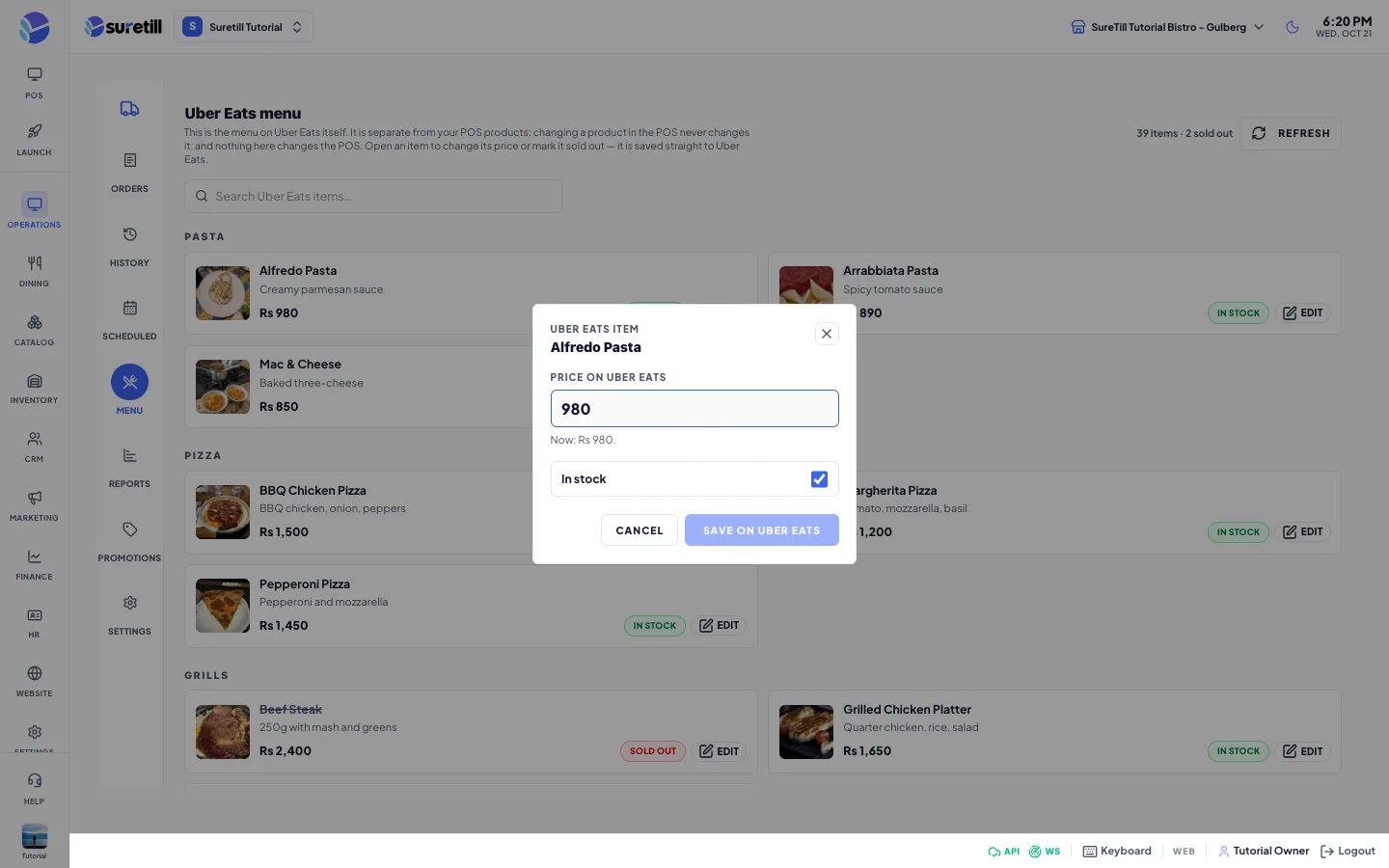
This is the menu that is live on Uber Eats. It is separate from your POS products. Changing a POS product never changes it, and nothing here changes the POS. Build the menu itself in the Uber Eats dashboard. SureTill does not push your POS menu to Uber automatically.
| Item | What it does |
|---|---|
| Counts | Shows the number of items and how many are sold out. |
| Refresh | Reads the menu from Uber again. |
| Search | Filters by item name or description. |
| In stock / Sold out button | Click to toggle. It is saved straight to Uber at once. |
| Edit | Opens the item. Price on Uber Eats (numbers only, not negative) and an In stock tick. Press Save on Uber Eats. If the item has price overrides per menu on Uber, those are not changed. |
Reports
Section titled “Reports”| Item | What it does |
|---|---|
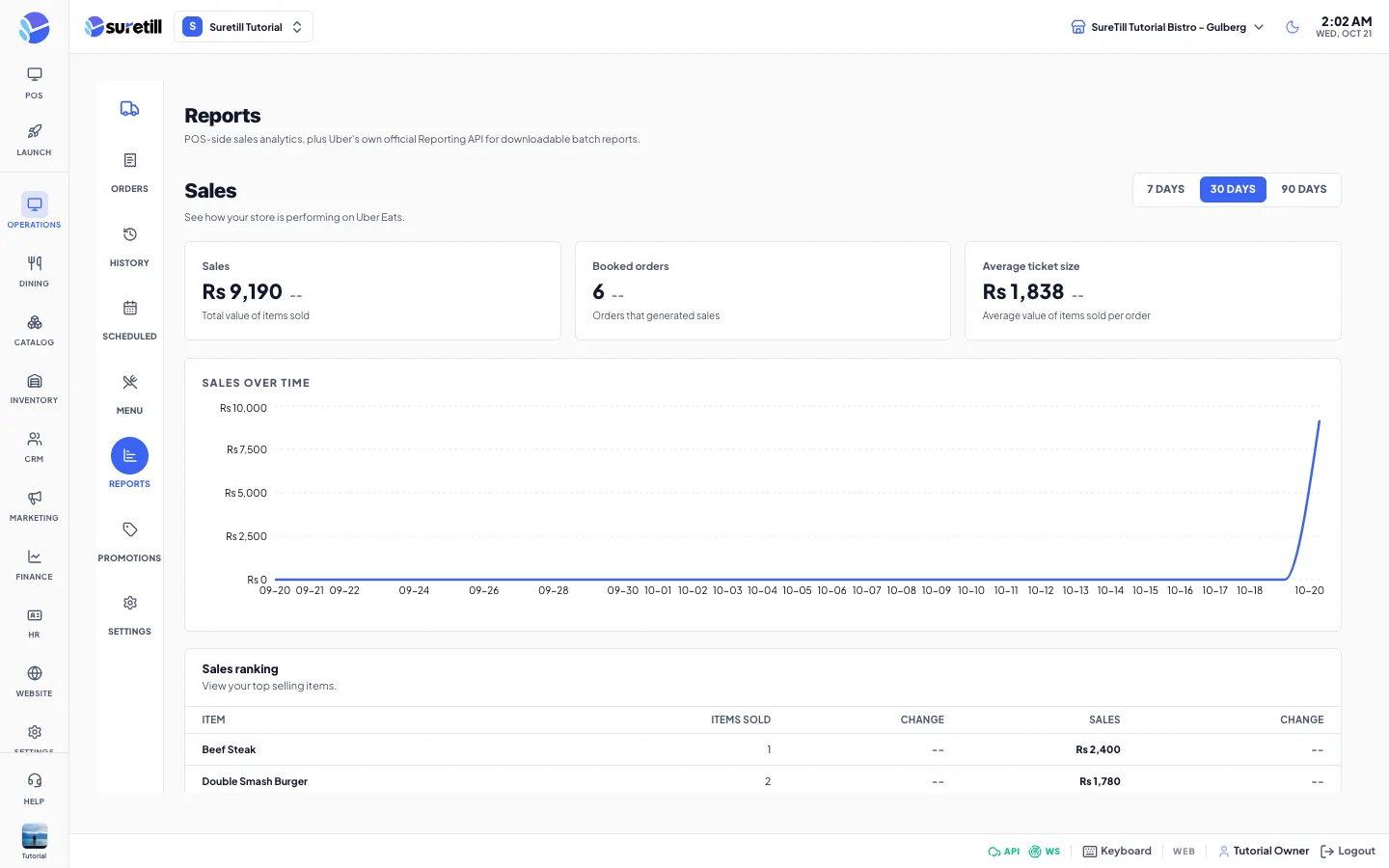
| Sales range | Buttons 7 days, 30 days and 90 days (default 30). |
| Sales, Booked orders, Average ticket size | Totals for the range with the change against the previous period. |
| Sales over time | A chart of this period against the last period. |
| Sales ranking | Top 10 items: items sold, change, sales, change. |
| Sales by hour | A day-by-hour grid. Darker cells sold more. |
| Official Uber Reports | Pick a report type and a start and end date (not later than today), then press Request report. Uber builds it and tells SureTill when it is ready. Requested reports are listed with the status pending, completed or failed. Press View to open a preview or Download to get the file. |
| Report types and limits | Orders & Items (up to 15 days), Payment Details (up to 30 days), Finance Summary (up to 30 days). Order History, Order Errors - Menu Item, Downtime, Customer & Delivery Feedback and Menu Item Feedback: only dates between 188 and 2 days ago. Order Errors - Transaction: between 190 and 4 days ago. |
Promotions
Section titled “Promotions”Creates a flat amount off discount that customers see on your Uber Eats storefront. Flat-off is the only promotion type offered.
| Setting | What it does |
|---|---|
| Amount off | Money taken off the basket. Must be above zero. Default 5. |
| Minimum spend | Basket value needed to qualify. Optional here. Default 20. |
| Starts / Ends | Date and time window. Ends must be after Starts. The window starts now and runs 7 days by default. |
| Who sees this | All customers, or First-time customers only. |
| Reference name | Optional label for your own tracking, up to 100 characters. |
| Create promotion | Sends it to Uber. The currency is your app currency. |
| Your promotions | Each promotion with its state (Pending, Active, Revoked, Expired), minimum spend and dates. Revoke ends a promotion that is not already revoked or expired. It acts at once and does not ask for confirmation. |
Settings
Section titled “Settings”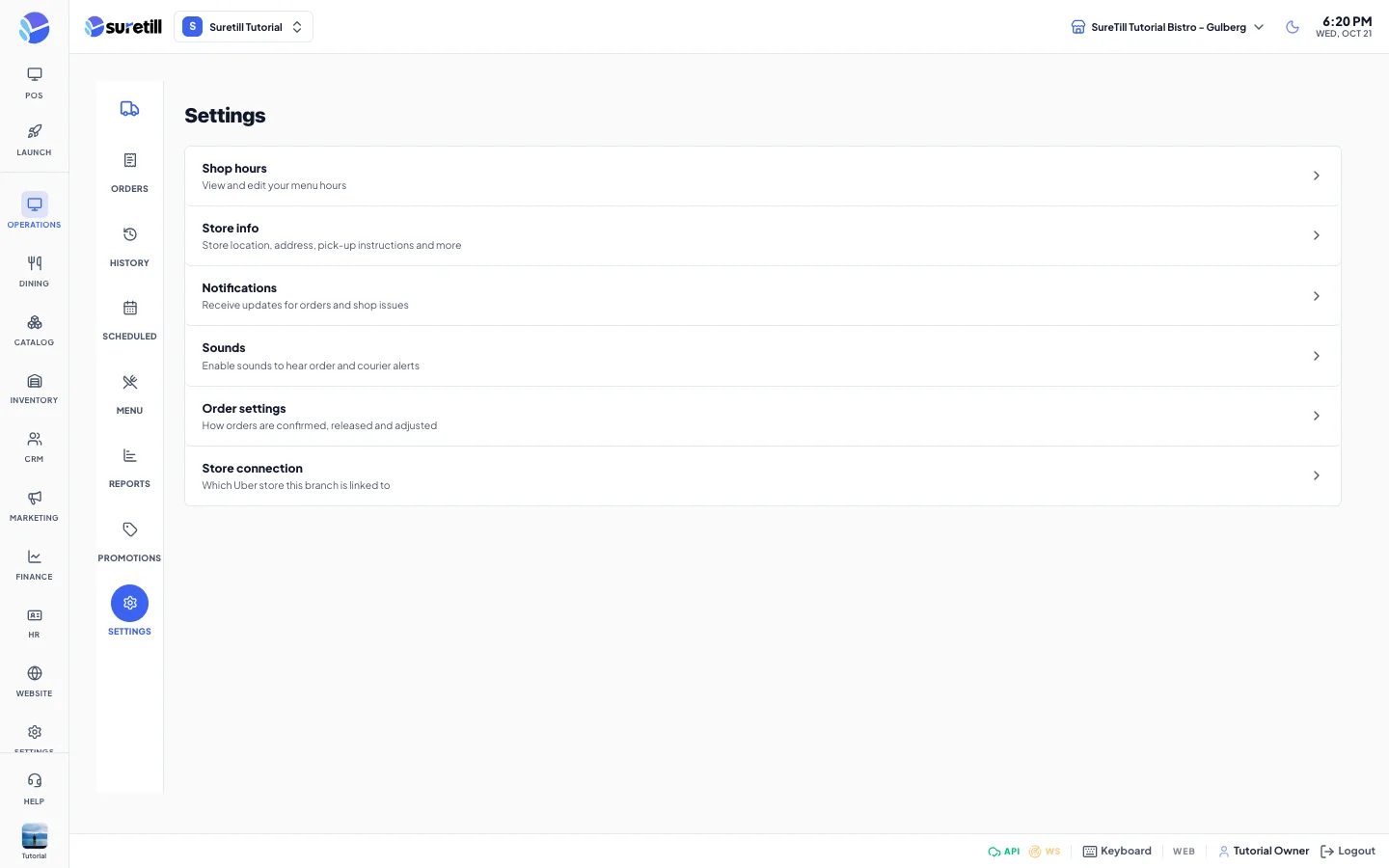
| Item | What it does |
|---|---|
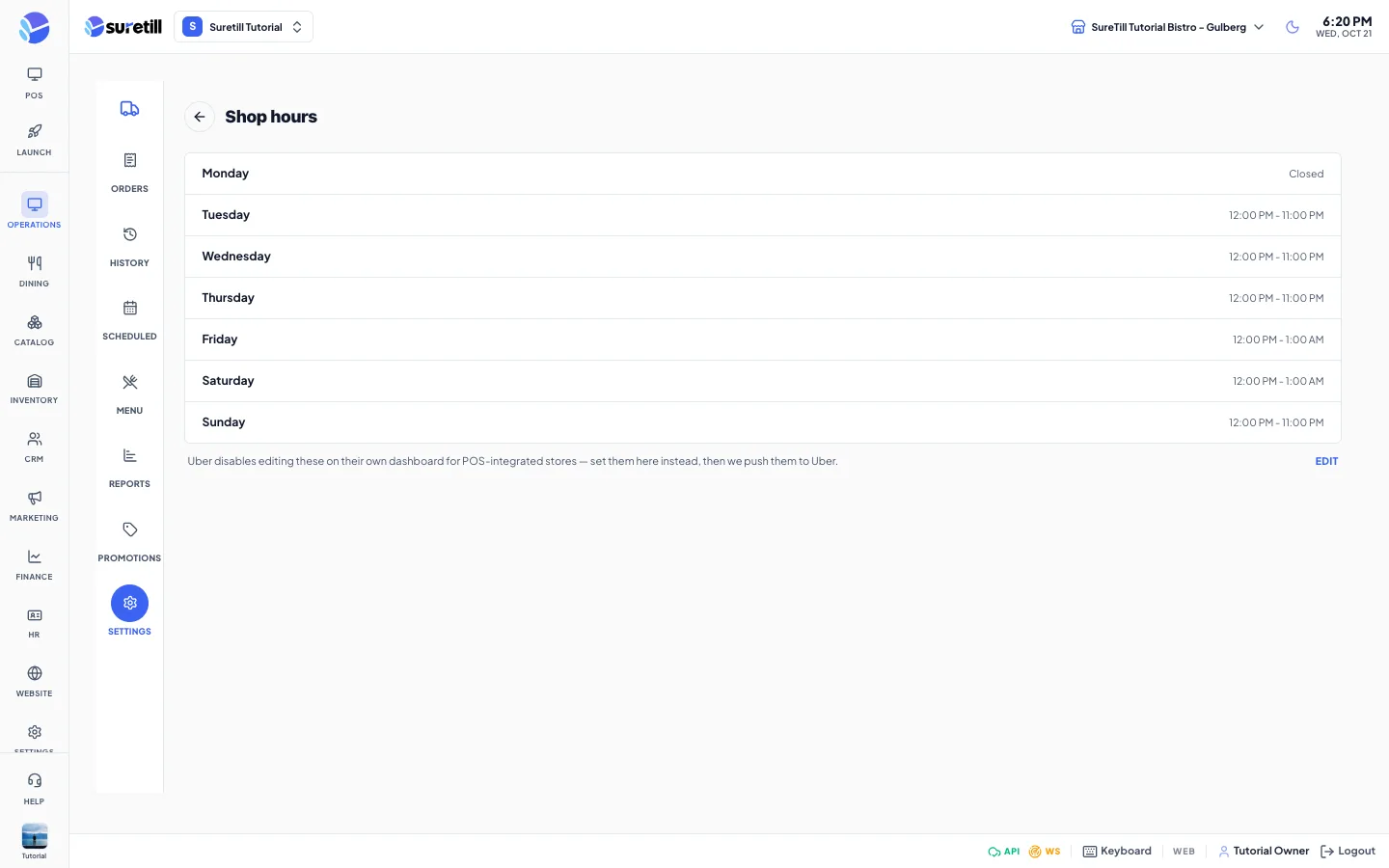
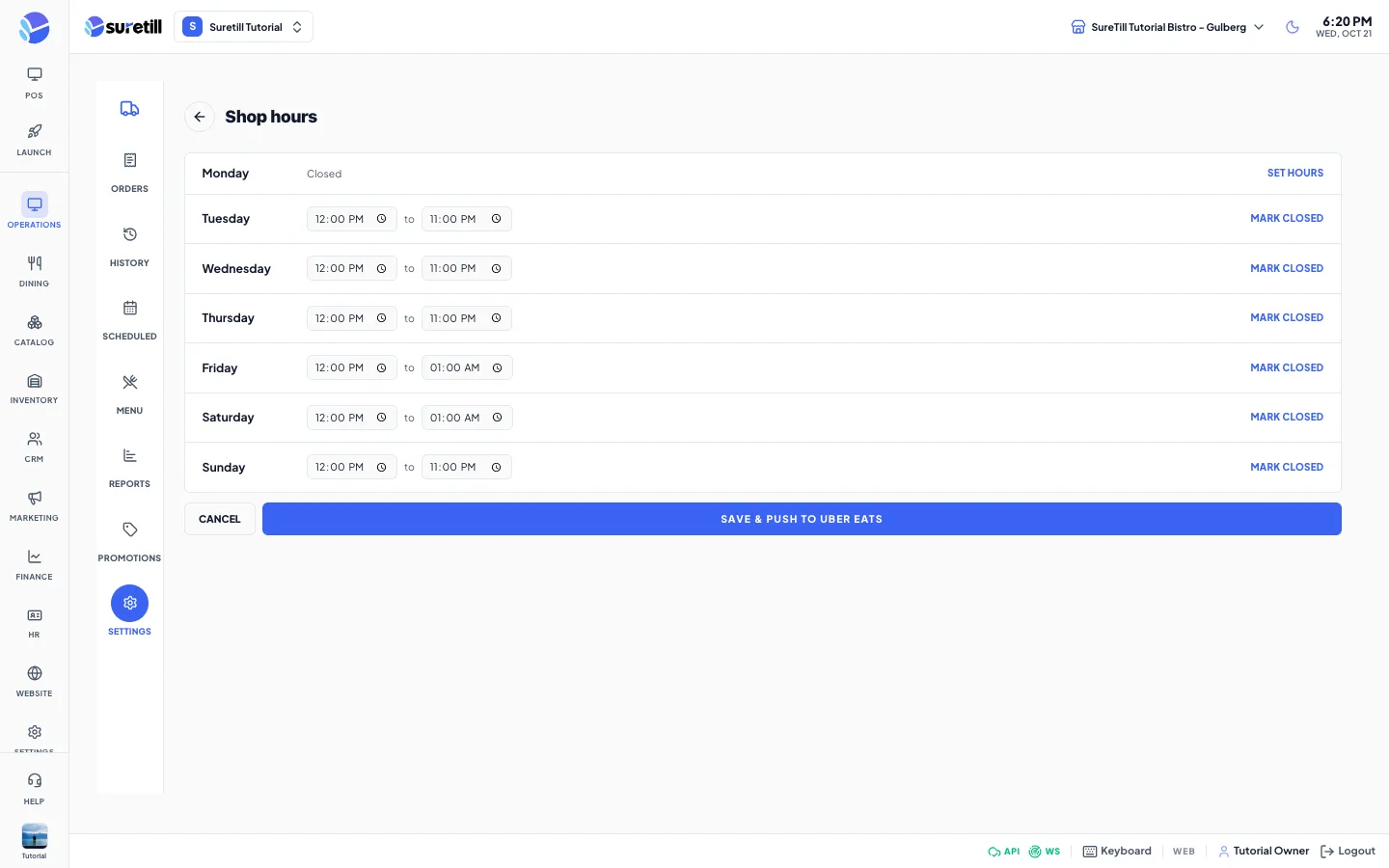
| Shop hours | Shows the menu hours per day. Edit lets you set one time range per day or mark a day closed, then Save & push to Uber Eats. Uber does not let POS-integrated stores edit these on their own dashboard, so you set them here. |
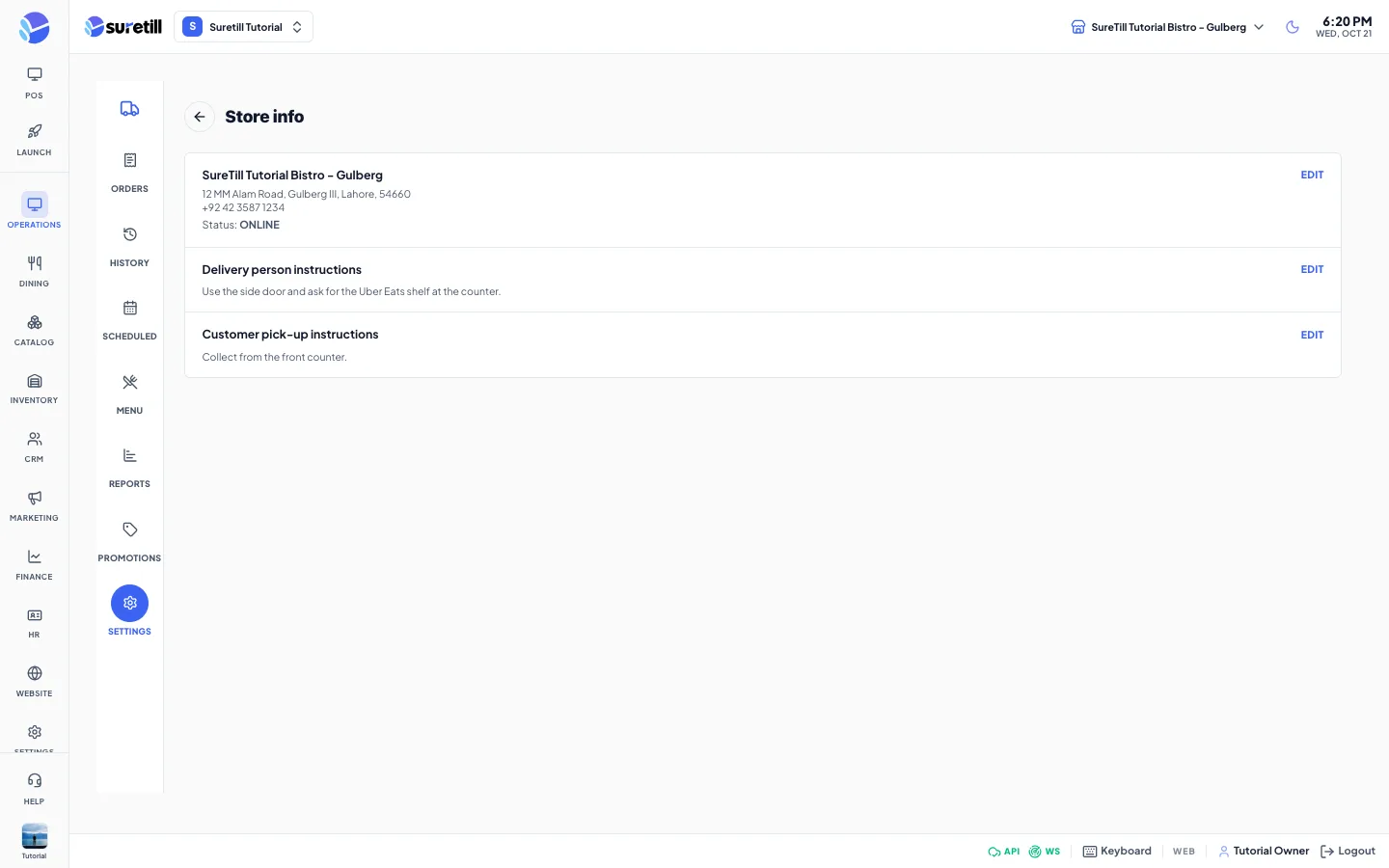
| Store info | Shows name, address, phone and status. Edit changes street address, city, postal code and phone. The store name cannot be edited here. Delivery person instructions and Customer pick-up instructions (up to 500 characters each) tell couriers and customers where to collect. |
| Notifications | Three switches that change the real Uber subscriptions at once: Scheduled order notifications, Delivery status notifications, Order release notifications. |
| Sounds | Three switches that apply to this device only: New order sound, Delivery person arrived sound, Scheduled order prep reminder. |
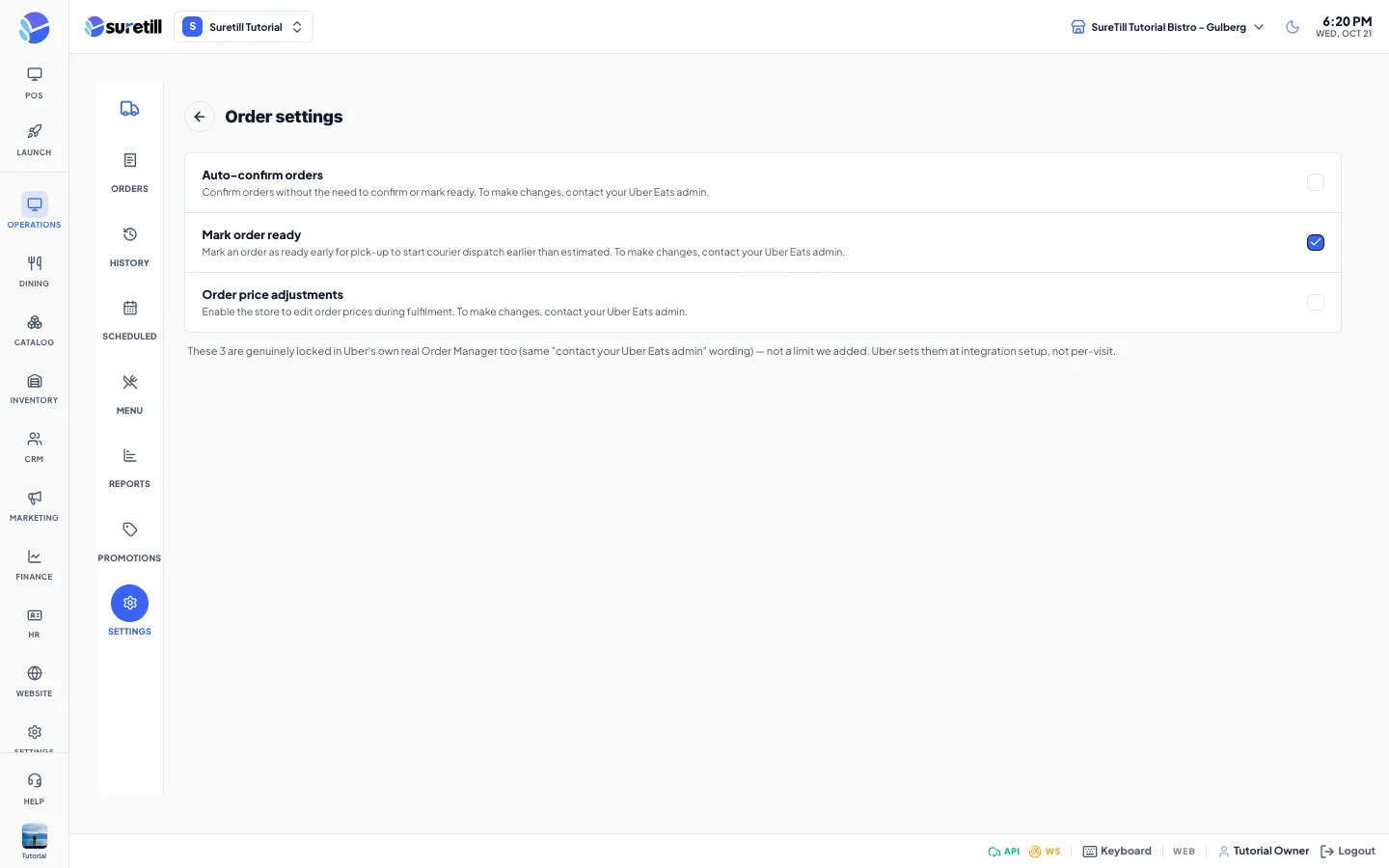
| Order settings | Auto-confirm orders, Mark order ready, Order price adjustments. These are read-only checkboxes. Uber sets them when the integration is set up. To change them, contact your Uber Eats admin. |
| Store connection | Which Uber store this branch is linked to. Connect via Uber, Activate or Link to this branch, Reconnect via Uber, Disconnect. |