

Roles & Permissions
Where: HR > Roles & Permissions
Who can use it: Menu: roles.manage, users.update or manage users. On the server, users.view or roles.view lets you read the list of roles, and roles.manage is needed to add, change or remove a role. Owners, admins and super-admins can do everything. This page is also available on SureScreen plans.
Open this page in SureTill
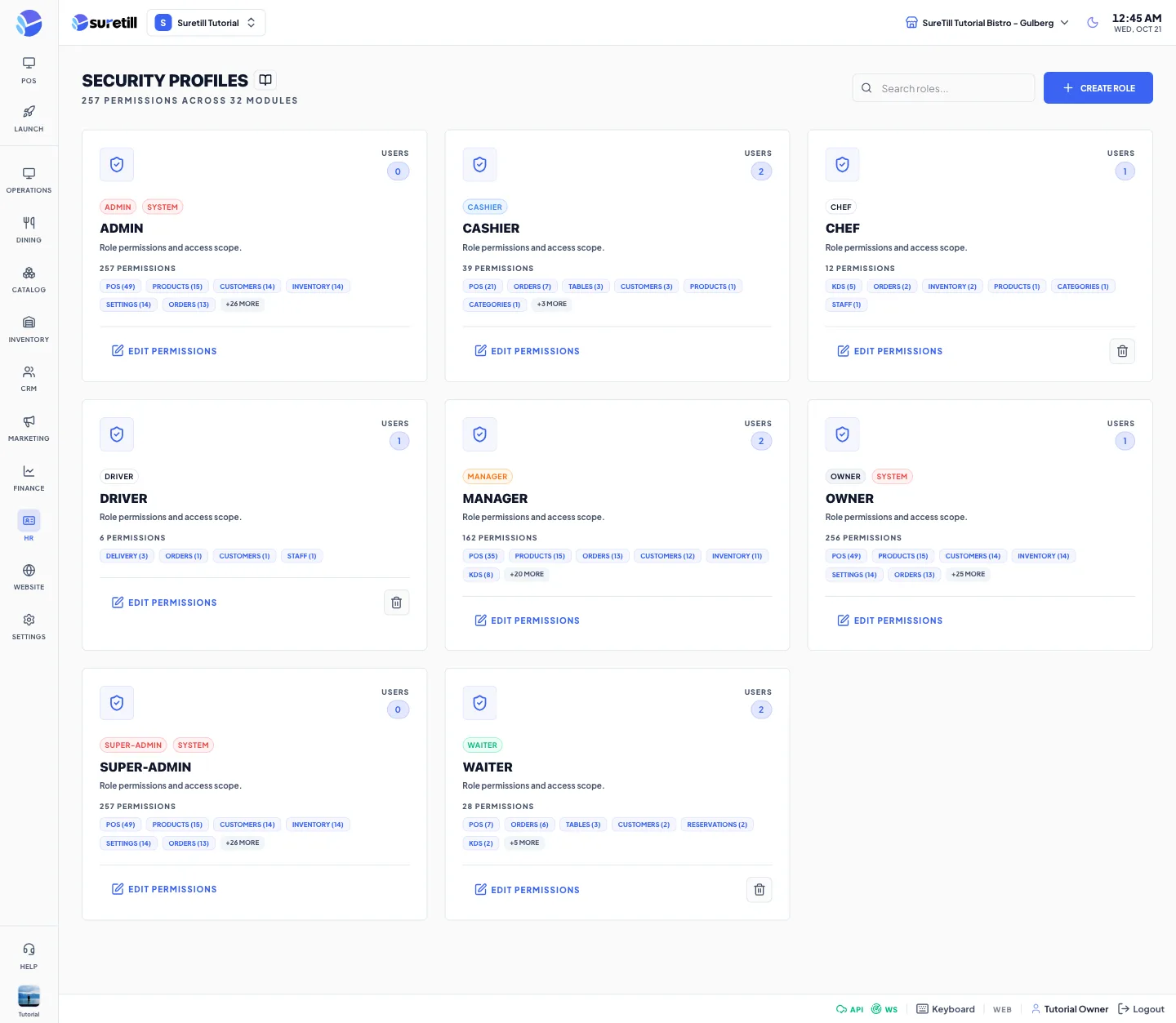
A role is a named bundle of permissions, such as Cashier or Manager. You give a role to an account on the Users page, and the account can then do exactly what the role allows. The page is called Security Profiles and shows how many permissions exist and how many modules (groups) they are sorted into. The menu entries and buttons in the admin and the POS follow the same permission names.
Step by step
Section titled “Step by step”Create a role
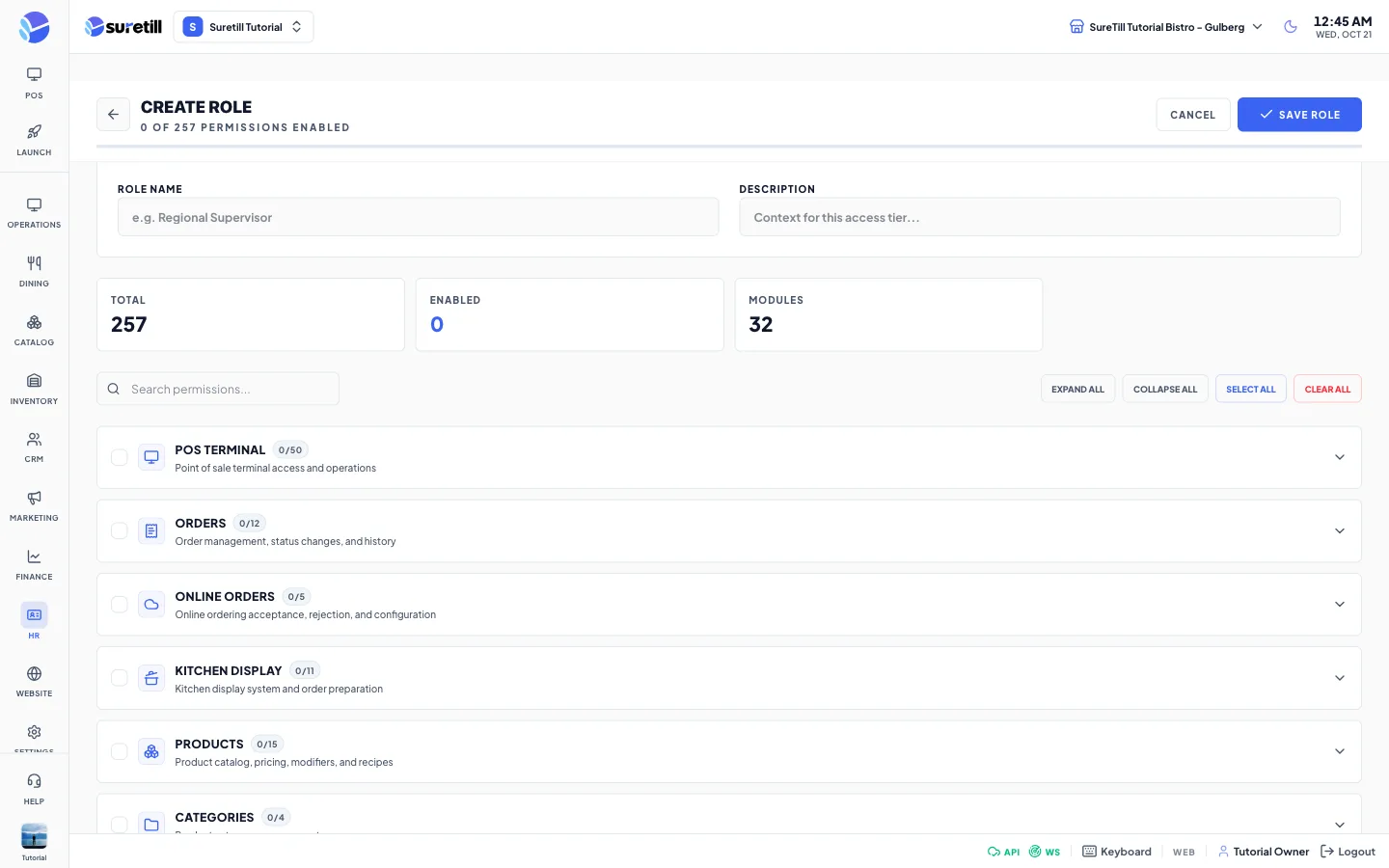
Section titled “Create a role”- Click Create Role. The full-page editor opens.
- Type the Role Name. Names must be unique.
- Open a module and click the permissions the role should have. Click the box at the left of a module to tick all of its permissions.
- Use Search permissions to find one by name, and Select All or Clear All for the whole list.
- Click Save Role.
Change a role
Section titled “Change a role”- Click Edit Permissions on the role card.
- Tick or untick permissions and click Save Role.
Delete a role
Section titled “Delete a role”- Click the bin icon on the card and confirm.
Roles that exist from the start
Section titled “Roles that exist from the start”| Role | What it gets by default |
|---|---|
| super-admin | Every permission. Used by the platform team. |
| owner | Every permission except platform.manage. The owner of the restaurant on a cloud plan. The owner role can hand out the owner and admin roles. |
| admin | Every permission. |
| manager | Near-full daily operation: POS, orders, kitchen, products, inventory, customers, tables, reservations, delivery, reports, expenses, payments, settlements, staff attendance, shifts and leave, work periods. No payroll, no users and roles, no settings changes. |
| cashier | POS payments, holding and recalling orders, discounts and coupons, the cash drawer, orders view and edit, products and customers view, tables. |
| waiter | POS order taking, tables, orders, kitchen display view, reservations and the waitlist. |
| chef | Kitchen display actions, order status, product view and inventory alerts. |
| driver | Delivery view, delivery status updates and live tracking. |
How the server decides: owner, admin and super-admin pass every check. A manager may read most areas but never payroll, HR, backups, banks and utilities unless given the matching permission. Everyone else needs the matching permission, and an area with no matching rule is refused.
Permission groups (modules)
Section titled “Permission groups (modules)”These are the groups shown in the editor, in the same order, with the permissions inside each group. The names in the editor are the readable labels of the permission names.
| Group | Permissions inside and what they allow |
|---|---|
| POS Terminal | access (open the POS), void item, void order, void line item, cash payment, card payment, gift card payment, custom payment, settle order, hold order, recall held, split order, split bill, merge orders, apply discount, apply coupon, change price, manual price, weight entry, override unit rate, open drawer, no-sale open, cash drawer, reprint receipt, switch department, change department, assign rider, update order, refund, edit settled order, add note, change table, transfer order, manage work periods, status display. Also holds Unlock Ticket (orders.unlock), which unlocks a ticket after the bill was printed. |
| Orders | view, view all, create, update, delete, export, void, refund, view history, print, change status, view payments. |
| Online Orders | view, accept, reject, configure, pause or resume. |
| Kitchen Display | access, view, mark ready, mark preparing, recall, configure, manage stations, view history. |
| Products | view, create, edit, delete, export, import, update price, update cost, manage modifiers, recipes, combos, allergens and tags, bulk update, view cost price. |
| Categories | view, create, edit, delete. |
| Inventory & Stock | view, adjust stock, transfer stock, create and approve purchase orders, receive stock, view alerts, export, manage warehouse, view movements, stock take. |
| Suppliers | view, create, edit, delete. |
| Customers | view, create, edit, delete, export, import, view order history, view wallet or credit balance, manage credits, search and assign to an order, manage loyalty, send notifications, create customer account, demote account to customer. |
| Tables & Floor | view, create, edit, delete, design floor plan, assign table, transfer. |
| Reservations | view, create, edit, delete, confirm, cancel. |
| Waitlist | view, manage. |
| Delivery | view, assign rider, update status, manage zones, manage riders, view settlement, process settlement, view live tracking, configure. |
| Marketing | view, create campaign, manage discounts, coupons, gift cards, loyalty and banners, send notifications, view analytics. |
| Reports | view, export, create template, delete template, schedule reports. |
| Analytics | view, export. |
| Accounting | view, manage, export. |
| Expenses | view, create, edit, delete, approve, export. |
| Payments | view, process refund, manage methods, manage gateways, view settlements. |
| Settlements | view, process, export. |
| Payroll | view, process, export, approve. |
| Tax | view, manage. |
| Staff | view, create, edit, delete, manage attendance, view attendance, manage shifts, manage leaves, employee portal. |
| Users & Access | view, create, edit, delete user accounts. |
| Roles | view and manage roles. |
| Branches | view, create, edit, delete, manage products, categories, customers and staff of a branch, configure. |
| Settings & System | view, edit, manage devices, printers, integrations, backups, automation, notifications, SMS gateways, POS layout and print templates, view logs. |
| Website | view, edit pages, manage blog, themes, menus and widgets. |
| Dashboard | view, view revenue, view analytics, export. |
| Work Periods | view, open, close. Shown as WORK PERIODS, because the editor makes a label from the name. |
| Uber Eats | manage. Shown as UBER EATS. |
Every setting explained
Section titled “Every setting explained”| Setting | What it does |
|---|---|
| Search roles | Filters the role cards by name. |
| Role card | Role name badge (and a SYSTEM badge on super-admin, owner and admin), the number of users that have the role, a count of permissions and up to six module chips with a count such as pos (12). |
| No Permissions | Red label on a role with nothing ticked. |
| Edit Permissions | Opens the editor. |
| Role Name | Required and unique. |
| Description | A text box in the editor. The text is shown on the role card; a role without one shows a default line. |
| Total, Enabled, Modules | Counters: all permissions, ticked permissions and number of groups. A bar under the title shows the share ticked. |
| Search permissions | Finds permissions and opens the matching modules. |
| Expand All and Collapse All | Open or close every module. |
| Select All and Clear All | Tick or untick every permission. |
| Module header | A tri-state box (all, some or none), an icon, the module name, a count such as 3/5 and a one-line description. Click the box to tick or untick the whole module. |
| Permission buttons | Click to tick or untick one permission. |
| Save Role and Cancel | Save sends the name and the ticked permissions. Cancel returns to the list. |