

POS Designer
Where: Settings > POS Designer
Who can use it: Permission settings.update or manage settings.
Open this page in SureTill
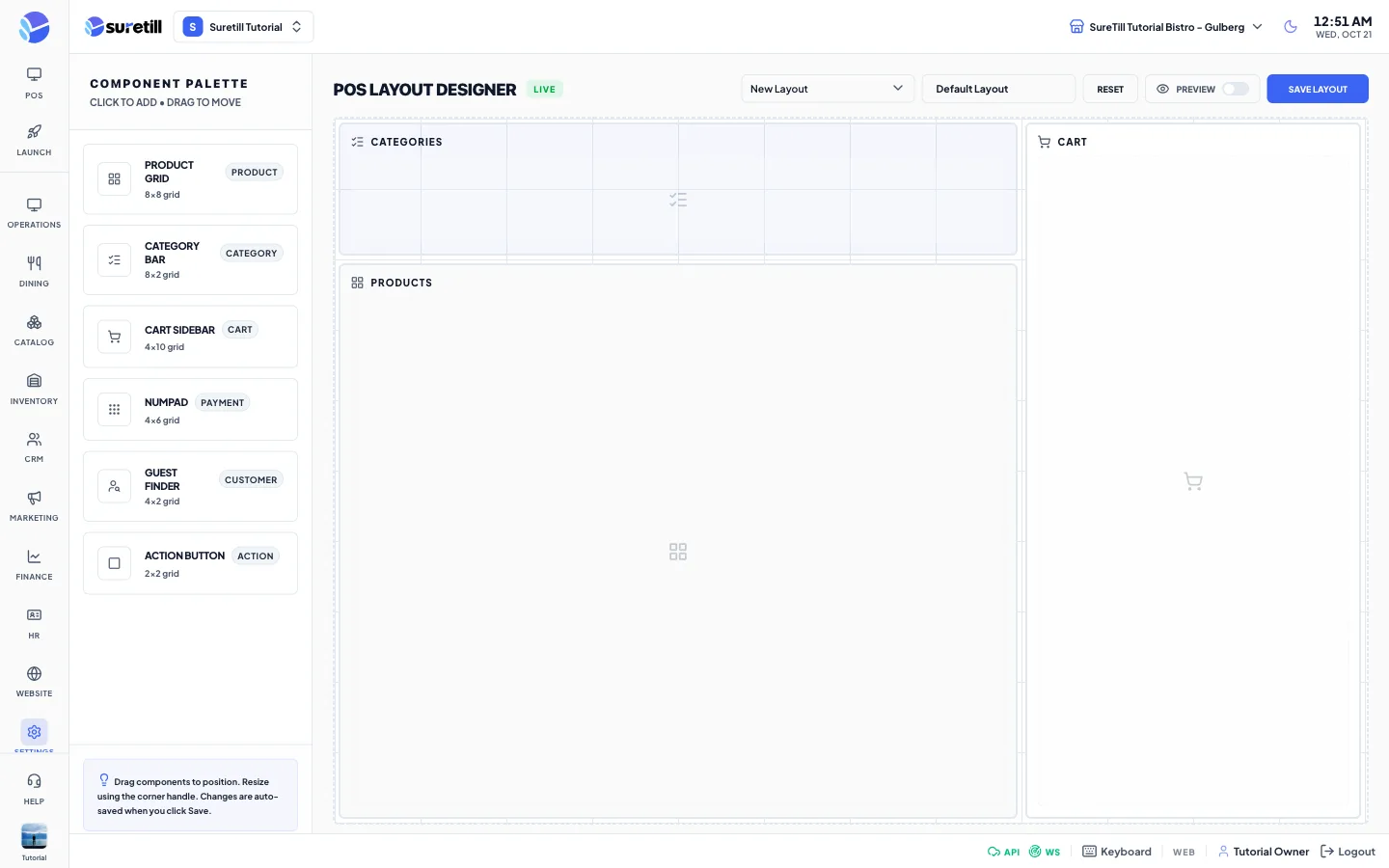
The designer works on a grid of 12 columns and 10 rows. You add blocks from the palette, drag them into place, resize them, and save the layout with a name. Saved layouts are stored on the server and listed in the Layout list.
Step by step
Section titled “Step by step”Build a layout
Section titled “Build a layout”- Open Settings > POS Designer.
- Tap a block in the Component Palette. It is added at the top left of the canvas. The first three blocks (Categories, Products, Cart) are on the canvas already.
- Drag a block to move it. It snaps to the grid and cannot leave the canvas.
- Drag the corner handle of a block to resize it.
- Tap a block to select it and fine-tune it in the Properties panel.
- Type a name in “Layout Name”.
- Tap Save Layout. You see “Layout saved successfully”.
Open, change and delete a saved layout
Section titled “Open, change and delete a saved layout”- Open the Layout list at the top (“New Layout” is the first entry) and pick a saved layout. It loads onto the canvas and its name appears in the name box.
- Change the blocks and tap Save Layout to update that layout.
- To remove a block, tap the small remove button on the block or tap Delete in the Properties panel.
- To copy a block, select it and tap Clone. The copy is offset by one cell and called “name Copy”.
Preview
Section titled “Preview”- Switch on the Preview toggle in the toolbar. A window shows how the layout looks with all the blocks and their labels.
Start again
Section titled “Start again”- Tap Reset. After you confirm “Reset layout? All unsaved changes will be lost.” the canvas returns to Categories, Products and Cart.
Every setting explained
Section titled “Every setting explained”Component palette
Section titled “Component palette”| Setting | What it does |
|---|---|
| Product Grid (8 x 8) | The product tiles. |
| Category Bar (8 x 2) | The row of menu categories. |
| Cart Sidebar (4 x 10) | The cart. |
| Numpad (4 x 6) | The number pad for payments. |
| Guest Finder (4 x 2) | The customer search box. |
| Action Button (2 x 2) | A single button block. What a button does is set on the Action Buttons page. |
Toolbar
Section titled “Toolbar”| Setting | What it does |
|---|---|
| Layout list | Choose “New Layout” or a saved layout. |
| Layout Name | The name saved with the layout. |
| Reset | Back to the three default blocks. |
| Preview | A toggle that opens the preview window. |
| Save Layout | Creates a new layout, or updates the one you loaded. |
| Delete | Only visible when a saved layout is loaded. After you confirm “Delete this layout?” it removes that saved layout. |
Properties panel (for the selected block)
Section titled “Properties panel (for the selected block)”| Setting | What it does |
|---|---|
| Label | The name written on the block. |
| Size (Grid Units): Width and Height | Minus and plus buttons. Width is 1 to 12 and height is 1 to 10. |
| Position X and Y | Where the block starts on the grid. Shown for reading; move the block by dragging. |
| Background | Five colors to choose from for the block. |
| Clone | Makes a copy of the block. |
| Delete | Removes the block from the canvas. |