

Reservations
Where: Dining > Reservations
Who can use it: Permission: reservations.view or manage tables.
Open this page in SureTill
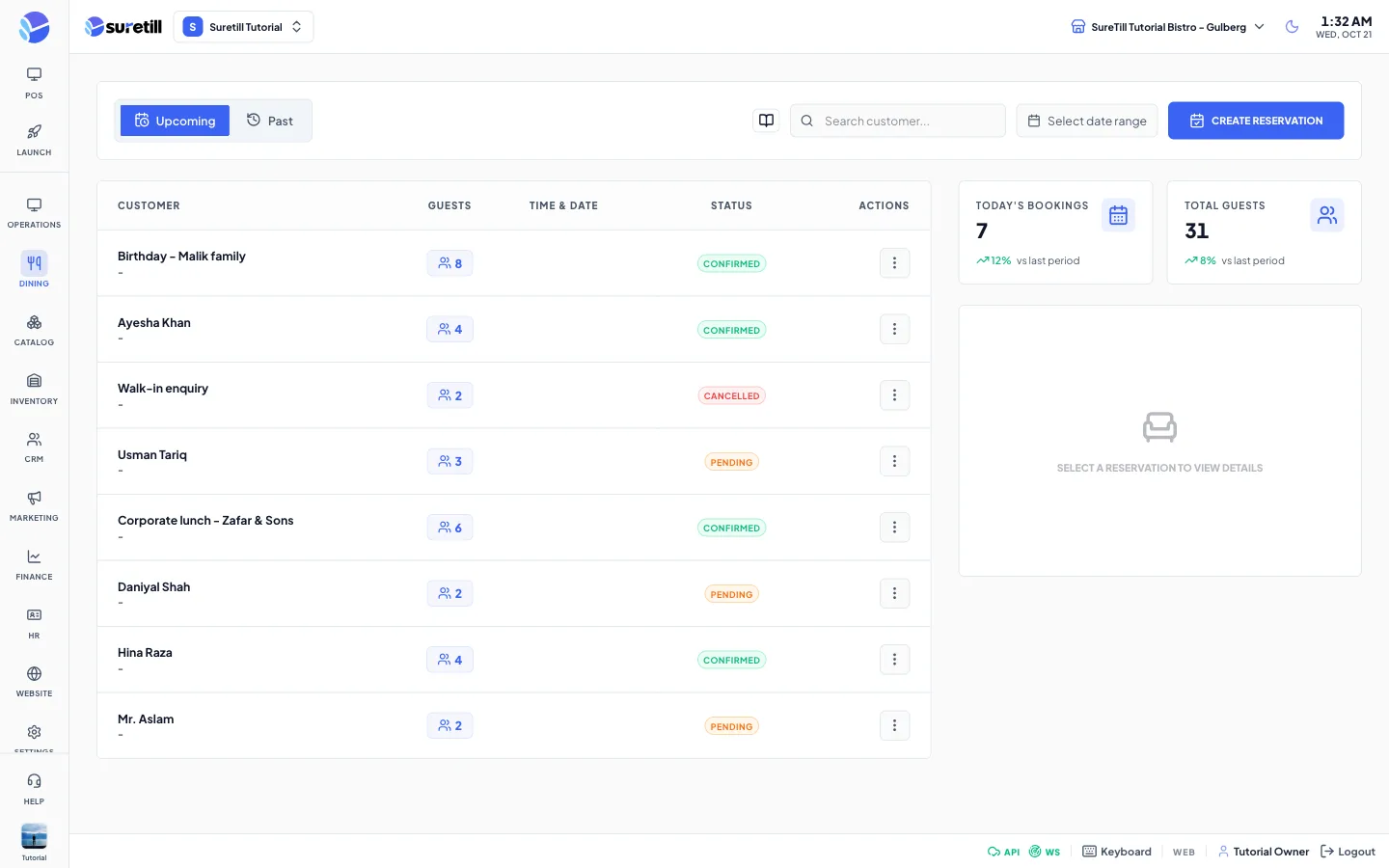
Use Reservations when guests book a table ahead of time. Each booking holds a guest name, phone number, date, time and party size, and can be linked to a table. A new booking starts as Pending. It becomes Confirmed when you confirm it.
Walk-in guests who wait for a free table belong on the Waitlist instead.
Step by step
Section titled “Step by step”Create a reservation
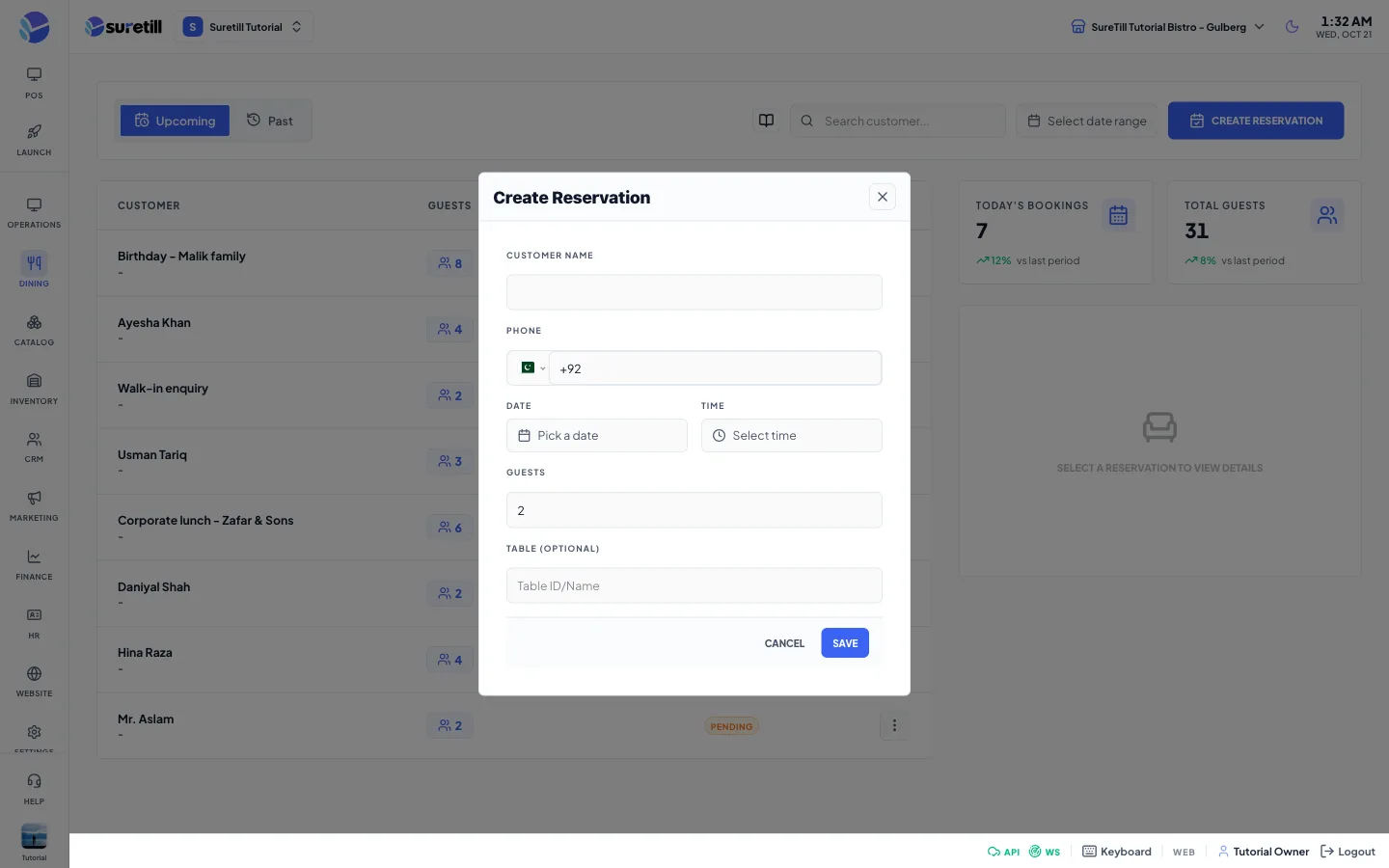
Section titled “Create a reservation”- Click CREATE RESERVATION.
- Type the Customer Name and the Phone number.
- Pick the Date and the Time.
- Set the number of Guests.
- Optionally pick a Table from the list of tables of the active branch.
- Click Save. If the server refuses the booking you see the reason in a message.
Confirm, cancel, edit or delete
Section titled “Confirm, cancel, edit or delete”- Click a row in the list. The details open in the panel on the right.
- CONFIRM BOOKING marks it Confirmed. If the guest is a registered customer, they get a notification.
- ASSIGN TABLE opens a list of the branch tables. Pick one (or No table) and click Save.
- CANCEL RESERVATION asks you to confirm, then marks it Cancelled. A registered customer is told that the restaurant cancelled it.
- EDIT RESERVATION opens the form again so you can change the details.
- DELETE RESERVATION asks you to confirm, then removes the booking from the list.
Find a booking
Section titled “Find a booking”- Switch between Upcoming (today and later, soonest first) and Past (before today, latest first) with the two tabs.
- Type a name, a phone number or a booking number in the search box.
- On wide screens, use the date range next to the search box to keep only bookings between two dates.
Every setting explained
Section titled “Every setting explained”List and tools
Section titled “List and tools”| Setting | What it does |
|---|---|
| Upcoming / Past tabs | Upcoming shows bookings dated today or later. Past shows bookings dated before today. |
| Search customer | Looks for a customer name, phone number or booking number. |
| Date range | Two date fields that keep only bookings between the two dates. Shown on wide screens only. |
| CREATE RESERVATION | Opens the booking form. |
| Customer column | Guest name with the phone number under it. Shows Guest when no name is stored. |
| Guests column | Party size. |
| Time & Date column | When the guest arrives. |
| Status column | Confirmed, Seated and Completed (green), Pending (amber), Cancelled and No show (red). |
| Upcoming Bookings / Past Bookings card | Counts the bookings in the list that are not cancelled. The title follows the tab. |
| Total Guests card | Adds up the party sizes of the bookings in the list. |
Detail panel
Section titled “Detail panel”| Setting | What it does |
|---|---|
| Guests and Table | Party size and the table. Shows NOT SET when no table is linked. |
| CONFIRM BOOKING | Sets the status to Confirmed and records the time. |
| ASSIGN TABLE | Opens a table list and saves the chosen table on the booking. |
| CANCEL RESERVATION | Sets the status to Cancelled. |
| EDIT RESERVATION | Opens the form with the current values. |
| DELETE RESERVATION | Deletes the booking. |
Booking form
Section titled “Booking form”| Setting | What it does |
|---|---|
| Customer Name | Required. The guest name. |
| Phone | Required. Contact number of the guest. |
| Date | Required. Day of the booking. |
| Time | Required. Arrival time. |
| Guests | Required. Party size, at least 1. Default 2. |
| Table (optional) | A list of the tables of the active branch. Leave it on No table if the table is not decided. |
Customers can also book from the customer app. Those bookings appear in the same list as Pending.