

On-screen keyboard and keyboard shortcuts
Where: Operations > POS Terminal (bottom bar) and the footer of the other admin pages
Who can use it: Anyone who can open the page. The keyboard is a device setting; it is not tied to a permission.
Open this page in SureTill
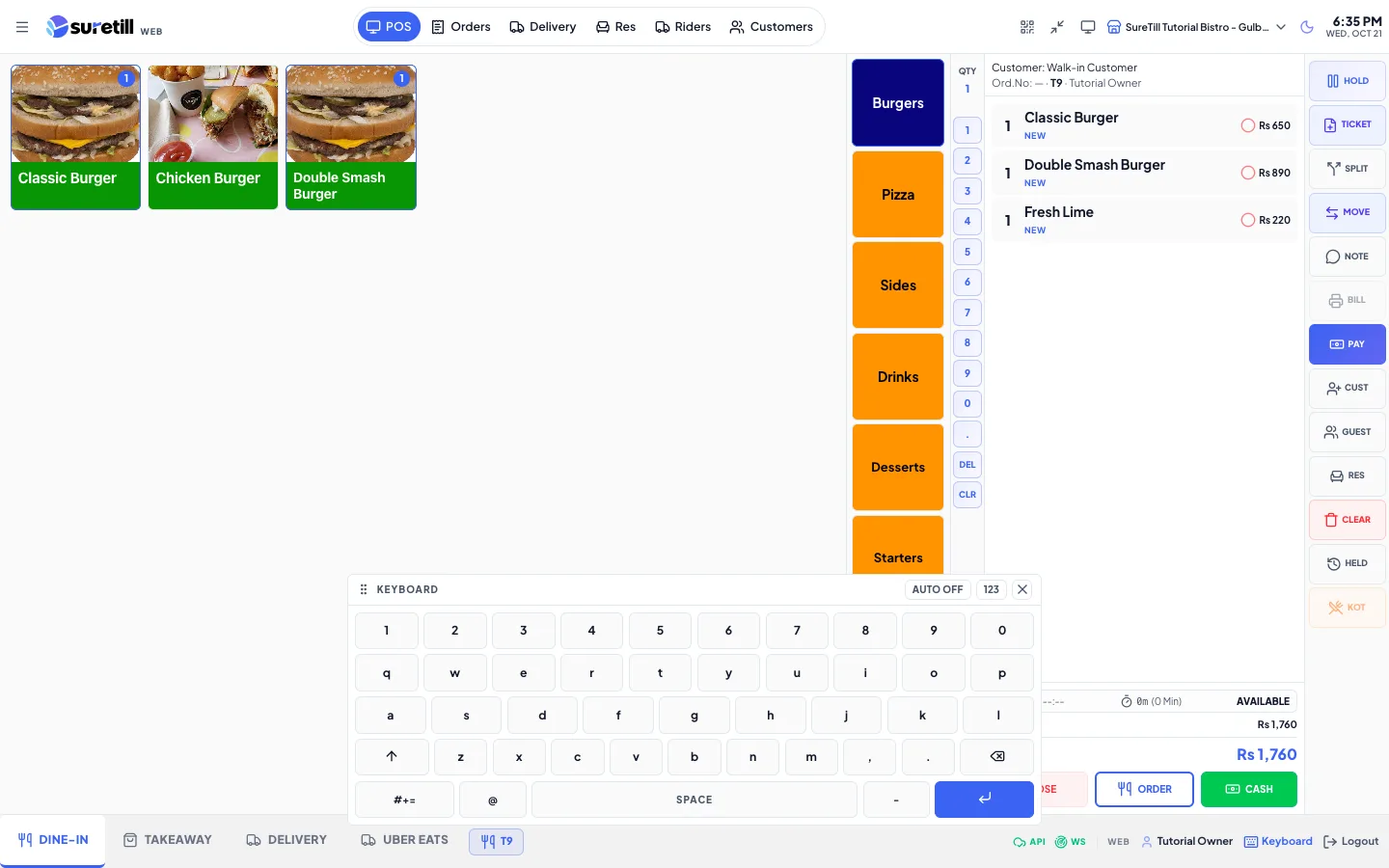
Touch terminals without a physical keyboard use a floating on-screen keyboard. It is manual by default: it opens only when you press its button. A device can switch on Auto open, and that choice is remembered on that device only.
Step by step
Section titled “Step by step”Open and close the keyboard
Section titled “Open and close the keyboard”- Tap the Keyboard button in the POS bottom bar (on other admin pages it is in the footer).
- Tap a box such as a note, a customer field or an amount. The keyboard types into the box you tapped last.
- Tap the cross in the keyboard title bar, or the Keyboard button again, to close it.
Make it open by itself on this device
Section titled “Make it open by itself on this device”- Open the keyboard.
- Tap “Auto off” in the title bar. It changes to “Auto on”.
- From now on the keyboard opens whenever you tap a text box. If the keyboard would cover the box, the page scrolls to keep it visible.
- Tap “Auto on” again to go back to manual.
Move the keyboard
Section titled “Move the keyboard”- Press and hold the title bar (it has a grip icon) and drag.
- Let go. The position is remembered on this device. It is kept inside the screen if you resize the window.
Letters, numbers and symbols
Section titled “Letters, numbers and symbols”- Number boxes open the number pad automatically (digits, minus, a decimal point, 00 and Enter). Other boxes open the full keyboard.
- Tap “123” in the title bar to switch to the number pad, and “ABC” to go back.
- On the full keyboard tap the up arrow for one capital letter. Tap “#+=” for symbols and “ABC” to return.
- Hold Backspace to delete several characters. Enter submits the box, or adds a new line in a notes box.
Shortcuts on a physical keyboard
Section titled “Shortcuts on a physical keyboard”These work on the POS terminal when you are not typing in a box.
| Key | What it does |
|---|---|
| F | Full screen on or off. |
| P | Opens the Payment screen. Works only when the cart has items and the order is not already paid. |
| H | Holds the order. Works only when the cart has items. |
| O | Places the order, like the Order button. Works only when the cart has items. |
| Esc | Closes the Payment screen, the department window, the held orders list, the order history, the branch picker and the more menu. |
Every setting explained
Section titled “Every setting explained”| Setting | What it does |
|---|---|
| Keyboard button | Shows or hides the on-screen keyboard. Highlighted while it is open. |
| Keyboard chip | Appears at the bottom right only when a box has focus, the keyboard is closed, Auto is off and the footer button is hidden. |
| Title bar | Drag handle for moving the keyboard. |
| Auto on / Auto off | Whether the keyboard opens by itself when a text box gets focus. Default is off. Saved per device. |
| 123 / ABC | Switches between the number pad and the full keyboard. |
| Close (cross) | Hides the keyboard. |
| Shift (up arrow) | Makes the next letter a capital. |
| #+= / ABC | Switches between letters and symbols. |
| Space, @, minus, Enter | Bottom row keys. Enter is the colored key. |
| Backspace | Deletes one character. Hold to repeat. |