

Order Status Screen for customers
Where: Operations > Order Status Screen
Who can use it: Permission pos.status_display or dashboard.view. The public address /order-status?branch=BRANCH_ID can be shown on any TV without signing in; it may be protected by a PIN.
Open this page in SureTill
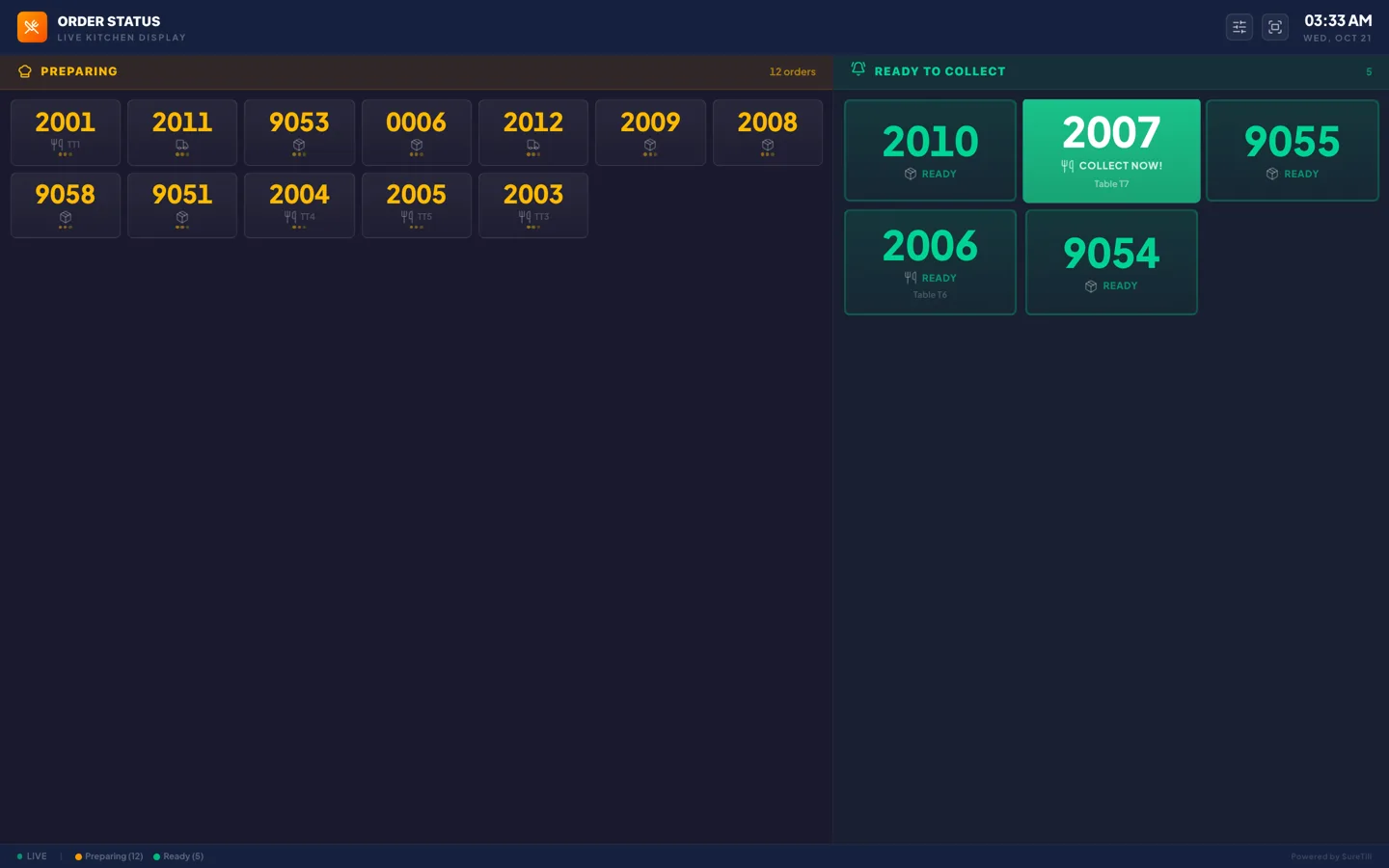
Put this screen on a TV near the counter. Customers watch for their number. Cooks do not touch it: the screen follows the order status that comes from the kitchen and the POS.
Step by step
Section titled “Step by step”Preview it in the admin
Section titled “Preview it in the admin”- Open Operations > Order Status Screen. It opens full page with no sidebar.
- Tap the arrow at the top left to go back.
Show it on a TV
Section titled “Show it on a TV”- Open the public address /order-status?branch=BRANCH_ID in the TV browser, replacing BRANCH_ID with the id of the branch.
- If a PIN is set for the screen, type it on the number pad. The screen asks again after you close the browser tab.
- Tap the fullscreen icon.
- Tap the screen once so the browser allows the ready chime.
Choose which order types to show
Section titled “Choose which order types to show”- Tap the sliders icon at the top right.
- Tick or untick Dine In, Takeaway and Delivery.
- The choice is saved on that device.
What the screen shows
Section titled “What the screen shows”- Left, Preparing: a grid of order numbers for orders that are pending, confirmed or preparing. Each tile shows a type icon and the table.
- Right, Ready to Collect: large cards for ready orders. Every 4 seconds one card is highlighted green with “COLLECT NOW!”. The rest say “READY”.
- When an order becomes ready, a three-note chime plays and that card is highlighted for 5 seconds.
- Below the ready cards, a Completed strip lists up to 8 orders that are completed, delivered or out for delivery, when the server sends them.
- The bottom bar shows Live, and the counts of Preparing and Ready.
- The big number is the last 4 digits of the order number.
Every setting explained
Section titled “Every setting explained”| Setting | What it does |
|---|---|
| Back arrow | Only in the admin. Returns to the admin home. |
| Title and Live Kitchen Display | Heading of the screen. |
| Sliders icon: Show Order Types | Checkboxes for Dine In, Takeaway and Delivery. Unticked types are hidden from the screen. |
| Fullscreen icon | Full screen on or off. |
| Clock | Time and date at the top right. |
| Preparing column | Orders being prepared, with the count. “All Clear” when empty. |
| Ready to Collect column | Ready orders with the count. “No Orders Ready” when empty. |
| Completed strip | Up to 8 orders that are completed, delivered or out for delivery. |
| PIN screen (public address) | A number pad. The PIN is checked after 4 digits. The server allows 10 PIN attempts every 5 minutes. |