

Catalog settings: allergens, product tags and custom fields
Where: Settings > General Settings > Catalog
Who can use it: Sidebar permission: settings.view or manage settings. No plan or add-on is needed.
Open this page in SureTill
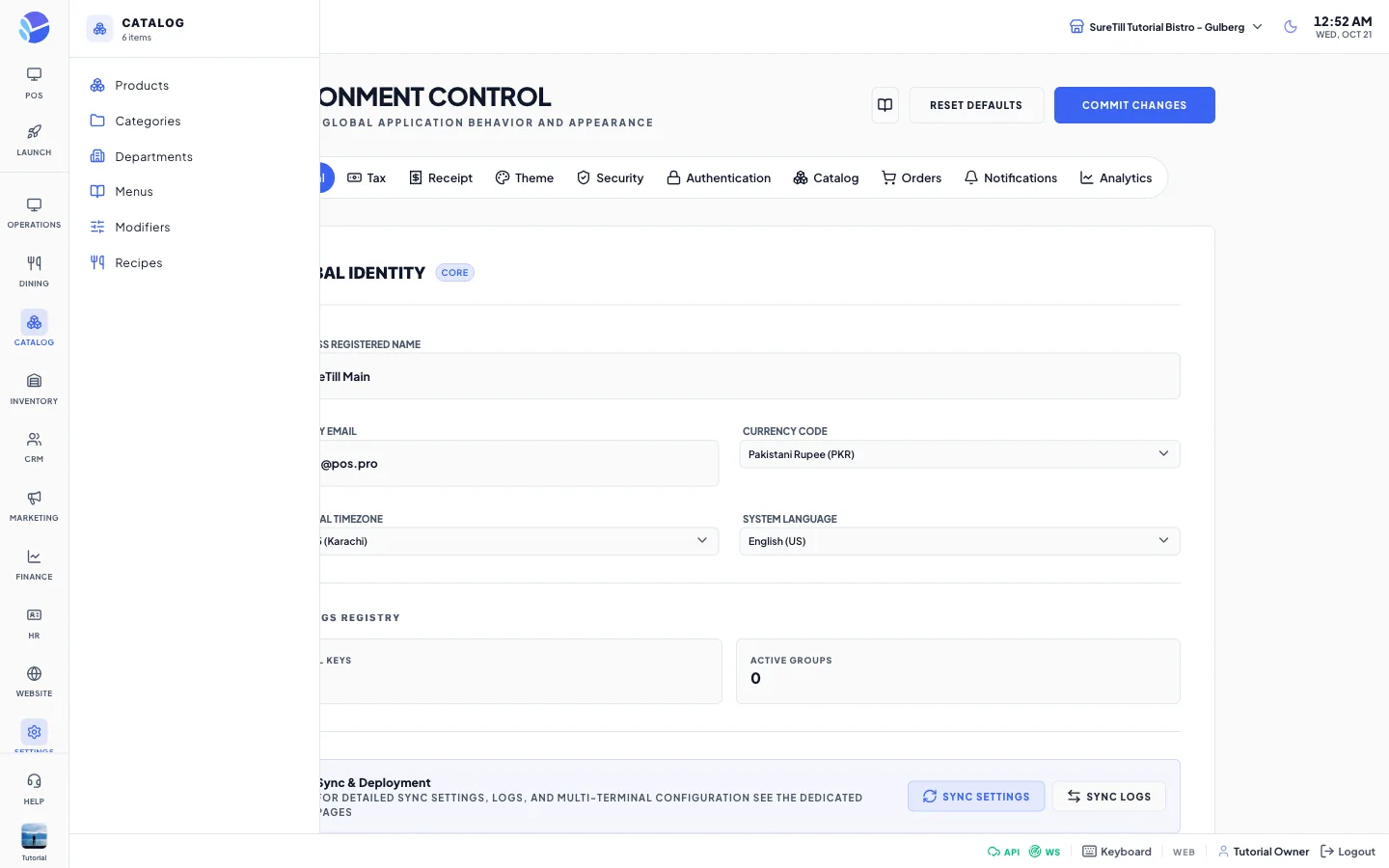
The Catalog tab is titled Catalog Metadata. Each of the three cards has an Add button and a list. A line in a list shows the name and the key, with a pencil icon to edit and a bin icon to delete. An empty list says No entries yet.
Step by step: add an entry
Section titled “Step by step: add an entry”- Open Settings > General Settings and click the Catalog tab.
- Click Add on the card you need.
- Type the Name. The Key and the Description are optional.
- Click Save.
Step by step: edit or delete an entry
Section titled “Step by step: edit or delete an entry”- Click the pencil icon on the line to change the name, key or description, then click Save.
- Click the bin icon to delete. Confirm in the Delete Item message.
Every setting explained
Section titled “Every setting explained”| Setting | What it does |
|---|---|
| allergens card | The list of allergens you can attach to products. |
| product tags card | The list of tags for products. |
| custom fields card | A quick list of custom fields. When you add one here the form also asks what it applies to (Product, Customer or Order) and the field type. Both are fixed once the field is created; use the Custom Fields page to add options to a Dropdown. |
| Add | Opens the form for a new entry. |
| Name | Required text. |
| Key (optional) | A short identifier. Leave it empty to let the system choose. |
| Description (optional) | Free text. |
| Edit and delete icons | Change or remove an entry. Deleting asks for a confirmation. |