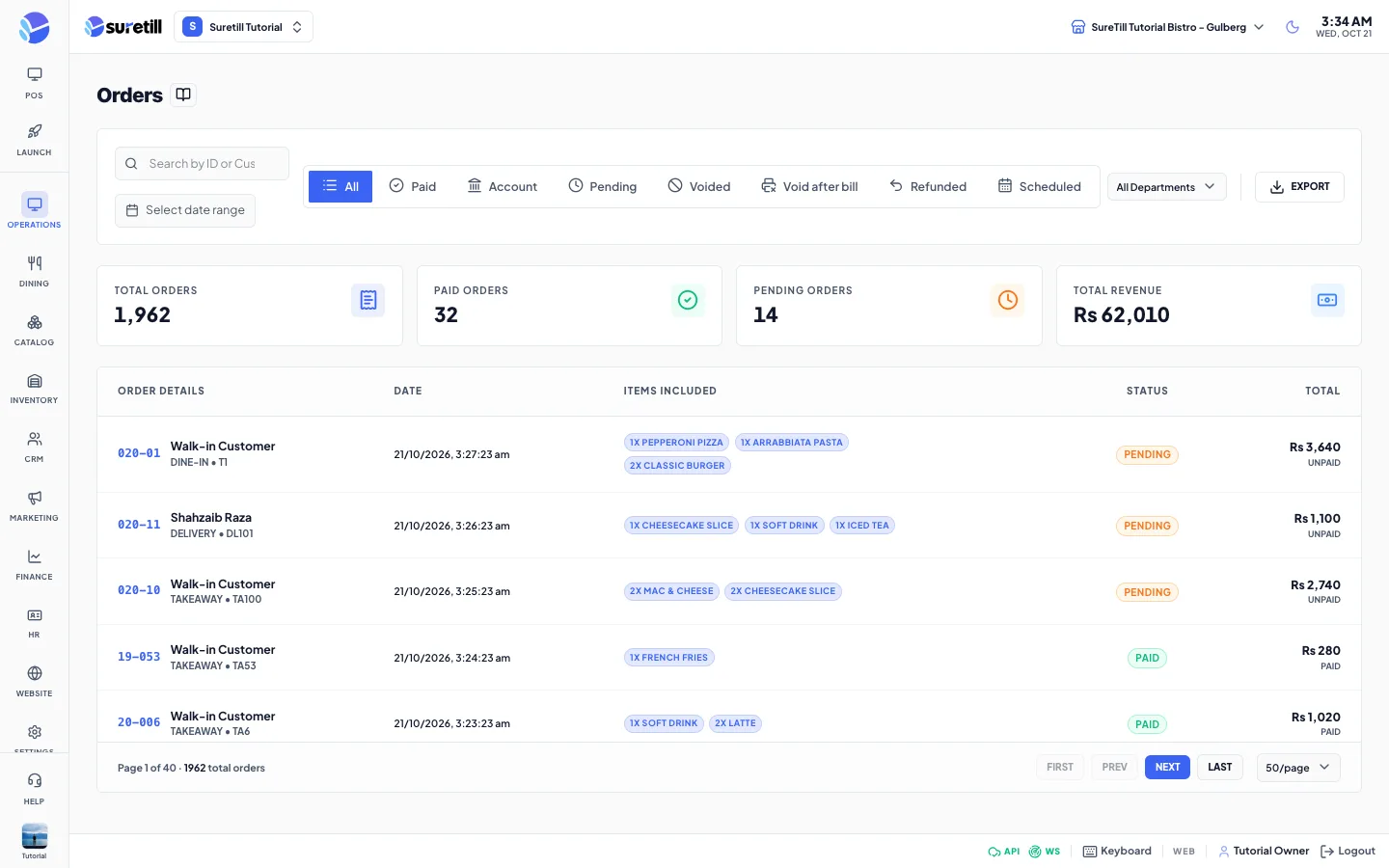
Where: Operations > All OrdersWho can use it: Permission orders.view_all or manage reports. Refunding needs pos.refund, orders.refund or payments.process_refund (owners and admins always can). Voiding needs pos.void_order.Open this page in SureTill
Use All Orders to look up any order, from any work period, of the active branch. It is meant for owners and managers. Cashiers usually work in the Orders tab inside the POS.
Open Operations > All Orders.
Type in the search box “Search by ID or Customer”. The list filters as you type.
Tap a filter tab: All, Paid, Account, Pending, Voided, Void after bill, Refunded or Scheduled.
If your branch has departments, choose one in the “All Departments” list.
Tap a column heading (Order Details, Date, Status, Total) to sort.
Tap a row. A window opens with the order number, status, date, type and table or token.
On the left, the Inventory Manifest lists each item with quantity and value. Voided items are crossed out with the reason, who voided them and when.
On the right, Settlement shows the payment method, the gross amount and the total payable.
If the order has voids or a printed bill, the panel “Void Audit - Money Trail” appears (see below).
Open the order and tap Print. You see “Print Sent” when the receipt went to the printer. On a desktop app the receipt prints locally.
Open the order and tap Void. The button reads Void for orders that are not paid.
In the window “Void Order” type the reason. It is required and the Void Order button stays off until you type.
Tap Void Order. You see “Order Voided”. Stock goes back in by default.
Open the order and tap Refund. The button reads Refund for orders that are Paid or Completed.
Check the Refund Amount (it starts at the order total and cannot go higher). Lower it for a partial refund.
Type the Reason for refund.
Tap the Refund button with the amount on it. You see “Refund Processed”.
Tap EXPORT. The current search and filters are used. A file named orders-export-YYYY-MM-DD.json is saved.
Use First, Prev, Next and Last at the bottom. The footer shows “Page 1 of N” and the total number of orders.
Choose 25, 50, 100, 200 or 500 per page. The default is 50.
This panel is for catching theft. It compares three figures: Printed (the total on the first bill that was printed), Voided (the value voided after that print) and Settled (the final total). If an order was paid less than the bill printed for, a red banner reads “Short-settled - paid less than the printed bill”. Below, each void lists the item or “FULL ORDER VOID”, the amount, the reason, the cashier and the time, with “VOID AFTER BILL PRINT” where it applies.
Setting
What it does
Search by ID or Customer
Matches order numbers and customer names.
Date range
Shows only orders created from the first date to the second date, both days included. Leave a box empty for no limit on that side.
All
Every order.
Paid
Orders with payment status paid.
Account
Orders charged to a customer account.
Pending
Unpaid orders, leaving out cancelled, completed, refunded and delivered ones.
Voided
Cancelled orders and orders with any voided line.
Void after bill
Orders with a void after the bill was printed, or cancelled after printing.
Refunded
Orders with payment status refunded.
Scheduled
Orders set for a later time.
All Departments
Limits the list to one department. Only shown if departments exist.
EXPORT
Downloads the current list as a JSON file.
Per page and pagination
Page size and First / Prev / Next / Last.
Setting
What it does
Total Orders
All orders that match the filter, across all pages.
Paid Orders
How many rows on the current page are Paid.
Pending Orders
How many rows on the current page are Pending.
Total Revenue
The sum of the Paid rows on the current page.
Setting
What it does
Order Details
The last 6 characters of the order number, the customer (or Walk-in Customer), the order type and the table or token.
Date
When the order was created.
Items Included
One badge per item with quantity and name. Voided items are crossed out.
Status
PAID, ACCOUNT, PENDING, VOID, REFUNDED or Completed. A “Void after bill” or “Has void” tag can sit under it.
Total
The order total and the payment method.
Setting
What it does
Inventory Manifest
Items with Item Description, Qty and Value. Void details show the reason, who and when.
Settlement
Payment method chip, Gross Amount, Tax/Surcharge (tax, service charge and delivery fee that are already inside the total) and Total Payable.
Void Audit - Money Trail
Printed, Voided and Settled figures and the list of voids.
Print
Reprints the receipt.
Refund / Void
Refund for paid orders, Void for the rest.
Close Transaction
Closes the window.
Setting
What it does
Refund Amount
From above zero up to the order total. The refund is recorded as a partial refund of that amount.
Reason for refund
Required text.
Reason for voiding
Required text.
Cancel
Closes the window without doing anything.