

Your account and several restaurants
Where: Top bar restaurant switcher > Account and billing
Who can use it: The verified restaurant owner only. Anyone else sees The account center is available to the restaurant owner. Cloud only.
Open this page in SureTill
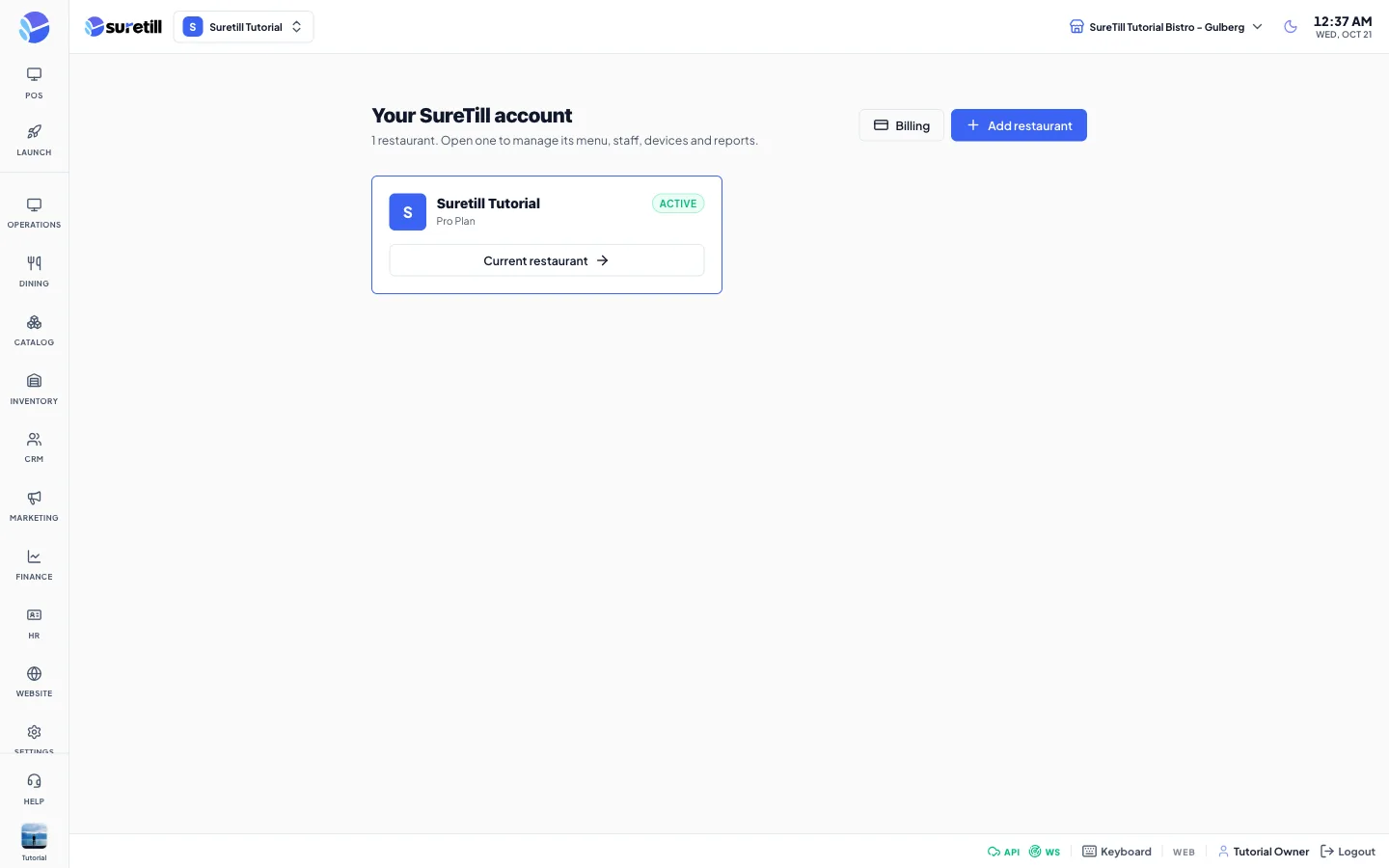
One owner email can own up to 5 restaurants. Each one has its own menu, staff, devices, reports, plan and bill. The account center is the list of them, and the switcher in the top bar moves you between them.
Step by step
Section titled “Step by step”Switch to another restaurant
Section titled “Switch to another restaurant”- Click the restaurant name with the double arrow in the top bar.
- Under Your restaurants, click the one you want. The current one has a check mark and is disabled.
- The app reloads into that restaurant and lands on its Launch Pad. You are not asked for a password again.
You can also open Account and billing and click Open restaurant on a card.
Add a restaurant
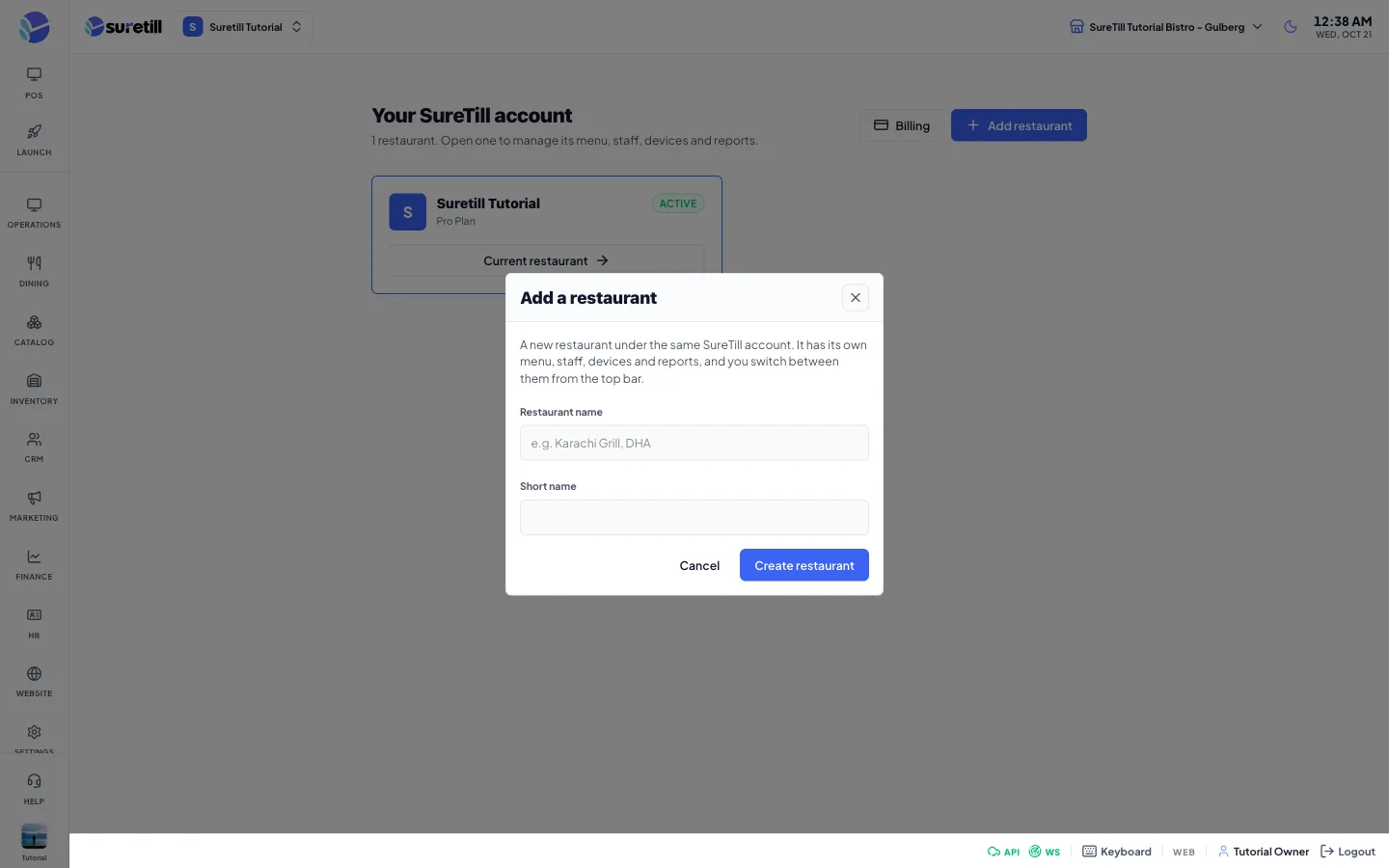
Section titled “Add a restaurant”- Click the switcher and choose Add a restaurant, or open Account and billing and click Add restaurant.
- Type the Restaurant name, for example Karachi Grill, DHA.
- Check the Short name. It is filled in from the name and you may edit it: lower case letters, digits and dashes, 3 to 40 characters.
- Choose the Country, the Time zone and the Currency of the new restaurant. They start from your browser and cannot be left empty.
- Click Create restaurant. The button shows Setting up while the new restaurant is built. Do not close the window.
- When it is ready you are moved into the new restaurant automatically. If it takes longer than about 80 seconds, a message says it will appear in your list shortly.
- In the new restaurant, finish the setup wizard. The form asks for the country, time zone and currency; you can still change them in Settings.
Every setting explained
Section titled “Every setting explained”| Setting | What it does |
|---|---|
| Restaurant switcher | Shows the current restaurant with its first letter. Only the verified owner sees it. |
| Your restaurants list | Each row shows the name, the plan and the status, for example trial. A badge appears when a restaurant is not active or on trial. |
| Add a restaurant / Account and billing | The two actions at the bottom of the switcher menu. |
| Billing button (account page) | Opens Billing and plan of the restaurant you are in. |
| Add restaurant button (account page) | Opens the form described above. |
| Restaurant card | Name, plan and days left on a trial, plus a status badge: Free trial, Active, Payment needed, Suspended or Setting up. |
| Open restaurant | Switches to that restaurant. It reads Current restaurant on the one you are in, and then opens its Launch Pad. Disabled for a suspended restaurant. |
| Restaurant name | Required, up to 120 characters. |
| Short name | Required, 3 to 40 characters, a to z, 0 to 9 and dashes. Must be unused. Words reserved by SureTill such as admin, api, app, billing, login, support and www are refused. Errors: That web address is already taken, or Choose another web address. |
What is shared and what is separate
Section titled “What is shared and what is separate”- Shared: your owner email and password. A new restaurant copies your current password.
- Separate: menu, tables, staff, PINs, devices and pairing, reports, settings, work periods, plan and invoices.
- A paired POS, tablet or kitchen screen belongs to one restaurant only. To use a device elsewhere, pair it again there.
- If one email owns several restaurants, the sign-in screen asks Which restaurant do you want to sign in to? Click one.
- Each new restaurant starts its own free trial and needs its own plan.