

Recipes and stock deduction
Where: Catalog > Recipes
Who can use it: Permission products.view or manage products.
Open this page in SureTill
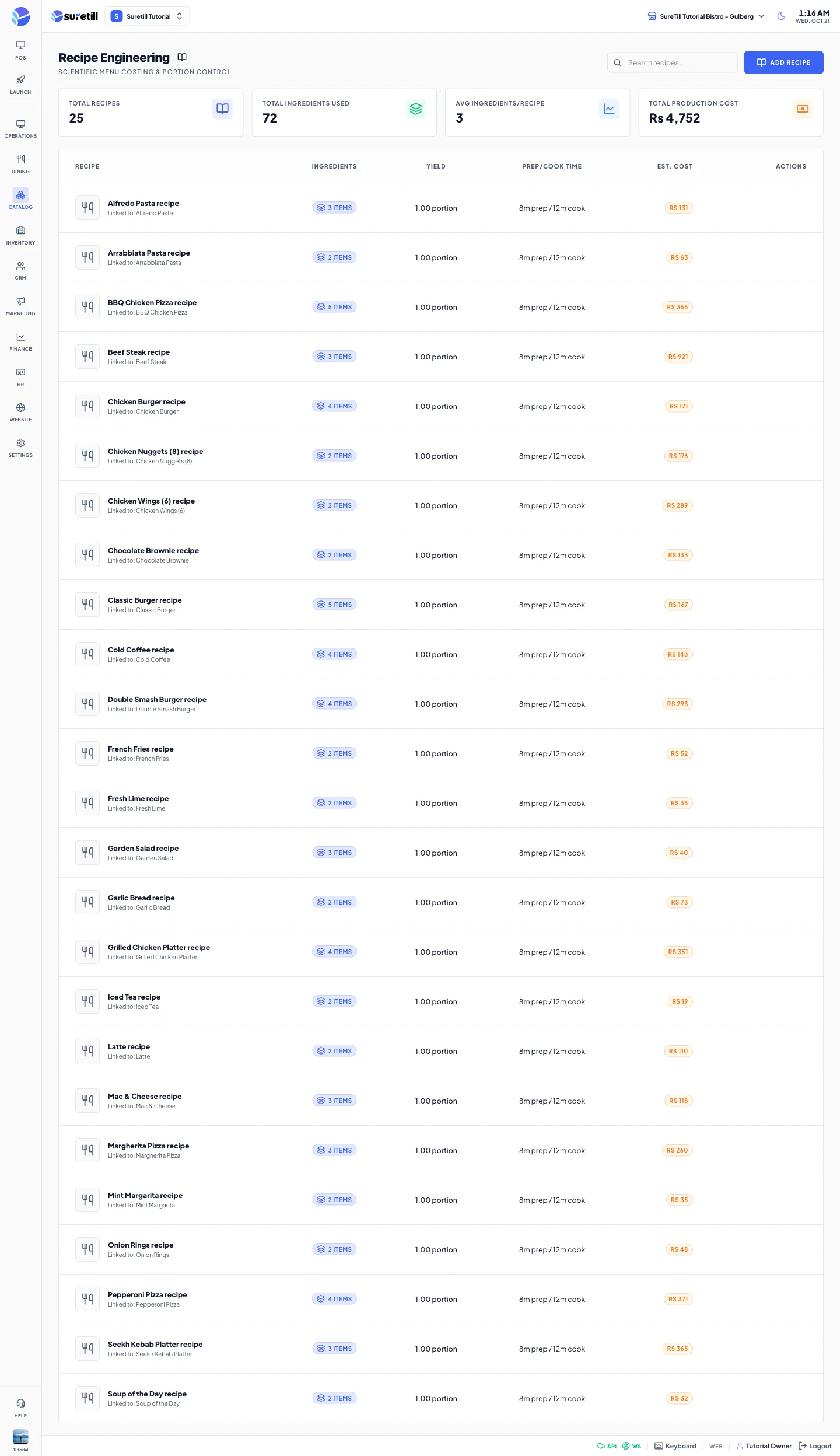
Recipes are what connect Products to Inventory. An ingredient is a stock item (see Stock Levels). A recipe lists, for one sold unit of the product, how much of each ingredient it uses. The system then takes that amount out of stock for every dish you sell and keeps a record of each movement.
The page
Section titled “The page”- Four totals: Total Recipes, Total Ingredients Used, Avg Ingredients/Recipe and Total Production Cost (the sum of the estimated costs).
- A yellow Recipe health box lists recipes that would make stock wrong. It has a Re-check button. It is hidden when everything is fine.
- The table: Recipe name (with the variation and an issue count), Ingredients, Yield, Prep/Cook Time, Est. Cost, and Edit and delete buttons that show when you hover over the row.
- Est. Cost is each ingredient quantity times the cost per unit of its stock item, added up. It does not convert units.
- Search finds a recipe by its name or the product name.
Step by step: add a recipe
Section titled “Step by step: add a recipe”- Make sure every ingredient exists on Inventory > Stock Levels with the right unit and cost.
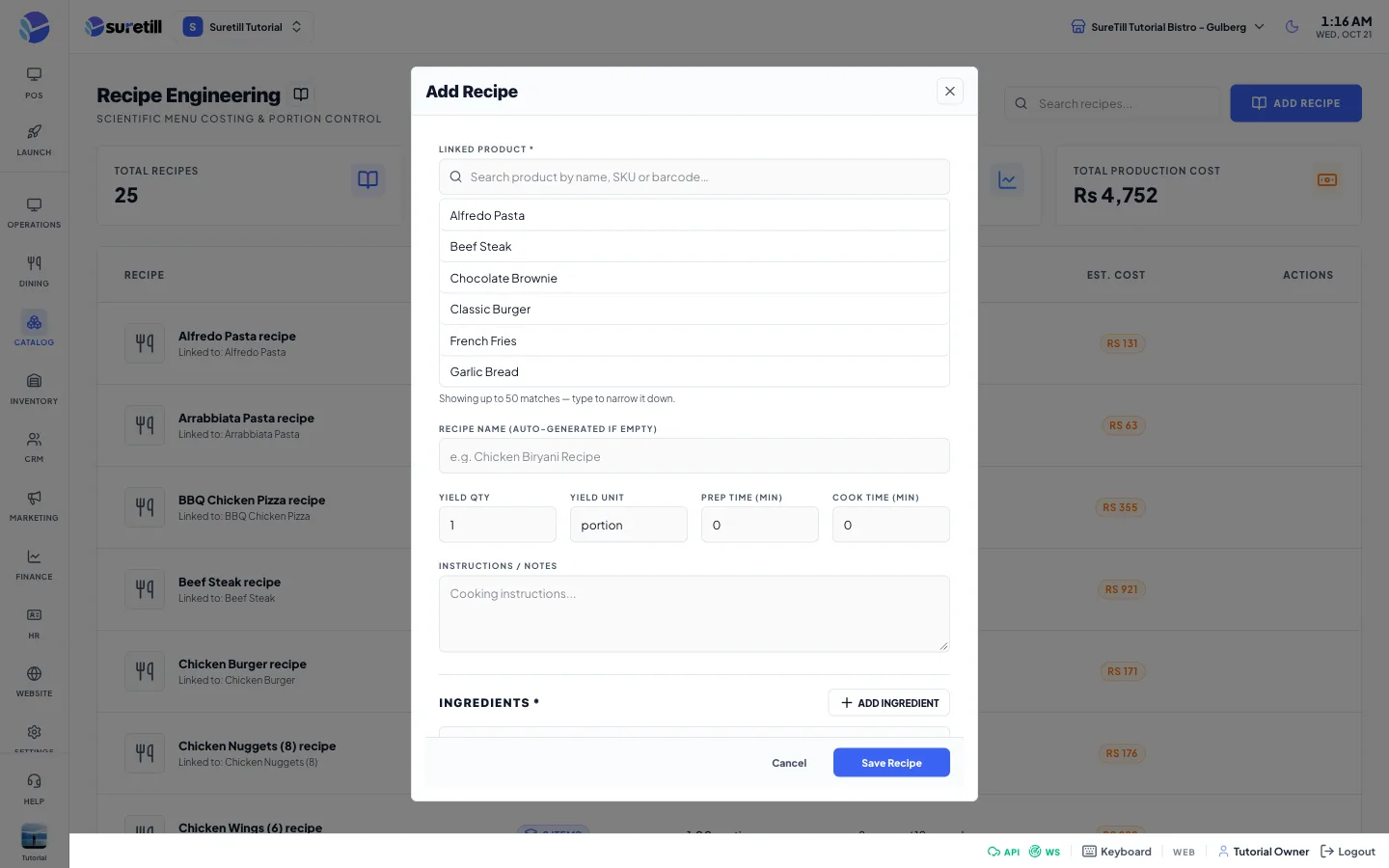
- Open Catalog > Recipes and click Add Recipe.
- Under Linked Product, type part of the product name, SKU or barcode and pick the product from the list. Up to 50 matches are shown.
- Optional: type a Recipe Name. If you leave it empty the system names it after the product (for example Chicken Biryani Recipe).
- If the product has variations, choose Applies To (see below).
- Type the Yield, Prep Time and Cook Time, and any Instructions or notes.
- Click Add Ingredient. Pick the stock item. The unit fills in from the stock item. Type the Quantity for one sold unit of the product.
- Repeat for every ingredient. Click Save Recipe.
Recipes with variations
Section titled “Recipes with variations”When the product has variations (for example Half and Full), the Applies To box appears.
- Whole product: one ingredient list for all variations. Each variation is scaled by a portion factor.
- Only a named variation: a separate ingredient list for that variation. It is used as it is, with no scaling.
Under Portion per variation you can type a multiplier for each variation of a whole-product recipe. 0.5 means a Half takes half of the ingredients. Leave the box empty to let the system work it out. The grey number in the box is the value it will use.
How the system works out a portion when you leave it empty
Section titled “How the system works out a portion when you leave it empty”- It uses the portion you typed on the variation, if any.
- Otherwise it uses the variation portion size (Qty on the product) divided by the recipe yield, when both can be compared and the result is between 0.01 and 100.
- Otherwise it divides the variation portion size by the largest portion size among the variations of the product.
- Otherwise it reads the variation name: Quarter is 0.25, Half is 0.5, Three Quarter is 0.75, Double is 2, Triple is 3, and Full, Single, Regular or Standard is 1.
- Otherwise it uses 1, a full recipe.
How stock is deducted for a sale
Section titled “How stock is deducted for a sale”- For each order line the system finds the recipe. A recipe for the exact variation wins over a whole-product recipe, and a recipe of this branch wins over a recipe shared by all branches.
- Quantity taken = ingredient quantity x number of items on the line x portion factor. The yield is not used to divide the ingredients: quantities are always per one sold unit.
- The amount is converted into the unit of the stock item (see the units below).
- Modifiers that are linked to a stock item are added on top. They are not scaled by the portion.
- If the same stock item appears twice, the amounts are added so the history has one row per item per line.
- The movement is written to the stock history of each item with the order number as the reason.
If a product has no recipe but is linked to a stock item (for example a bottle you resell), one bottle leaves stock for each one sold. If the variation has a portion size, that size is used instead of 1.
Stock is taken once for each order line, at the moment the line is committed to the kitchen. This happens when the line is sent to the kitchen (KDS) or when its kitchen ticket prints. At payment the system checks again and deducts any line that was missed, so no sale escapes the stock record. Deduction can make a balance go below zero. That is shown as negative stock and raises an alert; it is never hidden by stopping at zero. The full rules are in the Stock Levels article.
Recipe units and stock units are converted when they are in the same family:
-
Weight: mcg, mg, g, kg, oz, lb, tonne.
-
Volume: ml, cl, dl, l (also lt, ltr, litre, liter), tsp, tbsp, cup, floz, pint, quart, gal.
-
Count: pc, pcs, piece, unit, each, portion, serving, plate, pair, dozen, pack, box, bottle, can, bag, jar, tray.
-
Same family, for example 700 g against a stock item in kg: converted correctly.
-
Weight against volume, for example kg against litre: the recipe is refused when you save it, because the system cannot guess a density. On the stock side this is never deducted and an alert is raised.
-
A count unit against a weight or volume unit, for example pcs against kg: the recipe saves with a note, and the number is used as it is. Make both units the same to be safe.
Safety limits
Section titled “Safety limits”- If one order line would take far more than makes sense, the amount is capped at what is on hand and a critical alert is raised. The limit is the Max Level of the stock item when you set one, or 20 times the current stock.
- If a recipe points at a stock item that was deleted, that ingredient is skipped and an alert is raised.
- A stock item that is used by a recipe cannot be deleted until you remove it from the recipes.
Recipe health checks
Section titled “Recipe health checks”The yellow box and the issue badges use these checks: the product is gone; no ingredients; an ingredient points to a deleted stock item; quantity is zero; recipe unit and stock unit cannot be converted (error) or are mixed count and measure (warning); a variation has no portion information and no recipe of its own, so it deducts a full recipe (warning).
Every setting explained
Section titled “Every setting explained”| Setting | What it does |
|---|---|
| Linked Product | The product this recipe belongs to. Required. |
| Recipe Name | Optional. Defaults to the product name plus Recipe, with the variation name when it applies to one variation. |
| Applies To | Whole product (all variations, scaled by portion) or one variation with its own ingredient list. Shown only for products with variations. |
| Portion per variation | Multiplier for each variation of a whole-product recipe. Between 0 and 100. Empty means derived. |
| Yield Qty, Yield Unit | What the recipe makes, for example 1 portion. Used to work out portions from variation sizes. |
| Prep Time, Cook Time | Minutes. Shown in the table. |
| Instructions / Notes | Free text for your cooks. |
| Ingredient stock item | Which stock item is used. |
| Ingredient Qty | Amount for one sold unit. Up to three decimals, at least 0.001. |
| Ingredient Unit | Unit of the quantity. Red or amber text under the box warns about a unit mismatch. |
| Est. Cost | Quantity times the stock item cost per unit, summed. |
| Edit, delete | Edit the recipe; delete removes the recipe and its ingredients without a confirmation question. |