

Website Pages
Where: Website > Pages
Who can use it: Permission: website.edit_pages, settings.update or manage settings.
Open this page in SureTill
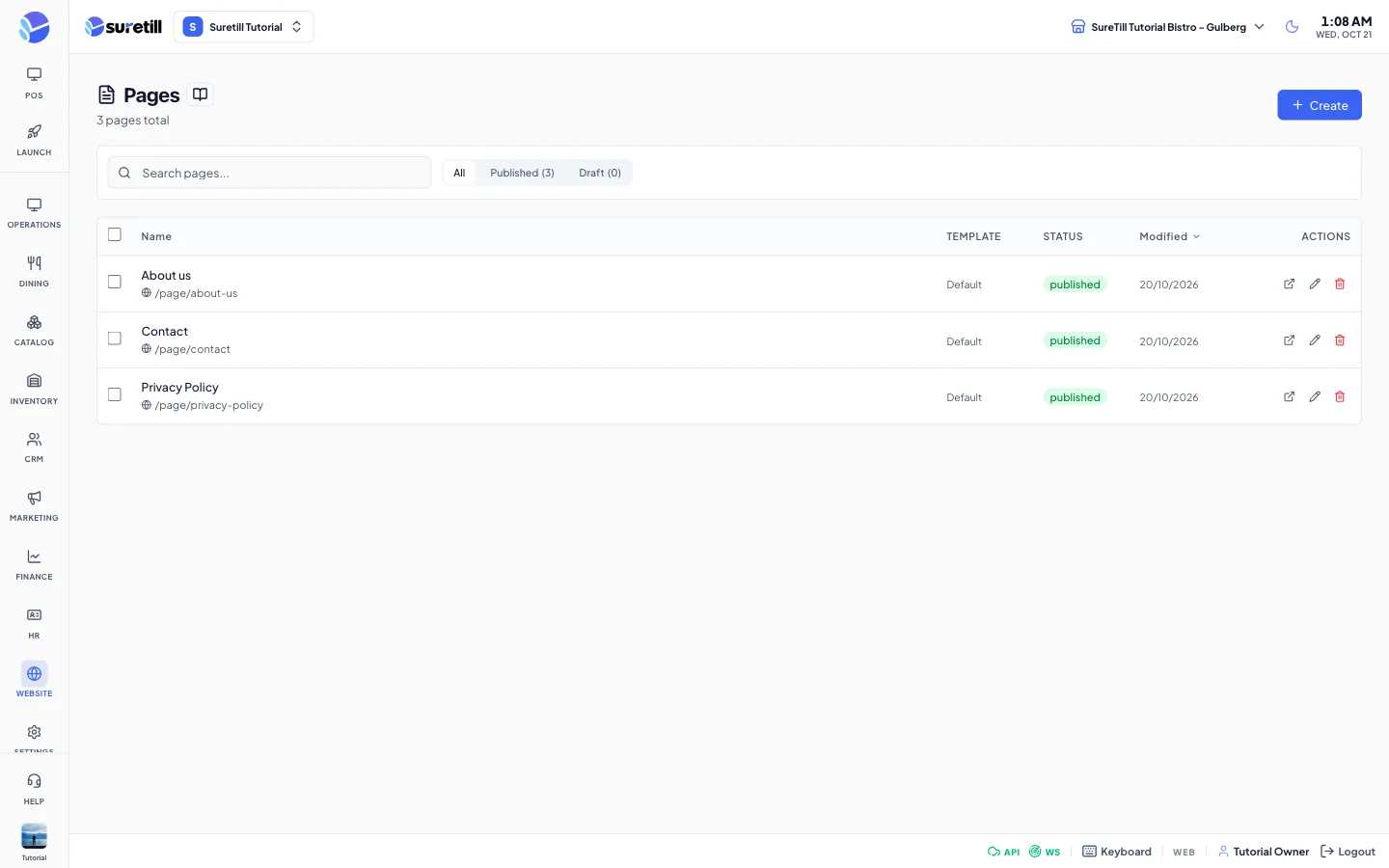
Pages are the fixed information pages of your website, for example About us, FAQ, Catering or Privacy. A page has a name, a web address (slug), a status and a list of content blocks. A page is visible to customers only when its status is Published.
On the separate storefront a page opens at /p/your-slug. Two slugs are special. A page with the slug about opens at /about. A page with the slug faq opens at /faq, and the FAQ blocks on it become the question list. The old /help address redirects to /faq. The built-in website of an on-premise install shows pages at /page/your-slug. The View and Preview links in the page editor open /p/your-slug.
Step by step
Section titled “Step by step”Create a page
Section titled “Create a page”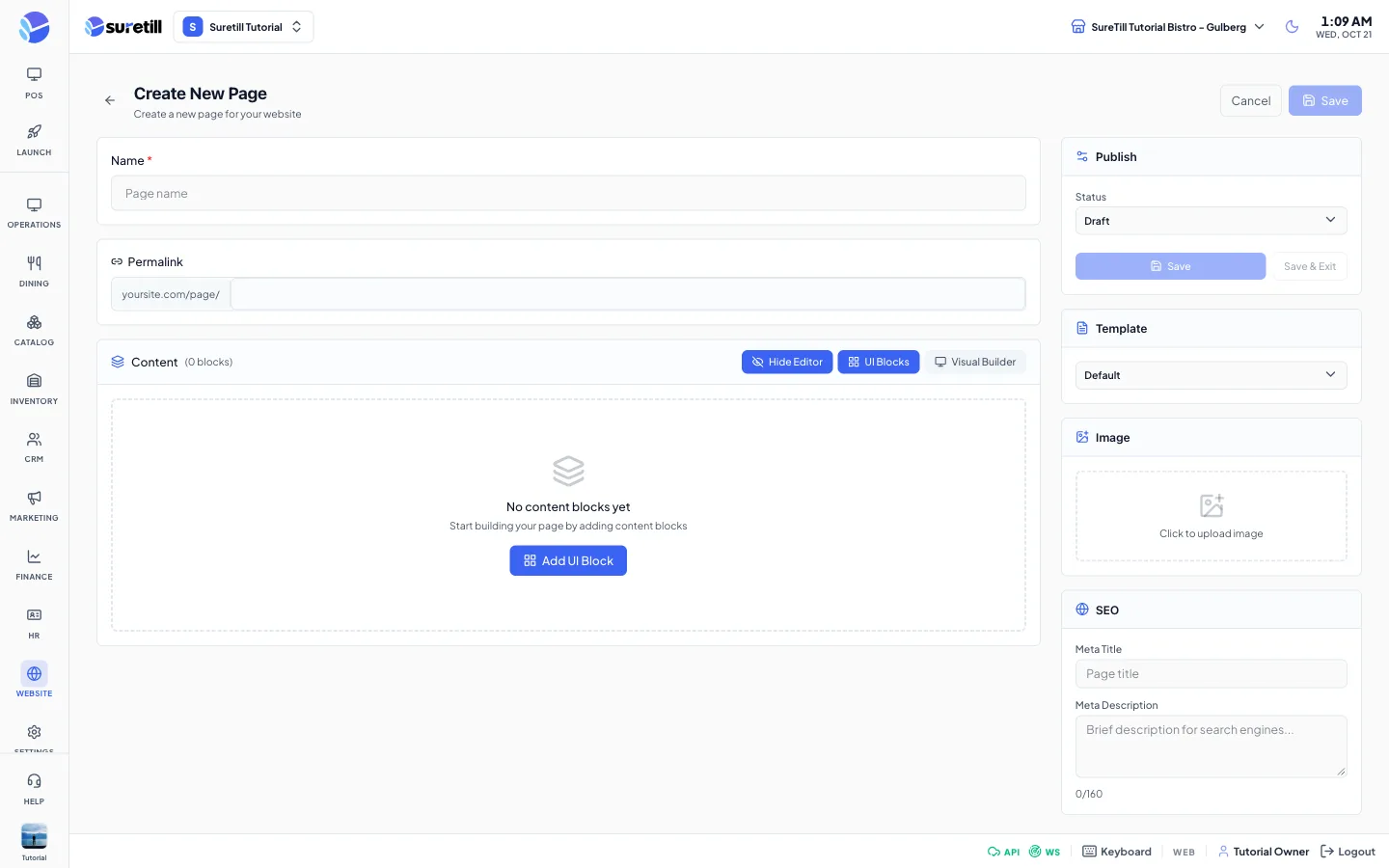
- Open Website > Pages and click Create.
- Type the Name. The Permalink fills in by itself from the name. You can change it. Use lower-case letters, numbers and hyphens.
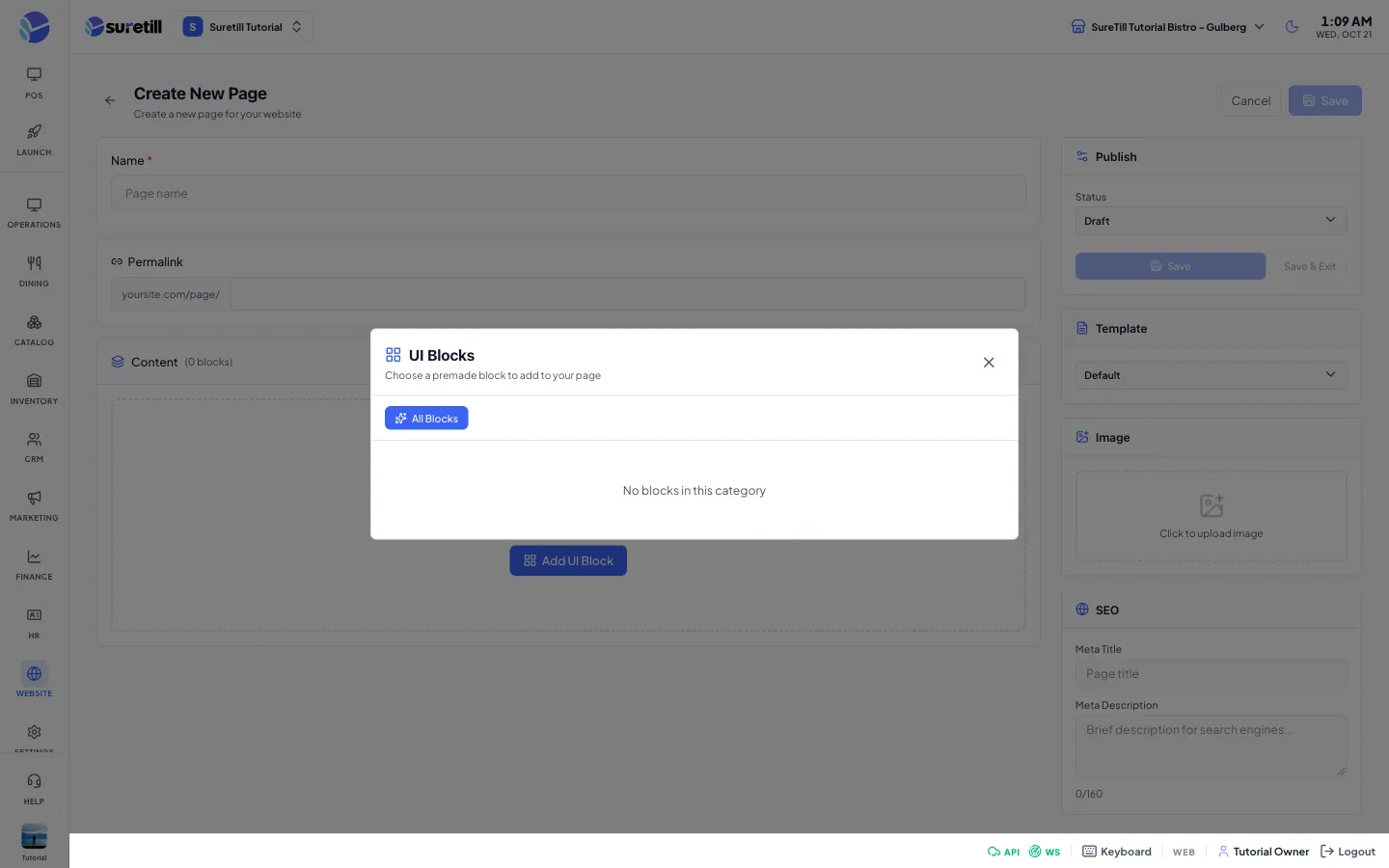
- Click UI Blocks and pick a block. It is added to the page and opened for editing. Repeat for each section.
- Fill the block fields. Use the arrows to move a block, the copy icon to duplicate it and the trash icon to remove it.
- Set the Status in the Publish box. Leave it on Draft while you work and set it to Published when ready.
- Optionally choose a Template and fill the SEO fields.
- Click Save. The button shows Saved! and the editor closes after a moment.
Edit a page
Section titled “Edit a page”- In the list, click the page name or the pencil icon.
- Change the blocks or settings and click Save.
- Use the Preview button in the editor, or the arrow icon in the list, to open the page in a new tab.
Search, filter and sort
Section titled “Search, filter and sort”- Type in the search box to find a page by name or slug.
- Click All, Published or Draft. The numbers show how many pages are in each status.
- Click the Name or Modified column title to sort. Click again to reverse the order.
Delete pages
Section titled “Delete pages”- Click the trash icon of a page and confirm Delete Page, or tick several pages and click Delete (n) at the top.
Content blocks
Section titled “Content blocks”UI Blocks opens a window with the premade blocks. The tabs filter them by category: All Blocks, Layout, Content, Media and Commerce. The default library contains the blocks below. Each block has a few fields, shown when you open it.
| Block | Fields |
|---|---|
| Hero Section | Heading, Subheading, Button Text, Button URL, Background Image, Overlay Opacity (0 to 100), Text Align (left, center, right). |
| Rich Text | Content (text or HTML), Max Width. |
| Image + Text | Heading, Content, Image, Image Position (left or right), Button Text, Button URL. |
| Features Grid | Section Heading, Columns (2, 3 or 4), and a list of Features with Icon Name, Title and Description. The icon is a name such as rocket, star, wallet, chef-hat or leaf. |
| Image Gallery | Section Heading, Columns, and a list of Images with Image URL, Alt Text and Caption. |
| Team / Chefs | Section Heading and a list of Team Members with Name, Role, Photo and Bio. |
| FAQ Accordion | Section Heading and a list of Questions with Question and Answer. |
| Call to Action | Heading, Subheading, Button Text, Button URL, Background Color. |
| Statistics / Counters | Section Heading and a list of Stats with Number, Label and Emoji. |
| Map / Location | Heading, Address, Google Maps Embed URL, Show Contact Info. |
| Spacer / Divider | Height (px), Show Divider, Divider Style (solid, dashed, dotted). |
| Video Embed | Heading, Video URL (YouTube or Vimeo), Aspect Ratio (16/9, 4/3, 1/1). |
| Custom HTML | HTML Code. |
| Opening Hours | Heading and a list of Hours with Day(s) and Time. |
| Menu Preview | Heading, Max Items, Columns, Show Prices, Button Text, Button URL. |
| Testimonials | Heading and a list of Testimonials with Customer Name, Review Text, Rating (1-5) and Avatar. |
| Category Showcase | Heading, Max Categories, Layout (grid or scroll). |
| Special Offers | Heading, Max Offers. |
| Newsletter Signup | Heading, Subheading, Button Text, Placeholder. |
After you have at least one block, the bar under the blocks also offers four quick blocks: Heading, Paragraph, Image and Html. These are simple older block types.
Every setting explained
Section titled “Every setting explained”Pages list
Section titled “Pages list”| Setting | What it does |
|---|---|
| Create | Opens the page editor for a new page. |
| Search pages | Filters by name or slug. |
| All / Published / Draft | Filters by status. Archived pages exist but have no filter button. |
| Delete (n) | Appears when pages are ticked. Deletes all ticked pages after you confirm. |
| Name column | Page name and its address. System pages carry a System badge. Click to edit. |
| Template column | The template chosen for the page. |
| Status column | published (green), draft (yellow) or archived. |
| Modified column | Date of the last change. |
| Actions | View (opens /p/slug), Edit and Delete. |
Page editor
Section titled “Page editor”| Setting | What it does |
|---|---|
| Name (required) | The page title. The Save button stays disabled while it is empty. |
| Permalink | The slug in the page address. It must be unique. Filled from the name for a new page; for an existing page it does not follow the name. |
| Hide Editor / Show Editor | Hides or shows the block list. |
| UI Blocks | Opens the block library. |
| Visual Builder | Shows an outline of the blocks (names only) with Desktop, Tablet and Mobile widths. Click a block to go back and edit it. |
| Status | Draft or Published. Only Published pages are visible to customers. Setting Published for the first time stores the publish time. |
| Save / Save & Exit | Both save the page. The editor closes about a second and a half after a successful save. |
| Template | Default, Full Width, With Sidebar or Landing Page. The storefront does not change its layout by template. |
| Meta Title | Title for search engines. The page name is used when empty. |
| Meta Description | Description for search engines, up to 160 characters, with a counter. A Search Preview below shows how it looks. |