

Custom Fields
Where: Settings > Custom Fields
Who can use it: Sidebar permission: settings.update or manage settings.
Open this page in SureTill
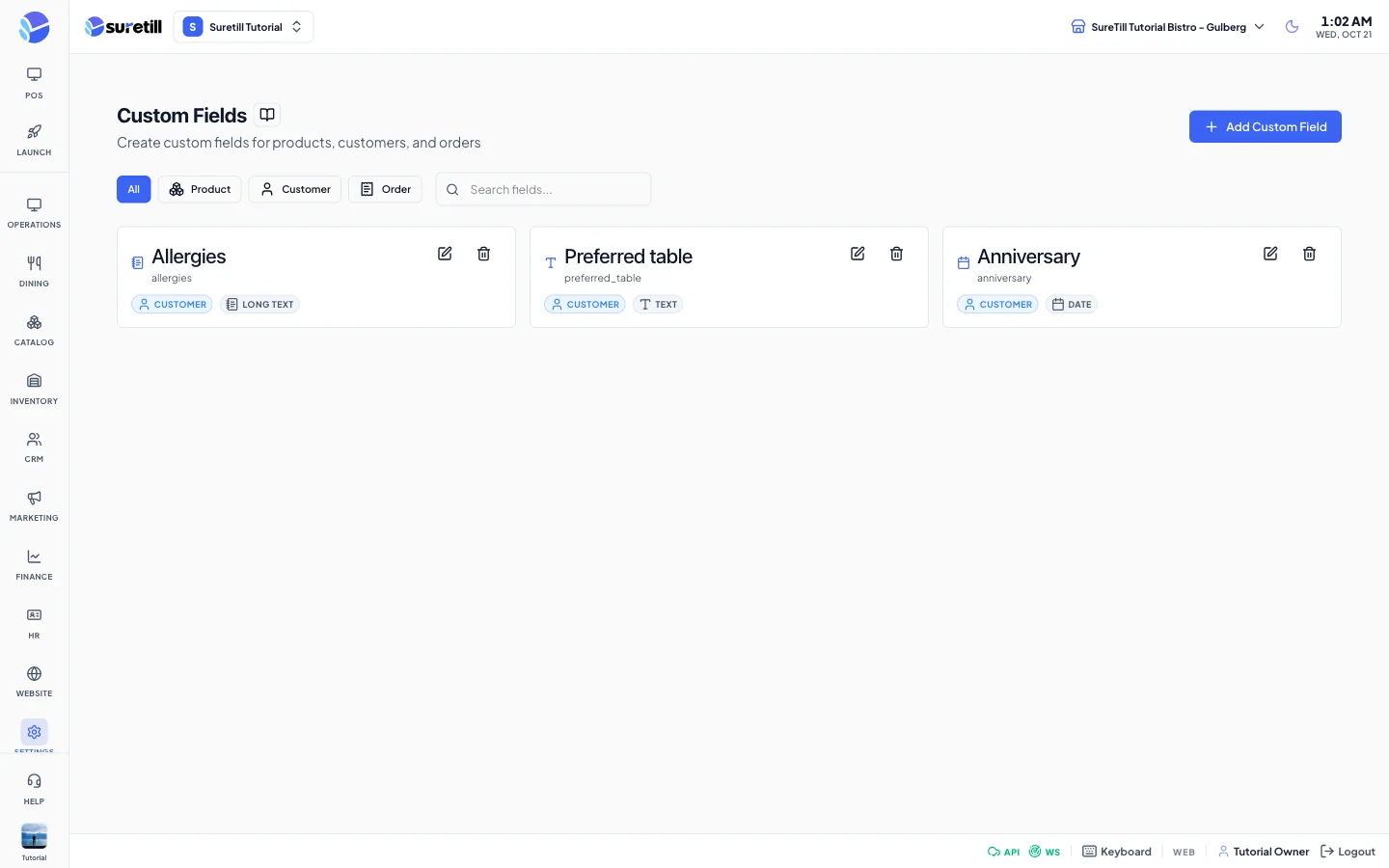
A custom field is an extra piece of information that you want to keep about a product, a customer or an order and that the standard forms do not have. This page is where you define the fields. Each card shows an icon for the field type, the name, the generated key, a badge for the entity and a badge for the type, plus Required and Inactive badges when they apply.
Step by step: add a custom field
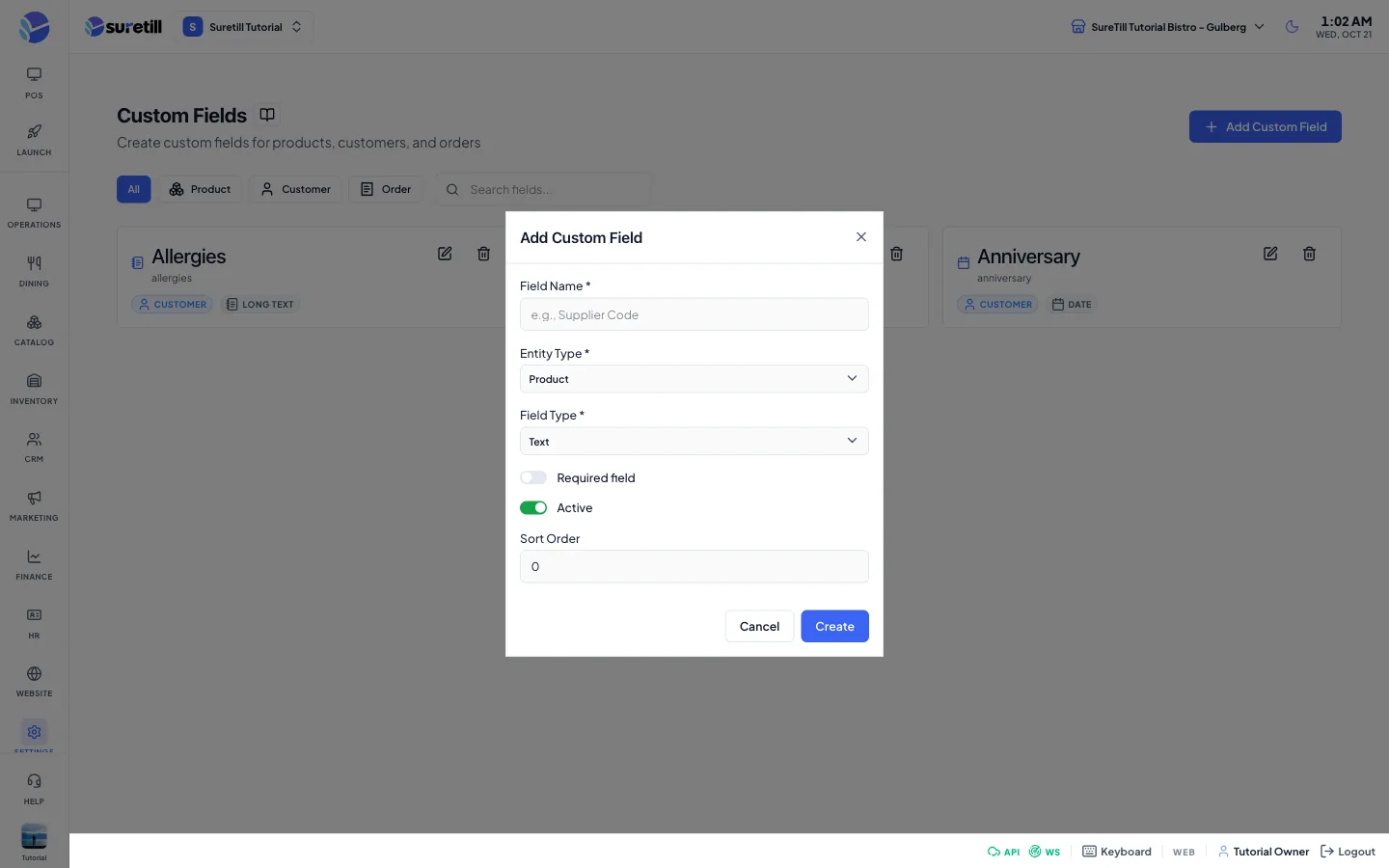
Section titled “Step by step: add a custom field”- Open Settings > Custom Fields and click Add Custom Field.
- Type the Field Name, for example Supplier Code.
- Choose the Entity Type: Product, Customer or Order.
- Choose the Field Type.
- For Dropdown and Multi-Select, type each choice in Options and press Enter or click the add button.
- Set Required field, Active and the Sort Order.
- Click Create.
Step by step: change or delete a field
Section titled “Step by step: change or delete a field”- Click the pencil icon on the card, change the name, options, required, active or sort order and click Update.
- Click the bin icon and confirm to delete a field.
Every setting explained
Section titled “Every setting explained”| Setting | What it does |
|---|---|
| All, Product, Customer, Order buttons | Filter the cards by entity. |
| Search box | Filters by name or key. |
| Field Name | Required. Up to 255 characters. |
| Field key (on the card) | Created by the system from the name: lower case with underscores plus six random characters, for example supplier_code_a1b2c3. You cannot type it. |
| Entity Type | Product, Customer or Order. Cannot be changed after creation. |
| Field Type | Text, Number, Date, Dropdown, Multi-Select, Checkbox or Long Text. Cannot be changed after creation. |
| Options | Only for Dropdown and Multi-Select. A duplicate option is ignored. Click the x on a chip to remove it. The card shows the first three options and +n more. |
| Required field | Switch. Default: off. |
| Active | Switch. Default: on. An inactive field shows an Inactive badge. |
| Sort Order | A whole number, 0 or more. Default: 0. |
How values are checked
Section titled “How values are checked”| Type | Rule |
|---|---|
| Number | Must be numeric. |
| Date | Must be a valid date. |
| Dropdown | Must be one of the options. |
| Multi-Select | Must be a list, and every item must be one of the options. |
| Checkbox | Must be true or false (1, 0, true or false). |
| Text and Long Text | Any text. |