Skip to content

Integrations: payment gateways, SMS and WhatsApp, banks and email

Where: Settings > Integrations
Who can use it: Sidebar permission: settings.manage_integrations, settings.update or manage settings. SMS gateways are saved for the branch selected in the top bar.
Open this page in SureTill

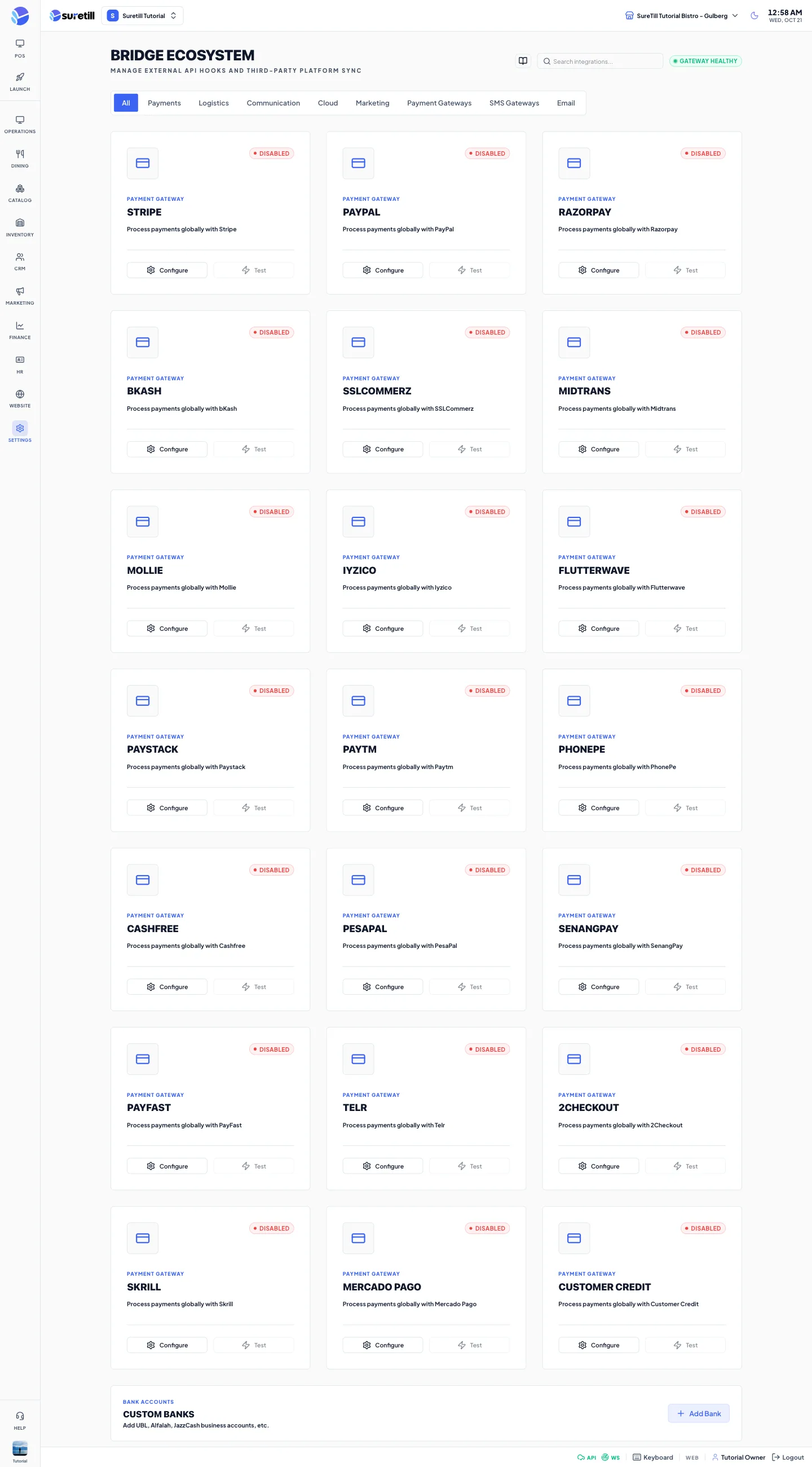
The Integrations page titled Bridge Ecosystem with category tabs across the top and a grid of gateway cards.

The page is titled Bridge Ecosystem. The category tabs are All, Payment Gateways, SMS Gateways and Email. The search box filters the cards by name.

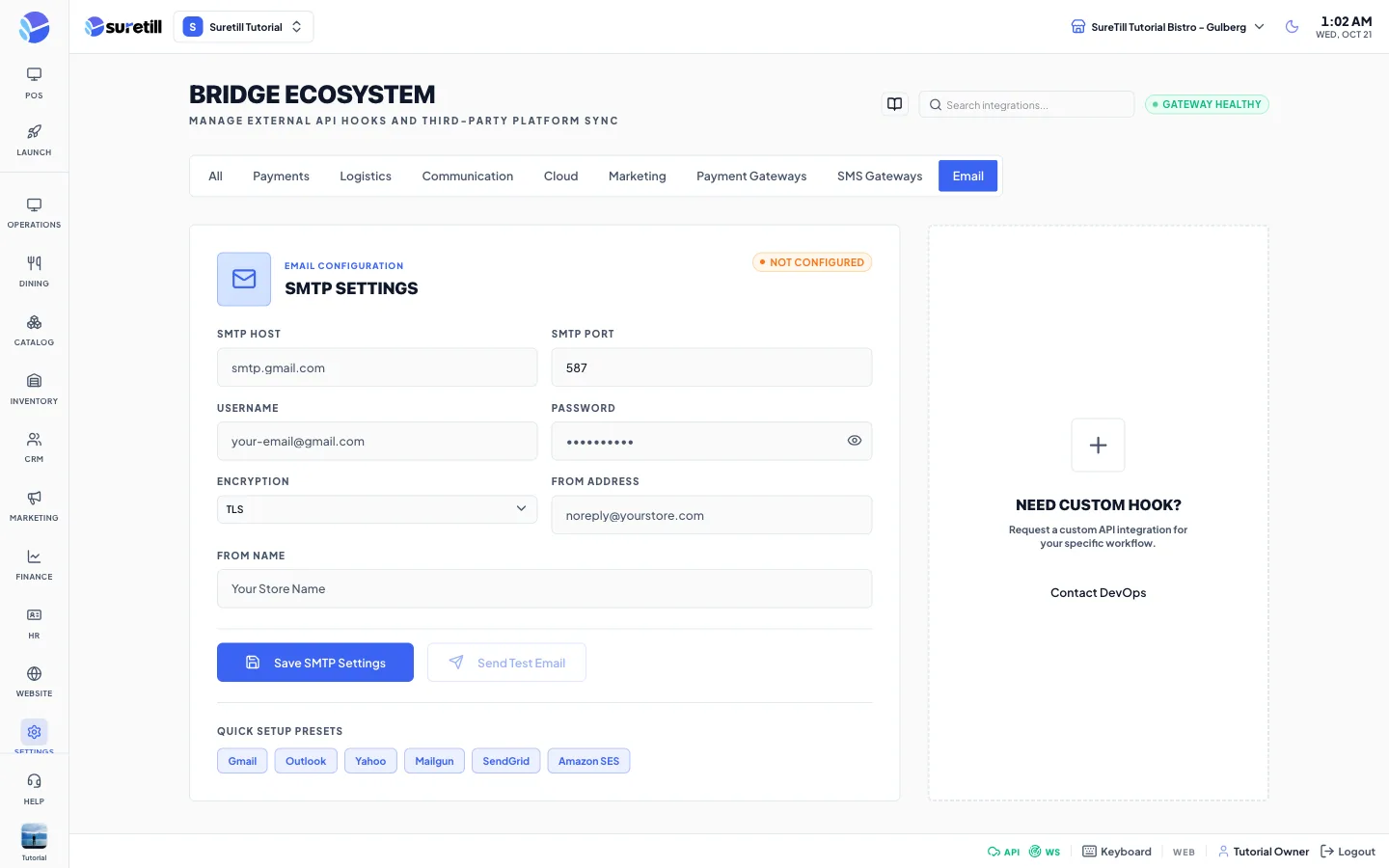
The email window on the Integrations: payment gateways, SMS and WhatsApp, banks and email page
Email: the window that opens.
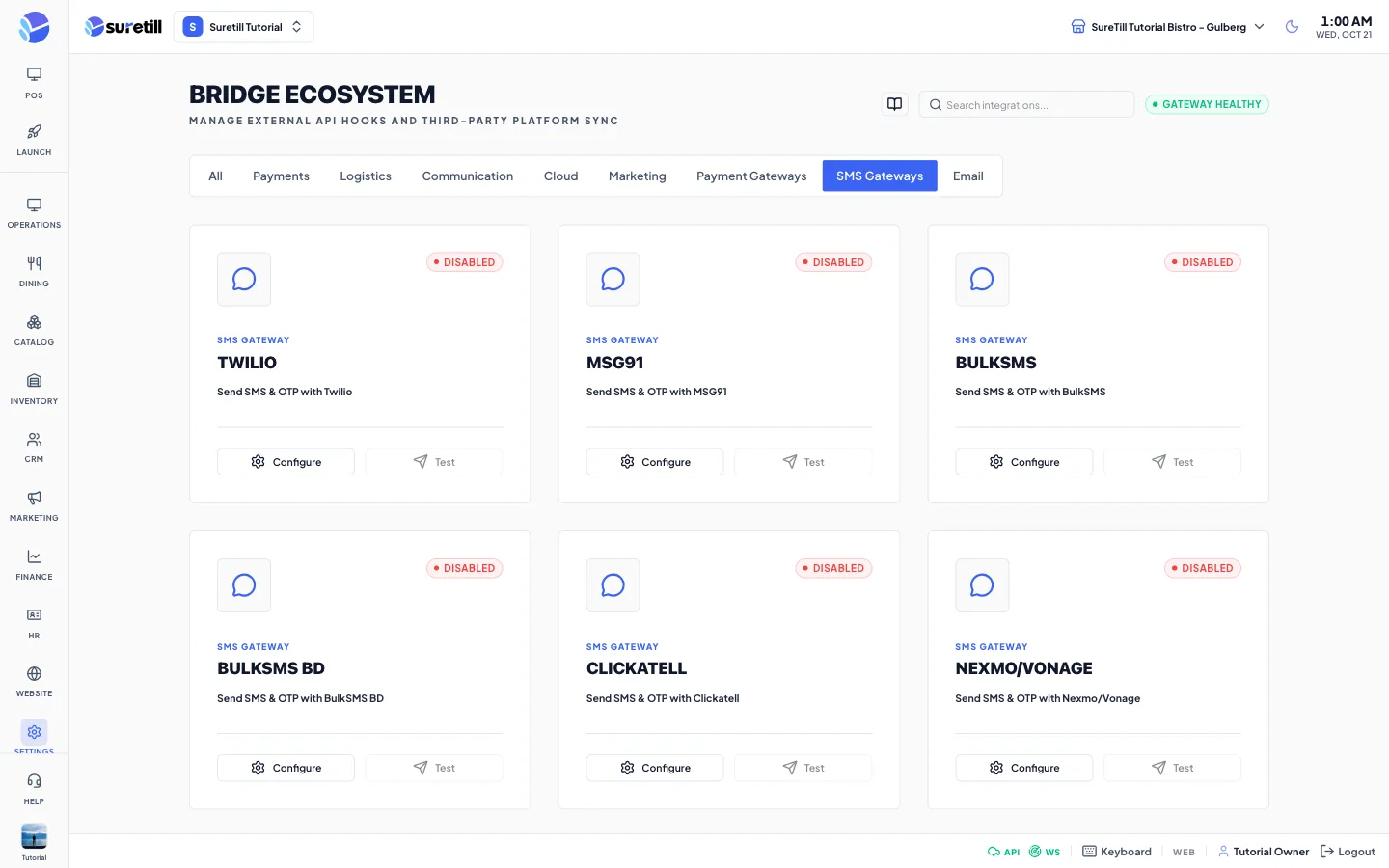
The sms gateways window on the Integrations: payment gateways, SMS and WhatsApp, banks and email page
SMS Gateways: the window that opens.
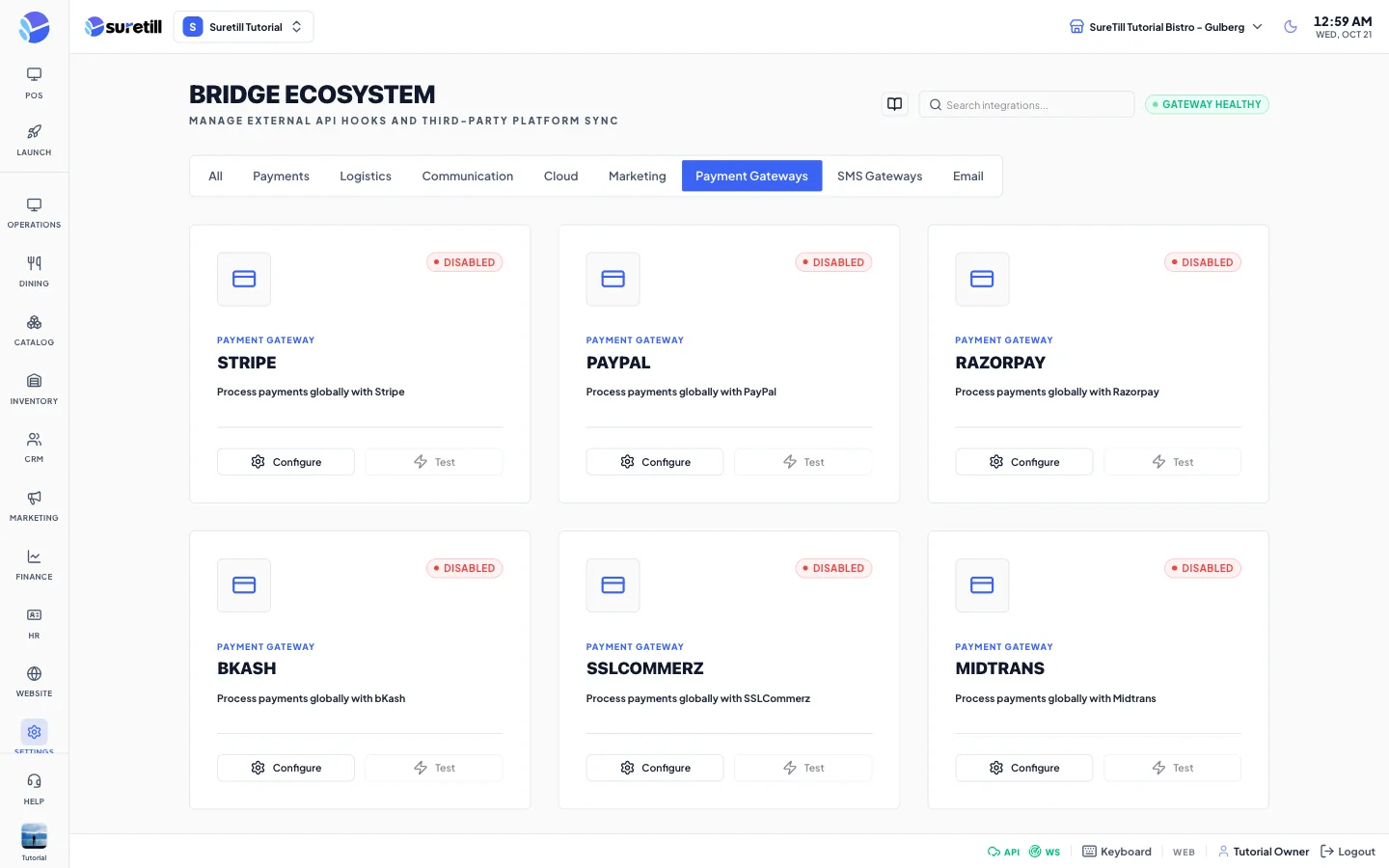
The payment gateways window on the Integrations: payment gateways, SMS and WhatsApp, banks and email page
Payment Gateways: the window that opens.
  1. Open Settings > Integrations and click the Payment Gateways tab.
  2. Find the gateway card and click Configure.
  3. Switch on Enable this gateway. Leave Test (sandbox) mode on while you test with the provider’s test keys, and switch it off for live payments.
  4. Type the credentials the window asks for (see the table below). Secret fields are shown as dots.
  5. Click Test Connection to check the keys.
  6. Click Save Configuration. The card badge turns to Enabled.

Step by step: connect an SMS or WhatsApp gateway

Section titled “Step by step: connect an SMS or WhatsApp gateway”
  1. Select the branch in the top bar. The gateway is saved for that branch.
  2. Open the SMS Gateways tab and click Configure on the gateway card.
  3. Switch on Enable this gateway and fill in the fields.
  4. Type a Test Phone Number with the country code, for example +44 or +1.
  5. Click Send Test SMS. The button is disabled until you type a number.
  6. Click Save Configuration.

Step by step: connect WaSender for WhatsApp

Section titled “Step by step: connect WaSender for WhatsApp”
  1. In the SMS Gateways tab click Configure on WaSender.
  2. Enter the WaSender account and secret.
  3. Switch on Enable this gateway, send a test message to your own number and click Save Configuration.

WaSender is described on its card as Send WhatsApp messages via WaSender. Once it is enabled, features that send to WhatsApp use it. Examples are sending reports and payslips, shift closing reports, account payment messages and one-time codes. They look for an active WaSender gateway of the current branch first, then for one that applies to all branches.

  1. Open the Email tab.
  2. Optionally click a preset (Gmail, Outlook, Yahoo, Mailgun, SendGrid or Amazon SES) to fill the host, port and encryption.
  3. Fill in the Username, Password, From Address and From Name.
  4. Click Save SMTP Settings. The badge turns to Configured when a host and a username are saved.
  5. Click Send Test Email. The test goes to the email address of the account you are signed in with.
  1. Open the Payment Gateways tab and click Add Bank on the Custom Banks card.
  2. Fill in the Bank Name. It is the only required field.
  3. Click Save Bank. Use Edit or Delete on the bank card later.
Setting What it does
Enable this gateway Switch. Default: on.
Credential fields One field for each item the gateway needs. Fields whose name contains key, secret, token or password are password fields. A saved secret is shown masked. If you leave the dots as they are, the old value is kept.
Test Connection (payment) Checks the keys you typed. You must type something first.
Test Phone Number (SMS) Number that receives the test message.
Send Test SMS Sends a test through the gateway with the values on screen.

Save Configuration Stores the gateway.
Card badge Enabled or Disabled.
Gateway Fields
Stripe api_key, secret_key
PayPal client_id, client_secret
Razorpay key_id, key_secret
bKash app_key, app_secret, username, password
SSLCommerz store_id, store_password
Midtrans merchant_id, client_key, server_key
Mollie api_key
Iyzico api_key, secret_key
Flutterwave public_key, secret_key
Paystack public_key, secret_key
Paytm merchant_id, merchant_key
PhonePe merchant_id, api_key
Cashfree app_id, secret_key
PesaPal consumer_key, consumer_secret
SenangPay merchant_id, secret_key
PayFast merchant_id, merchant_key
Telr store_id, auth_key
2Checkout public_key, merchant_code
Skrill merchant_email, api_password
Mercado Pago access_token
Customer Credit No fields. Lets customers pay on account.

SMS and WhatsApp gateways and the fields they need

Section titled “SMS and WhatsApp gateways and the fields they need”
Gateway Fields
Twilio account_sid, auth_token, from_number
MSG91 auth_key, route
BulkSMS username, password
BulkSMS BD api_token
Clickatell api_key
Nexmo/Vonage api_key, api_secret
TeleSign customer_id, api_key
2Factor api_key
SMS Gate (Android phone) base_url, username, password. Sends SMS from your own Android phone through your SMS Gate server.
WaSender account, secret. Sends WhatsApp messages.
Setting What it does
Bank Name Required.
Account Title The name on the account.
Account Number The number shown on the card. If empty, the IBAN is shown.
IBAN Optional.
Branch The bank branch.
SWIFT Code Optional.
Description Free text.
Sort Order A number. Default: 0.
Status Active or Inactive. Default: Active.
Setting What it does
SMTP Host Example: smtp.gmail.com.
SMTP Port Default: 587.
Username Your mail login.
Password With an eye button to show or hide it.
Encryption TLS, SSL or None. Default: TLS.
From Address Example: noreply@yourstore.com.
From Name Example: Your Store Name.
Save SMTP Settings Stores the values. They are kept in the mail settings group.
Send Test Email Disabled until the host and username are saved.
Quick Setup Presets Gmail, Outlook, Yahoo, Mailgun, SendGrid and Amazon SES.
Setting What it does
Gateway Healthy badge A fixed label. It does not check anything.
Test button on a gateway card Opens the same window as Configure. Type the keys and use Test Connection inside the window.