

Welcome to SureTill
Where: Launch Pad
Who can use it: Everyone who can sign in. What each person sees depends on their role permissions and on your plan.
Open this page in SureTill
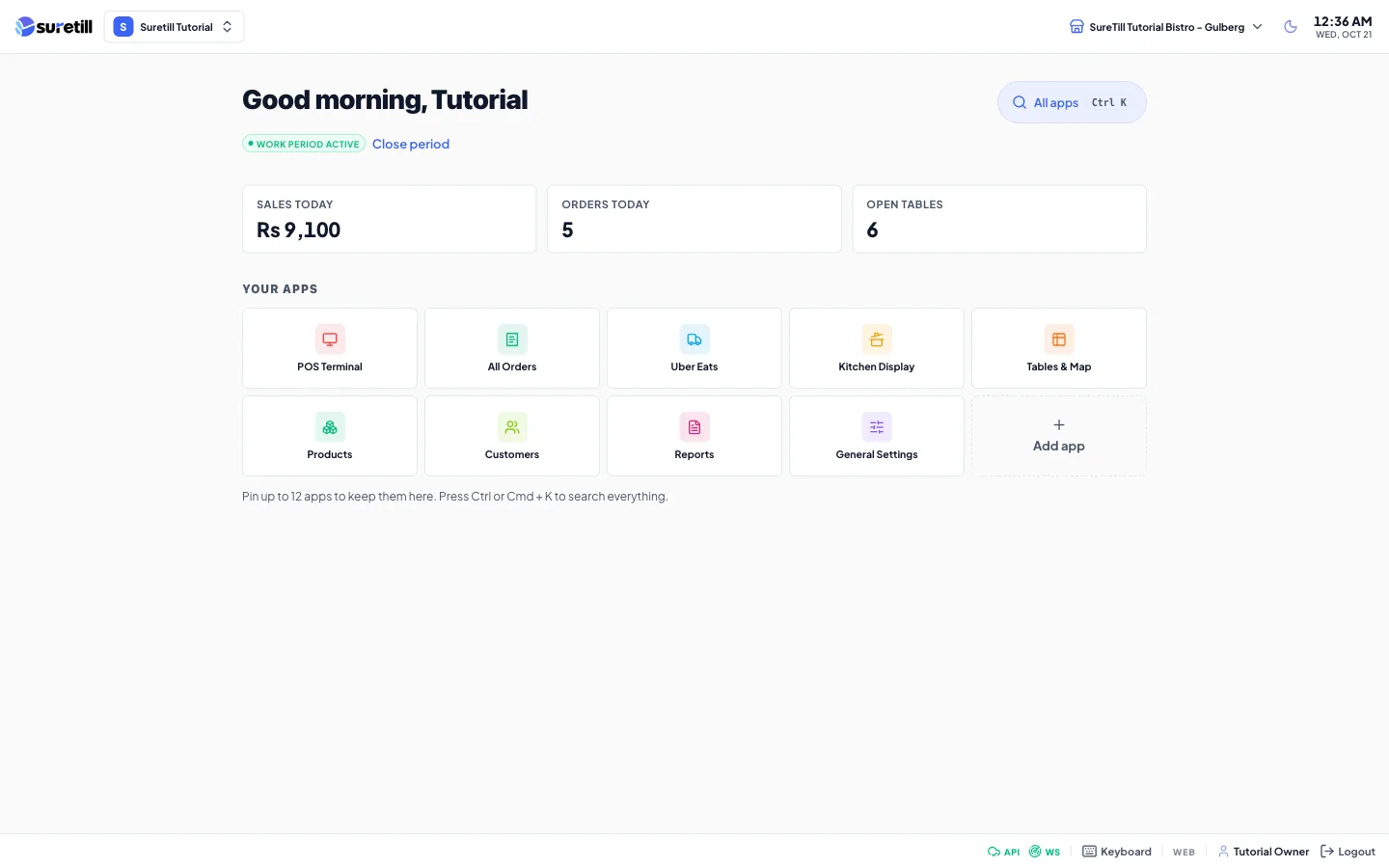
SureTill is a point of sale and back office for restaurants, cafes, bakeries and food trucks. You take orders on a POS terminal, send them to the kitchen, collect payment, and see your sales, stock and staff in one place.
This guide takes you from a new account to your first paid order. Follow the articles in this group in order: create your account, finish the setup wizard, import your menu, learn the Launch Pad, then make a first sale.
What is in every restaurant
Section titled “What is in every restaurant”The sidebar and the Launch Pad group the screens into sections. You only see the screens your role is allowed to open.
| Section | What you find there |
|---|---|
| Operations | Launch Pad, POS Terminal, Kitchen Display, All Orders, Online Orders, Delivery, Work Periods, Cash Drawer, Order Status Screen. |
| Dining | Tables and Map, Floor Designer, Reservations, Waitlist, QR Ordering, Kiosk Mode, Table Orders. |
| Catalog | Products, Categories, Departments, Menus, Modifiers, Recipes. |
| Inventory | Stock Levels, Warehouse, Stock Alerts, Suppliers, Purchase Orders, Kitchen Requisitions. |
| CRM and Marketing | Customers, Loyalty Program, Gift Cards, Feedback, Campaigns, Coupons, Discounts, Menu Boards, Newsletter. |
| Finance | Dashboard, Sales History, Analytics, Reports, Accounting, Expenses, Payments, Tax Rates, Settlements, Payroll. |
| HR | Employees, Attendance, Salary Advances, Users, Roles and Permissions. |
| Settings | General Settings, Branches, Printers, Print Templates, Devices, Integrations, Notifications, Backup, Activity Logs and more. |
Add-ons and special modules
Section titled “Add-ons and special modules”| Module | How you get it |
|---|---|
| QR Menu | An add-on. The QR Menu entry appears in the sidebar only after the add-on is switched on for your restaurant. |
| Uber Eats | An add-on. The Uber Eats entry appears only when the add-on is on. |
| SureCall (AI phone ordering) | Appears once SureTill has attached a phone number to your restaurant. You cannot add the number yourself. |
| SureScreen (menu boards on TVs) | Menu Boards lets you design boards and pair TVs. A SureScreen plan is a menu-board-only plan: it hides orders, tables, the POS and other back-office screens and keeps products, menus, menu boards, devices, users, branches, billing and settings. |
| More branches, terminals, tablets or staff logins | Your plan sets the limits. SureTill can grant extra units on top of the plan as add-ons. See Plans, billing and add-ons. |
To ask for an add-on, write to support@suretill.com from your owner email.
Cloud and installed apps
Section titled “Cloud and installed apps”- SureTill cloud: your restaurant lives on SureTill servers. Sign in with a browser at your SureTill address. Nothing to install on a server.
- Installed apps: the Windows desktop app and the Android app run the same POS. You connect each one to your restaurant once with a pairing code, and staff then sign in with a PIN.
- Sign-up, the setup checklist, Billing and the account center exist only in the cloud version. Restaurants that run their own server use the OpenPOS-branded build, which does not have those screens.
If the internet drops while you are taking orders, the POS saves the order on the device and sends it when the connection is back. The POS shows a message such as Offline order saved when this happens.
The free trial
Section titled “The free trial”- Every new restaurant starts a 7 day free trial. No card is needed.
- During the trial the default limits are 1 branch, 2 POS terminals, 2 tablets and 5 staff logins. SureTill can change the limits for your account.
- When 3 days or fewer are left, a blue banner appears above the admin pages: Your free trial ends in N days. Choose a plan to keep going.
- Choose a plan any time from Billing and plan.
Your first hour
Section titled “Your first hour”- Create your account and confirm your mobile number and email.
- Answer the setup wizard: business type, tax, menu, tables, payment methods.
- Check the menu and prices in Products.
- Open the POS, open a work period, and take a test order.
- Register your tablets and kitchen screen in Devices and connect them with pairing codes.
- Add your staff with PINs in Users.