Skip to content

Branches and Branch Configuration

Where: Settings > Branches
Who can use it: Sidebar permission: branches.view or manage branches. On SureTill cloud the number of branches you can create is limited by your plan.
Open this page in SureTill

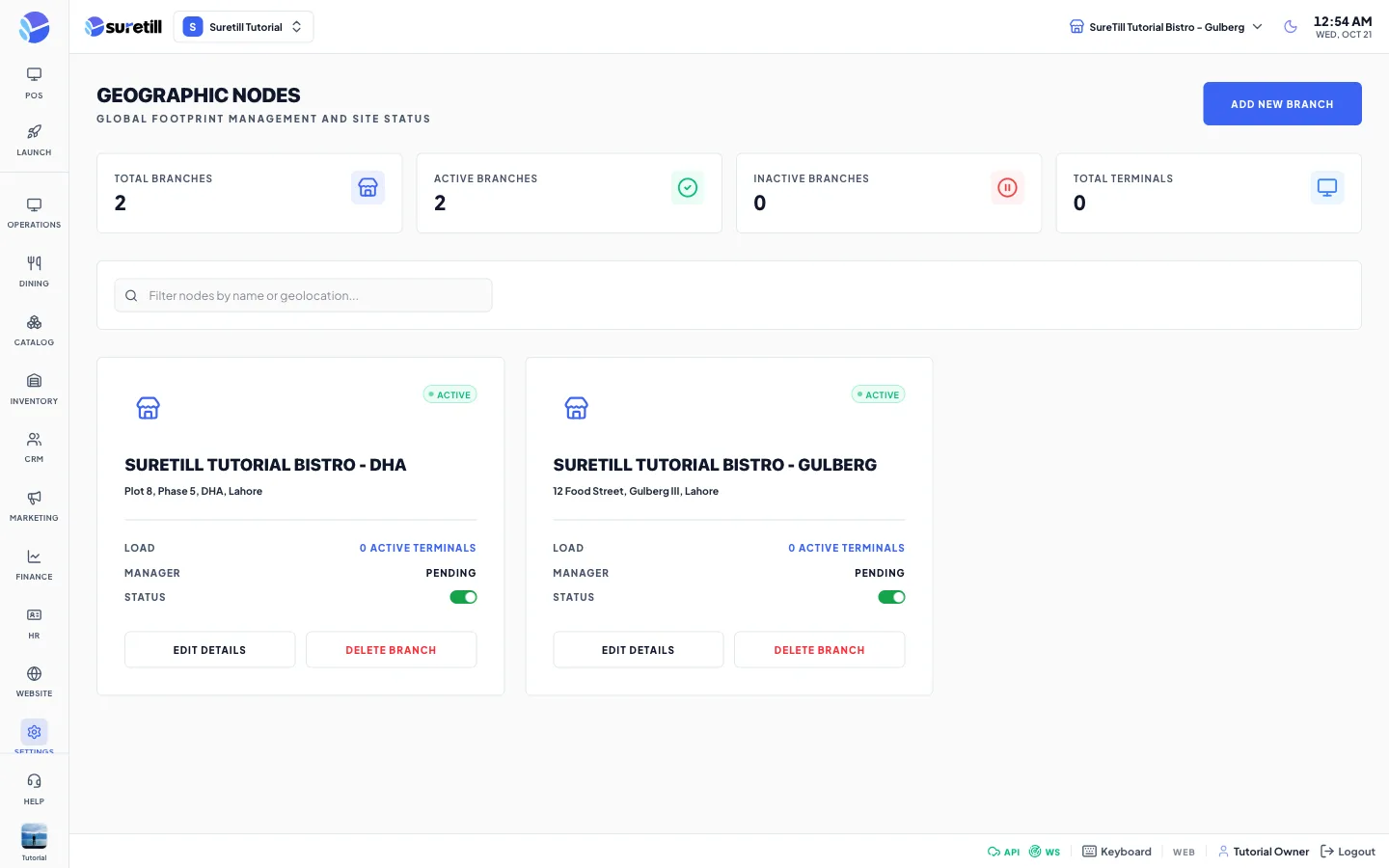
The Branches page with four counters at the top (Total Branches, Active Branches, Inactive Branches, Total Terminals) and a card for each branch.

The page is titled Geographic Nodes. It lists every branch as a card and opens a full-screen Branch Configuration page when you add or edit a branch. Super admins and owners see all branches. Other users see only the branches assigned to them.

Setting What it does
Add New Branch Opens Branch Configuration for a new branch.
Total Branches Counter of branches loaded.
Active Branches Counter of branches that are active.
Inactive Branches Counter of branches that are inactive.
Total Terminals Sum of the terminals of all loaded branches.
Search box Filters the cards by name or address as you type.
Branch card Shows the status badge (Active or Inactive), the name, the address, the number of active terminals, the manager name (Pending when none) and a status switch.
Status switch Activates or deactivates the branch at once. An inactive branch is hidden from the POS branch selector.
Edit details Opens Branch Configuration for that branch.
Delete Branch Deletes the branch after you confirm. The primary branch cannot be deleted. The server answers Cannot delete primary branch.
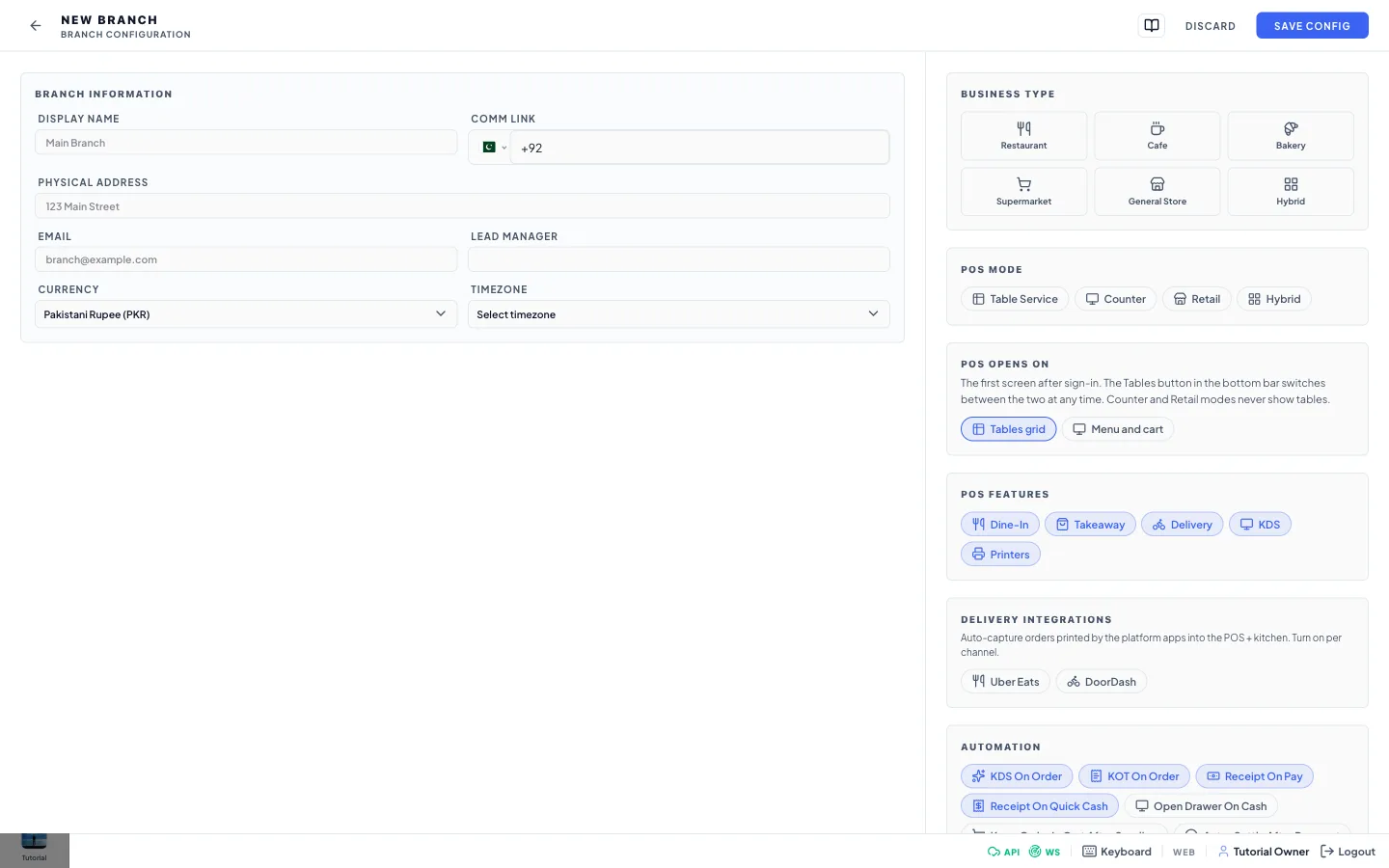
The add new branch window on the Branches and Branch Configuration page
Add New Branch: the window that opens.
  1. Open Settings > Branches and click Add New Branch.
  2. Type the Display Name. This is the only required field.
  3. Fill in the phone, address, currency and time zone.
  4. Set the options on the right side, or leave the defaults.
  5. Click Save Config. The branch is created and active, and the options are saved with it.

The extra blocks (images, holiday hours, temporary closure, capacity, reports and the local settings override) appear only after the branch exists. Save the branch first, then open it again with Edit details.

  1. Click Edit details on the branch card.
  2. Change the fields on the left or the options on the right.
  3. Click Save Config. Use Discard or the back arrow to leave without saving.

Step by step: deactivate or delete a branch

Section titled “Step by step: deactivate or delete a branch”
  1. To stop using a branch for a while, turn its status switch off.
  2. To remove it, click Delete Branch and confirm.
Setting What it does
Display Name The branch name. Required. Example: Main Branch.
Comm Link The branch phone number, with a country selector.
Physical Address The street address. Example: 123 Main Street.
Email The branch email address. It is saved with the branch.
Lead Manager Shown on the form. It is not stored: the branch has no manager field in this version. The manager name on the card is always Pending.
Currency Pick the branch currency from the list (name and code). A new branch starts with the default currency. The server uses it for symbols in messages and on printed lines.
Timezone Pick from every time zone the browser knows, written as Region/City, for example Asia/Karachi. The branch is checked against its operating hours in this time zone.
Branch UUID Shown for an existing branch. Use it when support asks which branch you mean.
  1. Click the file picker and choose one or more pictures.
  2. Click Upload.

Pictures must be JPEG, PNG, GIF or WebP, up to 5 MB each. SVG files are refused. New pictures are added to the ones already stored.

  1. Click Load to read the saved list.
  2. Click + Add for each holiday and set the date, the Holiday Name and the Open and Close times. Tick Closed if the branch is closed all day.
  3. Click the x on a row to remove it.
  4. Click Save to store the list.
  1. Pick the start date and the end date. The end date must be the same day or later.
  2. Optionally type a Reason.
  3. Click Schedule Closure. Each click adds one closure to the branch record.
  1. Fill Seating, Concurrent (maximum concurrent orders) and Delivery Radius. Whole numbers or decimals of 0 or more.
  2. Click Update Capacity.
Setting What it does
Compare Branches Compares all your branches in a table: Branch, Code, Revenue, Orders and Avg Order. It needs at least two branches. Use the From and To dates next to it; when empty the last month is used.
Analytics Opens the analytics report of this branch in a pop-up.
Benchmark Opens the performance benchmark of this branch in a pop-up.
Royalty Report: From and To The period. When empty the current month is used.
View Royalty Report Shows the revenue of the branch for the period, the royalty rate and the royalty amount. The rate is the royalty rate saved on the branch, or 5 percent when none is saved.
Setting What it does
Enabled / Using Global (checkbox) Default: Enabled. When it is off the POS ignores the branch values for service charge, tax rate and tax inclusive, and uses the shared values. The two number boxes are greyed out.
Service Charge % Added to dine-in orders of this branch. Default: 0.
Tax Rate % Default tax rate of this branch. Default: 0.
Delivery Fee Default delivery fee of this branch. Default: 0.
Tax Inclusive Button that shows Active or Inactive. Active means prices already include tax. Default: Inactive.

Branch Configuration: options on the right

Section titled “Branch Configuration: options on the right”

All options below are stored with the branch when you press Save Config. Switches here are check boxes. The default is written after each option.

Setting What it does
Business Type Restaurant, Cafe, Bakery, Supermarket, General Store or Hybrid.
POS Mode Table Service, Counter, Retail or Hybrid. Counter and Retail never show tables.
POS Opens On Tables grid or Menu and cart. This is the first screen after sign-in. The Tables button in the bottom bar switches between the two at any time. Default: Tables grid.
Setting What it does
Dine-In Default: on.
Takeaway Default: on.
Delivery Default: on.
KDS The kitchen display. Default: on.
Printers Default: on.
Uber Eats Auto-captures orders printed by the platform app into the POS and the kitchen. Default: off. On SureTill cloud it needs the Uber Eats add-on.
DoorDash The same for DoorDash. Default: off.
Setting What it does
KDS On Order Sends the order to the kitchen screen when it is placed. Default: on.
KOT On Order Prints the kitchen order ticket when the order is placed. Default: on.
Receipt On Pay Prints the receipt when a payment is taken. Default: on.
Receipt On Quick Cash Prints the receipt when the Quick Cash button is used. Default: on.
Open Drawer On Cash Opens the cash drawer on a cash payment. Default: off.
Keep Order In Cart After Sending Keeps the order in the cart after it is sent. Default: off.
Auto-Settle After Payment Settles the order automatically after payment. Default: off, so settling stays a manual step.
Quick Cash Shows the Quick Cash button. Default: on.
Bill Printed Color (Dine-In) Shows the Bill Printed color on dine-in orders after the bill is printed. Default: on.
Bill Printed Color (Takeaway) The same for takeaway. Default: off.
Bill Printed Color (Delivery) The same for delivery. Default: off.
Setting What it does
Require Manager PIN for Void After Bill Print Voiding an item or order whose bill is already printed needs a valid manager PIN. This closes the gap where someone prints the bill, voids a line and keeps the difference. Default: off.
Keep selling when the server is unreachable Offline selling. Terminals keep dine-in and takeaway orders, cash payments and kitchen tickets on the device while the server is down and sync them when it is back. Orders taken offline get a terminal-coded number such as OFL-A2-260715-0007. Card and account payments cannot be taken offline. Default: off.
QR Table Orders Three choices. Kitchen screen only: customer orders go straight to the KDS and nothing prints. Kitchen screen + print ticket: orders go to the KDS and a ticket prints. Staff accepts first: orders wait for staff to Accept or Reject, and nothing reaches the kitchen or uses stock until accepted. Default: Kitchen screen only.
Auto-reject if nobody answers within Only for Staff accepts first. Minutes from 1 to 240. Default: 10.
Setting What it does
Takeaway/Delivery as Token Placing a takeaway or delivery order prints the BILL with a big TOKEN number instead of a kitchen ticket. One printout is both bill and token. Dine-in is not affected. Default: off.
Setting What it does
Barcode Scanner Default: off.
Weight Scale Default: off.
Quick Checkout Default: off.
Show SKU Shows the SKU on the POS. Default: off.
Barcode on Receipt Default: off.
Expiry Tracking Default: off.
Cost Tracking Default: off.
Setting What it does
Weight-Based Pricing Default: off.
Open Amount Pricing Default: off.
Manual Price Entry Default: off.
Weight on Receipt Default: off.
Weight on POS Default: off.
Confirm Weight Default: off.
Default Pricing Mode Fixed Unit Price, Weight-Based or Open Amount. Default: Fixed Unit Price.
Scale Barcode Prefix The prefix of scale barcodes, 20 to 29. Default: 20.
Setting What it does
Default Product Type Prepared (Kitchen), Packaged (Retail), Weighted (Scale) or Service. Default: Prepared.
Product Card Style Image Cards, Compact List or Detailed List. Default: Image Cards.
Low Stock Alert The stock number at which a product counts as low. Default: 10.
Max Items/Order The most items allowed in one order. Default: 100.
Receipt Footer A short text printed at the bottom of the receipt of this branch. Example: Thank you!
Order # Prefix Letters placed in front of order numbers of this branch. Order numbers are built as prefix, date (yymmdd) and a four-digit counter, for example ORD-261020-0001. When empty, a prefix is made from the branch name.
Auto-Add on Scan Adds a product to the cart when its barcode is scanned.

Scanner Beep Plays a sound on scan.
Stock Alerts Turns stock alerts on.
Barcode on Receipt (second switch) Prints the barcode on the receipt.
Product Images Shows product pictures.
Allow Negative Stock Lets stock go below zero when you sell.
Require Customer An order cannot be placed without a customer.
Setting What it does
Admin Phones Comma-separated numbers, for example +923001234567, +923009876543. They receive all critical alerts, new orders and inventory warnings.
Manager Phones Comma-separated numbers. They receive inventory and operational alerts.
Low Stock SMS Sends the low stock alert by SMS.
Low Stock WhatsApp Sends it by WhatsApp.
Low Stock Email Sends it by email.
New Order SMS Sends a message for each new order by SMS.
New Order WhatsApp Sends it by WhatsApp.