

Website Menus
Where: Website > Menus
Who can use it: Permission: website.manage_menus, settings.update or manage settings.
Open this page in SureTill
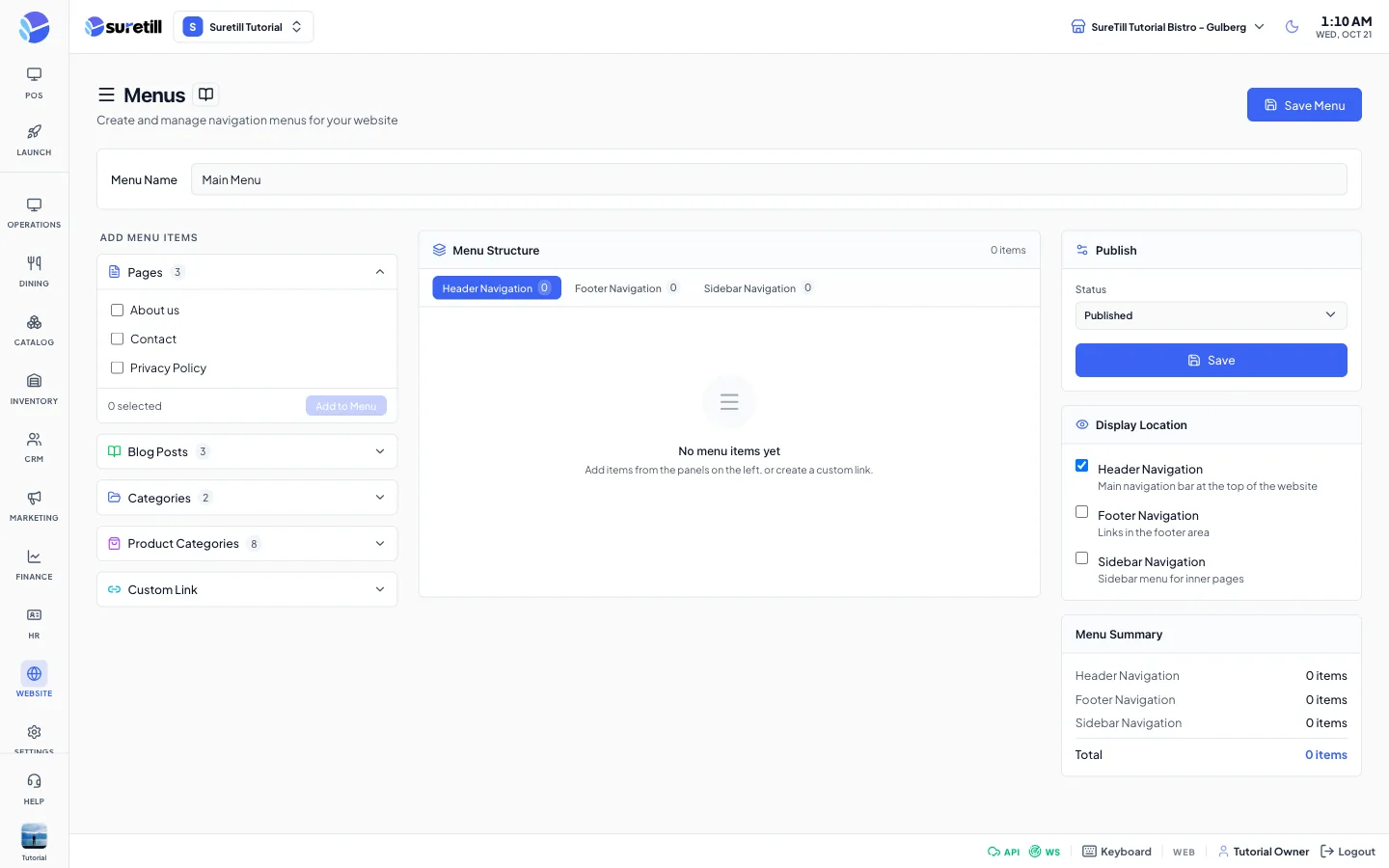
This page controls the links in the navigation bar at the top of your website (Header Navigation), the links in the footer (Footer Navigation) and a Sidebar Navigation for inner pages. This is the navigation of your customer website. It is not the same as the food menu, which you manage in Products.
On the storefront, the header shows the header links and the footer groups the footer links. A link with children shows a drop-down in the header and becomes its own column in the footer. Loose footer links share a column called Quick links. When there are no header links, the storefront shows Home, Menu, Offers, Locations and Contact.
Step by step
Section titled “Step by step”Add links to a menu
Section titled “Add links to a menu”- Open Website > Menus. Pick Header Navigation, Footer Navigation or Sidebar Navigation in the middle panel. The number on each tab is its item count.
- On the left open a panel: Pages, Blog Posts, Categories (blog categories) or Product Categories.
- Tick one or more entries and click Add to Menu. The links are added at the end of the menu you picked.
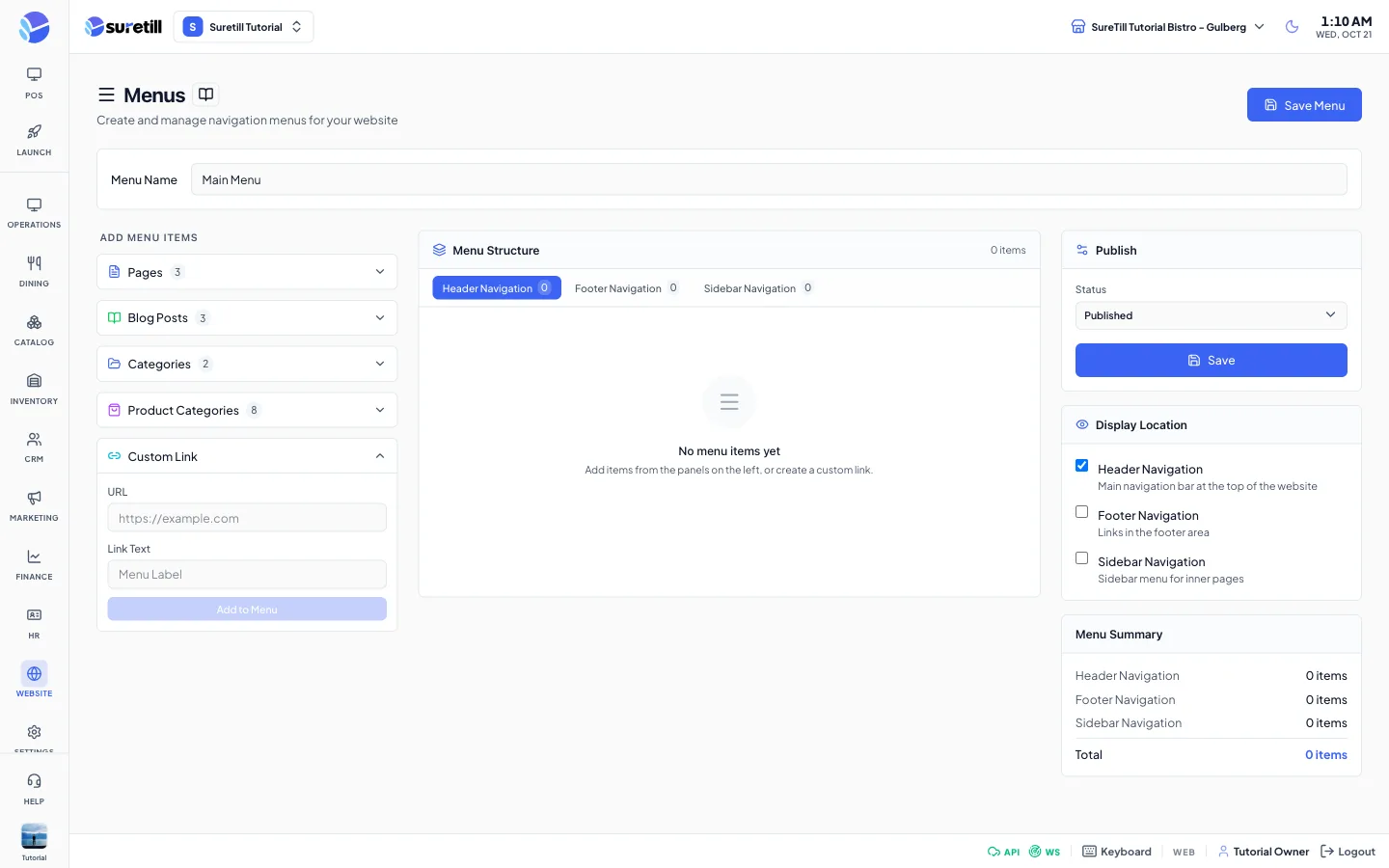
- For any other address, open Custom Link, type the URL and the Link Text, then click Add to Menu.
Edit, move and remove an item
Section titled “Edit, move and remove an item”- Hover over an item and use the up and down arrows to move it.
- Click the small arrow at the right of an item to expand it. It shows the label and the URL.
- Click Edit to open the Edit Menu Item window. Change the Navigation Label, the URL or the Link Type and click Update.
- Click Remove to take the item out of the list.
- Click Save Menu (top or right side).
Every setting explained
Section titled “Every setting explained”| Setting | What it does |
|---|---|
| Menu Name | A name for the menu, default Main Menu. It is stored with your website settings. |
| Pages panel | Lists your website pages. Added links point to /p/slug. |
| Blog Posts panel | Lists blog posts. Added links point to /blog/slug. |
| Categories panel | Lists blog categories. Added links point to /blog?category=slug. |
| Product Categories panel | Lists your menu categories. Added links point to /menu?cat= followed by the category id, which opens the menu with that category selected. |
| Custom Link panel | URL (default #) and Link Text. The link type is Custom. |
| Add to Menu | Adds the ticked entries. Shows how many are selected. |
| Header / Footer / Sidebar Navigation tabs | Choose which menu you edit. Each has its own list. |
| Item card | Label, link type chip (Page, Category, URL, Custom Link, Blog Post, Blog Category or Product Category), move arrows, and Edit and Remove inside. |
| Edit Menu Item | Navigation Label (required), URL and Link Type (URL, Page, Category, Custom, Blog Post, Blog Category, Product Category). |
| Status | Published or Draft. Draft hides the menu items on the website. |
| Save / Save Menu | Saves the items, their order, Menu Name, Status and Display Location. |
| Display Location | Three tick boxes for Header, Footer and Sidebar. An unticked location is saved as hidden. |
| Menu Summary | The number of items in each menu and the total. |