

Tax Rates
Where: Finance > Tax Rates
Who can use it: Permission: tax.view or manage settings.
Open this page in SureTill
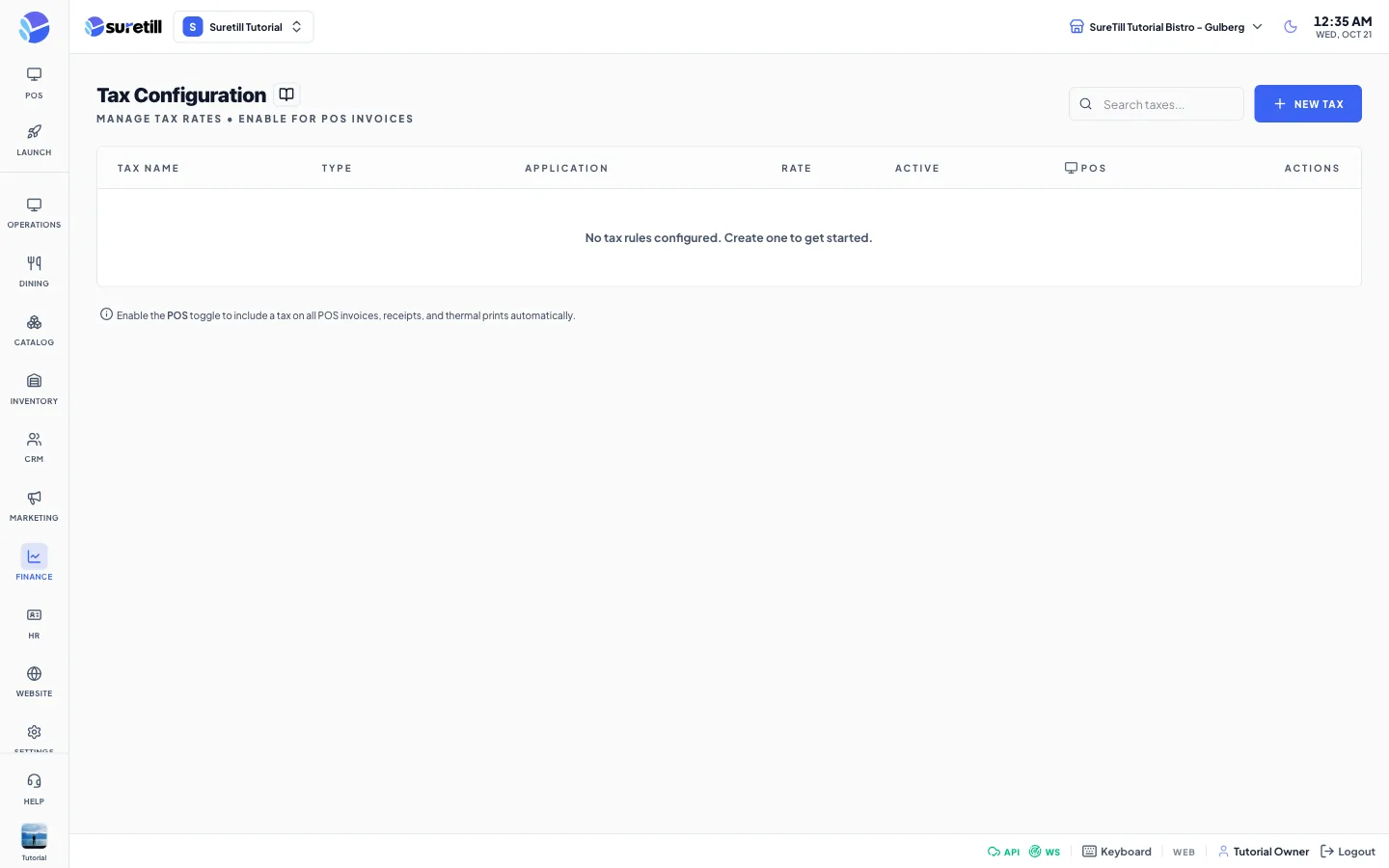
A tax rule only reaches your POS tickets when its Active switch and its POS switch are both on. Rules are saved for the branch you have selected. The page lists up to 200 rules.
How a tax is applied to a ticket
Section titled “How a tax is applied to a ticket”- Every time a ticket changes, the system takes the tax rules that are Active, have POS on, and match the order type and the department of the ticket.
- A percent rule that is Exclusive is added on top of each line. The ticket total grows by that amount.
- A percent rule that is Inclusive is already inside the price. The tax part is worked out as price minus price divided by (1 plus rate), and shown as tax, but the total does not grow.
- A Fixed Amount rule is a flat charge added once to the ticket, whatever its size, and only when the ticket has at least one line that is not voided. It is always added on top.
- Total = subtotal + exclusive tax + service charge + delivery fee - discount.
- If no POS rule matches, the system uses the tax saved on the product itself, if the product has one.
Step by step
Section titled “Step by step”Add a tax
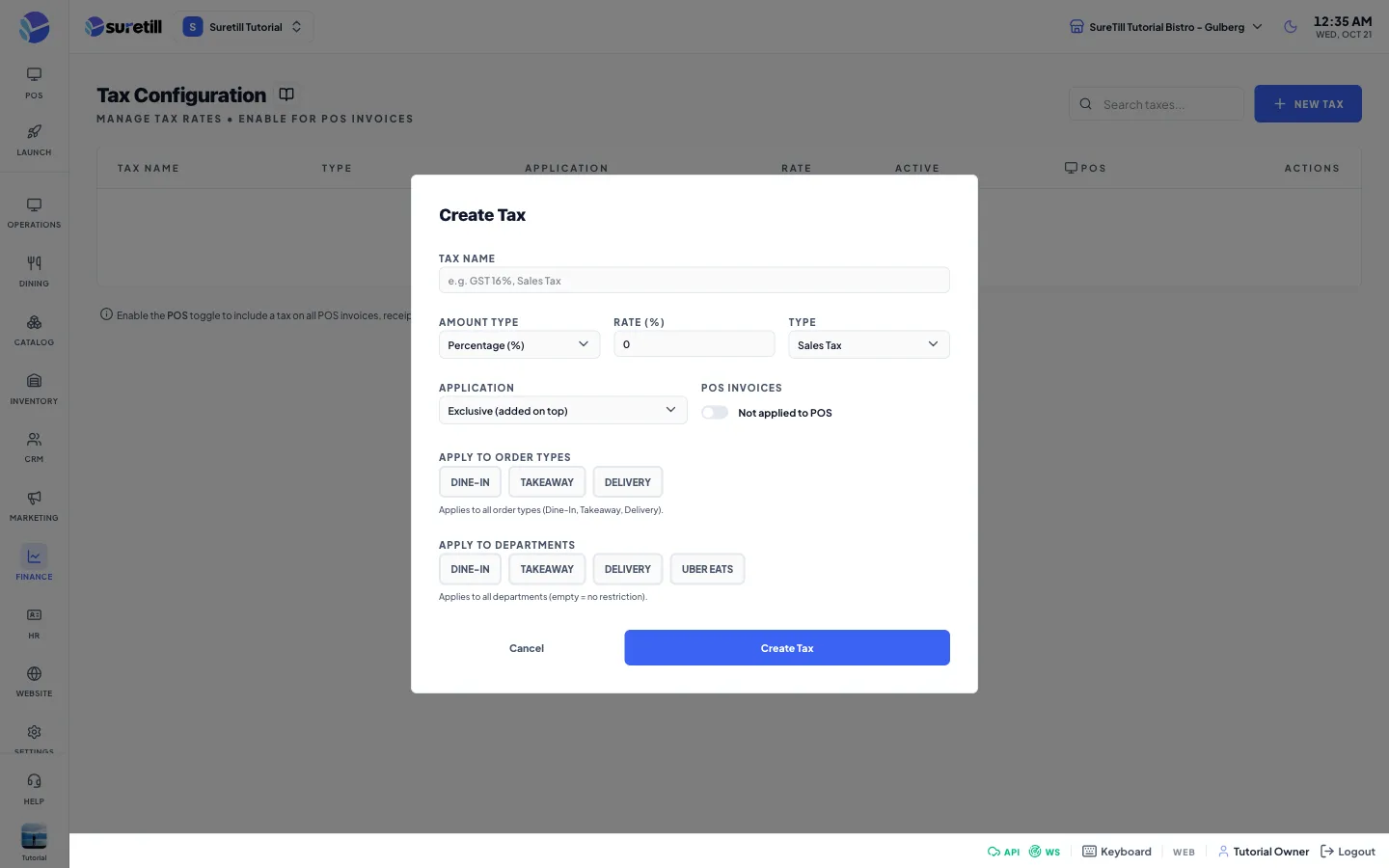
Section titled “Add a tax”- Open Finance > Tax Rates and click New Tax.
- Type the Tax Name, for example GST 16%.
- Pick the Amount Type (Percentage or Fixed Amount) and type the rate or amount.
- Pick the Type and whether it is Exclusive or Inclusive.
- Switch on POS Invoices so the tax reaches POS tickets.
- Optionally choose order types and departments.
- Click Create Tax.
Switch a tax on or off quickly
Section titled “Switch a tax on or off quickly”- Use the Active switch in the row to turn a tax off for everything.
- Use the POS switch to stop it appearing on POS tickets while you keep it saved.
Edit or delete
Section titled “Edit or delete”- Hover a row. A pencil and a trash icon appear on the right.
- Click the pencil, change the fields and click Save Changes.
- Click the trash icon and confirm Delete this tax rule.
Every setting explained
Section titled “Every setting explained”| Setting | What it does |
|---|---|
| Search taxes | Matches the tax name or the type. |
| New Tax | Opens the form. |
| POS summary bar | A green bar shown when at least one tax is Active with POS on. It shows how many, and the combined percent plus any fixed amounts. |
| Tax Name (required) | Up to 255 characters. |
| Amount Type | Percentage (%) or Fixed Amount. Default Percentage. |
| Rate (%) / Fixed Amount | A number from 0. A percent rate cannot be more than 100. |
| Type | Sales Tax (default), GST, VAT, Service Tax or Custom. A label for reports and the badge in the list. |
| Application | Exclusive (added on top) or Inclusive (included in price). Default Exclusive. Does not change a Fixed Amount, which is always added on top. |
| POS Invoices | A switch. On means the tax is applied to POS tickets, receipts and thermal prints. Default off. |
| Apply To Order Types | Dine-In, Takeaway and Delivery buttons. Pick none to apply to all order types. |
| Apply To Departments | Shown only when the branch has departments. Pick none to apply to all departments. |
| Active switch (row) | Turns the rule on or off. Default on for new rules. |
| POS switch (row) | Same as POS Invoices. |
| Edit and Delete icons | Edit opens the form. Delete asks for confirmation with the message Delete this tax rule. |