

Voids, refunds, discounts and the bill lock
Where: Operations > POS Terminal, and Operations > All Orders
Who can use it: Void a line: pos.void_item. Void a whole order: pos.void_order. Unlock a printed bill: orders.unlock. Discounts: pos.apply_discount. Refunds: pos.refund, orders.refund or payments.process_refund (owners and admins always can).
Open this page in SureTill
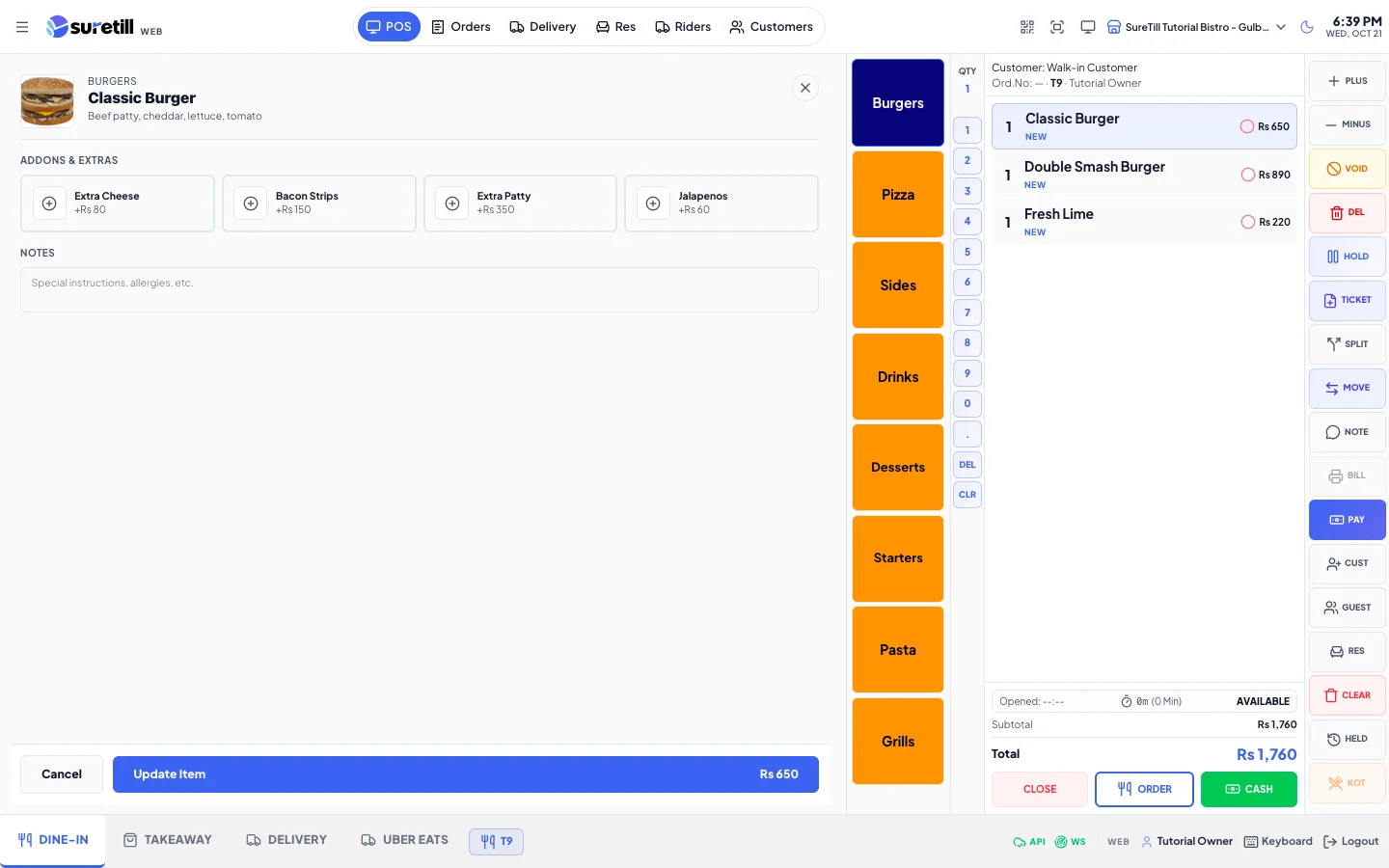
Money and stock must always add up. SureTill therefore separates three things: a void cancels something that was never paid, a refund returns money that was paid, and a discount lowers the price before it is paid. Every void and refund is recorded with who did it, when and why.
Step by step
Section titled “Step by step”Void one or more lines
Section titled “Void one or more lines”- Tap a line to select it. Tap other lines to select more.
- Tap Void. The button shows the count, for example “Void (2)”. For lines already sent, type the reason in the window that opens and tap Void Items.
- The lines are crossed out and marked VOIDED. If the lines were already sent, press Update to save the void. The kitchen gets a void ticket and the voided items return to stock.
Void the whole order
Section titled “Void the whole order”- Select every active line and tap Void. This opens “Void Entire Order”.
- Under “What happened to the stock?” choose Return to Stock (not cooked yet, the ingredients go back) or Wastage (already made, recorded as a costed loss).
- Type the reason. It is marked required and is saved against the order number for the stock audit. If you leave it empty the app records “Voided at POS”.
- Tap Void Order. The table is freed when nothing unsettled remains on it, a void ticket goes to the kitchen and a void slip prints.
Void after the bill was printed
Section titled “Void after the bill was printed”- Press Bill. The ticket is now locked: you cannot add items, change quantities or edit lines. Only payment is allowed.
- To void a line on a locked ticket, select it and tap Void. The void happens at once and is flagged “voided after bill print”.
- If your branch requires a manager PIN, the window “Manager PIN Required” opens. The manager types the 6-digit PIN and taps Confirm Void.
- A wrong PIN shows “Invalid manager PIN” and asks again. Cancel stops the void.
- The lock is released only by the Unlock button, and only for people with orders.unlock. Unlocking is written to the ticket log.
- Someone without orders.unlock cannot void a line on a locked ticket. They see “This ticket is locked. You need unlock permission to void an item on a bill-printed ticket.”
- The PIN rule is the branch setting “Require Manager PIN for Void After Bill Print” under Security / Anti-Theft. The first bill print stores the printed total, so a later reprint can never hide a short-settled bill.
Give a discount
Section titled “Give a discount”- Place the order first. The Apply button saves the discount on a real order.
- Tap Pay. On the number pad tap Disc % or Disc Fixed.
- Pick a shortcut (5, 10, 15, 20, 25, 50 percent, or a fixed 10 to 500) or type a value. A fixed discount cannot be bigger than the subtotal.
- Tap the green “Apply” button. You see “Discount saved”. The totals update.
- To take it off, tap Remove Discount. This button only shows on an unpaid order that has a discount.
Refund a paid order
Section titled “Refund a paid order”- Open Operations > All Orders and tap the paid order.
- Tap Refund. (The button says Void for orders that are not paid.)
- The Refund Amount is pre-filled with the order total and cannot go above it. Change it for a partial refund.
- Type the reason. It is required.
- Tap the Refund button with the amount on it.
How stock is treated
Section titled “How stock is treated”| Action | Stock result |
|---|---|
| Void a line or the whole order, Return to Stock | Ingredients go back into stock. This is the default. |
| Void the whole order, Wastage | Ingredients are not restored. The loss is recorded with its cost. |
| Void from All Orders | Returns stock (restock is the default). |
| Refund | Money only. Stock is not changed from the All Orders screen. |
Every setting explained
Section titled “Every setting explained”| Setting | What it does |
|---|---|
| Void (button) | Voids the selected lines. Hidden once the order is paid. Needs pos.void_item. |
| Return to Stock / Wastage | Stock choice in the whole-order void window. |
| Reason for voiding | Free text up to 500 characters, saved with the void. |
| Void Order | Confirms the whole-order void. |
| Manager PIN Required | Six digits. Asked only when the branch requires it and the bill was already printed. |
| Bill (button) | Prints the bill and locks the ticket. |
| Bill Printed - Locked | The notice shown in the button column while the ticket is locked. |
| Unlock (button) | Releases the lock. Needs orders.unlock. |
| Disc % / Disc Fixed | Discount entry on the Payment screen. |
| Apply / Remove Discount | Saves or removes the discount on the saved order. |
| Refund Amount, Reason for refund | Refund fields in All Orders. Reason is required and the amount must be above zero. |
| Void after bill (badge) | Shown in order lists on orders that had a void after the bill was printed. |
| Has void (badge) | Shown in order lists on orders that had a voided line. |