

Print Templates
Where: Settings > Print Templates
Who can use it: Permission: settings.view or manage settings. Not available on SureScreen (menu board only) plans.
Open this page in SureTill
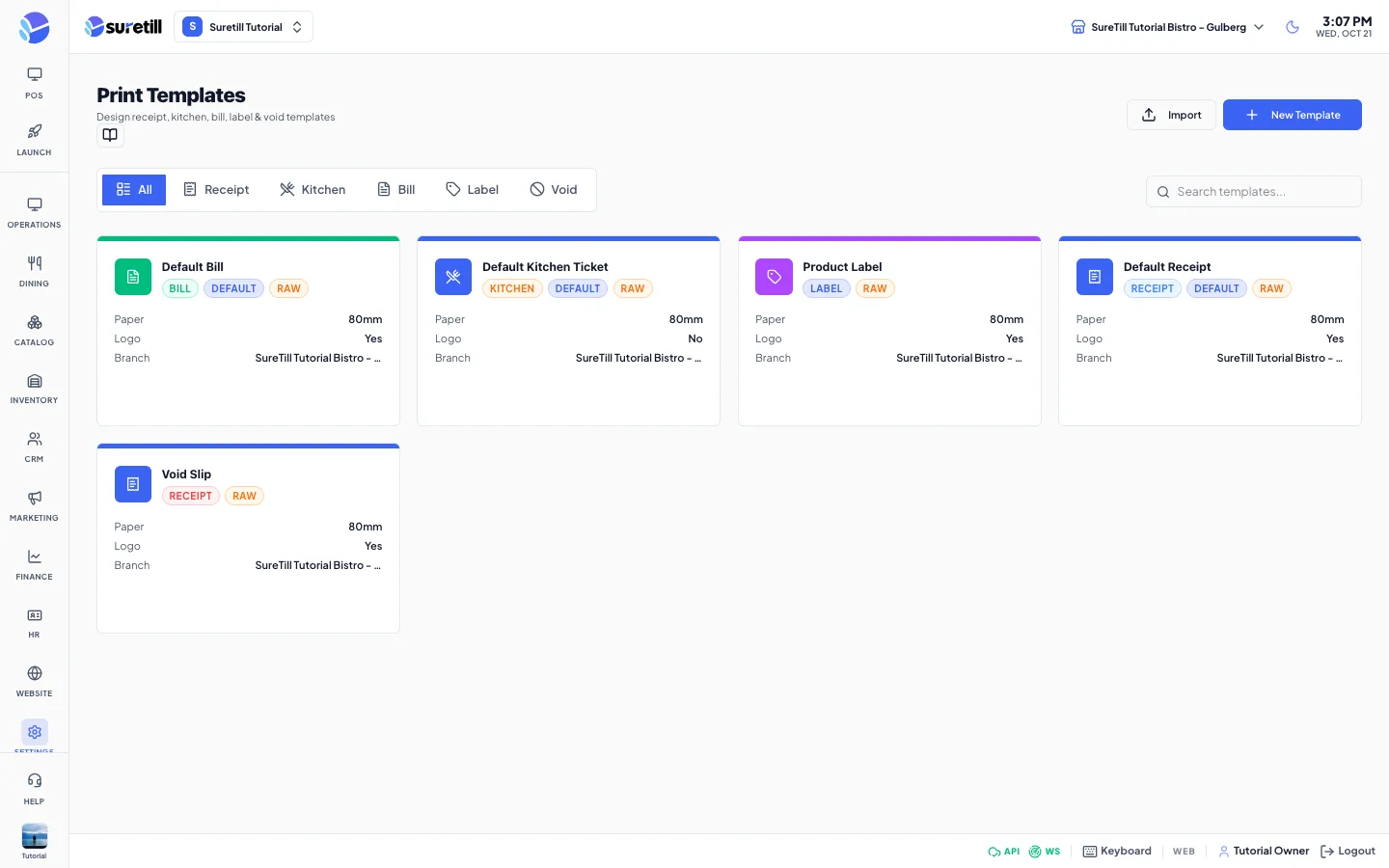
A print template decides the layout of a printed ticket. There is one template type per kind of paper: Receipt, Kitchen (KOT), Bill, Label and Void (KOT). When the POS prints, the server picks the template that fits the order and fills it with the real order data.
Which template is used
Section titled “Which template is used”- First, an active template of that type made for the department of the order (for example an Uber Eats department). It does not need to be the default.
- Then, the default active template of that type for the branch, without a department.
- Then, the default active template of that type for All Branches.
If none exists, the server uses its built-in layout. Each type of a branch has one default; making another template the default clears the old one.
Step by step
Section titled “Step by step”Create a template from a preset
Section titled “Create a template from a preset”- Open Settings > Print Templates and click New Template.
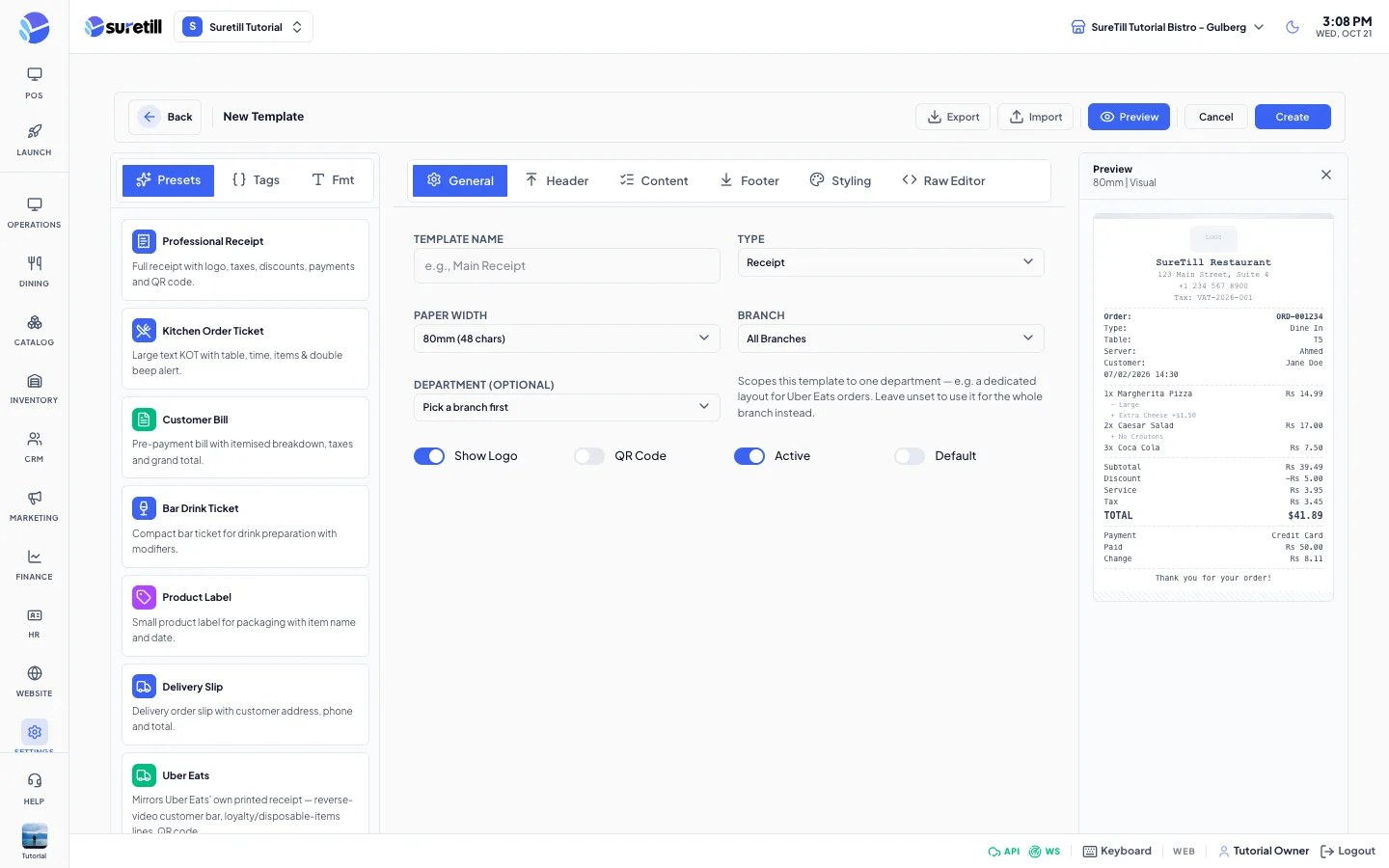
- In the left panel stay on the Presets tab and click one preset. If you already typed a raw template the app asks before it replaces it. The presets are Professional Receipt, Kitchen Order Ticket, Customer Bill, Bar Drink Ticket, Product Label, Delivery Slip, Uber Eats and DoorDash.
- The editor jumps to Raw Editor with the preset loaded and the type set. The preview on the right shows a sample receipt.
- On the General tab give the template a Template Name, choose the Branch and the Paper Width.
- Click Create. Open the card again later to change it and click Update.
Build a template with switches
Section titled “Build a template with switches”- Click New Template and fill in the General tab: name, type, paper width and branch.
- Use Header, Content, Footer and Styling to switch parts on and off. The preview updates at once.
- Leave Enable Raw Template off on the Raw Editor tab. Click Create.
Write a raw template
Section titled “Write a raw template”- Open the Raw Editor tab and switch on Enable Raw Template. This overrides the switches of the other tabs.
- Click a tag in the left panel to insert it where the cursor is. The Tags tab lists the data you can print, the Fmt tab the formatting commands and the Sec tab the section headers.
- Check the preview. It uses sample data and your store currency. The counter shows the number of lines and the characters per line (32 for 58mm paper, 48 for 80mm).
- Click Create or Update.
Duplicate, set as default, export, import, delete
Section titled “Duplicate, set as default, export, import, delete”- Hover a card to see its buttons: Edit, Duplicate (copy icon), Set default (star, hidden on the current default) and Delete (bin).
- Export in the editor saves a file named like My Receipt.openpos-template.json. Import loads such a file into the form so you can review it and save; on the list page it opens a new template in the editor with the content of the file.
- The only default template of a type, in a branch, cannot be deleted. Make another one the default first.
Writing a raw template
Section titled “Writing a raw template”A raw template is plain text. The part under [LAYOUT] is the ticket. The other sections describe how repeated lines look. A line that starts with two dashes is a comment and is not printed. A line or part of a line inside square brackets is printed only when the tags inside have a value, for example [<C00>Tel: {BRANCH PHONE}].
| Section | What it holds |
|---|---|
| [LAYOUT] | The main body of the ticket (required). |
| [ORDERS] | The line printed for each order item. [ORDERS:Gift] is for gift items, [ORDERS:Void] for voided items. |
| [ORDER TAGS] | Modifiers and add-ons under an item. |
| [ENTITIES:Table], [ENTITIES:Customer] | Table and customer lines (delivery and takeaway lines also exist in the presets). |
| [PAYMENTS], [DISCOUNTS], [SERVICES], [TAXES], [CHANGES] | One line per payment, discount, service charge, tax and change amount. |
| Command | What it does |
|---|---|
| <L>, <R>, <C> | Align left, right or centre. Add two digits for the font size, for example <C10> is double height and <C11> is double height and width. |
| <J> | Justify: text before the \ |
| <T> | Like J, with dots between the two parts. |
| <F> | Fill the whole row with the character that follows, for example <F>-. |
| <EB> and <DB> | Bold on and bold off. |
| <BEEP> | Sound the printer buzzer. |
| <BMP> and <BMP:NN> | Print the logo at full width or at NN percent of the paper width. |
| <FB:NN>, <FBB:NN>, <FBI:NN>, <FBBI:NN> | Print text as a picture with a real font of NN pixels: normal, bold, inverse (white on black) and bold inverse. |
| <QR> and <BC> | Print the text or tag on that line as a QR code or a Code128 barcode. |
| <W> | Wait 10 milliseconds. |
Tags are in capital letters inside curly brackets. The Tags tab groups them: General (ticket number, date, time, order type, branch name, address, phone, tax ID, user name, note, footer message), Totals (subtotal, discount, tax, service, tip, delivery fee, ticket total, paid, change, remaining), Items, Modifiers, Payments, Discounts, Taxes, Entities and Delivery Platforms. Use the search box in that tab to find one.
Every setting explained
Section titled “Every setting explained”| Setting | What it does |
|---|---|
| Filter tabs (list) | All, Receipt, Kitchen, Bill, Label, Void. The search box filters by name or type. |
| Card badges | Type, Default, Off (inactive) and Raw (uses a raw template). |
| Template Name | Required, up to 255 characters. |
| Type | Receipt, Kitchen (KOT), Bill, Label or Void (KOT). |
| Paper Width | 58mm (32 characters per line) or 80mm (48 characters per line). |
| Branch | All Branches or one branch. |
| Department (optional) | Pick a branch first. Ties the template to one department, for example a special layout for Uber Eats orders. Empty means the whole branch. |
| Show Logo, QR Code, Active, Default | Switches on the General tab. Inactive templates are never used. QR Code adds a QR Content field on the Footer tab (up to 500 characters). |
| Header tab | Switches for Branch Name, Address, Phone, Tax ID and Logo; Alignment (left, center, right); Logo Size (small, medium, large); Logo File with an Upload button (bmp, png, jpg or jpeg, up to 2 MB). |
| Content tab: Order Info | Order number, type, table, server, date and time, customer, phone, address, department. |
| Content tab: Items | Quantity, unit price, total, modifiers, notes, portion, gift items, void items. |
| Content tab: Totals | Subtotal, discount, discount percent, tax, tax detail, service, delivery, tip, grand total. |
| Content tab: Payment | Payment method, paid, change and tip. Shown only for Receipt and Bill templates. |
| Footer tab | Footer Message, Custom Text (for example the Wi-Fi password), Website and Social Media switches, Beep on Print with a count of 1, 2, 3 or 5 beeps, and QR Content. |
| Styling tab | Font Size (small, normal, large), Line Spacing (tight, normal, loose), Header Font (normal, large, x-large), Separator (none, solid, dashed, dotted) and Bold Grand Total. |
| Raw Editor tab | Enable Raw Template and the text box. |
| Preview | Shows a sample ticket at the chosen paper width. Switch it off with the Preview button. |
| Export, Import, Cancel, Create / Update | Save to file, load from file (editor), leave without saving, store the template. |