

Stock Levels (inventory)
Where: Inventory > Stock Levels
Who can use it: Permission inventory.view or manage inventory.
Open this page in SureTill
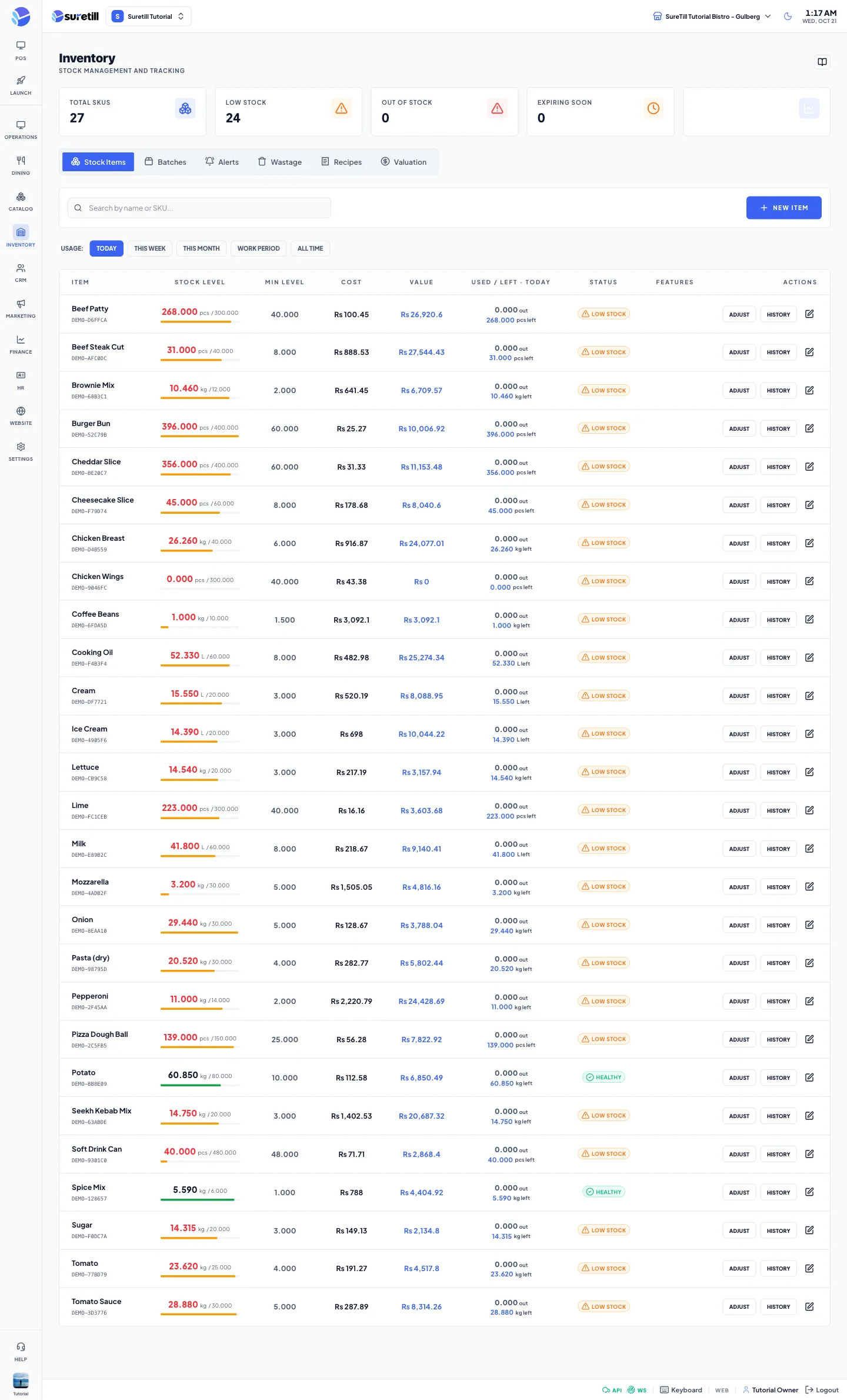
Stock Levels is the stock ledger of your branch. Every change to a stock item, whether it is a sale, a delivery, a count or a loss, is written as a row in a history. The number you see is always the last balance of that history.
How stock changes (the ledger)
Section titled “How stock changes (the ledger)”- Every change goes through one routine that locks the item, updates the balance and writes the history row together. The history row always shows the balance before and after.
- Sales are taken from stock when the line is sent to the kitchen (KDS) or when its kitchen ticket prints. At payment a safety net deducts any line that was missed. Each line is deducted only once, even if the order is sent again.
- If a dish quantity is changed after it was sent, only the difference moves. If an item is removed, what the ledger took out is put back.
- Void or cancel before the food was made: the stock goes back. Cancel an order with the waste option and the food was made: stock stays out and a costed wastage record is written.
- A refund that returns the goods to the shelf puts back a share of what the line took out, never more than the line took.
- Uber Eats orders are deducted when they arrive in the POS.
- Sales are allowed to push a balance below zero. A negative balance means you sold more than you booked in. It is shown in red with a NEGATIVE badge and raises a critical alert. Book the delivery or do a stock count to fix it.
- Reversals use the history, not the current recipe. If you change a recipe later, old orders still return exactly what they took.
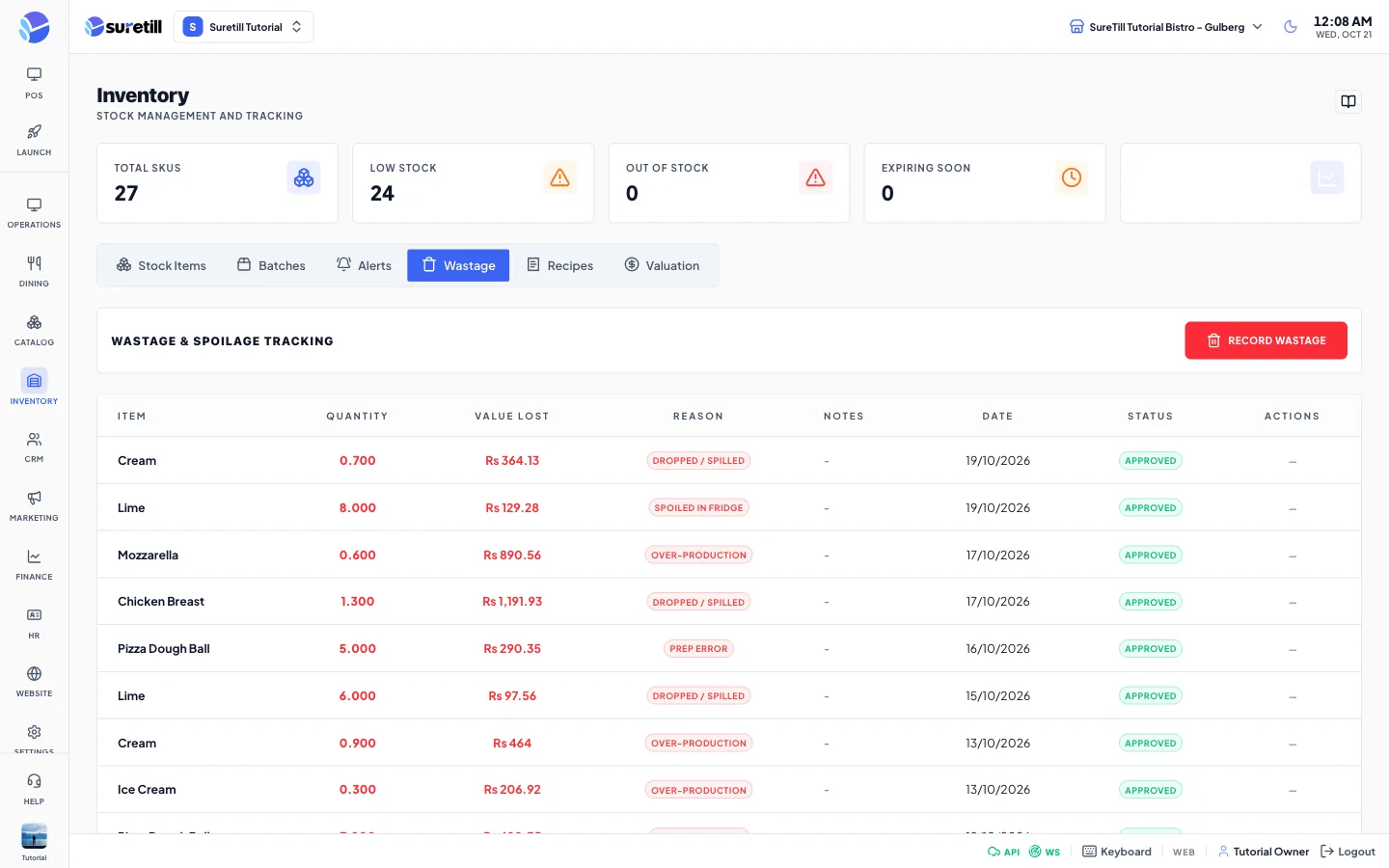
The summary cards
Section titled “The summary cards”| Card | What it counts |
|---|---|
| Total SKUs | The number of stock items loaded on the page (up to 200). |
| Low Stock | Items above zero that are at or below their Min Level. |
| Out of Stock | Items at exactly zero. |
| Expiring Soon | Batches with an expiry date within the next 30 days. |
| Total Value | Stock on hand times cost per unit, added up. |
Stock Items tab
Section titled “Stock Items tab”Search by name or SKU. The Usage buttons (Today, This Week, This Month, Work Period, All Time) set the period for the Used / Left column. Today is the default. With Work Period you pick a shift from the list.
| Column | What it shows |
|---|---|
| Item | Name and SKU. |
| Stock Level | Balance with the unit, the Max Level if set, and a bar. |
| Min Level | The alert level. |
| Cost | Cost per unit. |
| Value | Balance times cost. |
| Used / Left | For the period: how much went out (with sold and waste split), how much came in, adjustments, and the balance left now. |
| Status | Healthy, Low Stock (at or below Min Level, which includes negative balances) or Out of Stock (exactly zero). |
| Features | BATCH, EXPIRY and AUTO badges for items that have those options on. |
| Actions | Adjust, History and Edit. |
Step by step: add a stock item
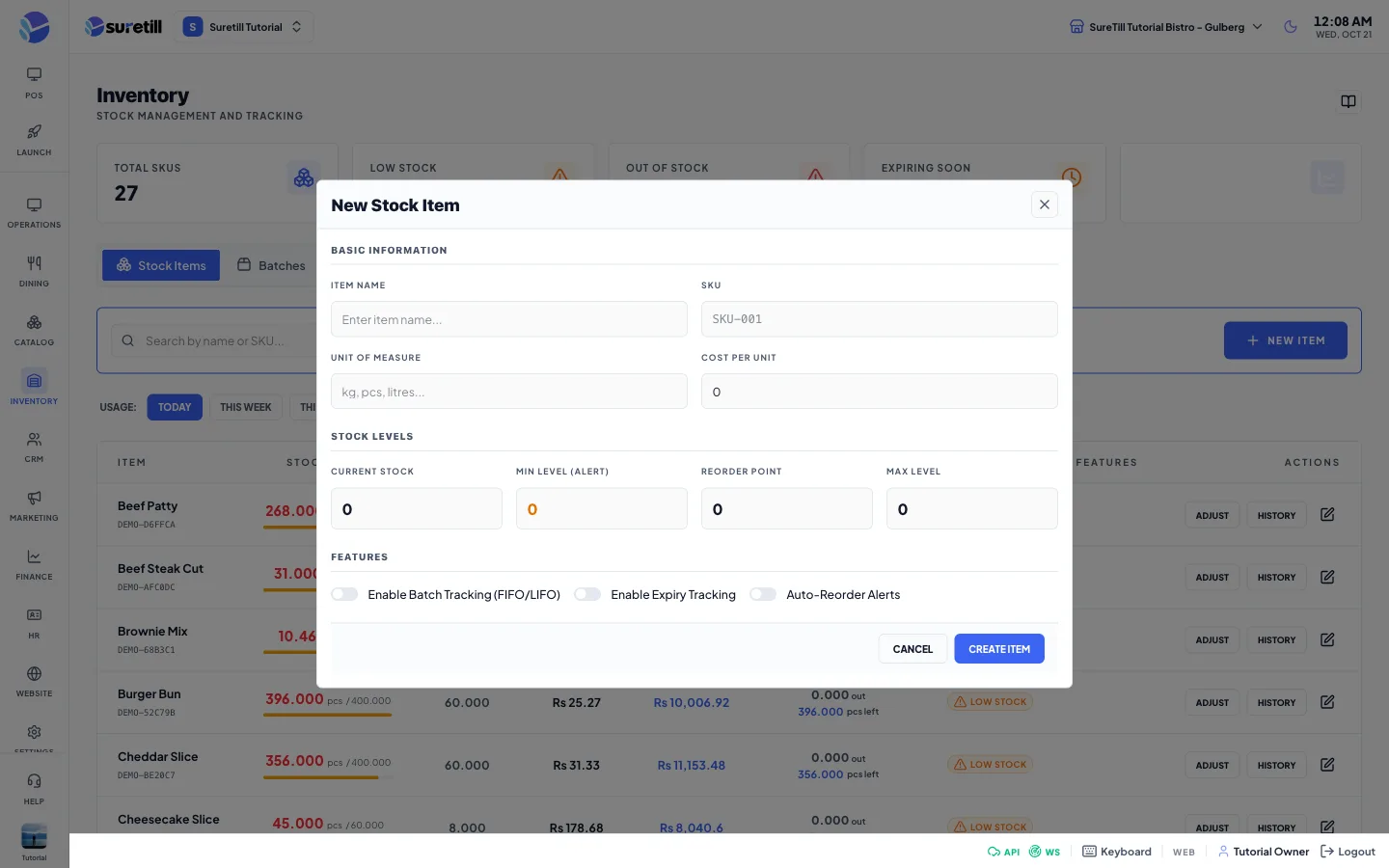
Section titled “Step by step: add a stock item”- Click New Item.
- Type the Item Name, SKU, Unit of Measure (for example kg, pcs or litres) and Cost Per Unit.
- Type Current Stock. This becomes the opening balance, and the history starts with an Opening entry.
- Type Min Level (Alert) and Max Level.
- Click Create Item.
Step by step: edit a stock item
Section titled “Step by step: edit a stock item”- Click the pencil on the row.
- Change the name, SKU, cost, Min Level, Reorder Point, Max Level or the three switches (Batch Tracking, Expiry Tracking, Auto-Reorder Alerts), and click Update Item.
- If you change the Unit, the balance and the levels are converted to the new unit when the two units are compatible (kg to g multiplies by 1000). The history gets a zero-effect Unit change entry. Weight to volume is refused.
Step by step: adjust or count stock
Section titled “Step by step: adjust or count stock”- Click Adjust on the row.
- Choose the type. Add puts the quantity in. Remove takes it out and is refused if you try to remove more than is on hand. Adjustment is a stock count: the balance becomes the number you type.
- Type the Quantity in the item unit as a positive number. For Add and Remove it is the amount to put in or take out, and it cannot be zero. For Adjustment it is the counted balance and it cannot be negative.
- Type a Reason and click Apply.
Step by step: read the history of an item
Section titled “Step by step: read the history of an item”- Click History on the row.
- Choose This Week (default), Today, This Month, Work Period or All.
- Read OPEN, IN, OUT and CLOSE at the top, then the rows.
| Column | Meaning |
|---|---|
| Type | in, out, adjustment, transfer or waste. |
| Ref | Where it came from: Sale, Qty change, Void/restock, Purchase, Transfer, Wastage, Opening, Adjust, Unit change or Batch. |
| Qty | Signed amount: plus is in, minus is out. |
| Balance After | The balance after this row. Red when it is below zero. |
| Reason | For a sale it names the order number and the dish. |
| By | The user who caused it. |
| Date & Time | When it happened. |
The window shows up to 150 rows for the period.
Batches tab
Section titled “Batches tab”A batch is one delivery with its own cost and expiry date. Adding a batch also adds the quantity to the item balance and updates the average cost.
- Click Add Batch.
- Pick the Stock Item and type the Batch Number, Quantity and Cost Per Unit.
- Pick the Received Date and, if it expires, the Expiry Date.
- Click Create Batch.
The table shows Batch #, Item, Quantity left over the original quantity, Cost/Unit, Received, Expires (red when passed, highlighted inside 7 days) and Status (active, expired).
Alerts tab
Section titled “Alerts tab”Shows the stock alerts. You can Acknowledge or Resolve each one. The Stock Alerts article explains every alert type.
Wastage tab
Section titled “Wastage tab”Wastage is stock you lost: expired, damaged, spoiled, stolen or other. A record does not change the balance until a manager approves it.
- Click Record Wastage.
- Pick the Stock Item, type the Quantity Wasted and pick the Reason: Expired, Damaged, Spoiled, Theft/Shrinkage or Other. Add Notes.
- Click Record Wastage. The record shows as Pending.
- Click Approve to take the quantity out of stock and write a Wastage row in the history. Click Reject to delete the record with no change to stock.
Value Lost is the quantity times the cost per unit at the time you recorded it.
Recipes tab
Section titled “Recipes tab”A read-only view of your recipes with the first five ingredients each. Edit recipes in Catalog > Recipes.
Valuation tab
Section titled “Valuation tab”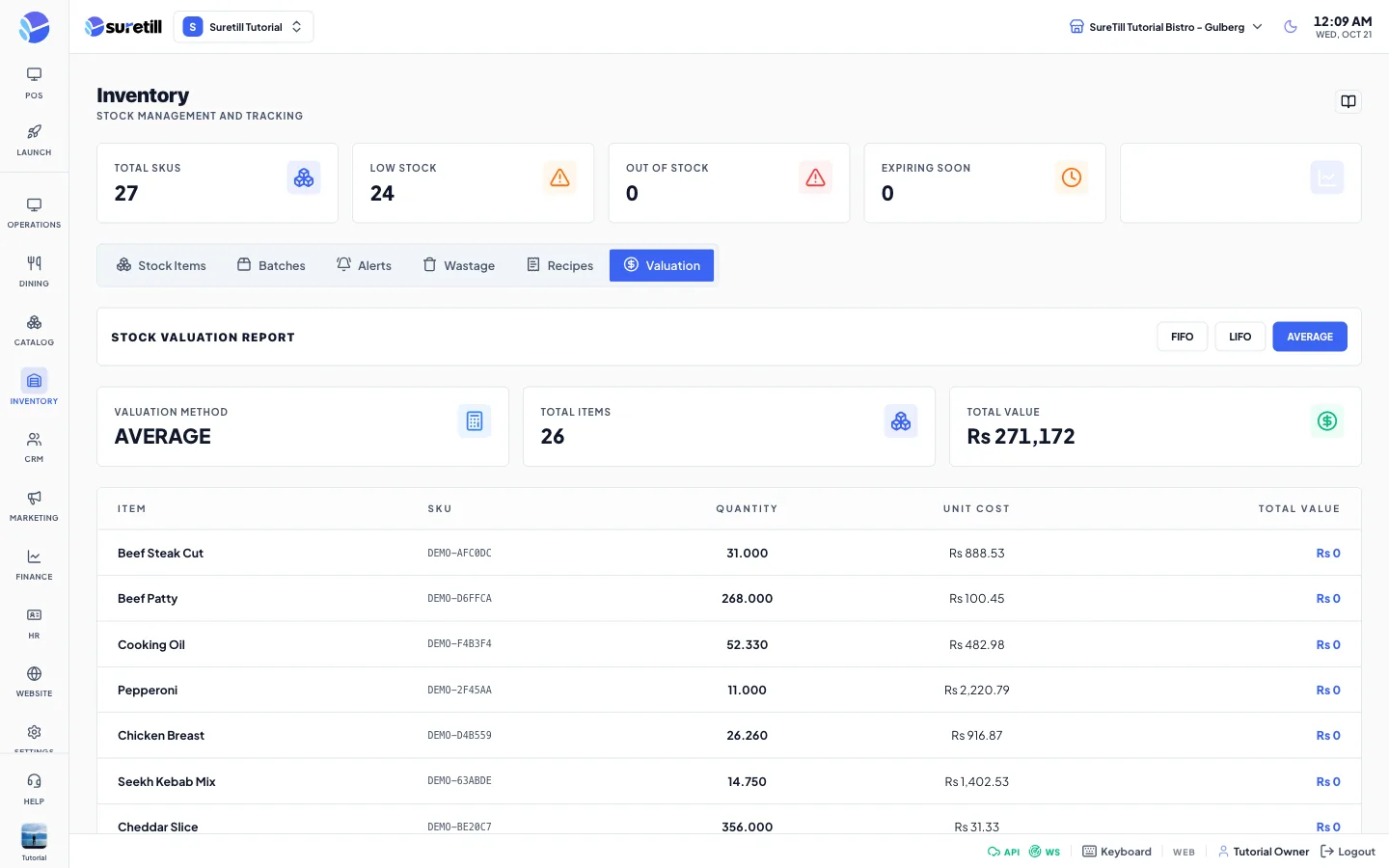
Choose the method: average, fifo or lifo. Total Value and Total Items appear in cards. Average uses the stock on hand times the average cost. FIFO and LIFO add up the quantity left in each active batch times that batch cost, so items without batches count as zero with those two methods. Items at or below zero stock are not included.
The table lists each item with its quantity, unit cost and Total Value, biggest value first.
Every setting explained
Section titled “Every setting explained”| Setting | What it does |
|---|---|
| Item Name | The name of the ingredient or product. |
| SKU | Your stock code. |
| Unit of Measure | kg, pcs, litres and so on. Recipes convert into this unit. |
| Cost Per Unit | Used for Value, margins and wastage value. Receiving a batch or purchase order recalculates it as a weighted average. |
| Current Stock | Opening balance of a new item. Read only on an existing item: use Adjust. |
| Min Level (Alert) | At or below this number the item is Low Stock and a low-stock alert is raised. |
| Reorder Point | The level that raises a reorder alert when auto-reorder is on for the item. |
| Max Level | Shown next to the balance and used as a safety ceiling for recipe deductions. |
| Batch Tracking (FIFO/LIFO) | When on for an item, sales also reduce the oldest batches first. |
| Expiry Tracking | Watches batch expiry dates. |
| Auto-Reorder Alerts | Raises a reorder alert at the reorder point. |
| Adjustment Type | Add, Remove or Adjustment (count). |
| Quantity, Reason | The amount in the item unit, and why. Up to 500 characters. |
| Usage period | Today, This Week, This Month, Work Period, All Time for the Used / Left column. |
| History period | Today, This Week, This Month, Work Period, All for the history window. |
| Batch fields | Stock Item, Batch Number, Quantity, Cost Per Unit, Received Date, Expiry Date (optional). |
| Wastage fields | Stock Item, Quantity Wasted, Reason, Notes. |
| Valuation method | average, fifo or lifo. |